> ## Documentation Index
> Fetch the complete documentation index at: https://docs.macstadium.com/llms.txt
> Use this file to discover all available pages before exploring further.
# Private Cloud VM restorable snapshots
> Create and restore point-in-time snapshots of MacStadium Private Cloud VMs or entire instances. Supports both scheduled and on-demand snapshot management.
## Snapshots
A snapshot is a restorable point-in-time copy of a VM or Private Cloud storage. Snapshots can be used to revert either individual virtual machines, or an entire Private Cloud instance back to the snapshotted state. Snapshots can be run either as part of a schedule or on-demand.
Snapshots are particularly useful in the event of a misconfigured environment, as restoring from a cloud snapshot can revert the entire environment to its previous state.
There are two types of snapshots:
* **Cloud Snapshot**: a snapshot of an entire Private Cloud instance.
* **VM Snapshot**: a snapshot of an individual Virtual Machine.
### Snapshot Profiles
Snapshots are created by using snapshot profiles. Once a snapshot profile is set up, it can be set to automatically snapshot machines on a regular basis according to stored schedules. The retention period, frequency, and machines snapshotted are all configurable. A snapshot profile can be assigned to an entire Private Cloud, an individual VM, or a NAS volume.
Private Cloud includes multiple default snapshot profiles that can be used out of the box or modified as needed. You can also create new snapshot profiles from scratch.
**Default Snapshot Profiles**
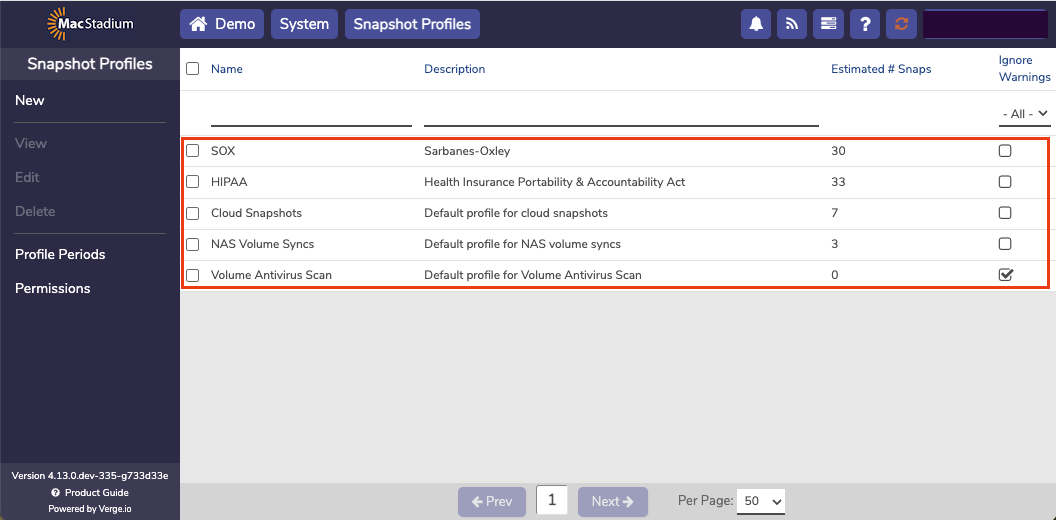
Default profiles are readily available and can be modified if needed. The following are default snapshot profiles:
* **SOX (Sarbanes-Oxley)**
* Yearly snapshots retained for 7 years
* Monthly snapshots retained for 1 year
* Weekly snapshots retained for 31 days
* Daily snapshots retained for 7 days
* **HIPAA (Health Insurance Portability & Accountability Act)**
* Yearly snapshots retained indefinitely (no expiration)
* Monthly snapshots retained for 1 year
* Weekly snapshots retained for 31 days
* Daily snapshots retained for 7 days
* **NAS Volume Syncs**
* Daily (at 6pm) snapshots retained for 3 days
* **Cloud Snapshots** (suggested default profile for entire-system snapshots)
* Hourly for 3 hours
* Daily (at midnight) snapshots retained for 3 days
* Daily (at noon) snapshots retained for 1 day
Any of the default profiles can be modified to meet individual needs or requirements.
### Using a Default Snapshot Profile
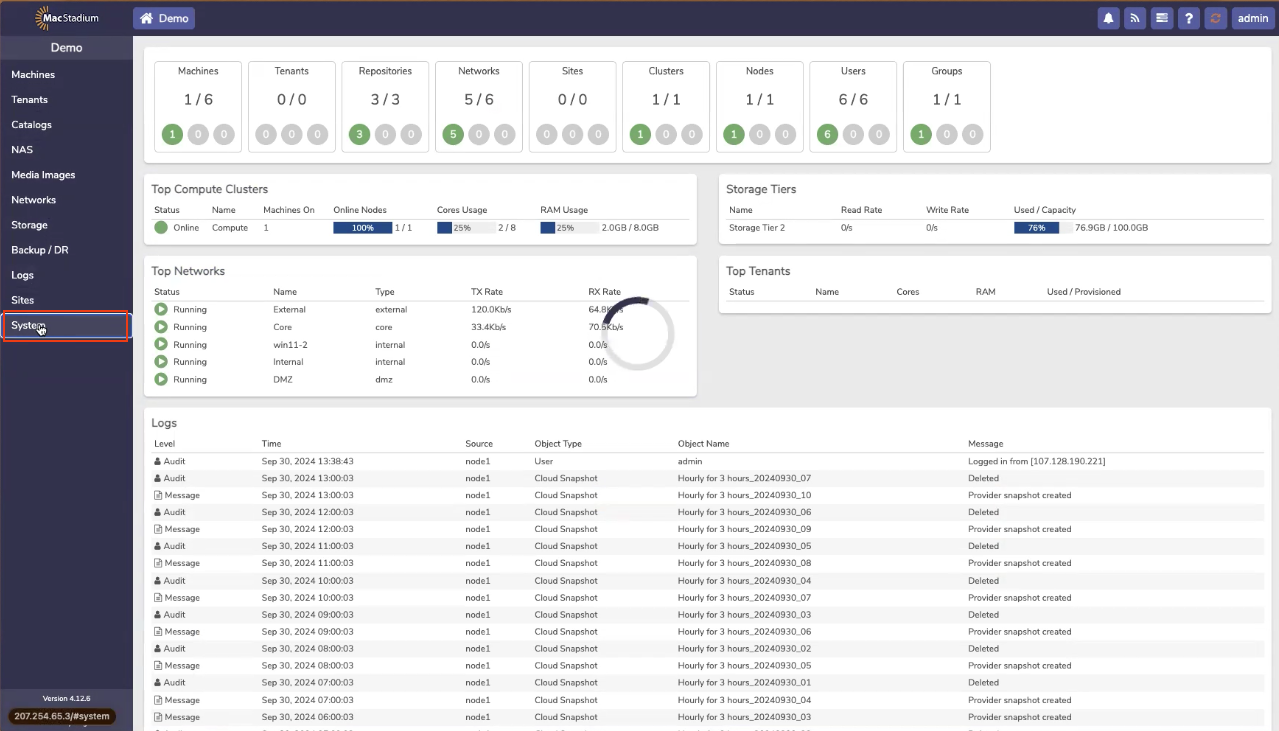
1. Click **System**.
 2. Click **Snapshot Profiles** and a list of default snapshot profiles appears.
 3. In this example, we'll show the SOX profile, which was created for compliance focused orgs, but MacStadium recommends Cloud Snapshots for normal use cases.
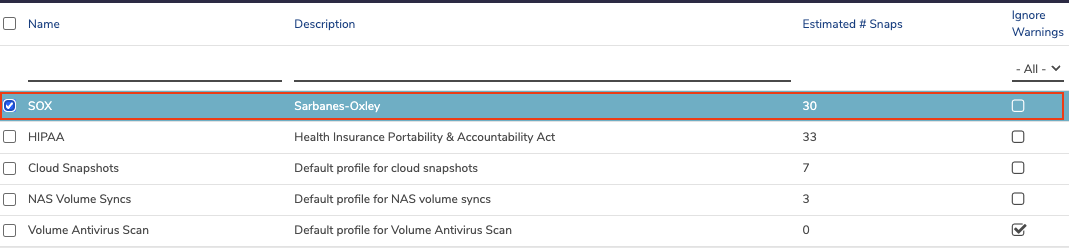 4. Double-click SOX row, and the **SOX Snapshot Profile** opens.
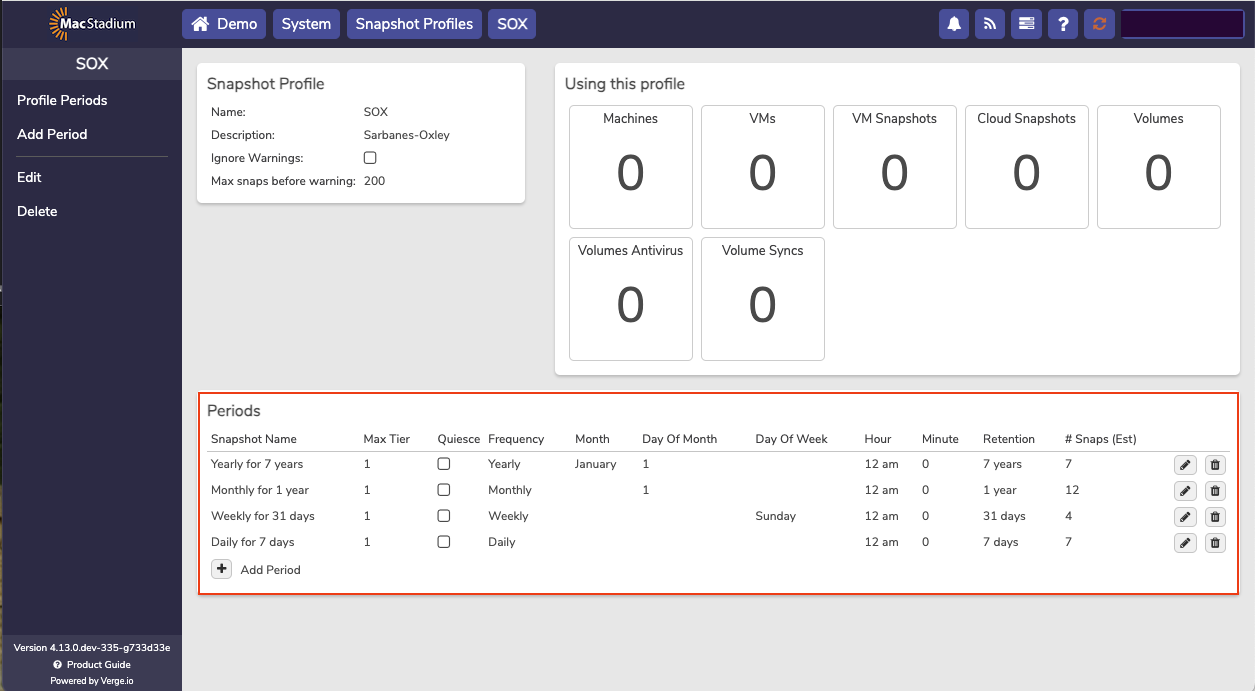 The default SOX snapshot profile has 4 periods:
* A snapshot is taken Daily. It is retained for 7 Days.
* A snapshot is taken Weekly. It is retained for 4 Weeks.
* A snapshot is taken Monthly. It is retained for 1 year.
* A snapshot is taken Yearly. It is retained for 7 years.
There is a **+ Add Period** button, which can be used to add more snapshots. For example, a user might want an hourly snapshot or a 6-hour snapshot. The retention time can also be set.
5. In this example, click **+ Add Period** to modify the existing default snapshot profile. The **Snapshot Profile Period** screen opens.
The default SOX snapshot profile has 4 periods:
* A snapshot is taken Daily. It is retained for 7 Days.
* A snapshot is taken Weekly. It is retained for 4 Weeks.
* A snapshot is taken Monthly. It is retained for 1 year.
* A snapshot is taken Yearly. It is retained for 7 years.
There is a **+ Add Period** button, which can be used to add more snapshots. For example, a user might want an hourly snapshot or a 6-hour snapshot. The retention time can also be set.
5. In this example, click **+ Add Period** to modify the existing default snapshot profile. The **Snapshot Profile Period** screen opens.
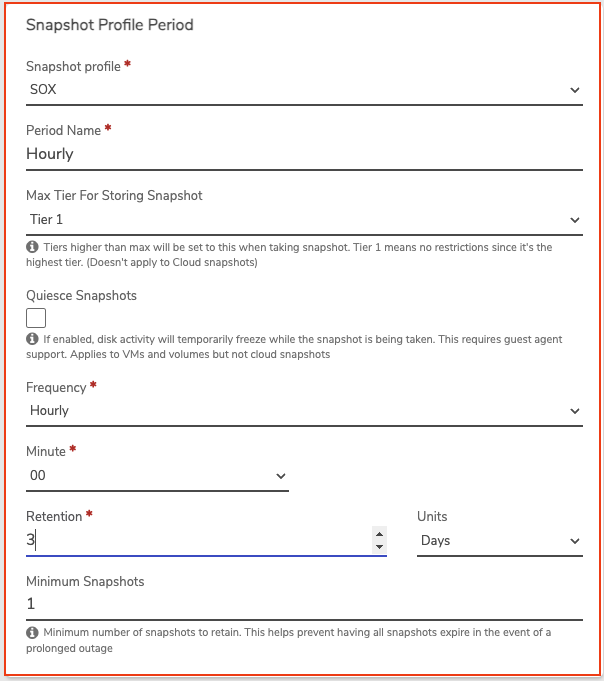 In this example, an hourly snapshot profile is created and the retention period is 3 days. This means every hour a snapshot is taken, and then it is kept for 3 days, causing 72 snapshots to be stored.
6. Click **Submit** to create the new snapshot profile.
In this example, an hourly snapshot profile is created and the retention period is 3 days. This means every hour a snapshot is taken, and then it is kept for 3 days, causing 72 snapshots to be stored.
6. Click **Submit** to create the new snapshot profile.
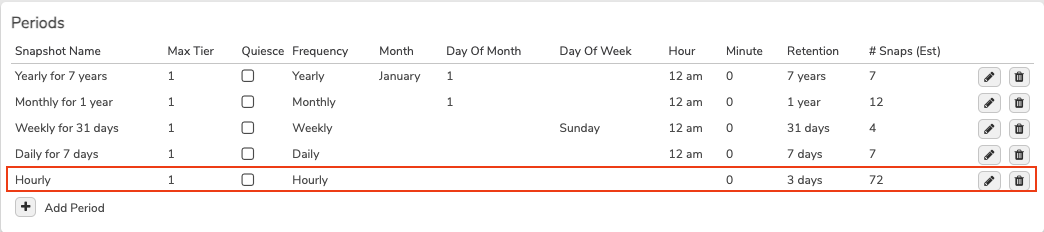 This snapshot profile now has the following snapshots:
* Hourly
* Daily
* Weekly
* Monthly
* Yearly
Depending on individual needs and circumstances, this snapshot might be capturing too much or too little data. But it is important to remember that snapshots can be modified as needed, and starting with a default snapshot profile might be helpful.
For new users who do not have any snapshot profiles assigned, MacStadium recommends enabling the default Cloud Snapshots profile for Cloud snapshots. This profile stores 3 days of snapshots at varying frequencies, enabling recovery to a recent state in the event of a misconfiguration.
### Cloud Snapshots
The Cloud Snapshot profile determines the schedule used for creating snapshots of the entire system. MacStadium recommends setting a Cloud Snapshot profile for most Private Cloud instances.
Scheduled Cloud Snapshots are disabled by default. To enable cloud snapshots, navigate to **System → Cloud Snapshots** and select the snapshot profile to use.
If a Cloud Level Snapshot is configured, individual VM snapshots may not be needed. Cloud Snapshots include every VM and volume in a Private Cloud instance, and are taken in addition to VM snapshots.
#### Enabling Cloud Snapshots
1. From the main dashboard, click **System** on the left menu.
This snapshot profile now has the following snapshots:
* Hourly
* Daily
* Weekly
* Monthly
* Yearly
Depending on individual needs and circumstances, this snapshot might be capturing too much or too little data. But it is important to remember that snapshots can be modified as needed, and starting with a default snapshot profile might be helpful.
For new users who do not have any snapshot profiles assigned, MacStadium recommends enabling the default Cloud Snapshots profile for Cloud snapshots. This profile stores 3 days of snapshots at varying frequencies, enabling recovery to a recent state in the event of a misconfiguration.
### Cloud Snapshots
The Cloud Snapshot profile determines the schedule used for creating snapshots of the entire system. MacStadium recommends setting a Cloud Snapshot profile for most Private Cloud instances.
Scheduled Cloud Snapshots are disabled by default. To enable cloud snapshots, navigate to **System → Cloud Snapshots** and select the snapshot profile to use.
If a Cloud Level Snapshot is configured, individual VM snapshots may not be needed. Cloud Snapshots include every VM and volume in a Private Cloud instance, and are taken in addition to VM snapshots.
#### Enabling Cloud Snapshots
1. From the main dashboard, click **System** on the left menu.
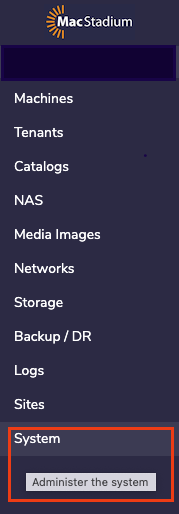 2. Click **Cloud Snapshots** from the left menu and you'll see the list of Snapshots.
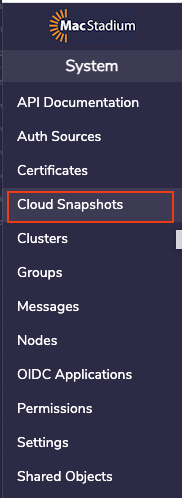
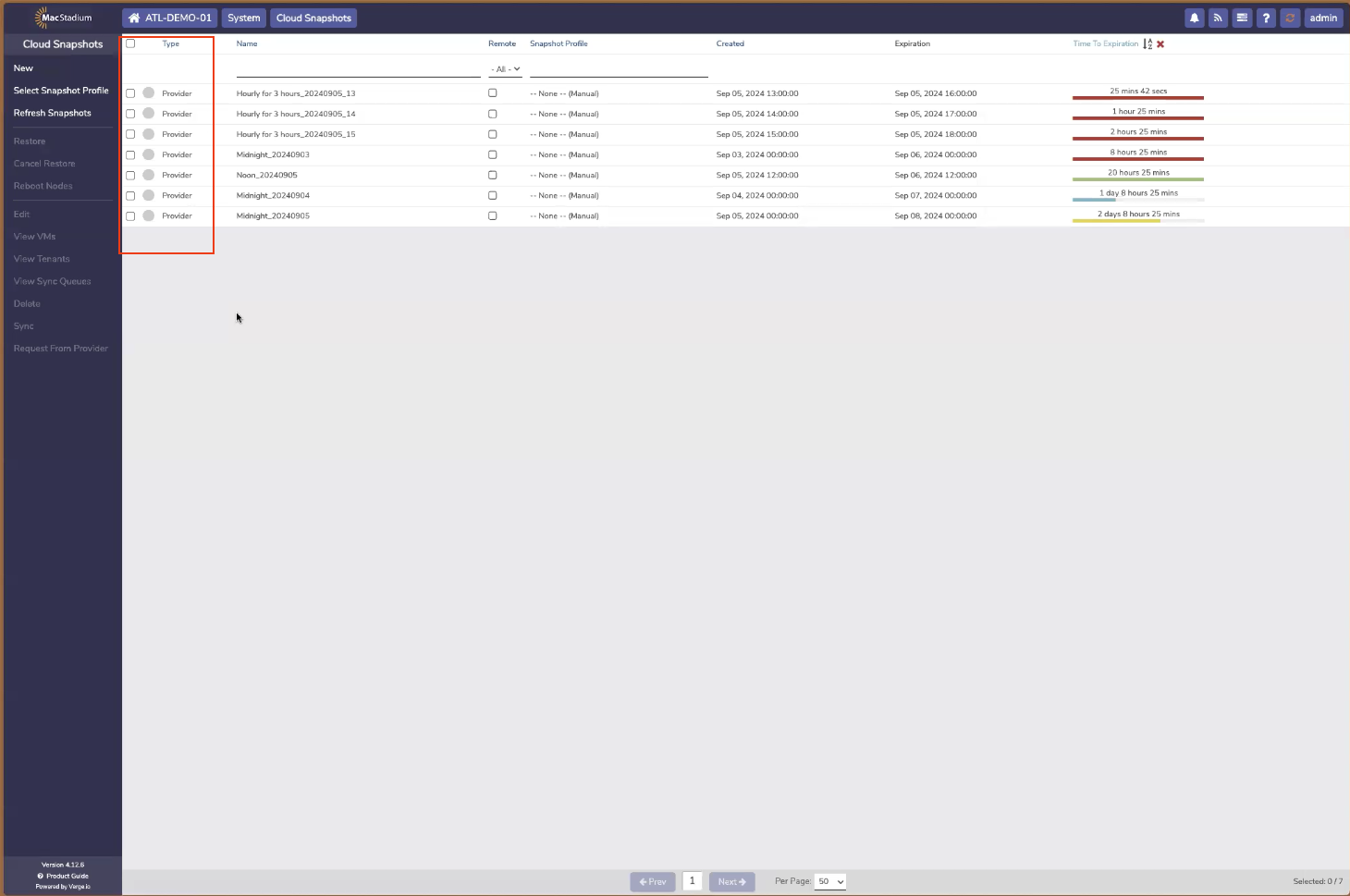 3. Click **Select Snapshot Profile** from the left menu.
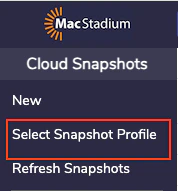 4. Select desired **snapshot profile** from the dropdown list.
* The default Cloud Snapshots profile is recommended as a starting point for Cloud Snapshots.
5. Click **Submit** at the bottom of the page.
4. Select desired **snapshot profile** from the dropdown list.
* The default Cloud Snapshots profile is recommended as a starting point for Cloud Snapshots.
5. Click **Submit** at the bottom of the page.
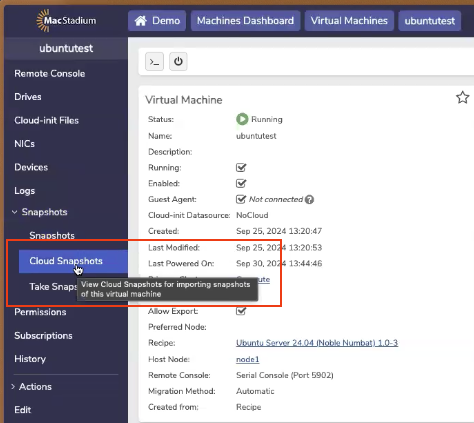
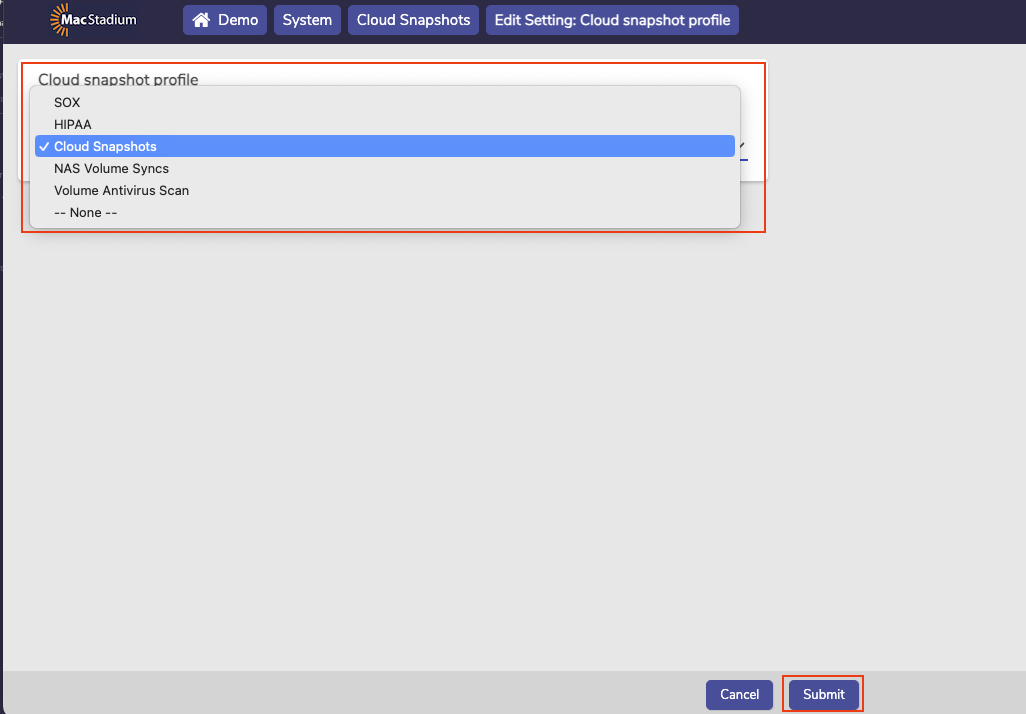 Once a Cloud Snapshot has been created, it can be viewed by clicking **Snapshot → Cloud Snapshots.**
 ### Manually Creating a Cloud Snapshot
1. From the main dashboard, click **System** from the left menu.
2. Select **Cloud Snapshots**.
3. Select **New** from the left menu.
### Manually Creating a Cloud Snapshot
1. From the main dashboard, click **System** from the left menu.
2. Select **Cloud Snapshots**.
3. Select **New** from the left menu.
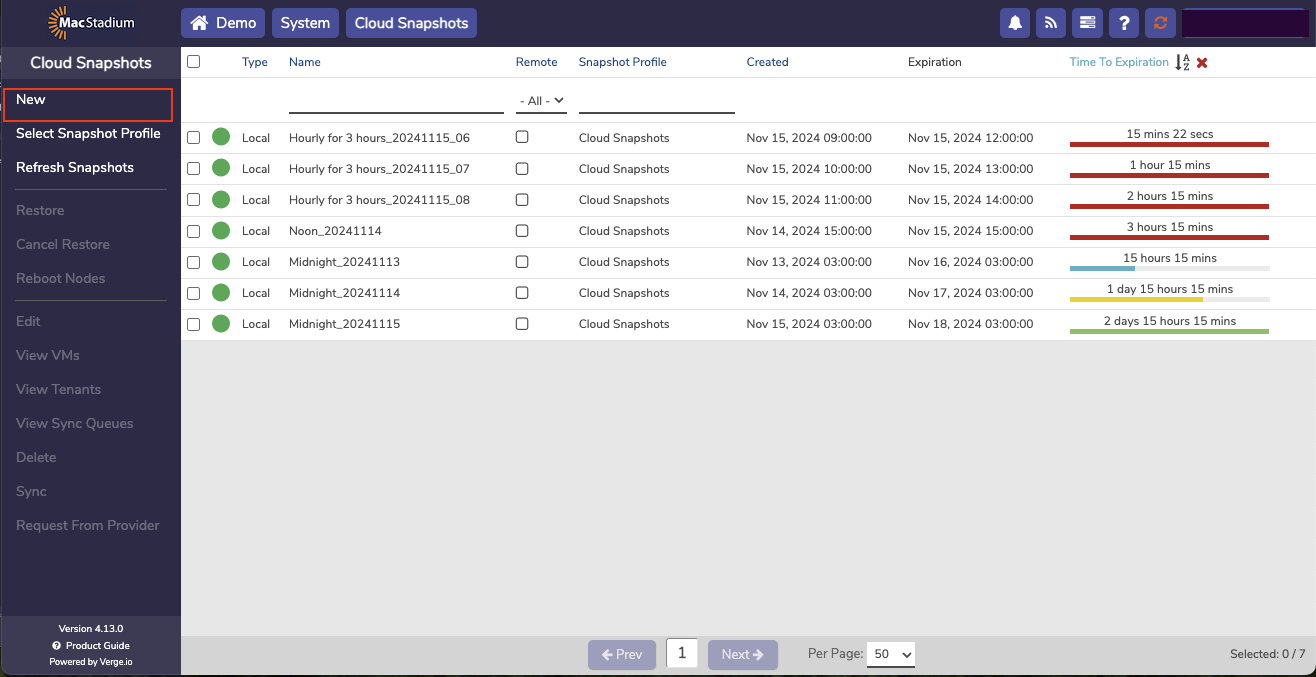 4. Fill in the form:
* **Name** (required): enter a name for the snapshot.
* **Description** (optional): enter a description.
* **Expires**: select a date and time for expiration.
* **Expiration Type**: you can select **Never Expire**, but this is not recommended. Snapshots without an expiration can consume substantial amounts of storage.
4. Fill in the form:
* **Name** (required): enter a name for the snapshot.
* **Description** (optional): enter a description.
* **Expires**: select a date and time for expiration.
* **Expiration Type**: you can select **Never Expire**, but this is not recommended. Snapshots without an expiration can consume substantial amounts of storage.
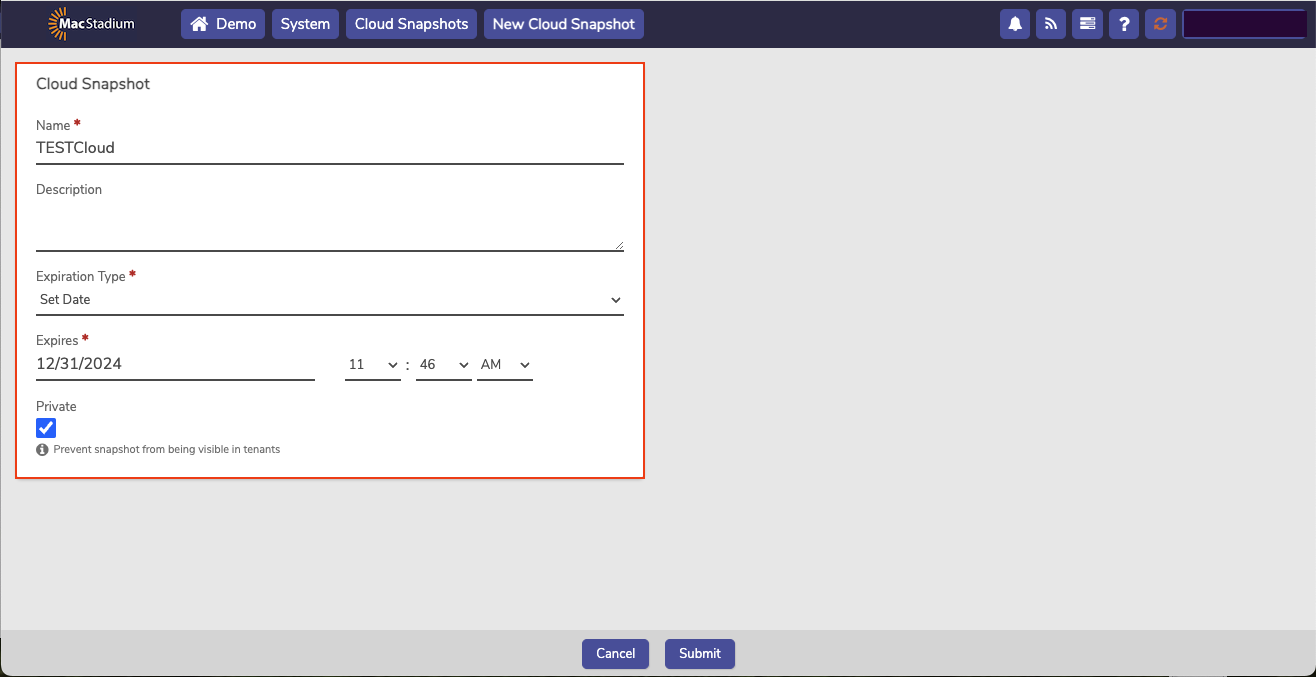 5. The **Private** checkbox is selected by default. This option pertains to multitenancy and can be ignored in most cases.
6. Click **Submit**.
### Managing Profiles for Scheduled Snapshots
These profiles pertain to any snapshot that uses them.
1. From the main dashboard, click **System** from the left menu.
5. The **Private** checkbox is selected by default. This option pertains to multitenancy and can be ignored in most cases.
6. Click **Submit**.
### Managing Profiles for Scheduled Snapshots
These profiles pertain to any snapshot that uses them.
1. From the main dashboard, click **System** from the left menu.
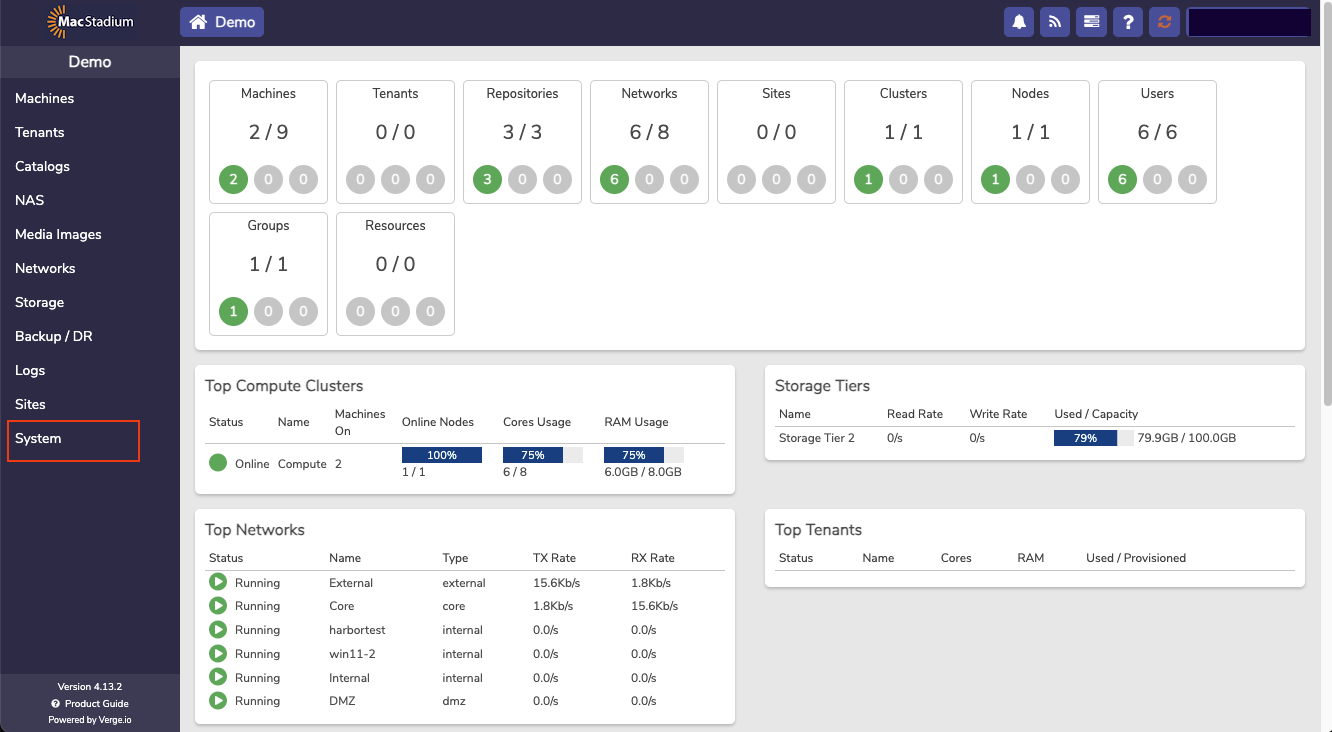 2. Click **Snapshot Profiles** from the left menu.
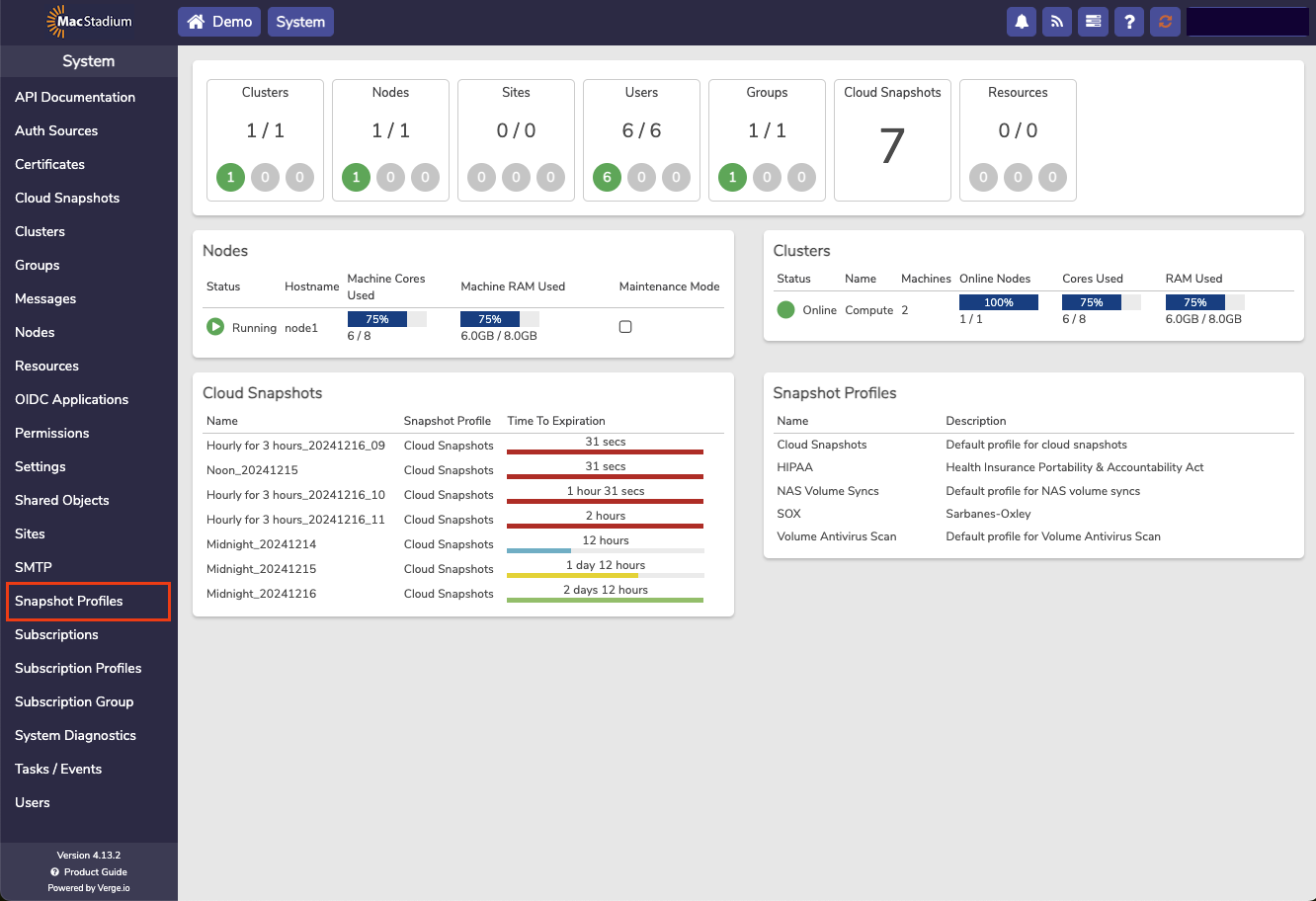 3. Click the desired snapshot profile.
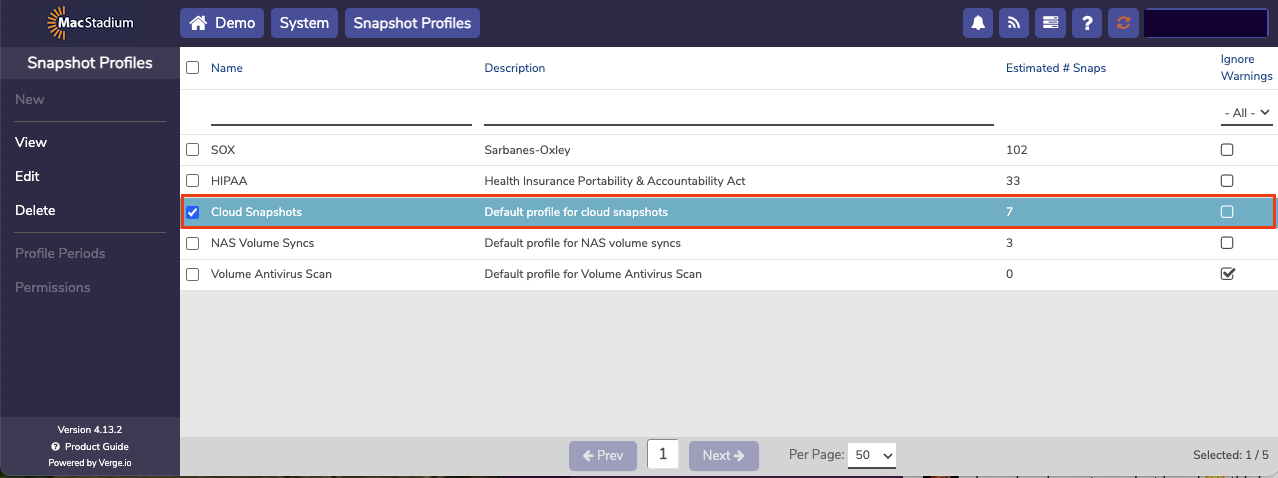 4. Click **View**.
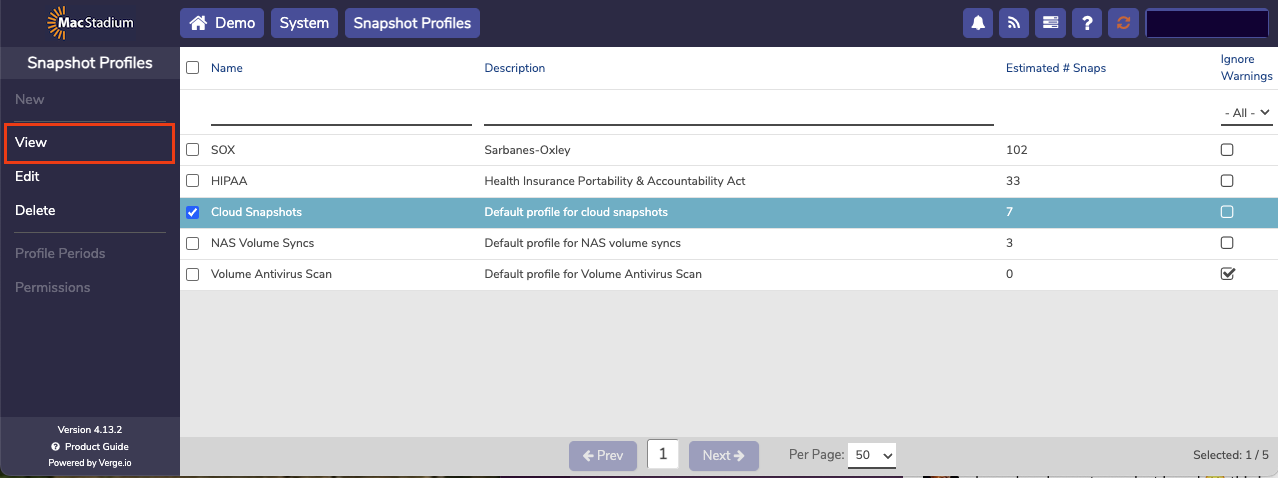 The dashboard for the selected profile opens.
* To add periods to the profile click the **+Add Period** link. (A snapshot profile can contain multiple periods.)
* To modify an existing period: click the (pencil icon) to the far right.
* To remove existing periods: click the (trash can icon) to the far right.
The dashboard for the selected profile opens.
* To add periods to the profile click the **+Add Period** link. (A snapshot profile can contain multiple periods.)
* To modify an existing period: click the (pencil icon) to the far right.
* To remove existing periods: click the (trash can icon) to the far right.