> ## Documentation Index
> Fetch the complete documentation index at: https://docs.macstadium.com/llms.txt
> Use this file to discover all available pages before exploring further.
# Creating a New VM with a Recipe
> Create a Private Cloud VM from a MacStadium recipe: a template that pre-configures OS, apps, network, and storage. Recommended over manual VM creation.
You can create a new VM using a predefined recipe. Recipes are VM image templates that allow the automated creation of a new preconfigured VM with the selected operating system, applications, and configuration information. Recipes are quick and convenient, and may be preloaded with various software configurations.
To enable configuration, recipes include questions about each instance, such as the desired network configuration, username and password, in addition to standard VM parameters such as drive size or amount of RAM.
MacStadium recommends using a recipe when deploying a new VM, especially for users new to this process. Recipes ensure that VMs are configured optimally for operation within Private Cloud, and are much faster to install and deploy when compared to manual VM creation.
1. Select **Machines Dashboard → Virtual Machines.**
2. Click **New VM**.
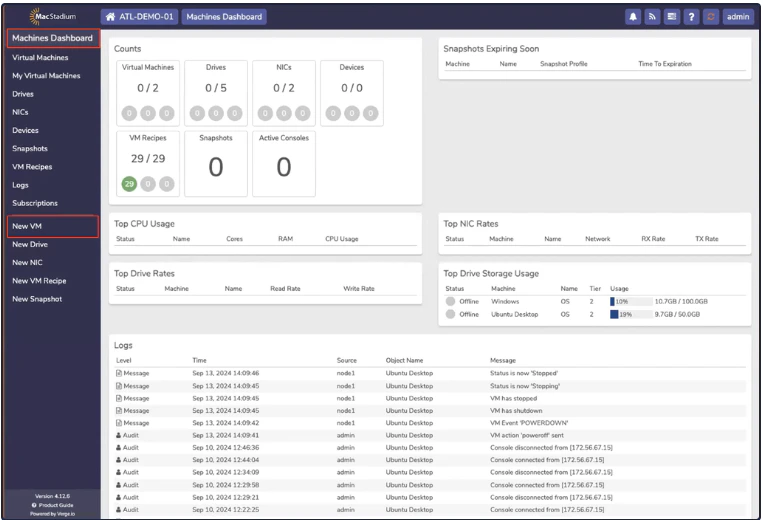 *New VM*
3. The *Select Type* tab opens. The left-hand side of the screen contains a list of options (Operating Systems, Services, and so on.) The right-hand side of the screen contains a list of recipes.
*New VM*
3. The *Select Type* tab opens. The left-hand side of the screen contains a list of options (Operating Systems, Services, and so on.) The right-hand side of the screen contains a list of recipes.
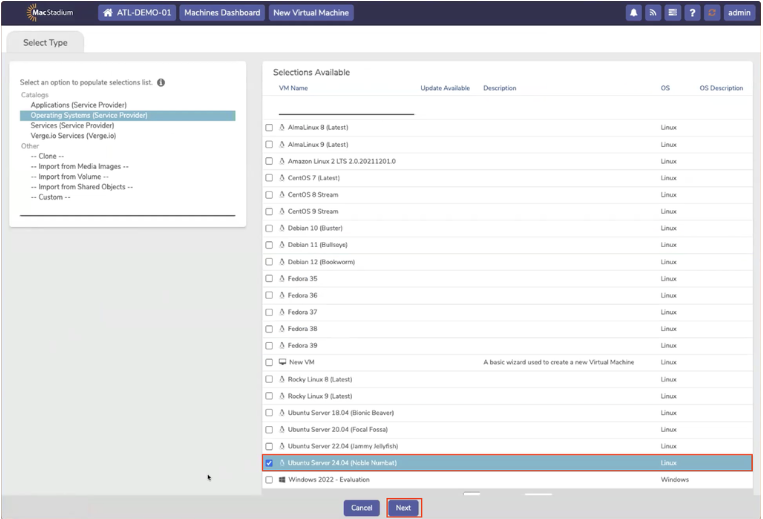 *EXAMPLE - > Existing Recipe, for Ubuntu Server (recommended)*
MacStadium recommends using a preexisting recipe if one exists for the OS you need. Recipes always install the latest version of the selected OS in an optimal configuration with minimal post-installation configuration required. If a recipe does not exist for your OS, select **New VM** and use the template to create a new recipe.
4. In this example, select the recipe for **Ubuntu Server 24.04** and click **Next.**
5. The *Virtual Machine Setting* tab opens.
*EXAMPLE - > Existing Recipe, for Ubuntu Server (recommended)*
MacStadium recommends using a preexisting recipe if one exists for the OS you need. Recipes always install the latest version of the selected OS in an optimal configuration with minimal post-installation configuration required. If a recipe does not exist for your OS, select **New VM** and use the template to create a new recipe.
4. In this example, select the recipe for **Ubuntu Server 24.04** and click **Next.**
5. The *Virtual Machine Setting* tab opens.
 *Virtual Machine Settings Tab*
6. In the *VM Recipe Instance* box, complete the following fields:
* **Name** - the machine name used for management inside Private Cloud
* **Cores** - specifies the number of vCPUs allocated to this machine
* **RAM** - specifies the amount of RAM allocated to this machine
* **Cluster** - specifies the compute cluster to deploy the machine to. This should be left as *Default*.
* **Hostname** - the network hostname for the machine
*Virtual Machine Settings Tab*
6. In the *VM Recipe Instance* box, complete the following fields:
* **Name** - the machine name used for management inside Private Cloud
* **Cores** - specifies the number of vCPUs allocated to this machine
* **RAM** - specifies the amount of RAM allocated to this machine
* **Cluster** - specifies the compute cluster to deploy the machine to. This should be left as *Default*.
* **Hostname** - the network hostname for the machine
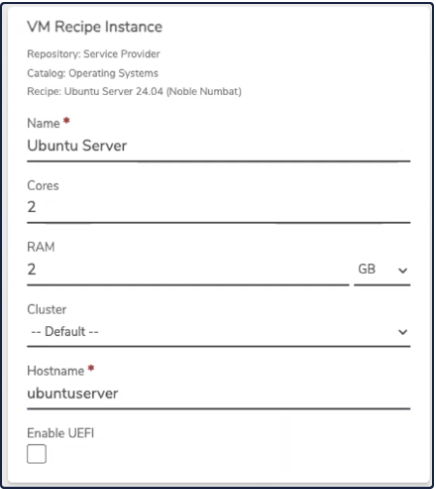 *VM Recipe Instance*
7. In the Network box, you must select **Static** from the dropdown box. You must also select the correct **Network** from the dropdown list in order to ensure connectivity to existing MacStadium infrastructure. Otherwise, Private Cloud will provision a new isolated network for the VM.
*VM Recipe Instance*
7. In the Network box, you must select **Static** from the dropdown box. You must also select the correct **Network** from the dropdown list in order to ensure connectivity to existing MacStadium infrastructure. Otherwise, Private Cloud will provision a new isolated network for the VM.
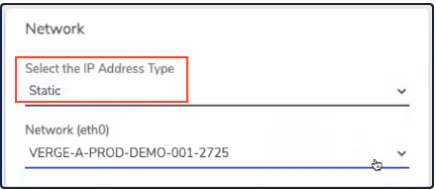 *Network*
Do not use DHCP as the IP Address Type when connecting VMs to existing networks. While DHCP is the default setting for IP Address Type, MacStadium Mac infrastructure is deployed with static IPs, and no DHCP server is present. **In order for network connectivity to work for deployed VMs on MacStadium networks, an IP must be set manually using the Static IP Address Type.**
8. In the *Static IP Configuration* box, all fields must be completed. However, the **auto** option in the IP Address field does not work. Complete the following fields:
* **IP Address** – Specifies the IP address of the server. The default is **auto, this is an invalid option for the static IP**. Consult the IP Plan in your MacStadium Portal account to determine an IP Address that doesn't conflict with existing machines.
* **Subnet Mask** – Specifies the range used for the subnet. This is in CIDR notation. The most common selection is '/24'
* **Default Gateway** – Specifies the IP to use for routed external traffic. This should be listed in the IP Plan
* **Nameservers** – Specifies the DNS servers to use for name resolution. This is not optional, and must be completed in order to resolve hostnames.
The default IP Address is Auto, however, this option does not work. **You must select an IP Address that is not currently being used by your machine, in the subnet of the network you are connected to.** Please consult the MacStadium *IP Plan*. the private subnet, the client can have on reserve, addresses near the end of the subnet. A subnet of 10.254.232.0/24, for example, can reserve address range, 10.254.232.200 through 10.254.232.250 for VMs.
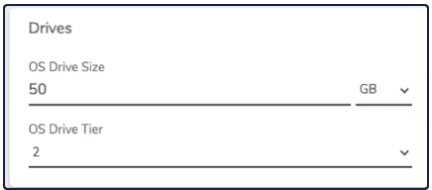
This only works for customers who will not use the entire subnet for bare metal hosts. In the Drives box, select the *OS Drive Size* and *OS Drive Tier*. The *OS Drive Tier* specifies the tier of storage to deploy to, currently, only Tier 2 is available.
*Network*
Do not use DHCP as the IP Address Type when connecting VMs to existing networks. While DHCP is the default setting for IP Address Type, MacStadium Mac infrastructure is deployed with static IPs, and no DHCP server is present. **In order for network connectivity to work for deployed VMs on MacStadium networks, an IP must be set manually using the Static IP Address Type.**
8. In the *Static IP Configuration* box, all fields must be completed. However, the **auto** option in the IP Address field does not work. Complete the following fields:
* **IP Address** – Specifies the IP address of the server. The default is **auto, this is an invalid option for the static IP**. Consult the IP Plan in your MacStadium Portal account to determine an IP Address that doesn't conflict with existing machines.
* **Subnet Mask** – Specifies the range used for the subnet. This is in CIDR notation. The most common selection is '/24'
* **Default Gateway** – Specifies the IP to use for routed external traffic. This should be listed in the IP Plan
* **Nameservers** – Specifies the DNS servers to use for name resolution. This is not optional, and must be completed in order to resolve hostnames.
The default IP Address is Auto, however, this option does not work. **You must select an IP Address that is not currently being used by your machine, in the subnet of the network you are connected to.** Please consult the MacStadium *IP Plan*. the private subnet, the client can have on reserve, addresses near the end of the subnet. A subnet of 10.254.232.0/24, for example, can reserve address range, 10.254.232.200 through 10.254.232.250 for VMs.
This only works for customers who will not use the entire subnet for bare metal hosts. In the Drives box, select the *OS Drive Size* and *OS Drive Tier*. The *OS Drive Tier* specifies the tier of storage to deploy to, currently, only Tier 2 is available.
 *Drives*
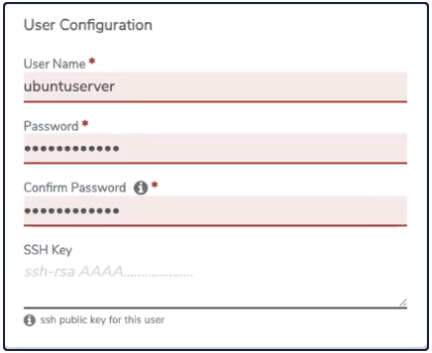
9. In the User Configuration box, complete the following fields:
* **User Name** – the desired username for the default user on the server
* **Password** – the desired password for the default user on the server
* **Confirm Password**
Or
* **Provide an SSH Key** – optional, enables SSH key authentication for the default user
*Drives*
9. In the User Configuration box, complete the following fields:
* **User Name** – the desired username for the default user on the server
* **Password** – the desired password for the default user on the server
* **Confirm Password**
Or
* **Provide an SSH Key** – optional, enables SSH key authentication for the default user
 *User Configuration*
10. Click **Submit**.
11. The new VM screen (*Ubuntu Server* , in this case) opens and the drives will begin to initialize. This may take a few minutes to complete, as Private Cloud will fetch the latest disk image for the selected operating system if an update is available. During this time, the Drive status will be listed as *Importing*.
*User Configuration*
10. Click **Submit**.
11. The new VM screen (*Ubuntu Server* , in this case) opens and the drives will begin to initialize. This may take a few minutes to complete, as Private Cloud will fetch the latest disk image for the selected operating system if an update is available. During this time, the Drive status will be listed as *Importing*.
 *New VM Screen*
12. Once the drive has finished importing, the status will change to *Offline.* At this point, the machine is initialized and ready to be powered on.
*New VM Screen*
12. Once the drive has finished importing, the status will change to *Offline.* At this point, the machine is initialized and ready to be powered on.
 *Offline = Ready to Launch*
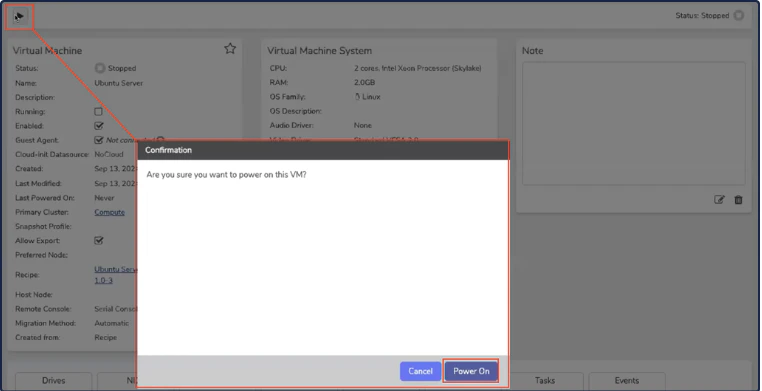
13. Click the **Power** button and the *Confirmation box* opens. Click **Power On**.
*Offline = Ready to Launch*
13. Click the **Power** button and the *Confirmation box* opens. Click **Power On**.
 *Power On*
14. Open the Console by clicking the **Console** button.
*Power On*
14. Open the Console by clicking the **Console** button.
 Console Button
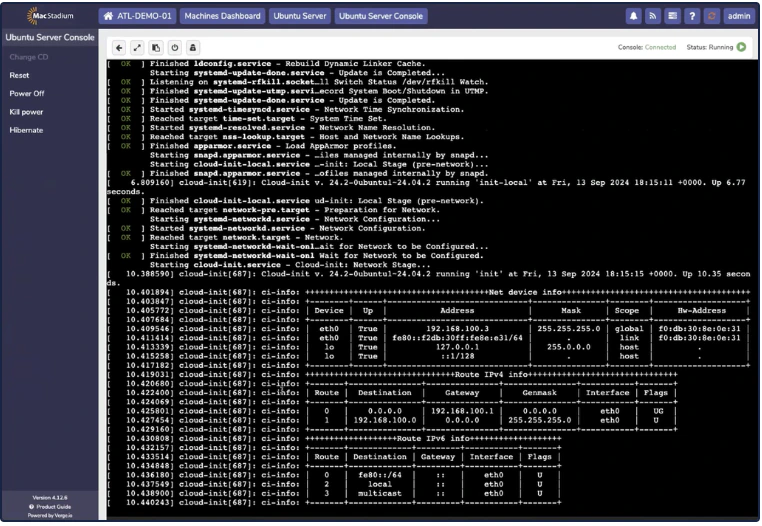
15. When the Console opens, the disk boots and stops at a login prompt. Shortly after, the machine will start to download the latest available software updates.
Console Button
15. When the Console opens, the disk boots and stops at a login prompt. Shortly after, the machine will start to download the latest available software updates.
 Console
For the majority of Linux virtual machine recipes, the Console is configured to appear as a text terminal. This makes copy/pasting text much easier, and enables easy access to terminal history.
Console
For the majority of Linux virtual machine recipes, the Console is configured to appear as a text terminal. This makes copy/pasting text much easier, and enables easy access to terminal history.