> ## Documentation Index
> Fetch the complete documentation index at: https://docs.macstadium.com/llms.txt
> Use this file to discover all available pages before exploring further.
# Enable SAML SSO with Microsoft Entra ID
> Set up SAML SSO for the MacStadium Portal with Microsoft Entra ID (Azure AD): create the enterprise app, configure SAML, and share metadata.
## About
SAML SSO is a paid offering. Contact your account team through the [Customer Portal](https://portal.macstadium.com) for more information.
MacStadium does not support IdP-initiated logins. After SSO is configured, all users must log in at [portal.macstadium.com/sso](https://portal.macstadium.com/sso) using the ID provided by the MacStadium team.
You can also log in directly at [portal.macstadium.com](https://portal.macstadium.com/login).
## Overview
SAML SSO with Microsoft Entra ID allows customers to:
* Enable users to be automatically signed in to MacStadium using their Entra ID accounts.
* Manage accounts in one central location: Microsoft Entra ID.
## Getting Started
1. Open **Entra ID admin**.
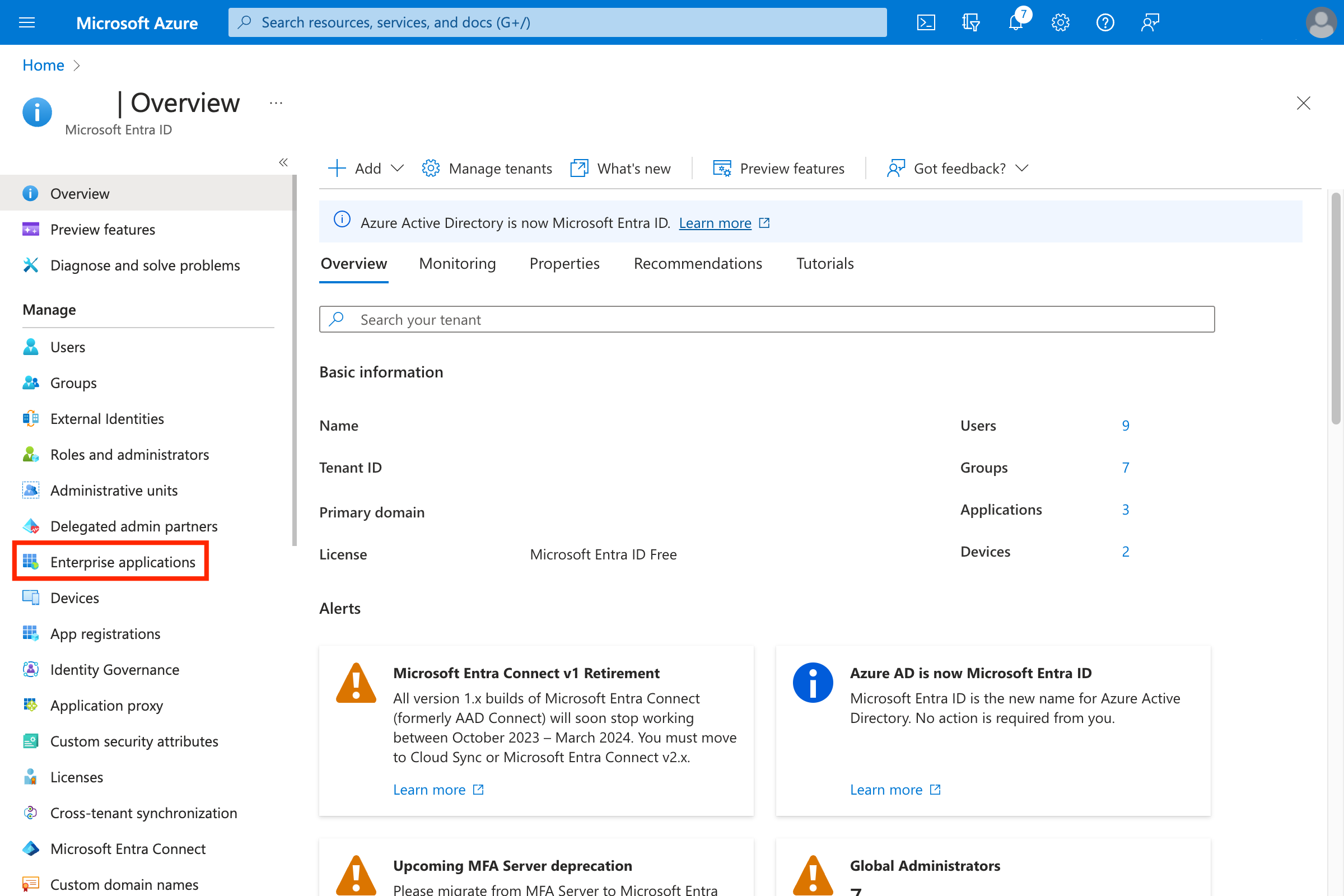
2. Navigate to **Enterprise applications**.\\
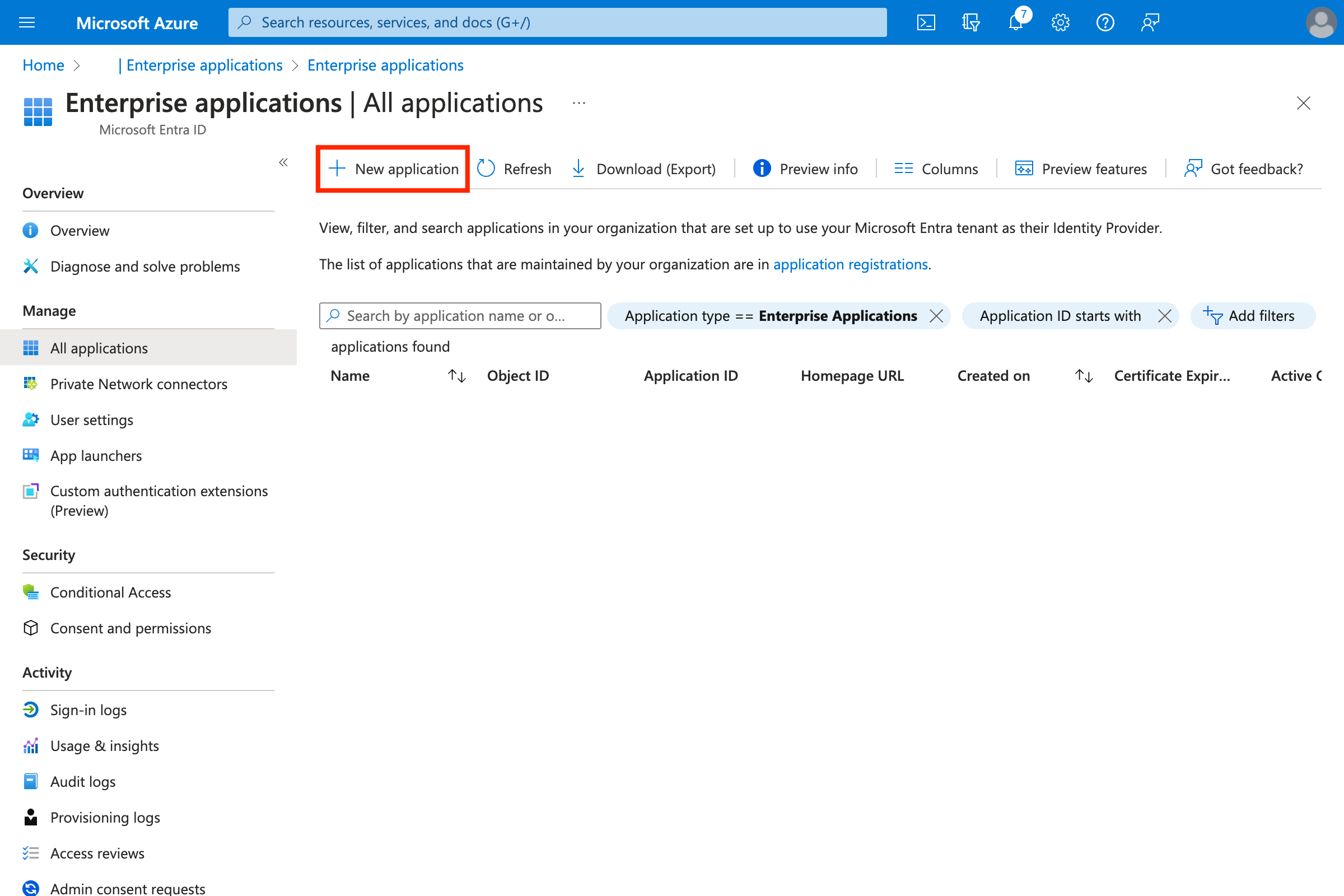
 3. Create a new application by clicking **New Application**.\\
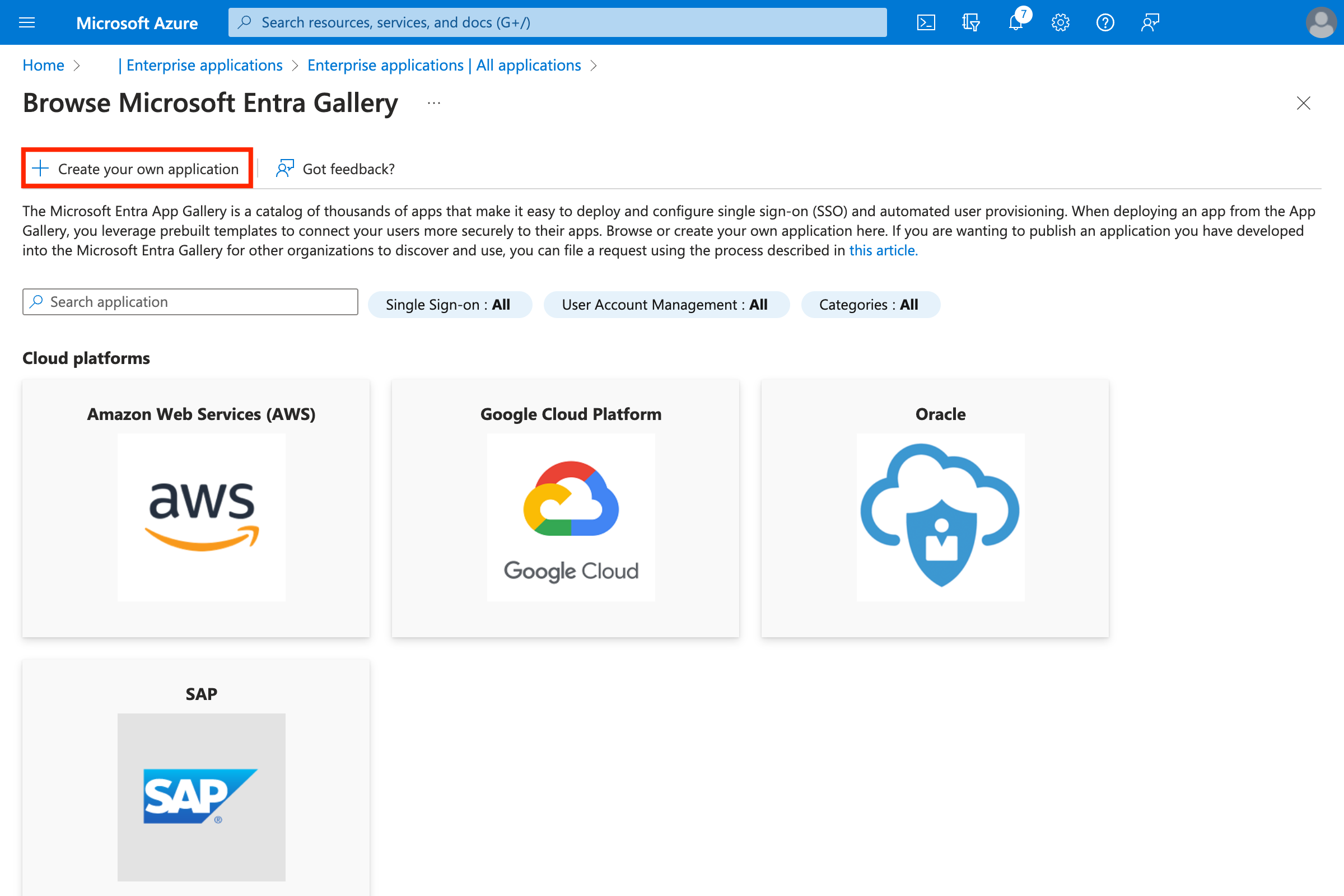
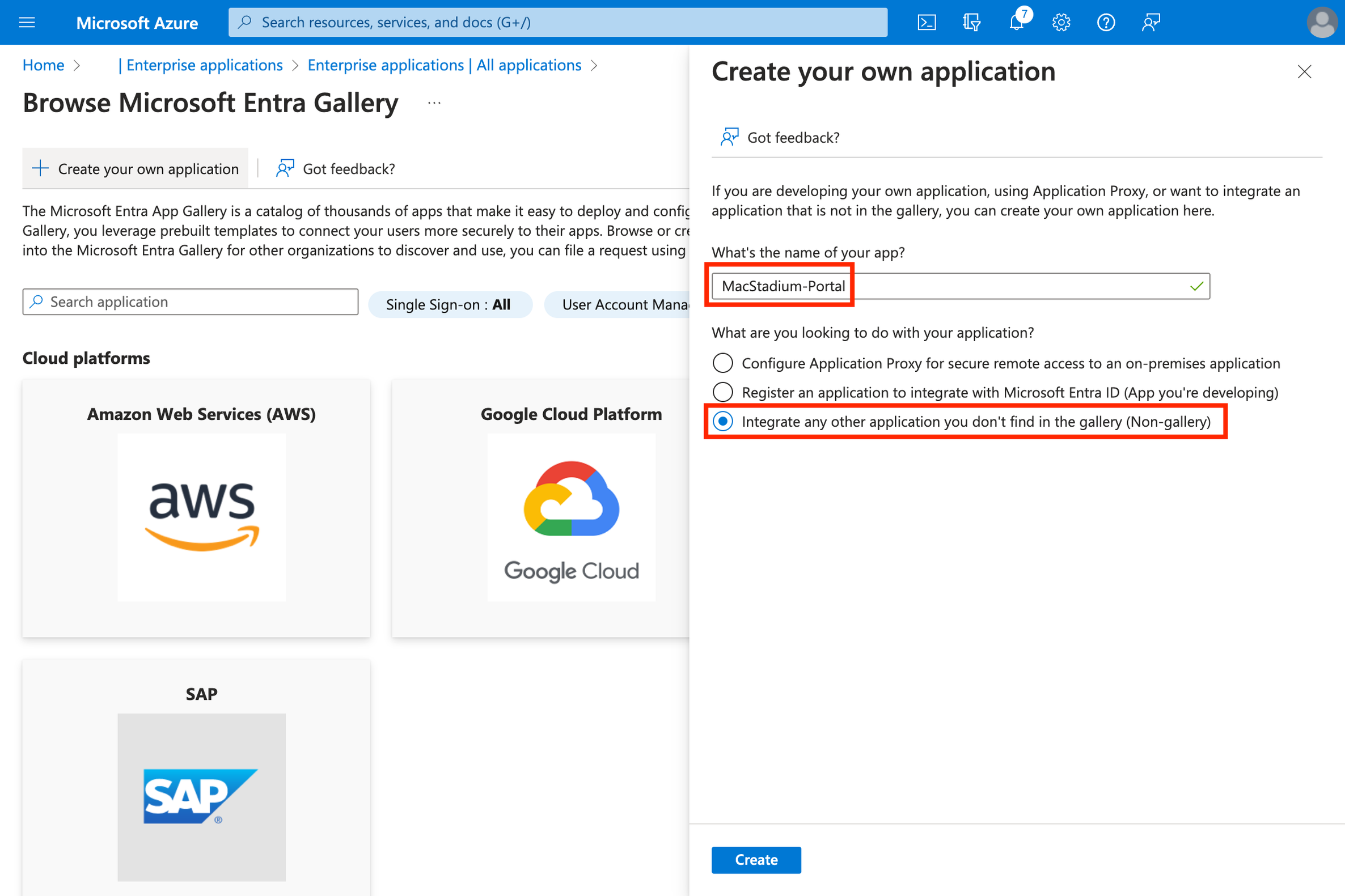
 4. Create an application by clicking **Create your own application**.\\
 * Enter a name (for example **MacStadium-Portal**).
* Select **Integrate any other application you don’t find in the gallery (Non-gallery).**\\
* Enter a name (for example **MacStadium-Portal**).
* Select **Integrate any other application you don’t find in the gallery (Non-gallery).**\\
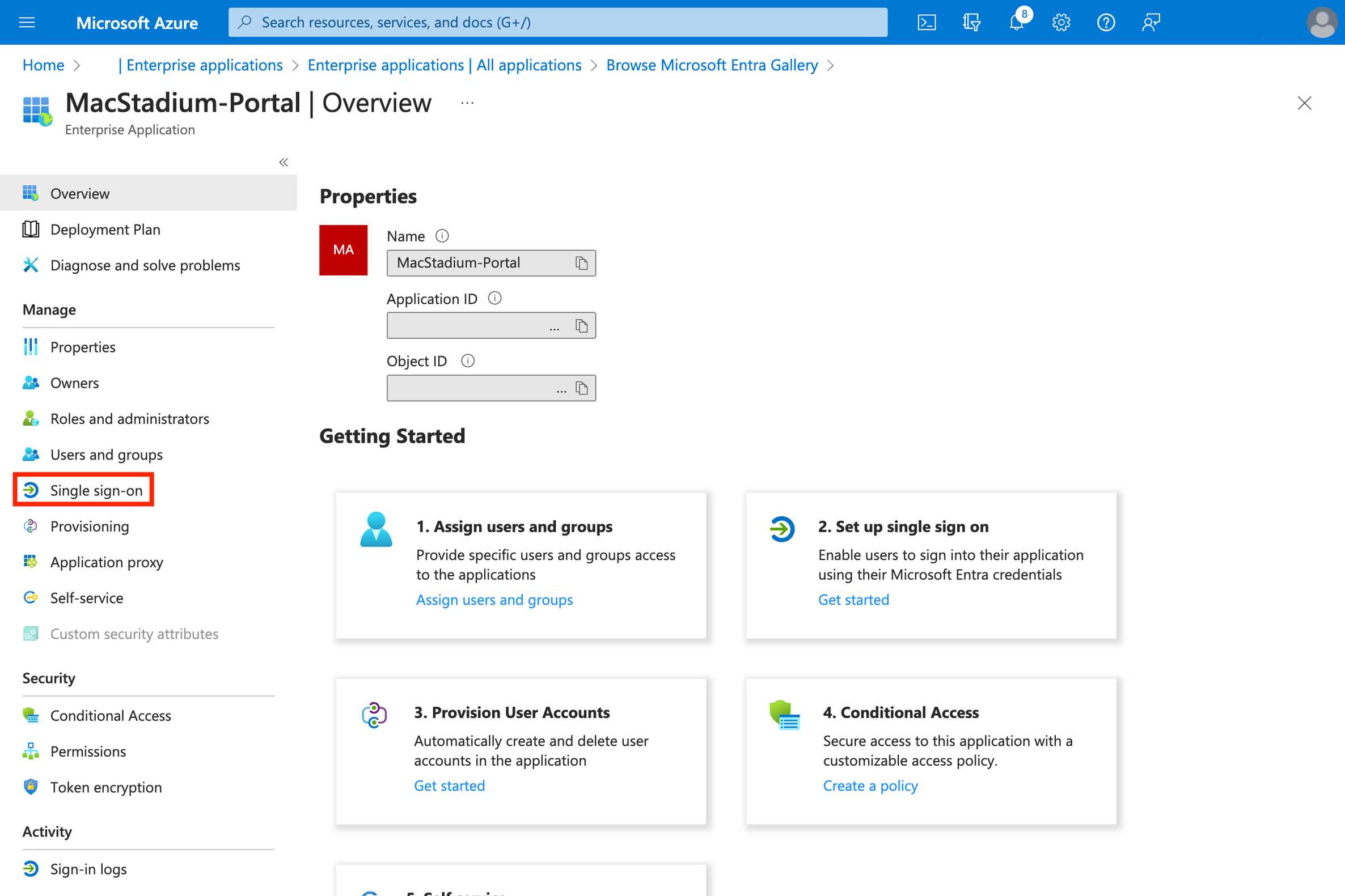
 5. Click **Single sign-on**.\\
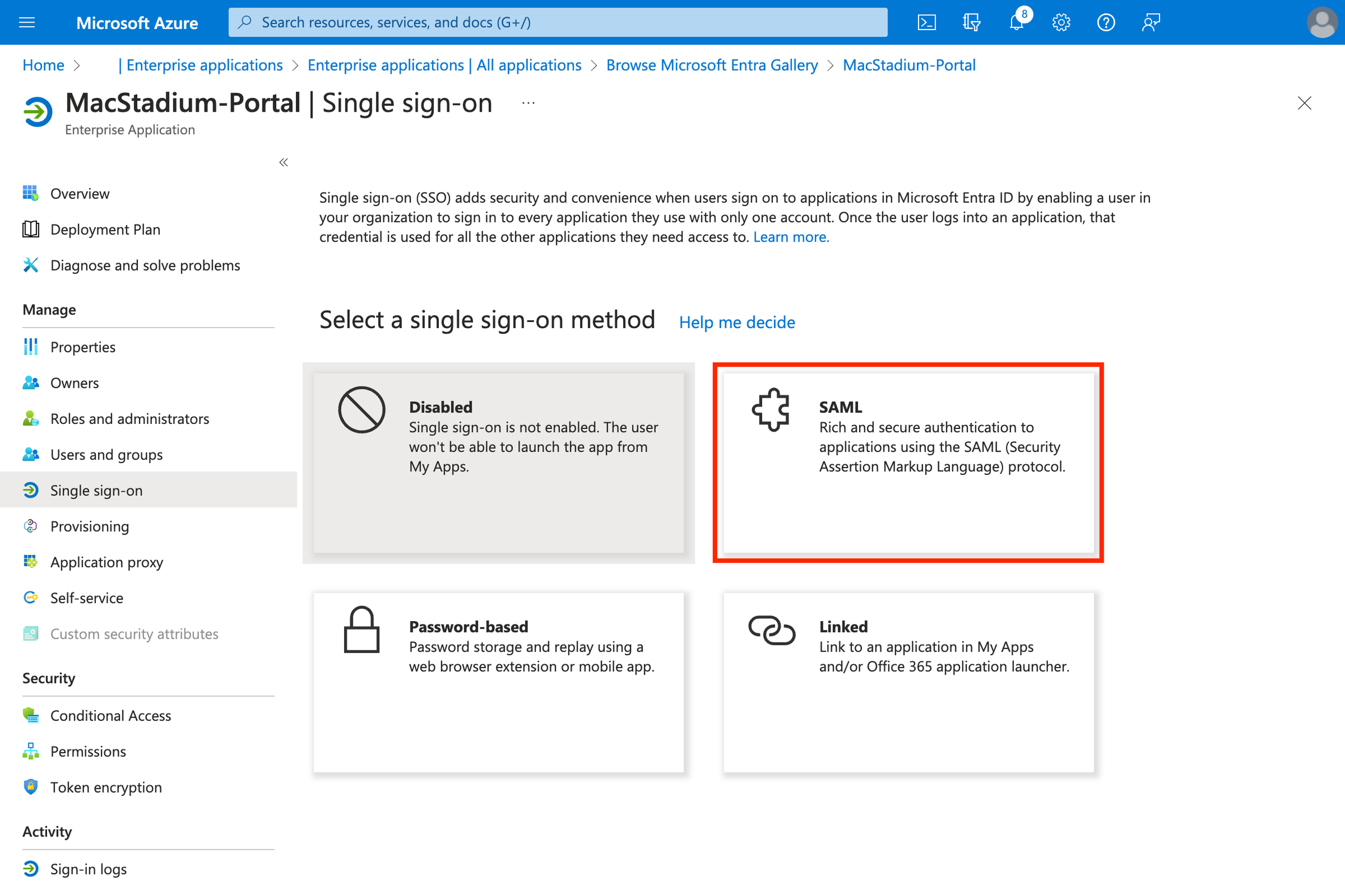
 6. Select **SAML**.\\
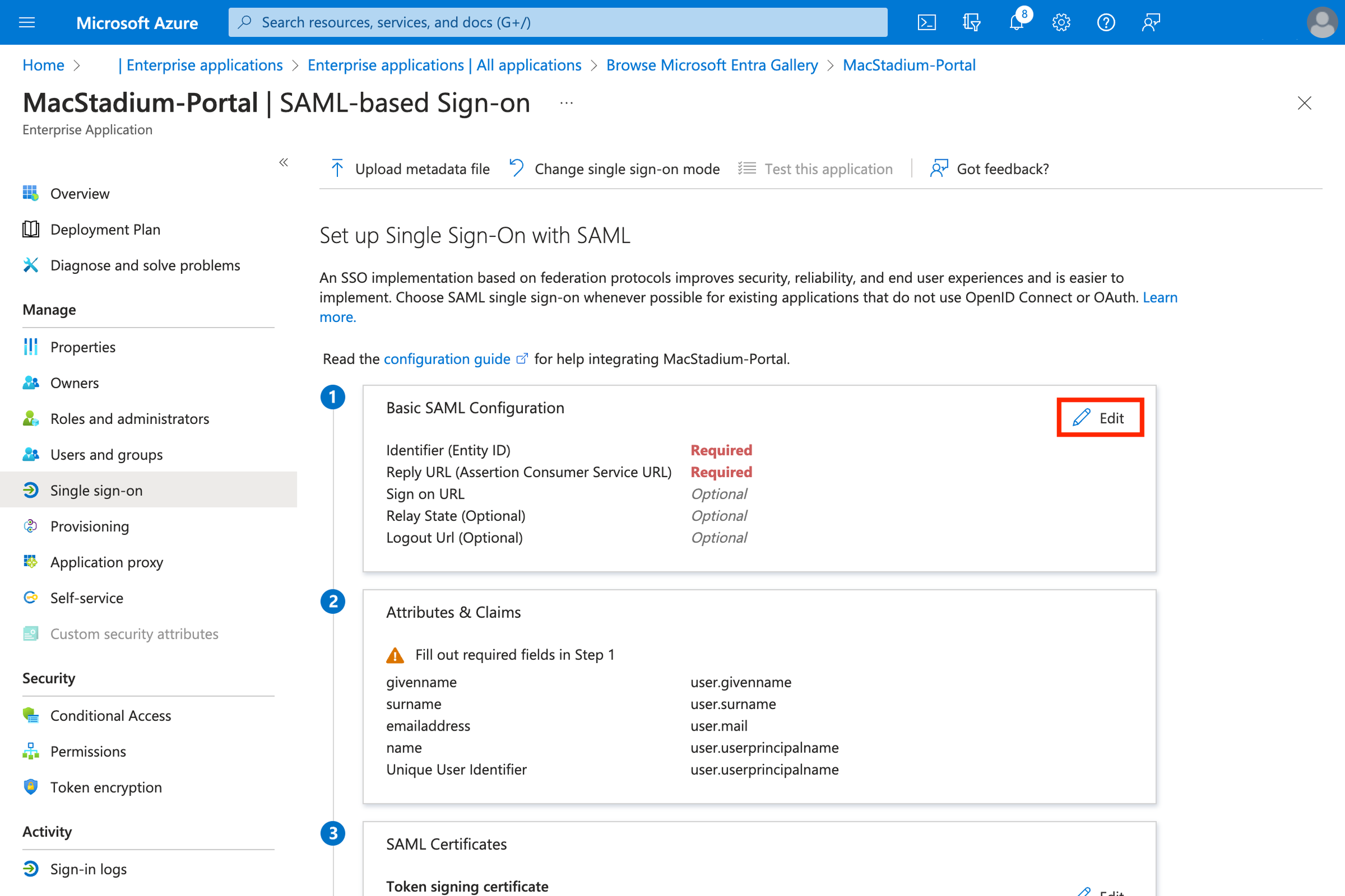
 7. Click **Edit** on the *Basic SAML settings.*\\
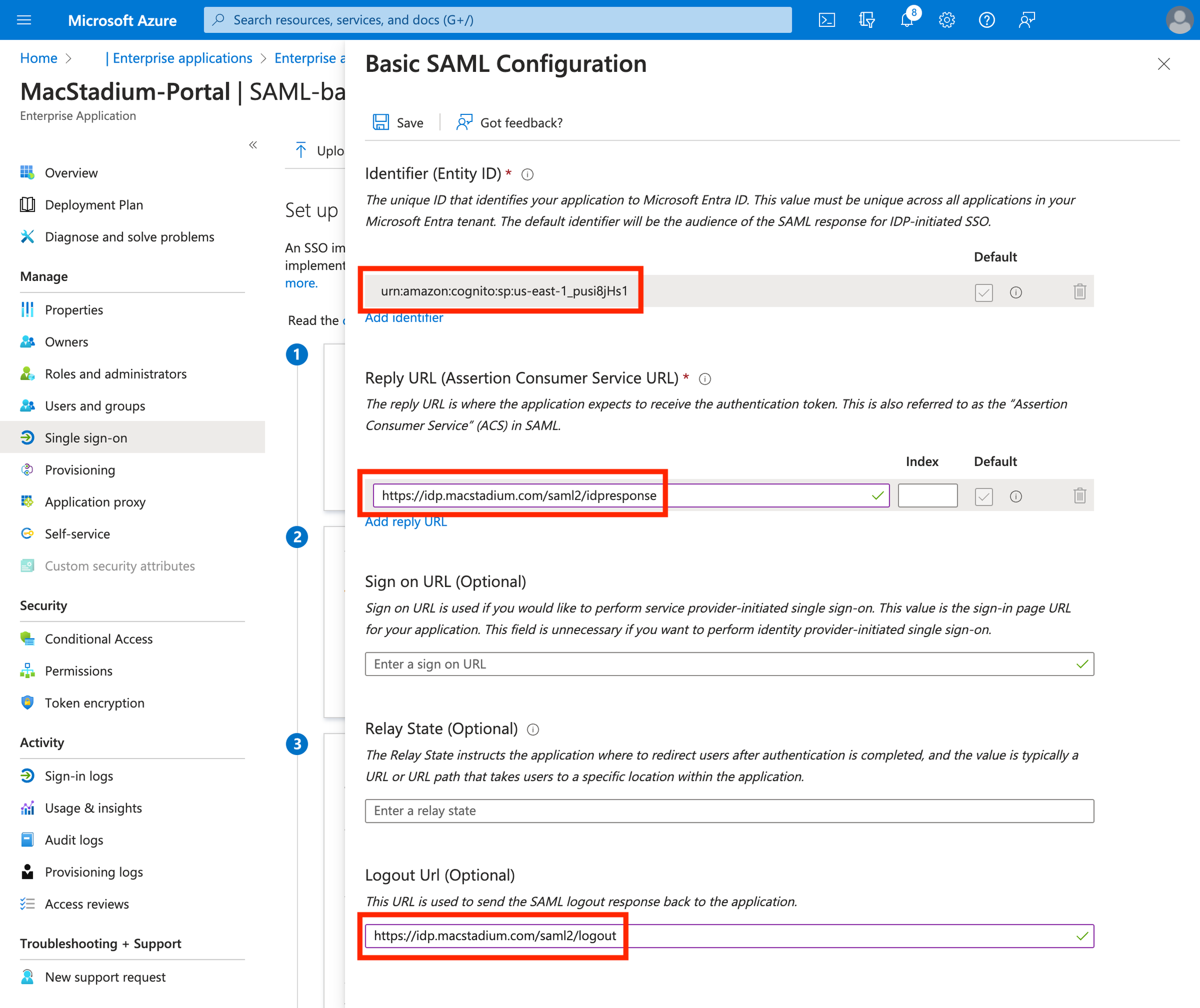
 8. Configure the SAML settings:
* **Identifier (Entity ID):** `urn:amazon:cognito:sp:us-east-1_pusi8jHs1`
* **Reply URL (Assertion Consumer Service URL):** `https://idp.macstadium.com/saml2/idpresponse`
* **Logout URL (Optional):** `https://idp.macstadium.com/saml2/logout`
* Click **Save**
8. Configure the SAML settings:
* **Identifier (Entity ID):** `urn:amazon:cognito:sp:us-east-1_pusi8jHs1`
* **Reply URL (Assertion Consumer Service URL):** `https://idp.macstadium.com/saml2/idpresponse`
* **Logout URL (Optional):** `https://idp.macstadium.com/saml2/logout`
* Click **Save**
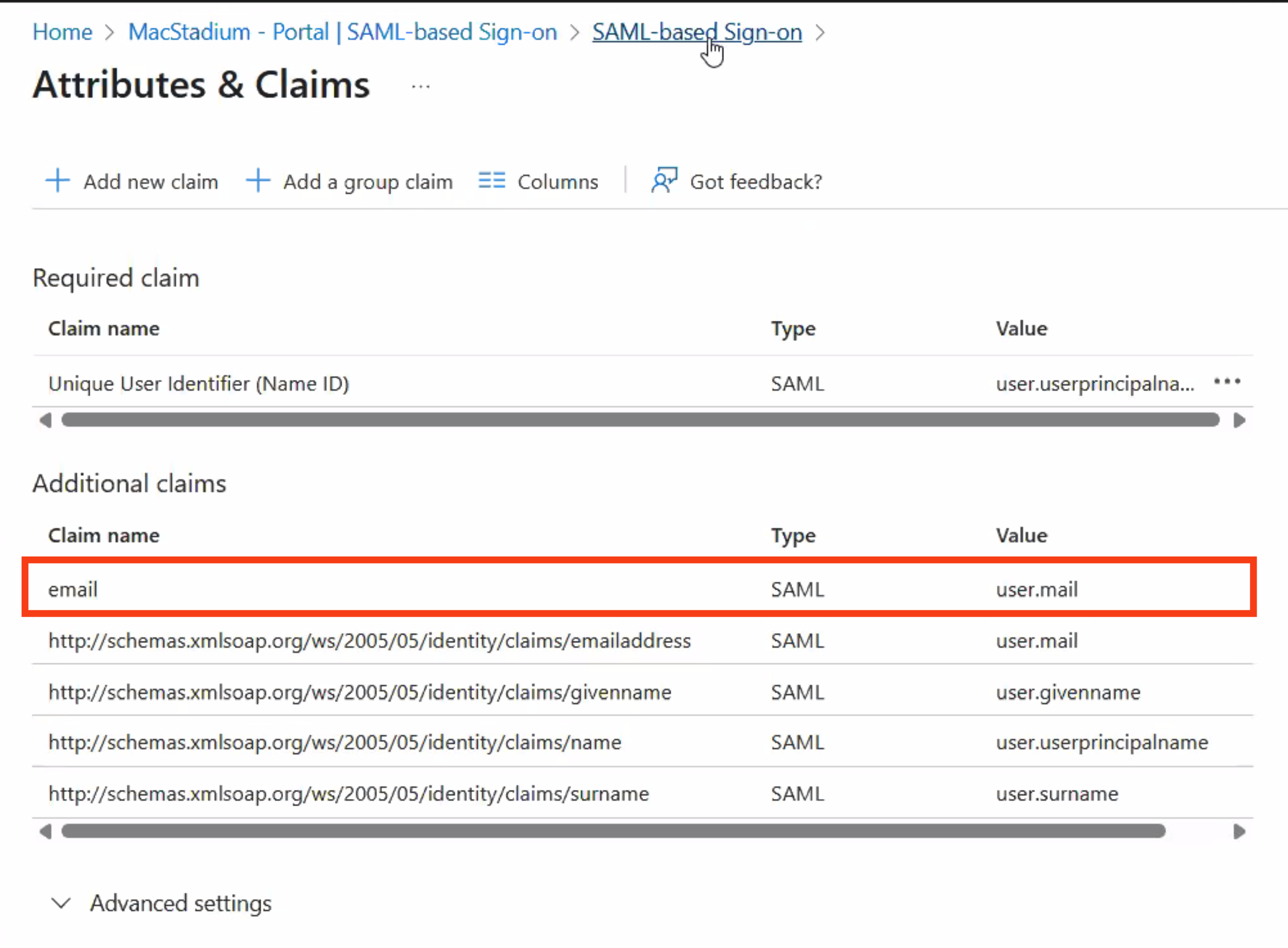
 9. Edit **Attributes & Claims** for your SAML app. The email field must be mapped to `user.mail` or login will fail.\\
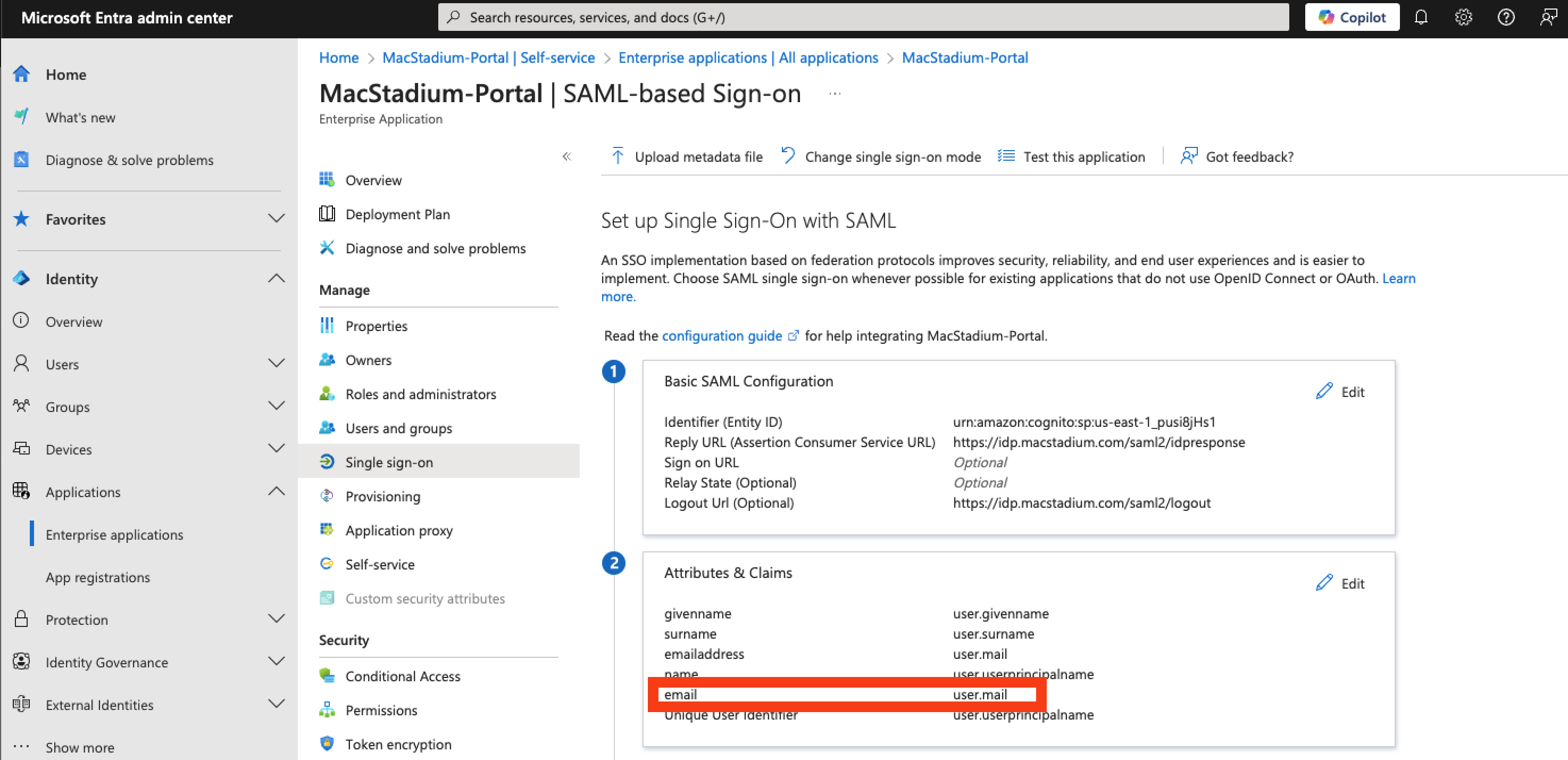
 Once configured properly, section 2 of your SAML app should look like the below screenshot.\\
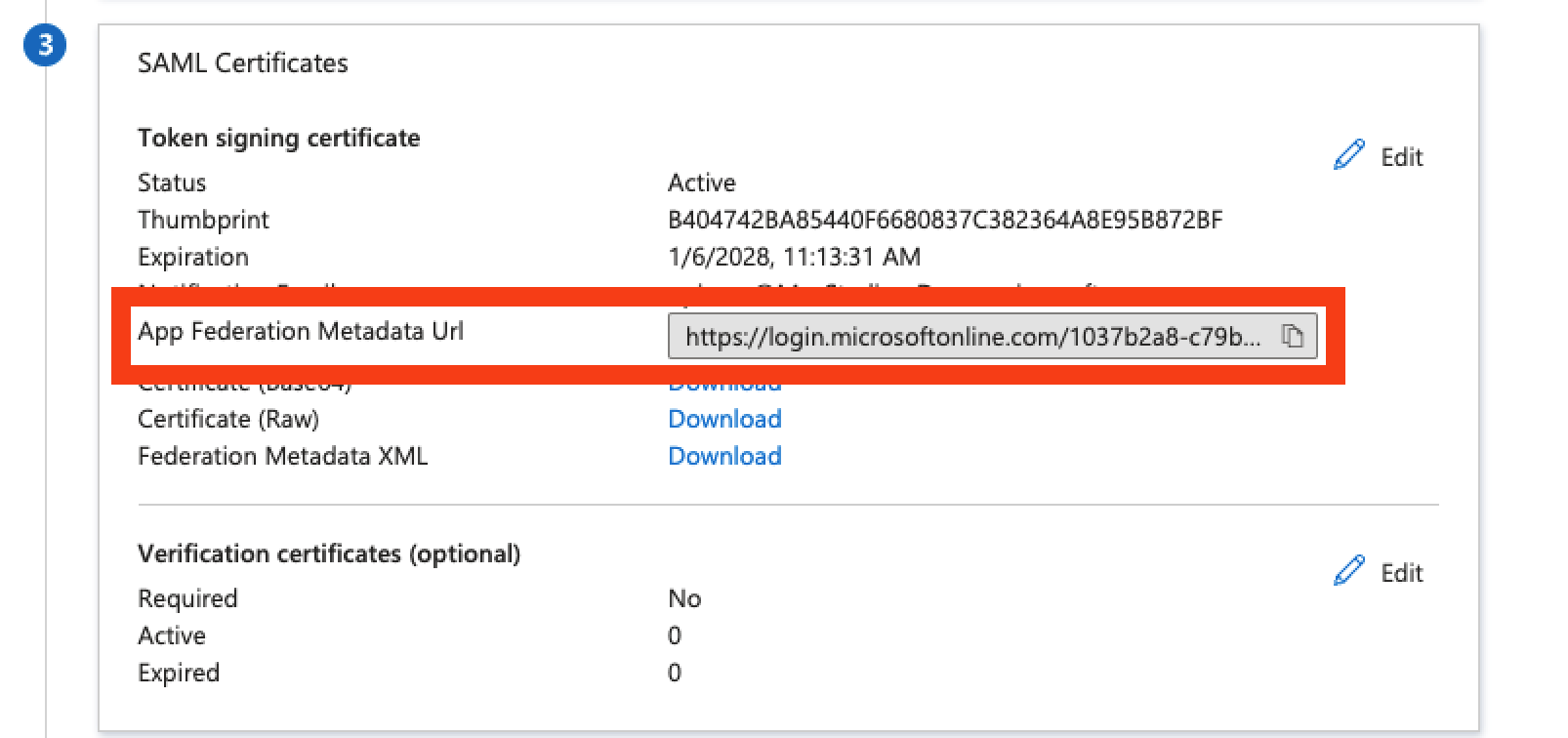
 10. Once the attributes & claims are updated, please provide our support team with the app federation metadata URL. You can copy the federation metadata URL in section 3 of your SAML app, as shown in the below screenshot.\\