> ## Documentation Index
> Fetch the complete documentation index at: https://docs.macstadium.com/llms.txt
> Use this file to discover all available pages before exploring further.
# 1. GCP Side of the VPN Tunnel
> Configure the GCP side of an IPsec site-to-site VPN to your Orka cluster: create a Classic VPN gateway and tunnel using policy-based routing with IKEv2.
How to configure the GCP side of your VPN tunnel between GCP and Orka.
**Before you begin:** You need the IP address for `FW1-Outside` and the CIDR range for `Private-1` (most likely `10.221.188.0/24` or `10.10.10.0/24`) from your [IP Plan](/macstadium/macstadium-overview/ip-plan).
To establish a stable, persistent connection between a Google Cloud Platform (GCP) private cloud and your Orka environment, you need to configure a policy-based IPsec site-to-site VPN between the two clouds.
Currently, you can create only a classic VPN connection with policy-based routing from GCP to Orka. It consists of one tunnel and one interface and does not provide high availability. For more information about this option, see [Google Cloud Documentation: Classic VPN](https://cloud.google.com/vpn/docs/how-to/choosing-a-vpn#classic-vpn).
## Step 1: Log in to GCP
1. Log in to the GCP console with your credentials.
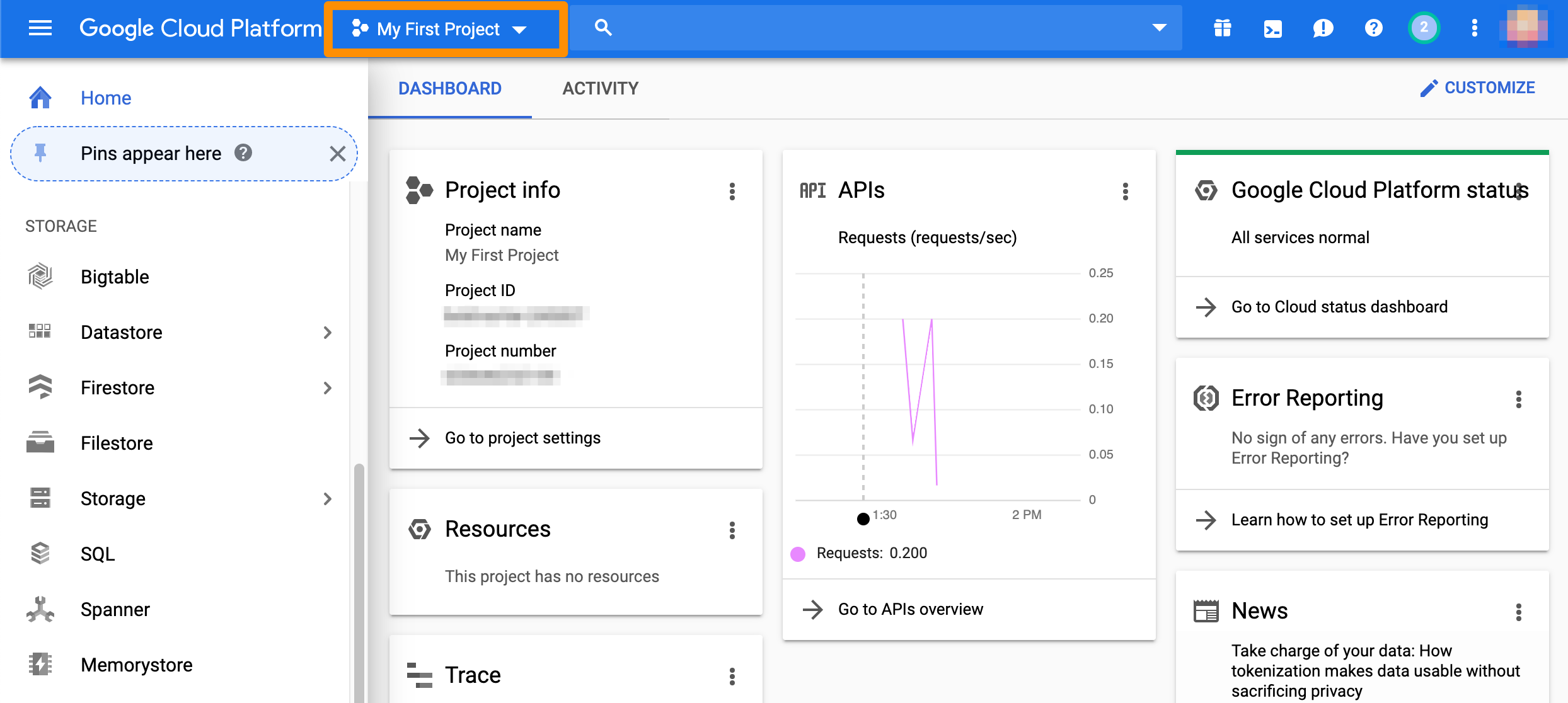
2. In the toolbar at the top, make sure that you're working with the correct project.
 ## Step 2: Create the VPN connection
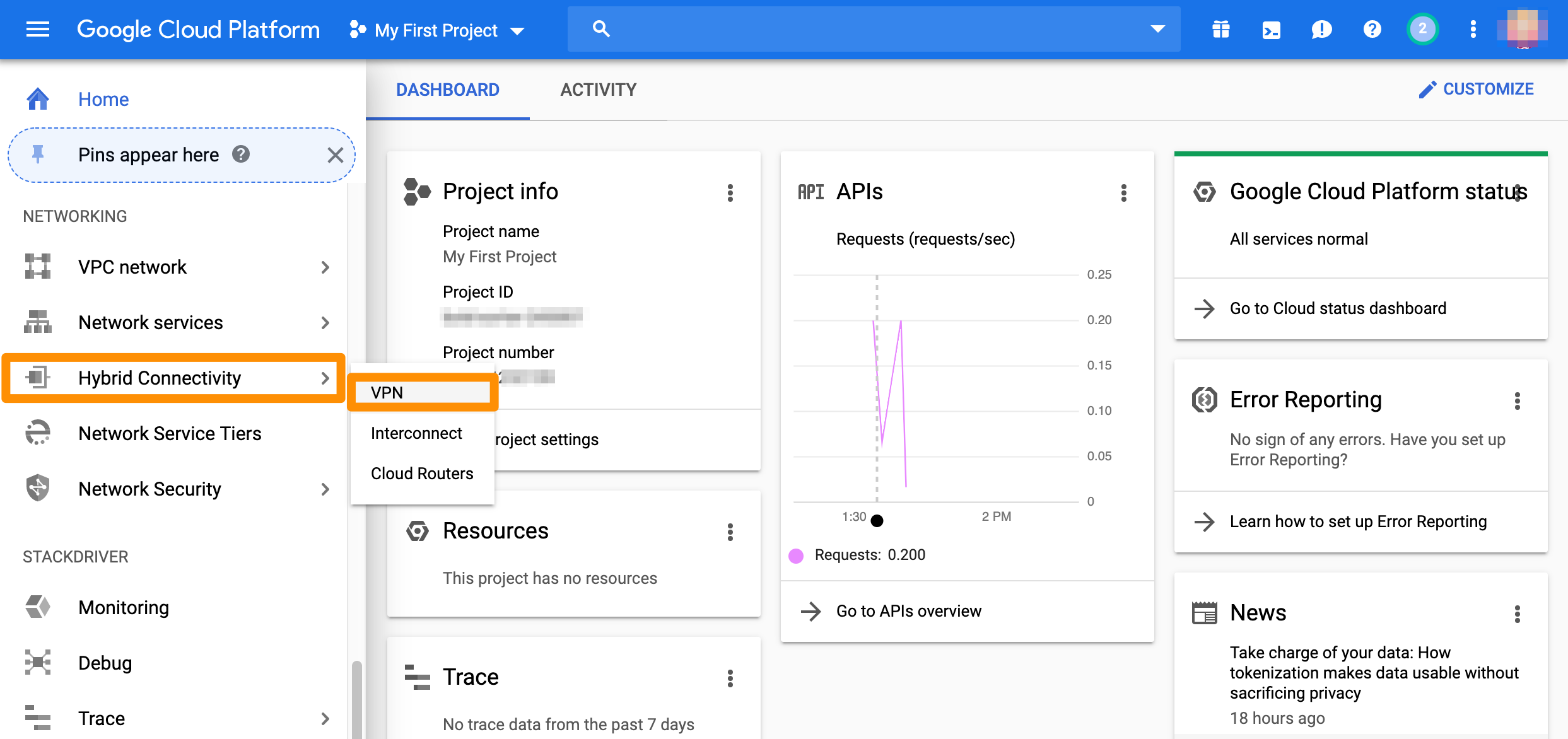
* From the GCP console sidebar, scroll to the *Networking* section and select **Hybrid Connectivity** > **VPN**.
## Step 2: Create the VPN connection
* From the GCP console sidebar, scroll to the *Networking* section and select **Hybrid Connectivity** > **VPN**.
 Classic VPN connections in GCP consist of a gateway and tunnel. You can create a gateway and a tunnel at once or you can add a new tunnel to an existing gateway.
## Step 3a: Create gateway and tunnel
If you don't have a classic VPN gateway that you want to use, complete the following steps.
1. If you don't have any VPNs created yet, click **Create VPN connection**.
2. If you have one or more VPNs created, click **+ VPN SETUP WIZARD**.
3. Select **Classic VPN** and click **Continue**.\
The **High-availability (HA) VPN** is currently not supported as an option. For more information about the available options, see [Google Cloud Documentation: Choosing a VPN option](https://cloud.google.com/vpn/docs/how-to/choosing-a-vpn).
4. In the *Google Compute Engine VPN gateway* section, provide **Name** and **Description**.
5. For **Network**, select the GCP network that needs to be able to access Orka.
6. Select **Region**.\
For more information about this setting, see [Google Cloud Documentation: Regions and Zones](https://cloud.google.com/compute/docs/regions-zones).
7. Select or create a reserved IP address for the connection.\
You will need this IP address when you configure the Orka side of the tunnel.
8. In the **Tunnels** section, provide **Name** and **Description**.
9. For **Remote peer IP address**, provide the IP address for the `FW1-Outside` network from your[ IP Plan](/macstadium/macstadium-overview/ip-plan).
10. For **IKE version**, verify that **IKEv2** is selected.
11. Provide or generate an **IKE pre-shared key**.
Keep a record of the pre-shared key. You will need it later.
12. For **Routing options**, select **Policy-based**.
13. For **Remote network IP ranges**, provide the IP range in [CIDR notation](https://www.digitalocean.com/community/tutorials/understanding-ip-addresses-subnets-and-cidr-notation-for-networking#cidr-notation) for the `Private-1` network from your [IP Plan](/macstadium/macstadium-overview/ip-plan).
14. (Optional) Select one or more GCP subnetworks to reduce latency between your GCP private cloud and your Orka private cloud.\
For more information, see [Google Cloud Documentation: Networks and subnets](https://cloud.google.com/vpc/docs/vpc#vpc_networks_and_subnets).
15. (Optional) Provide one or more IP ranges within your GCP local network that needs to access Orka.
16. Click **Done**.
17. Click **Create**.
After the creation is complete, the VPN tunnel status is: `First handshake`.
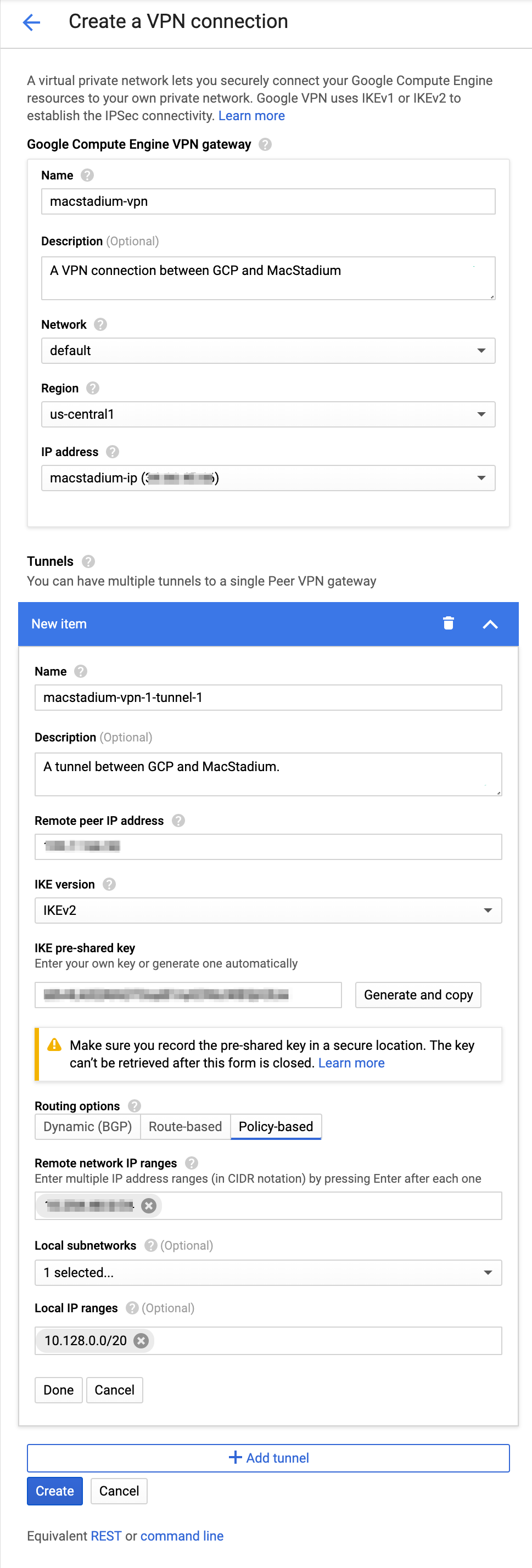
#### **Example: Create gateway and tunnel**
This image shows a sample configuration for the VPN gateway and tunnel.
Classic VPN connections in GCP consist of a gateway and tunnel. You can create a gateway and a tunnel at once or you can add a new tunnel to an existing gateway.
## Step 3a: Create gateway and tunnel
If you don't have a classic VPN gateway that you want to use, complete the following steps.
1. If you don't have any VPNs created yet, click **Create VPN connection**.
2. If you have one or more VPNs created, click **+ VPN SETUP WIZARD**.
3. Select **Classic VPN** and click **Continue**.\
The **High-availability (HA) VPN** is currently not supported as an option. For more information about the available options, see [Google Cloud Documentation: Choosing a VPN option](https://cloud.google.com/vpn/docs/how-to/choosing-a-vpn).
4. In the *Google Compute Engine VPN gateway* section, provide **Name** and **Description**.
5. For **Network**, select the GCP network that needs to be able to access Orka.
6. Select **Region**.\
For more information about this setting, see [Google Cloud Documentation: Regions and Zones](https://cloud.google.com/compute/docs/regions-zones).
7. Select or create a reserved IP address for the connection.\
You will need this IP address when you configure the Orka side of the tunnel.
8. In the **Tunnels** section, provide **Name** and **Description**.
9. For **Remote peer IP address**, provide the IP address for the `FW1-Outside` network from your[ IP Plan](/macstadium/macstadium-overview/ip-plan).
10. For **IKE version**, verify that **IKEv2** is selected.
11. Provide or generate an **IKE pre-shared key**.
Keep a record of the pre-shared key. You will need it later.
12. For **Routing options**, select **Policy-based**.
13. For **Remote network IP ranges**, provide the IP range in [CIDR notation](https://www.digitalocean.com/community/tutorials/understanding-ip-addresses-subnets-and-cidr-notation-for-networking#cidr-notation) for the `Private-1` network from your [IP Plan](/macstadium/macstadium-overview/ip-plan).
14. (Optional) Select one or more GCP subnetworks to reduce latency between your GCP private cloud and your Orka private cloud.\
For more information, see [Google Cloud Documentation: Networks and subnets](https://cloud.google.com/vpc/docs/vpc#vpc_networks_and_subnets).
15. (Optional) Provide one or more IP ranges within your GCP local network that needs to access Orka.
16. Click **Done**.
17. Click **Create**.
After the creation is complete, the VPN tunnel status is: `First handshake`.
#### **Example: Create gateway and tunnel**
This image shows a sample configuration for the VPN gateway and tunnel.
 ## Step 3b: Add a new tunnel to an existing gateway
If you have an existing classic VPN gateway that you want to use for the connection, complete the following steps.
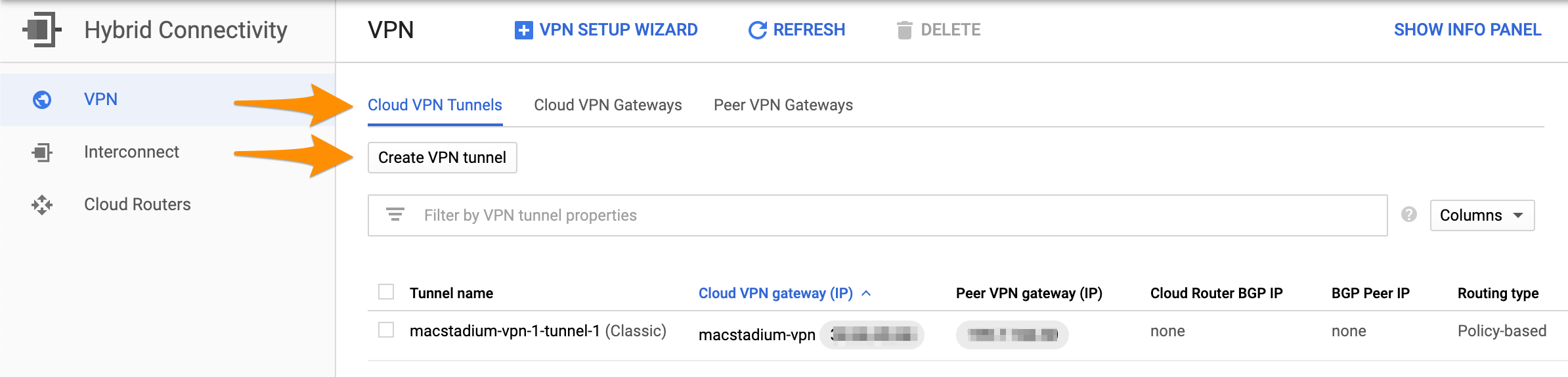
1. Select **Cloud VPN Tunnels** and click **Create VPN tunnel**.
## Step 3b: Add a new tunnel to an existing gateway
If you have an existing classic VPN gateway that you want to use for the connection, complete the following steps.
1. Select **Cloud VPN Tunnels** and click **Create VPN tunnel**.
 2. Select the VPN gateway that you want to use and click **Continue**.
Make sure that you have selected a classic VPN gateway. High-availability gateways are not supported.
3. Provide **Name**.
4. (Optional) Provide **Description**.
5. For **Remote peer IP address**, provide the IP address for the `FW1-Outside` network from your [IP Plan](/macstadium/macstadium-overview/ip-plan).
6. For **IKE version**, verify that **IKEv2** is selected.
7. Provide or generate an **IKE pre-shared key**.
Keep a record of the pre-shared key. You will need it later.
8. For **Routing options**, select **Policy-based**.
9. For **Remote network IP ranges**, provide the IP range in [CIDR notation](https://www.digitalocean.com/community/tutorials/understanding-ip-addresses-subnets-and-cidr-notation-for-networking#cidr-notation) for the `Private-1` network from your [IP Plan](/macstadium/macstadium-overview/ip-plan).
10. (Optional) Select one or more GCP subnetworks to reduce latency between your GCP private cloud and your Orka environment.\
For more information, see [Google Cloud Documentation: Networks and subnets](https://cloud.google.com/vpc/docs/vpc#vpc_networks_and_subnets).
11. (Optional) Provide one or more IP ranges within your GCP local network that needs to access Orka.
12. Click **Create**.
After the creation is complete, the VPN tunnel status is: `First handshake`.
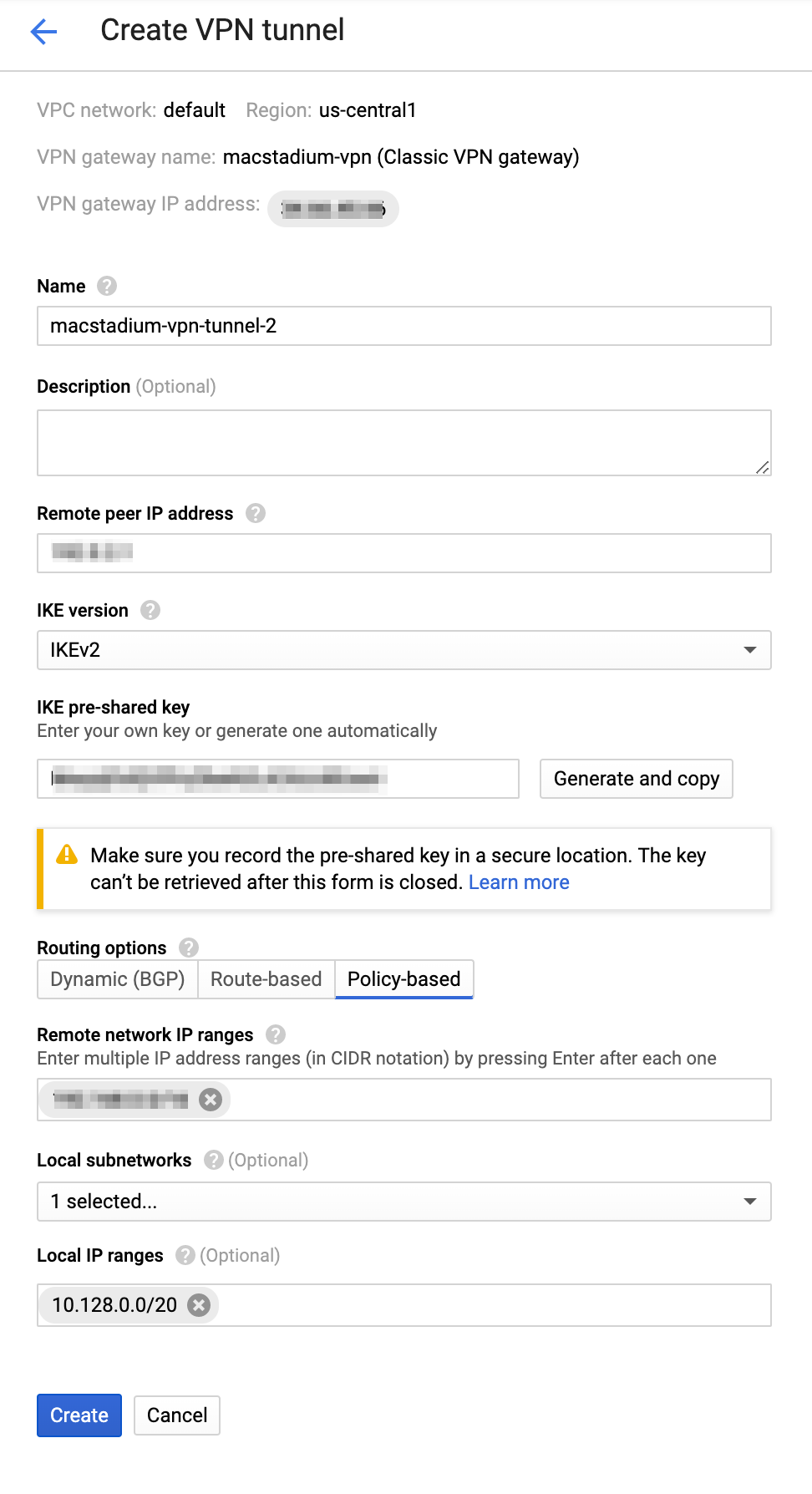
#### **Example: Create the VPN gateway and tunnel**
This image shows a sample configuration for the VPN connection.
2. Select the VPN gateway that you want to use and click **Continue**.
Make sure that you have selected a classic VPN gateway. High-availability gateways are not supported.
3. Provide **Name**.
4. (Optional) Provide **Description**.
5. For **Remote peer IP address**, provide the IP address for the `FW1-Outside` network from your [IP Plan](/macstadium/macstadium-overview/ip-plan).
6. For **IKE version**, verify that **IKEv2** is selected.
7. Provide or generate an **IKE pre-shared key**.
Keep a record of the pre-shared key. You will need it later.
8. For **Routing options**, select **Policy-based**.
9. For **Remote network IP ranges**, provide the IP range in [CIDR notation](https://www.digitalocean.com/community/tutorials/understanding-ip-addresses-subnets-and-cidr-notation-for-networking#cidr-notation) for the `Private-1` network from your [IP Plan](/macstadium/macstadium-overview/ip-plan).
10. (Optional) Select one or more GCP subnetworks to reduce latency between your GCP private cloud and your Orka environment.\
For more information, see [Google Cloud Documentation: Networks and subnets](https://cloud.google.com/vpc/docs/vpc#vpc_networks_and_subnets).
11. (Optional) Provide one or more IP ranges within your GCP local network that needs to access Orka.
12. Click **Create**.
After the creation is complete, the VPN tunnel status is: `First handshake`.
#### **Example: Create the VPN gateway and tunnel**
This image shows a sample configuration for the VPN connection.
 ## Step 4: Ensure that the GCP firewall allows ingress traffic
Based on your requirements, you might need to enable ingress traffic from Orka to GCP in the GCP firewall. For more information, see [Google Cloud Documentation: Configuring firewall rules > Example configurations](https://cloud.google.com/vpn/docs/how-to/configuring-firewall-rules#example_configurations).
## Step 4: Ensure that the GCP firewall allows ingress traffic
Based on your requirements, you might need to enable ingress traffic from Orka to GCP in the GCP firewall. For more information, see [Google Cloud Documentation: Configuring firewall rules > Example configurations](https://cloud.google.com/vpn/docs/how-to/configuring-firewall-rules#example_configurations).