> ## Documentation Index
> Fetch the complete documentation index at: https://docs.macstadium.com/llms.txt
> Use this file to discover all available pages before exploring further.
# 2. GCP VPN Tunnel Configuration File
> Complete the Cisco ASA/ASAv config template for your GCP-to-Orka VPN tunnel. Fill in GCP network, VPN IP, Orka Private-1 network, and IKEv2 pre-shared key.
**Before you begin:** From your [IP Plan](/macstadium/macstadium-overview/ip-plan), you need the `Outside` interface name, the `Private-1` IP address and subnet mask. From GCP, you need your local network's IPv4 address and subnet mask (converted from CIDR notation, e.g. `255.255.0.0` instead of `/16`).
After you [have created your site-to-site VPN connection in Google Cloud Platform (GCP)](/orka/networking-with-orka-at-macstadium/1-gcp-side-of-the-vpn-tunnel), you need to configure your Cisco firewall to recognize the connection and let traffic into your Orka environment.
You can use the configuration template provided below and fill in the missing information. You need to provide data from both GCP and Orka.
## Configuration template
Unless you have extensive experience with GCP and ASA/ASAv configurations, use the configuration from the template. Otherwise, your site-to-site VPN might not work as expected.
```
! #1: Placeholders
!
! { gcp_network_address } - The address of the GCP local network that needs to have access to Orka.
! { gcp_network_mask } - The subnet mask of the GCP local network that needs to have access to Orka.
! { gcp_vpn_ip } - The public IP address of the cloud VPN gateway in GCP.
! { macstadium_network_name } - The name of the private network in Orka that needs to be accessed by GCP. By default, this is Private-1.
! { macstadium_network_address } - The IP address of the private network in Orka that needs to be accessed by GCP. By default, this is Private-1.
! { macstadium_network_mask } - The subnet mask of the private network in Orka that needs to be accessed by GCP. By default, this is Private-1.
! { macstadium_public_ip } - The IP address of the public network of your Orka private cloud. By default, this is FW1-Outside.
! { macstadium_outside_interface } - The name of the outside interface of your Cisco ASA/ASAv device. By default, this is Outside.
! { shared_key } - The IPSec pre-shared key used when creating the VPN connection in GCP.
!
! #2: NAT exemption
!
! The name "GCP-NET" must be unique for the Cisco ASA/ASAv device.
!
object-group network GCP-NET
description GCP Virtual Network
network-object { gcp_network_address } { gcp_network_mask }
! The name "ONPREM-NET" must be unique for the Cisco ASA/ASAv device.
object-group network ONPREM-NET
description OnPrem Network
network-object { macstadium_network_address } { macstadium_network_mask }
! The names "gcp-in", "gcp-acl", and "gcp-filter" must be unique for the Cisco ASA/ASAv device.
access-list gcp-in extended permit ip host { gcp_vpn_ip } host { macstadium_public_ip }
access-list gcp-acl extended permit ip any4 object-group GCP-NET
access-list gcp-filter extended permit ip object-group GCP-NET object-group ONPREM-NET
nat ({ macstadium_network_name },{ macstadium_outside_interface }) 1 source static ONPREM-NET ONPREM-NET destination static GCP-NET GCP-NET
! #3: IKE & IPSec configuration
!
! The name "gcp" must be unique for the Cisco ASA/ASAv device.
crypto ipsec ikev2 ipsec-proposal gcp
protocol esp encryption aes-256
protocol esp integrity sha-1
! The name "gcp-vpn-map" must be unique for the Cisco ASA/ASAv device.
crypto map gcp-vpn-map 1 match address gcp-acl
crypto map gcp-vpn-map 1 set pfs group14
crypto map gcp-vpn-map 1 set peer { gcp_vpn_ip }
crypto map gcp-vpn-map 1 set ikev2 ipsec-proposal gcp
crypto map gcp-vpn-map interface { macstadium_outside_interface }
crypto ikev2 policy 100
encryption aes-256
integrity sha512
group 14
prf sha
lifetime seconds 36000
exit
crypto ikev2 enable { macstadium_outside_interface }
crypto ipsec security-association lifetime seconds 10800
crypto ipsec security-association replay window-size 128
crypto ipsec security-association pmtu-aging infinite
crypto isakmp identity address
crypto isakmp disconnect-notify
no crypto isakmp nat-traversal
crypto ipsec df-bit clear-df Outside
group-policy gcp internal
group-policy gcp attributes
vpn-filter value gcp-filter
vpn-tunnel-protocol ikev2
tunnel-group { gcp_vpn_ip } type ipsec-l2l
tunnel-group { gcp_vpn_ip } general-attributes
default-group-policy gcp
tunnel-group { gcp_vpn_ip } ipsec-attributes
isakmp keepalive threshold 10 retry 3
ikev2 remote-authentication pre-shared-key { shared_key }
ikev2 local-authentication pre-shared-key { shared_key }
```
## Step 1: Get the configuration values
`{ gcp_network_address }`
This is the IP address of the GCP local network that needs to have access to Orka.
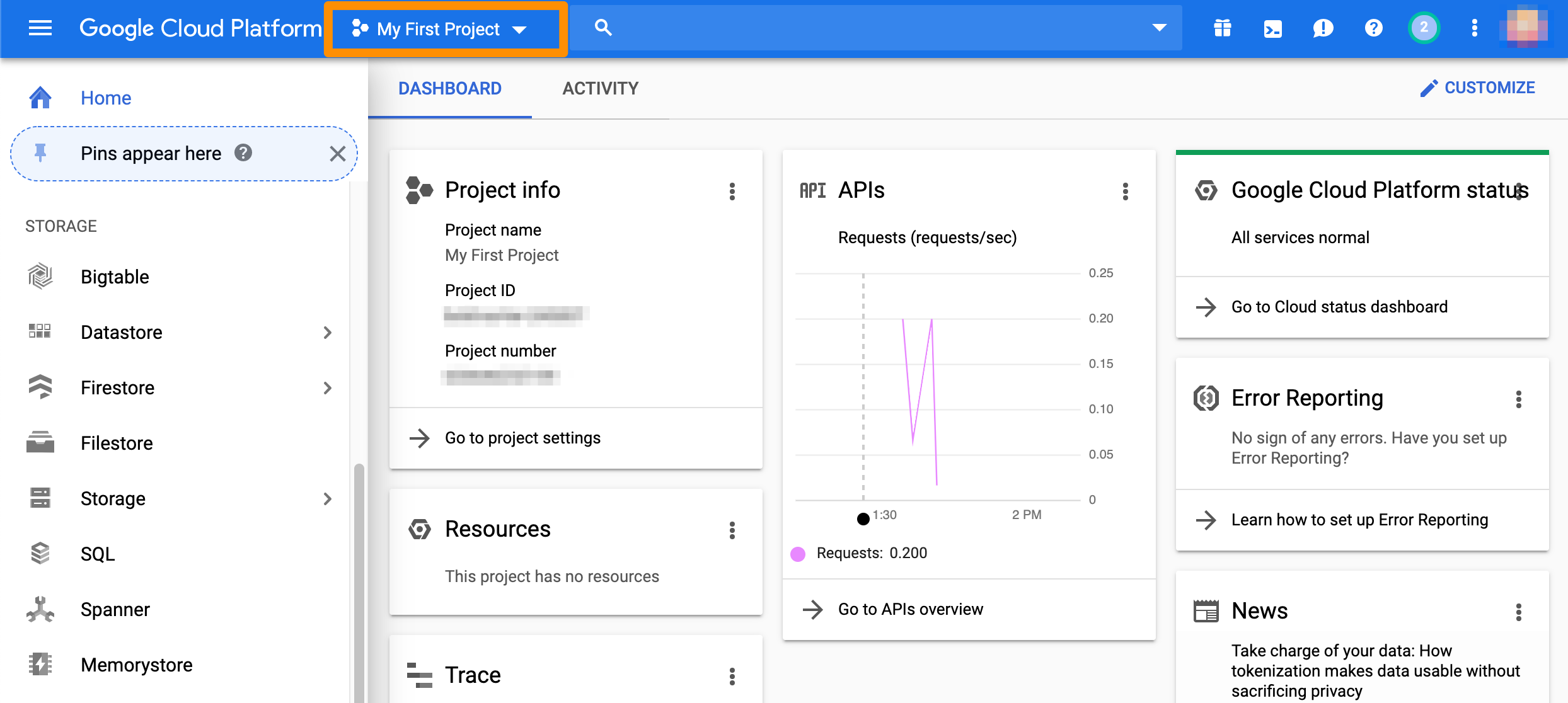
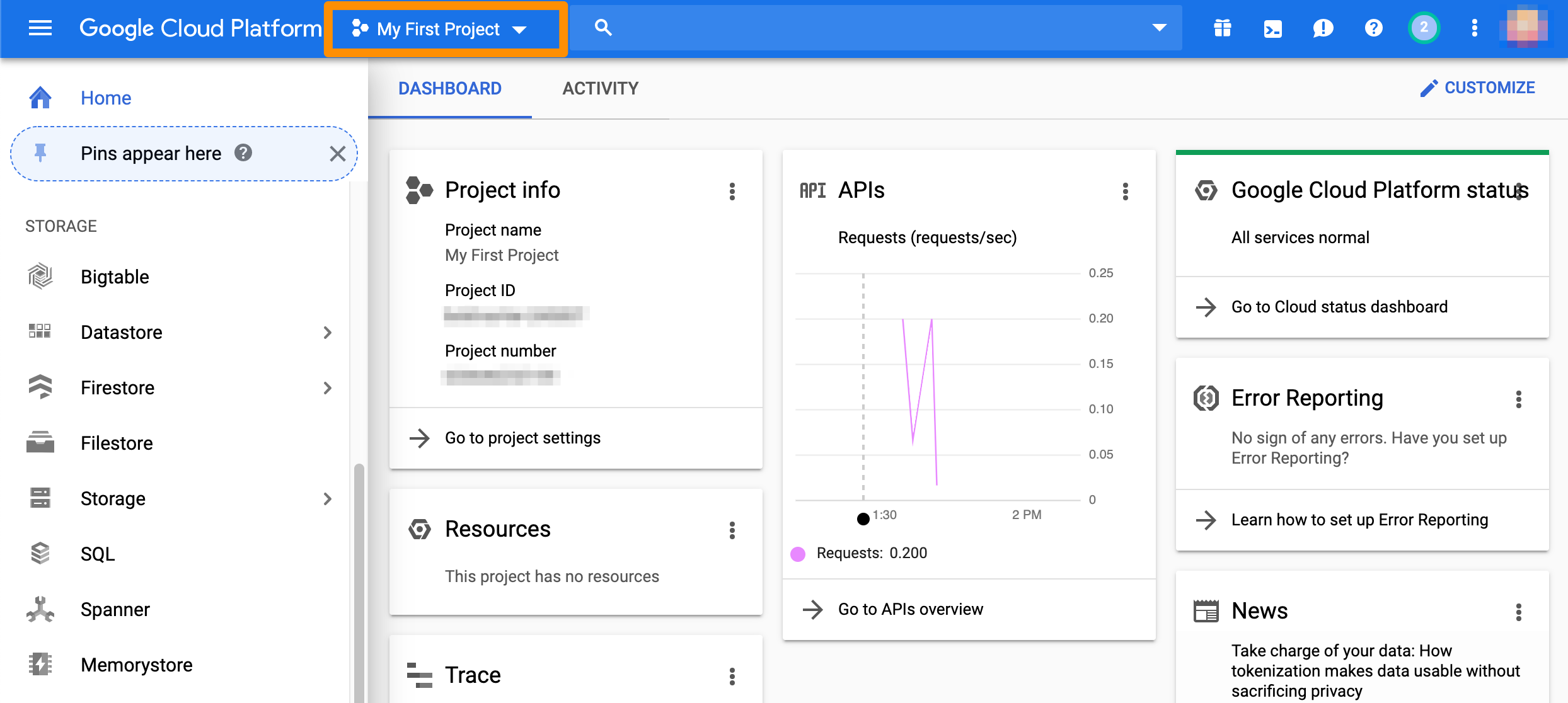
1. Verify that you're logged into the GCP console and you are working in the correct project.
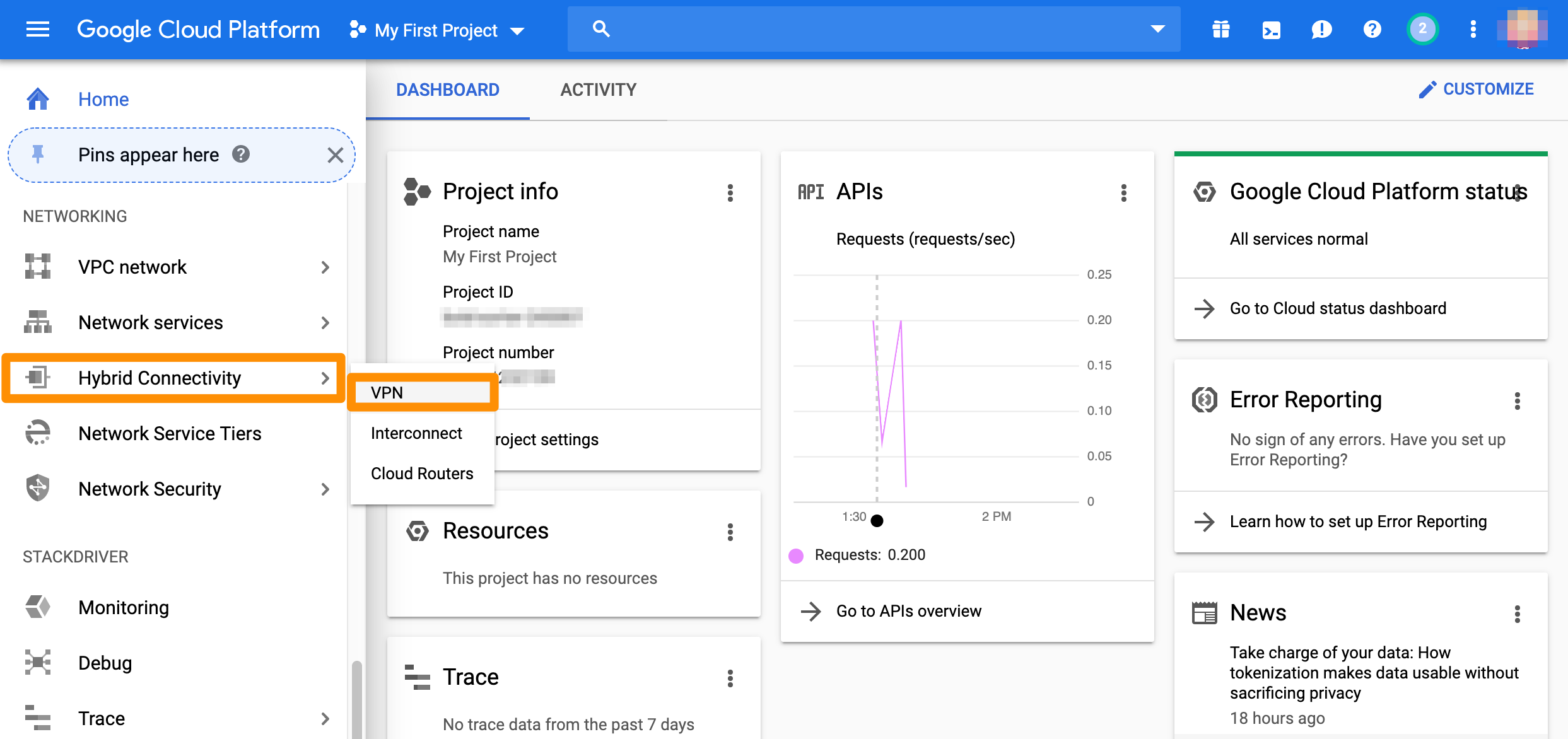
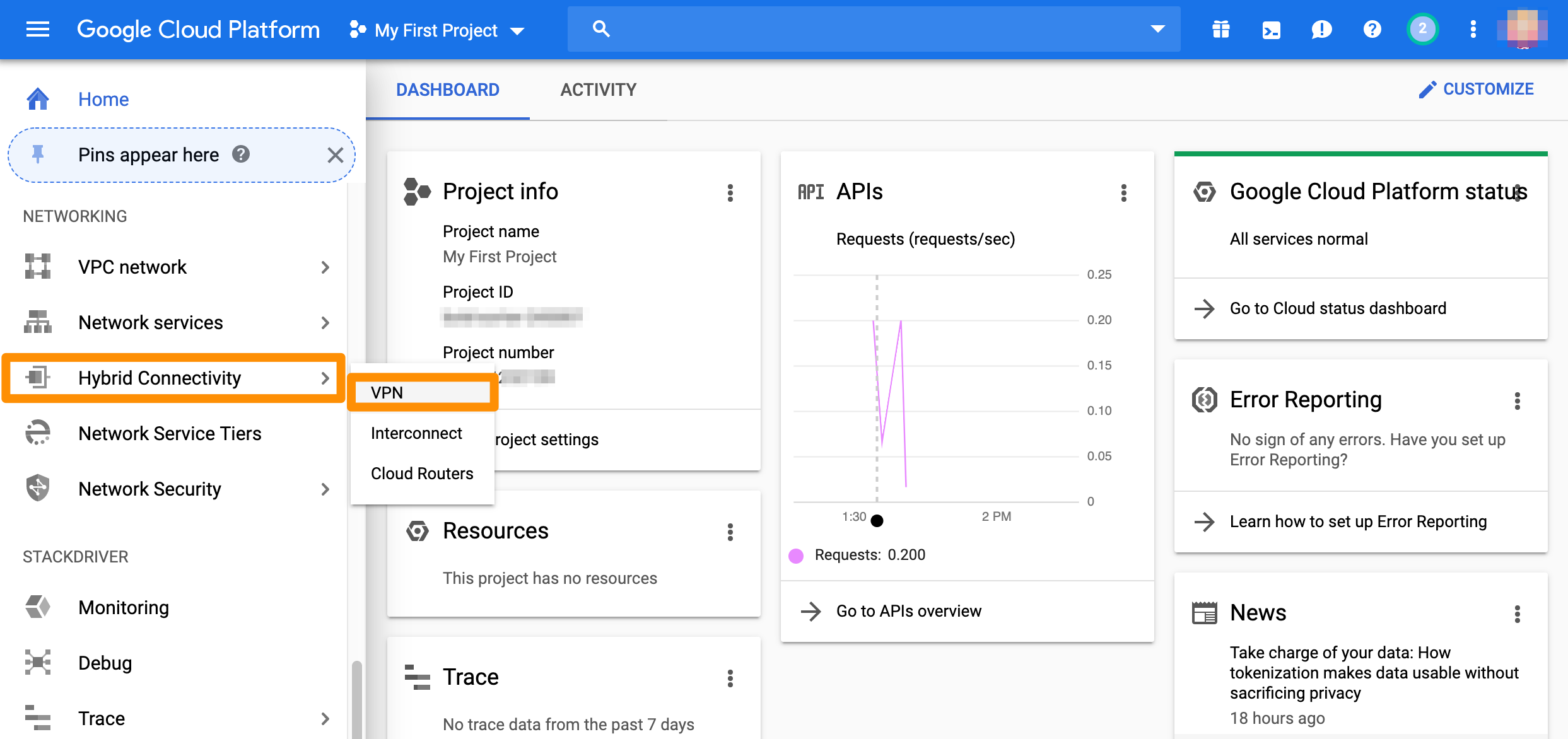
 2. From the GCP console sidebar, scroll to the *Networking* section and select **Hybrid Connectivity** > **VPN**.
 3. Select **Cloud VPN Gateways**.
4. Locate the gateway used by your GCP-Orka tunnel and note the value for **Region**.
3. Select **Cloud VPN Gateways**.
4. Locate the gateway used by your GCP-Orka tunnel and note the value for **Region**.
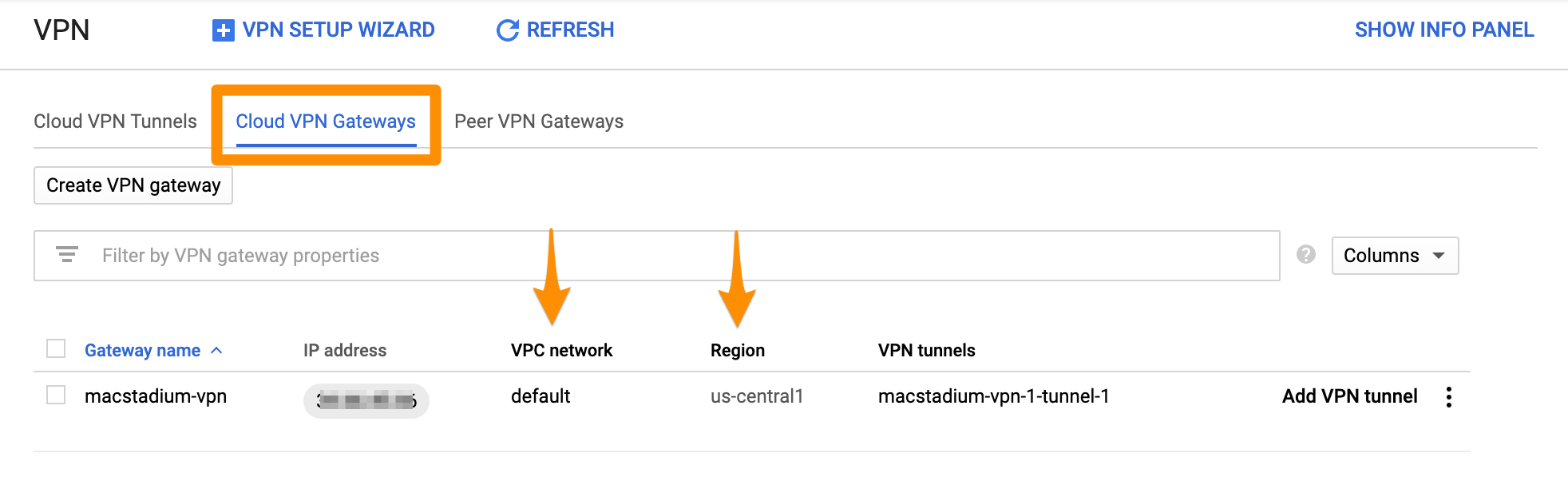 5. Click the value listed under **VPC network**.\
The GCP console redirects you to the list of subnets for the selected network.
6. In the list of subnets, locate the one matching the region you noted in **Step 4**.
7. From the respective **IP address ranges** field, use the IP address without the bit notation at the end (e.g. `/16`).
`{ gcp_network_mask }`
This is the subnet mask of the GCP local network that needs to have access to Orka.
1. Verify that you're logged into the GCP console and you are working in the correct project.
5. Click the value listed under **VPC network**.\
The GCP console redirects you to the list of subnets for the selected network.
6. In the list of subnets, locate the one matching the region you noted in **Step 4**.
7. From the respective **IP address ranges** field, use the IP address without the bit notation at the end (e.g. `/16`).
`{ gcp_network_mask }`
This is the subnet mask of the GCP local network that needs to have access to Orka.
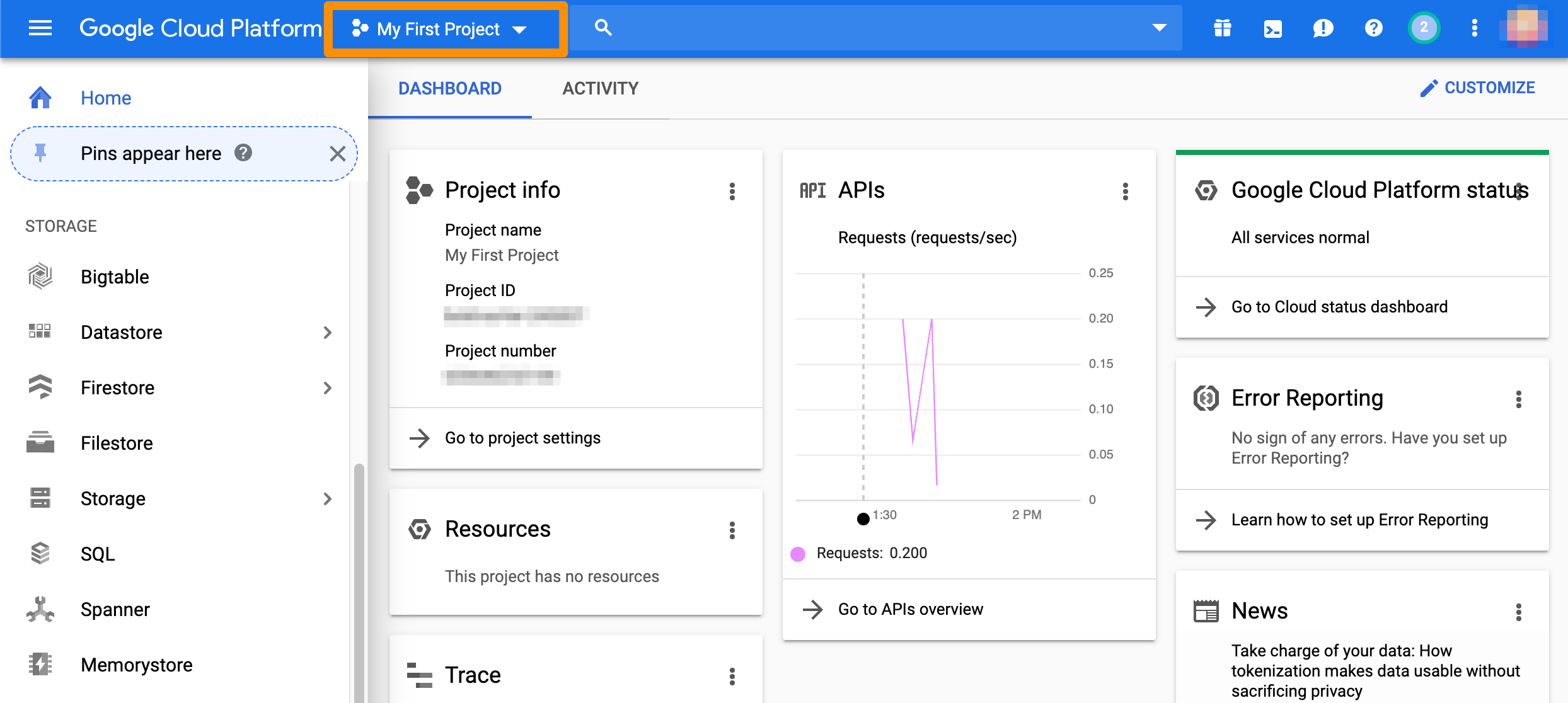
1. Verify that you're logged into the GCP console and you are working in the correct project.
 2. From the GCP console sidebar, scroll to the *Networking* section and select **Hybrid Connectivity** > **VPN**.
 3. Select **Cloud VPN Gateways**.
4. Locate the gateway used by your GCP-Orka tunnel and note the value for **Region**.
3. Select **Cloud VPN Gateways**.
4. Locate the gateway used by your GCP-Orka tunnel and note the value for **Region**.
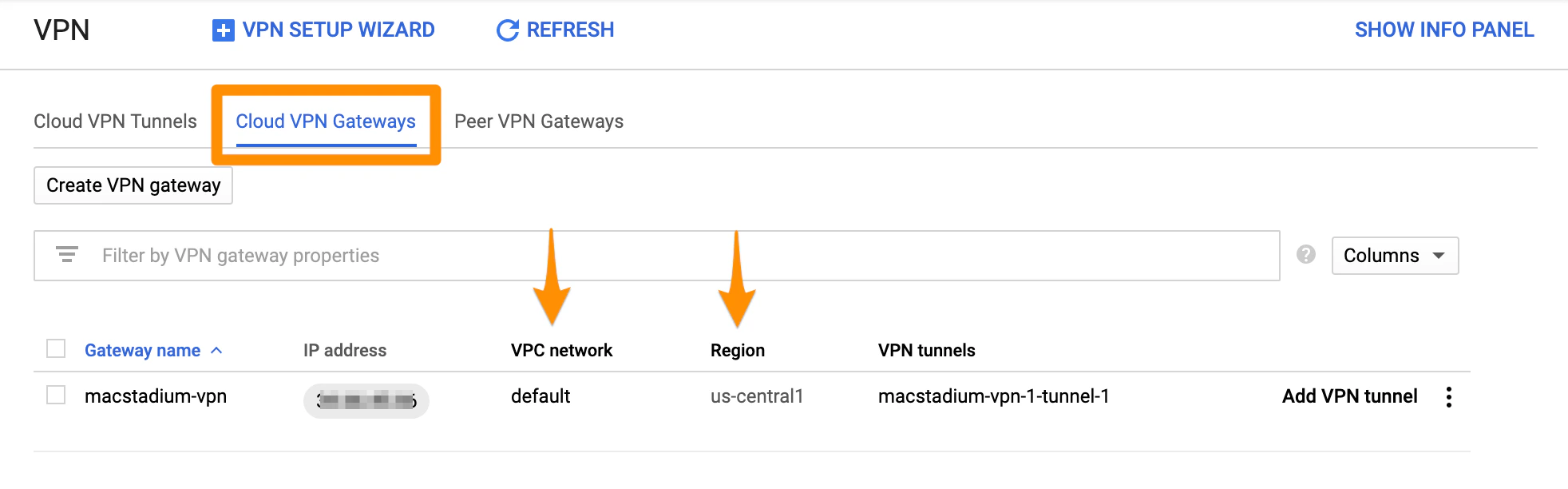 5. Click the value listed under **VPC network**.\
The GCP console redirects you to the list of subnets for the selected network.
6. In the list of subnets, locate the one matching the region you noted in **Step 4**.
7. From the respective **IP address ranges** field, use the bit notation at the end (e.g. `/16`) and convert it to a subnet mask. You can use a CIDR calculator such as this [CIDR/Netmask Lookup Tool](https://www.ultratools.com/tools/netMask).
`{ gcp_vpn_ip }`
This is the public IP address of the cloud VPN gateway in GCP.
1. Verify that you're logged into the GCP console and you are working in the correct project.
5. Click the value listed under **VPC network**.\
The GCP console redirects you to the list of subnets for the selected network.
6. In the list of subnets, locate the one matching the region you noted in **Step 4**.
7. From the respective **IP address ranges** field, use the bit notation at the end (e.g. `/16`) and convert it to a subnet mask. You can use a CIDR calculator such as this [CIDR/Netmask Lookup Tool](https://www.ultratools.com/tools/netMask).
`{ gcp_vpn_ip }`
This is the public IP address of the cloud VPN gateway in GCP.
1. Verify that you're logged into the GCP console and you are working in the correct project.
 2. From the GCP console sidebar, scroll to the *Networking* section and select **Hybrid Connectivity** > **VPN**.
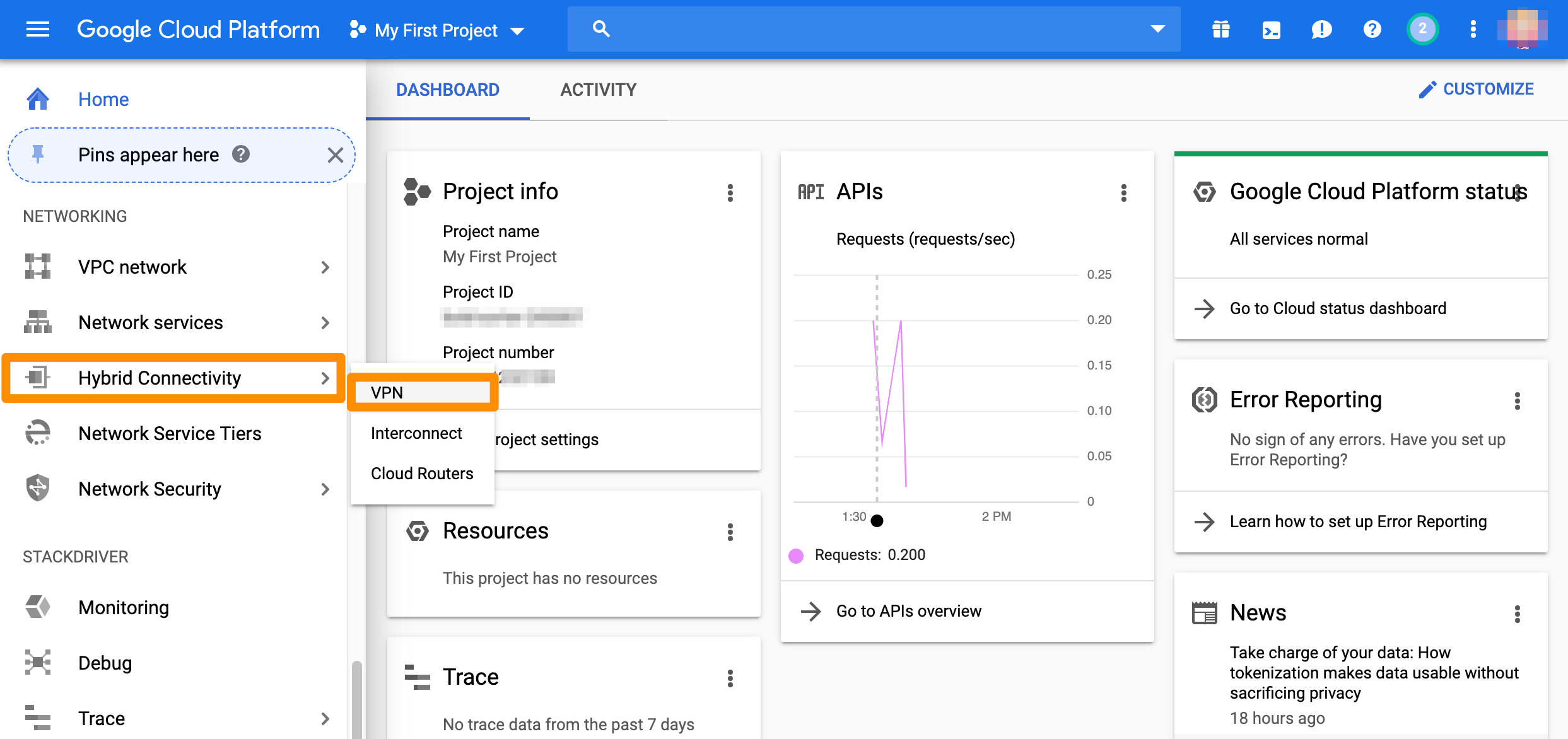 3. Select **Cloud VPN Gateways**.
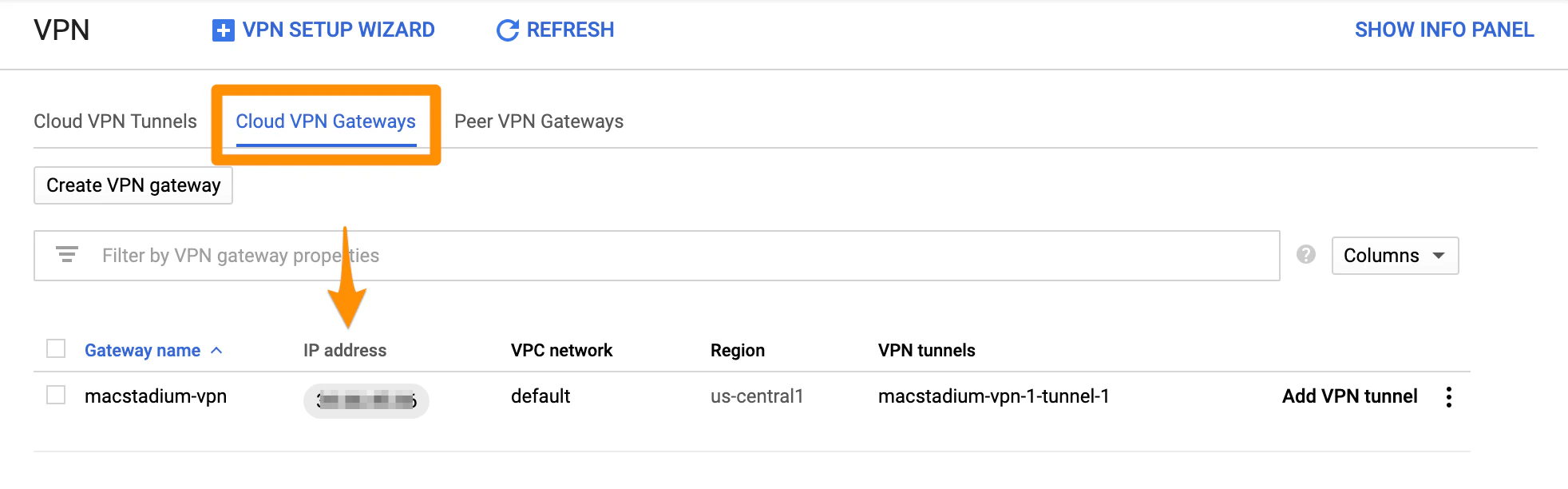
4. Locate the gateway used by your GCP-Orka tunnel and use the value listed under **IP address**.
3. Select **Cloud VPN Gateways**.
4. Locate the gateway used by your GCP-Orka tunnel and use the value listed under **IP address**.
 `{ macstadium_network_name }`
This is `Private-1`.
`{ macstadium_network_address }`
This is the IP address of the `Private-1` network from your [IP Plan](/macstadium/macstadium-overview/ip-plan).
`{ macstadium_network_mask }`
This is the subnet mask of the `Private-1` network from your [IP Plan](/macstadium/macstadium-overview/ip-plan).
`{ macstadium_public_ip }`
This is the IP address of the `FW1-Outside` network from your [IP Plan](/macstadium/macstadium-overview/ip-plan).
`{ macstadium_outside_interface }`
This is `Outside`.
`{ shared_key }`
This is the IPSec pre-shared key used when creating the VPN connection in GCP.
* You must have this key saved separately.
## Step 2: Complete the template
1. Copy the template into a text editing tool.
2. Replace all placeholders with their respective values.
3. Delete the remaining commented lines to clean up the template. Commented lines are indicated by `! `at the beginning of the line.
4. Save your changes.
`{ macstadium_network_name }`
This is `Private-1`.
`{ macstadium_network_address }`
This is the IP address of the `Private-1` network from your [IP Plan](/macstadium/macstadium-overview/ip-plan).
`{ macstadium_network_mask }`
This is the subnet mask of the `Private-1` network from your [IP Plan](/macstadium/macstadium-overview/ip-plan).
`{ macstadium_public_ip }`
This is the IP address of the `FW1-Outside` network from your [IP Plan](/macstadium/macstadium-overview/ip-plan).
`{ macstadium_outside_interface }`
This is `Outside`.
`{ shared_key }`
This is the IPSec pre-shared key used when creating the VPN connection in GCP.
* You must have this key saved separately.
## Step 2: Complete the template
1. Copy the template into a text editing tool.
2. Replace all placeholders with their respective values.
3. Delete the remaining commented lines to clean up the template. Commented lines are indicated by `! `at the beginning of the line.
4. Save your changes.