> ## Documentation Index
> Fetch the complete documentation index at: https://docs.macstadium.com/llms.txt
> Use this file to discover all available pages before exploring further.
# 4. Verifying the GCP VPN Tunnel
> (Optional) How to verify that your GCP-Orka VPN tunnel works as expected: check security associations, tunnel status and traffic between Orka and GCP.
(Optional) How to verify that your GCP-Orka VPN tunnel works as expected: check security associations, tunnel status and traffic between Orka and GCP.
**Before you begin:** You need an active VPN connection to your Orka cluster and your Cisco ASAv connection information from the [IP Plan](/macstadium/macstadium-overview/ip-plan).
This part of the workflow is optional.
## Verify that there is an ISAKMP security association between the peers
1. [Run Cisco ASDM-IDM and log in to your firewall.](/iaas/cisco-firewalls/logging-into-cisco-firewall)
2. In the Cisco ASDM-IDM application toolbar, select **Tools** > **Command Line Interface...**.
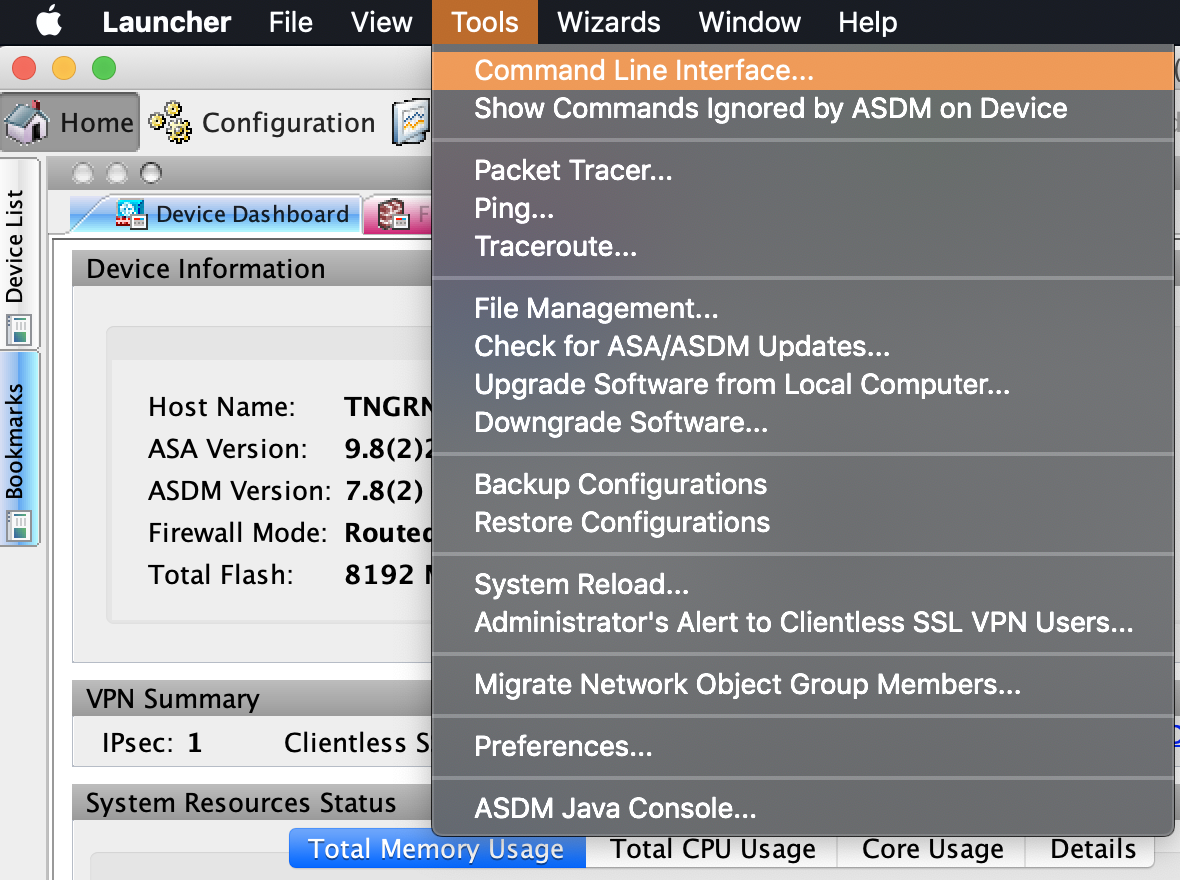 3. Select **Single Line**, enter the [following command](https://www.cisco.com/c/en/us/support/docs/security-vpn/ipsec-negotiation-ike-protocols/5409-ipsec-debug-00.html#isakmp_sa), and click **Send**.
```
show crypto isakmp sa
```
If the site-to-site VPN connection is configured properly, you should see information about an active IKEv1. For example:
```
Result of the command: "show crypto isakmp sa"
IKEv1 SAs:
Active SA: 1
Rekey SA: 0 (A tunnel will report 1 Active and 1 Rekey SA during rekey)
Total IKE SA: 1
1 IKE Peer: ...
Type : L2L Role : initiator
Rekey : no State : MM_ACTIVE
There are no IKEv2 SAs
```
## Verify that there is an IPsec security association between peers
1. [Run Cisco ASDM-IDM and log in to your firewall.](/iaas/cisco-firewalls/logging-into-cisco-firewall)
2. In the Cisco ASDM-IDM application toolbar, select **Tools** > **Command Line Interface...**.
3. Select **Single Line**, enter the [following command](https://www.cisco.com/c/en/us/support/docs/security-vpn/ipsec-negotiation-ike-protocols/5409-ipsec-debug-00.html#isakmp_sa), and click **Send**.
```
show crypto isakmp sa
```
If the site-to-site VPN connection is configured properly, you should see information about an active IKEv1. For example:
```
Result of the command: "show crypto isakmp sa"
IKEv1 SAs:
Active SA: 1
Rekey SA: 0 (A tunnel will report 1 Active and 1 Rekey SA during rekey)
Total IKE SA: 1
1 IKE Peer: ...
Type : L2L Role : initiator
Rekey : no State : MM_ACTIVE
There are no IKEv2 SAs
```
## Verify that there is an IPsec security association between peers
1. [Run Cisco ASDM-IDM and log in to your firewall.](/iaas/cisco-firewalls/logging-into-cisco-firewall)
2. In the Cisco ASDM-IDM application toolbar, select **Tools** > **Command Line Interface...**.
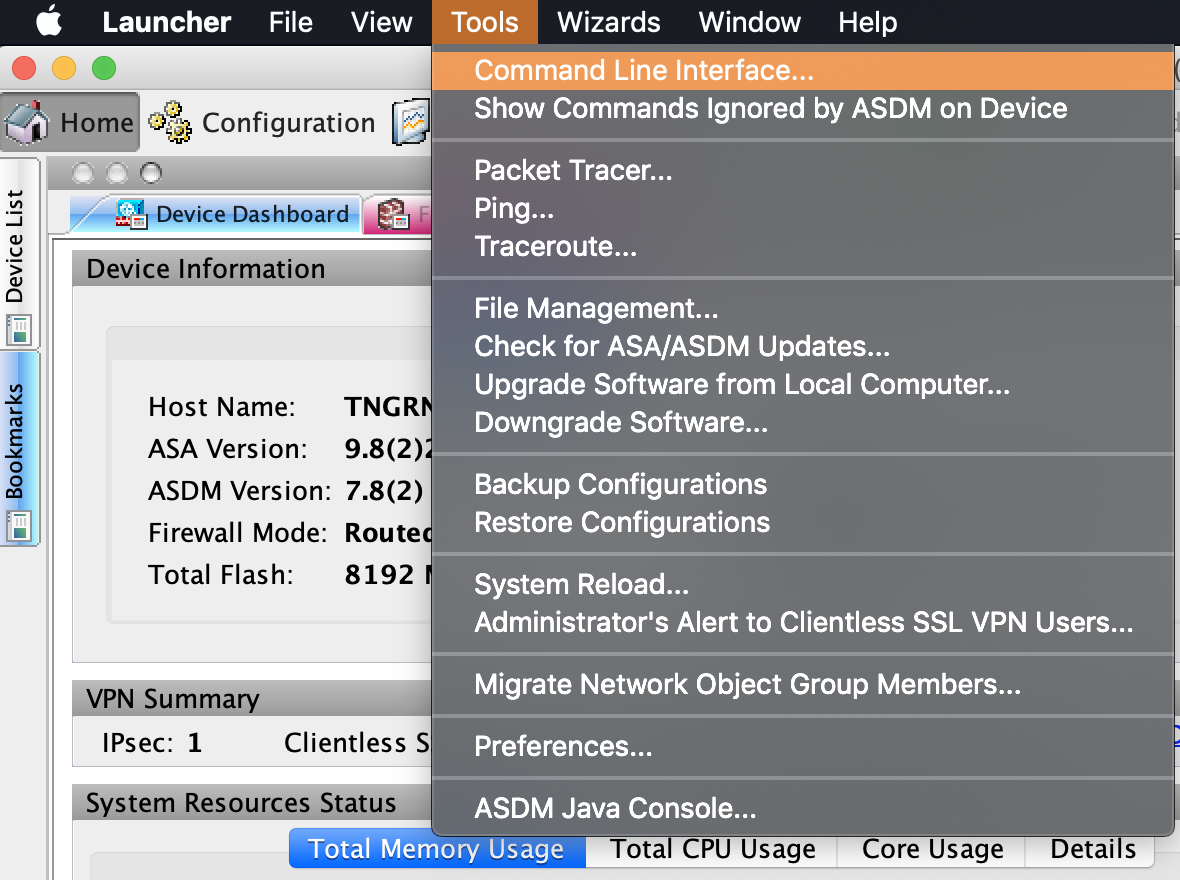 3. Select **Single Line**, enter the [following command](https://www.cisco.com/c/en/us/support/docs/security-vpn/ipsec-negotiation-ike-protocols/5409-ipsec-debug-00.html#ipsec_sa), and click **Send**.
```
show crypto ipsec sa
```
If the site-to-site VPN connection is configured properly, you should see a detailed log. For example:
```
Result of the command: "show crypto ipsec sa"
interface: Outside
Crypto map tag: amzn_vpn_map_1, seq num: 1, local addr: ...
access-list acl-amzn extended permit ip any ...
local ident (addr/mask/prot/port): ...
remote ident (addr/mask/prot/port): ...
current_peer: ...
....
inbound esp sas:
...
outbound esp sas:
...
```
## Verify that the tunnel is connected
1. Log in to your GCP console.
2. From the GCP console sidebar, scroll to the *Networking* section and select **Hybrid Connectivity** > **VPN**.
3. Select **Single Line**, enter the [following command](https://www.cisco.com/c/en/us/support/docs/security-vpn/ipsec-negotiation-ike-protocols/5409-ipsec-debug-00.html#ipsec_sa), and click **Send**.
```
show crypto ipsec sa
```
If the site-to-site VPN connection is configured properly, you should see a detailed log. For example:
```
Result of the command: "show crypto ipsec sa"
interface: Outside
Crypto map tag: amzn_vpn_map_1, seq num: 1, local addr: ...
access-list acl-amzn extended permit ip any ...
local ident (addr/mask/prot/port): ...
remote ident (addr/mask/prot/port): ...
current_peer: ...
....
inbound esp sas:
...
outbound esp sas:
...
```
## Verify that the tunnel is connected
1. Log in to your GCP console.
2. From the GCP console sidebar, scroll to the *Networking* section and select **Hybrid Connectivity** > **VPN**.
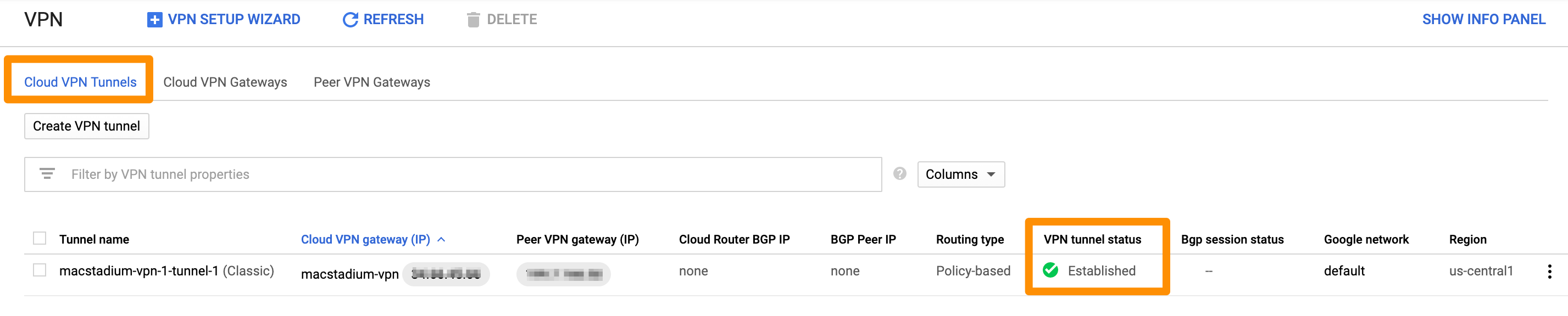
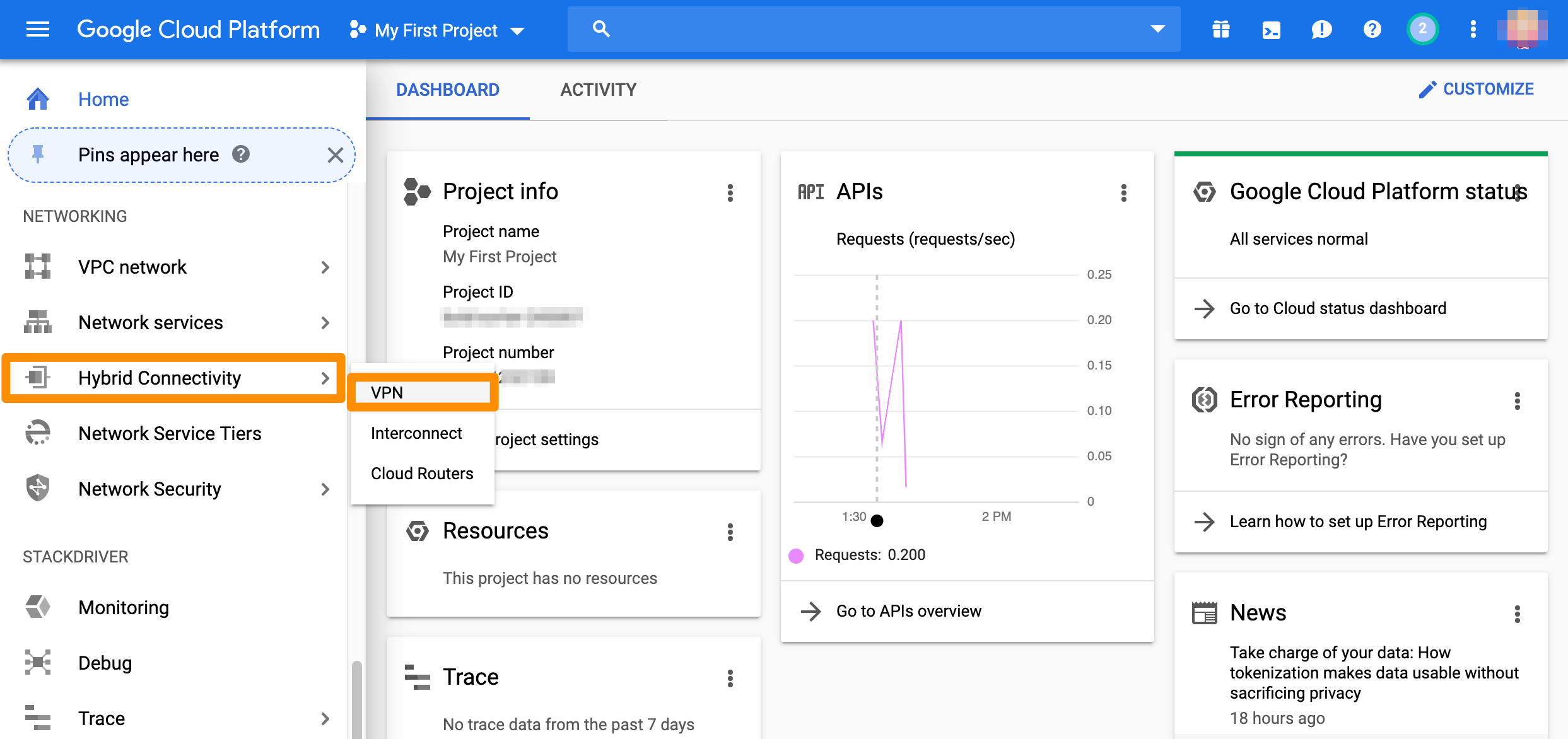 3. On the **Cloud VPN Tunnels** tab, locate the tunnel to MacStadium and check the value for **VPN tunnel status**. When your tunnel is properly connected, the status is: `Established`.
 ## Test traffic and visibility through the tunnel
1. Verify that you have created a virtual machine in MacStadium.
2. Verify that you have created a virtual machine instance in GCP and that you have enabled user login on it.\
For more information about user login on GCP instances, see [Google Cloud Documentation: Setting up and configuring OS Login](https://cloud.google.com/compute/docs/instances/managing-instance-access).
3. In the terminal on your MacStadium VM, run the following command:
```
ssh @
```
Replace `` with the username for your GCP instance.\
Replace `` with the private IP of the GCP instance.
4. When prompted, provide your password or key for the specified username on the specified GCP instance.\
If the connection is successful, the prefix of the terminal becomes `@`. This indicates that you have connected from Orka to GCP over the tunnel.
5. Run the following command:
```
ssh @
```
Replace `` with the username for your Orka VM.\
Replace `` with the private IP of the Orka VM.
6. When prompted, provide your password or key for the specified username on the specified MacStadium VM.\
If the connection is successful, the prefix of the terminal becomes `@`. This indicates that you have connected from GCP to MacStadium over the tunnel.
## Test traffic and visibility through the tunnel
1. Verify that you have created a virtual machine in MacStadium.
2. Verify that you have created a virtual machine instance in GCP and that you have enabled user login on it.\
For more information about user login on GCP instances, see [Google Cloud Documentation: Setting up and configuring OS Login](https://cloud.google.com/compute/docs/instances/managing-instance-access).
3. In the terminal on your MacStadium VM, run the following command:
```
ssh @
```
Replace `` with the username for your GCP instance.\
Replace `` with the private IP of the GCP instance.
4. When prompted, provide your password or key for the specified username on the specified GCP instance.\
If the connection is successful, the prefix of the terminal becomes `@`. This indicates that you have connected from Orka to GCP over the tunnel.
5. Run the following command:
```
ssh @
```
Replace `` with the username for your Orka VM.\
Replace `` with the private IP of the Orka VM.
6. When prompted, provide your password or key for the specified username on the specified MacStadium VM.\
If the connection is successful, the prefix of the terminal becomes `@`. This indicates that you have connected from GCP to MacStadium over the tunnel.