> ## Documentation Index
> Fetch the complete documentation index at: https://docs.macstadium.com/llms.txt
> Use this file to discover all available pages before exploring further.
# Using Harbor OCI Storage with the Orka CLI
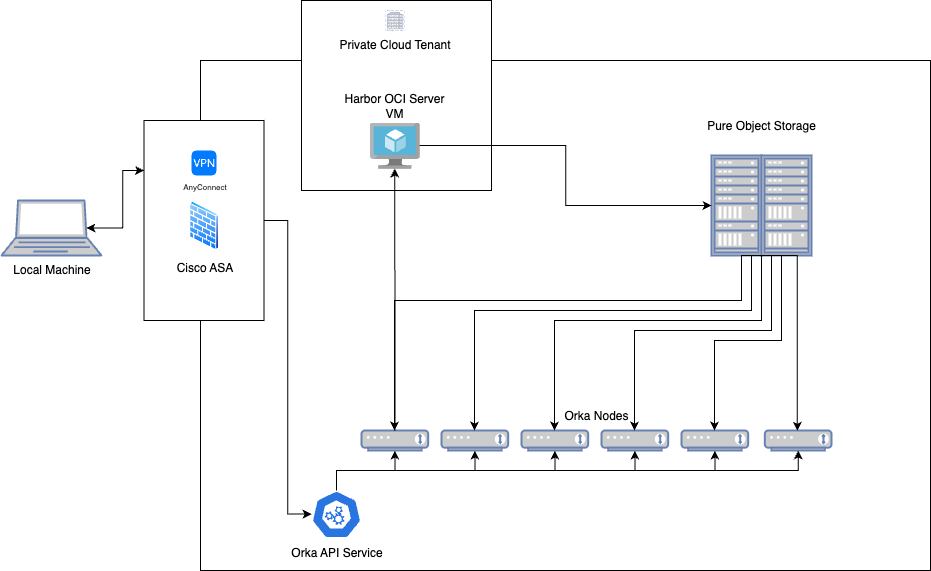
> Orka Harbor OCI storage comes preconfigured with everything needed to push and pull macOS VM images using the Orka CLI. Users are provided with a Project.
**Requires Orka 3.5 or later.** If you're on an earlier version, see the [release notes](/orka/orka-upgrades-and-release-notes/orka-upgrades) for your version before proceeding.
Orka Harbor OCI storage comes preconfigured with everything needed to push and pull macOS VM images using the Orka CLI. Users are provided with a **Project Admin** account, giving them full control over project repositories and user management within their assigned project(s).
 ### Getting Your Credentials
Your Harbor credentials will be provided to you by our support team, and are included in your IP Plan. These will include your:
* Harbor URL
* Harbor metrics URL
* Username
* Password
### Accessing the Harbor Web Interface
#### Initial Login
1. You will need to be logged in to the Orka CLI using the `orka3 login` command in your terminal, and connected to the VPN as outlined in your IP plan.
2. Navigate to your Harbor URL included in your IP Plan in a web browser. This will typically be the last available IP in your Orka subnet. Example: [https://10.221.189.254](https://10.221.189.254/). Your Harbor metrics URL will differ, and have the /metrics destination. Example: [http://10.221.189.254:9090/metrics](http://10.221.189.254:9090/metrics). Each Harbor instance includes a [Let’s Encrypt](https://letsencrypt.org/) certificate, enabling you to access your instance via FQDN by adding the appropriate entry to your local hosts file.
3. Click ‘Log in’
### Getting Your Credentials
Your Harbor credentials will be provided to you by our support team, and are included in your IP Plan. These will include your:
* Harbor URL
* Harbor metrics URL
* Username
* Password
### Accessing the Harbor Web Interface
#### Initial Login
1. You will need to be logged in to the Orka CLI using the `orka3 login` command in your terminal, and connected to the VPN as outlined in your IP plan.
2. Navigate to your Harbor URL included in your IP Plan in a web browser. This will typically be the last available IP in your Orka subnet. Example: [https://10.221.189.254](https://10.221.189.254/). Your Harbor metrics URL will differ, and have the /metrics destination. Example: [http://10.221.189.254:9090/metrics](http://10.221.189.254:9090/metrics). Each Harbor instance includes a [Let’s Encrypt](https://letsencrypt.org/) certificate, enabling you to access your instance via FQDN by adding the appropriate entry to your local hosts file.
3. Click ‘Log in’
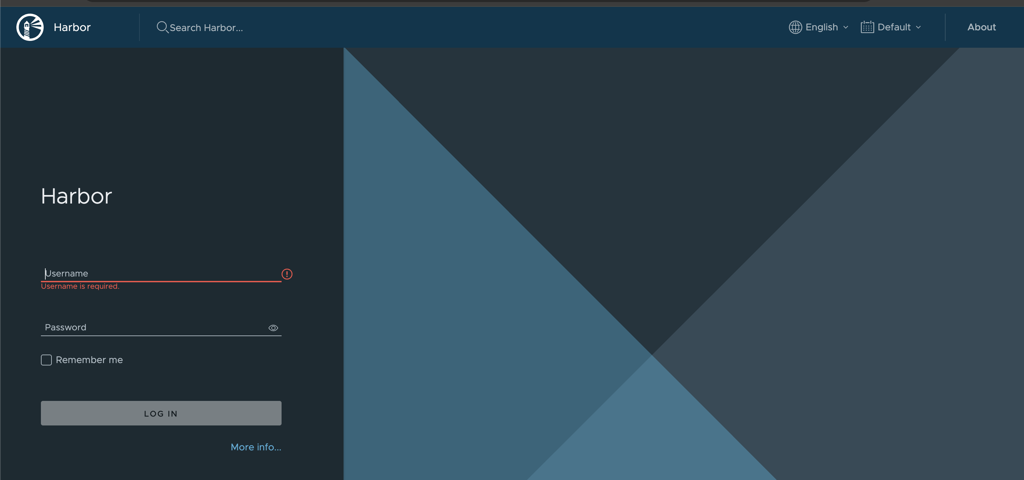 1. Enter your username and password
2. Click ‘Log in’
### Harbor Dashboard Overview
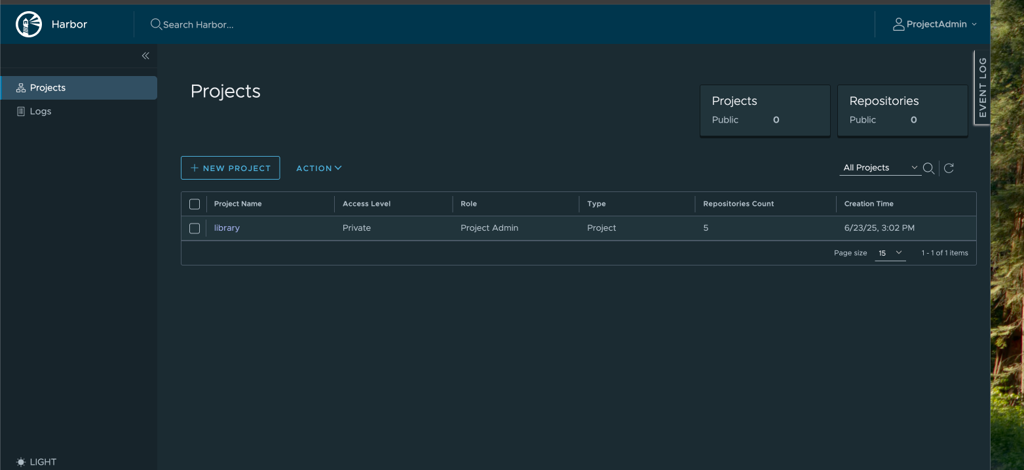
Once logged in, you’ll see the Harbor dashboard, with several key sections:
* **Projects:** Your assigned project where you can manage repositories. If you require more than one project, please [reach out to our Support team](mailto:support@macstadium.com) for assistance.
1. Enter your username and password
2. Click ‘Log in’
### Harbor Dashboard Overview
Once logged in, you’ll see the Harbor dashboard, with several key sections:
* **Projects:** Your assigned project where you can manage repositories. If you require more than one project, please [reach out to our Support team](mailto:support@macstadium.com) for assistance.
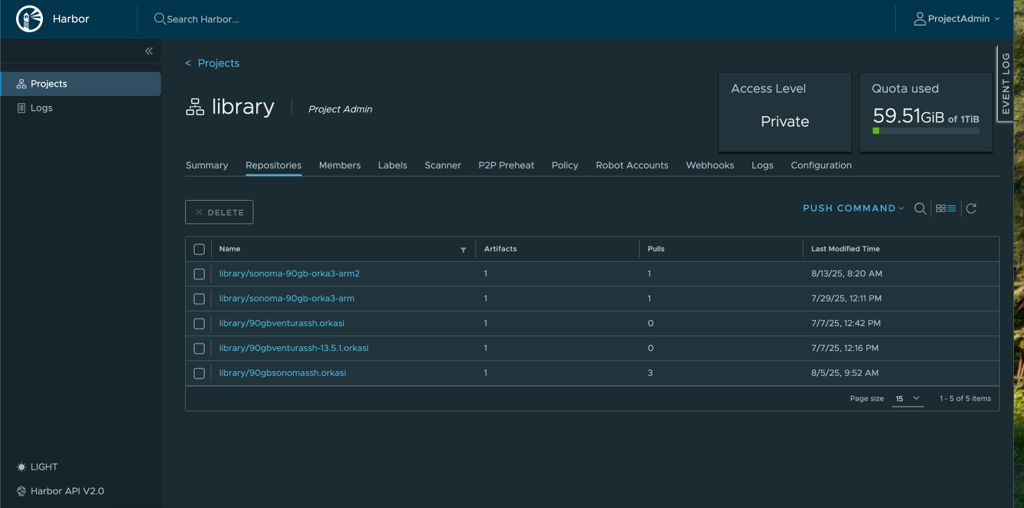
 * **Repositories:** Container image repositories within your project
 * **Users:** Project-level user management (limited to your project scope). To add users, please open a support ticket.
### Key Harbor Web Interface Features
#### Project Summary
The project section provides an overview of:
* The total number of repositories in your project
* Your storage usage and quota limits
* Recent activity and statistics
* Project members and roles
#### Repository Management
The ‘repositories’ section provides a detailed overview of:
* All the repositories within your project
* Browsing image tags and versions
* Delete images if necessary (see ‘Garbage collection’ section below)
#### User Management
As a Project Admin, you can:
* View existing project users
* Manage user roles within your project scope
* **Note:** To add new users to your project, please [contact the MacStadium Support team](mailto:support@macstadium.com).
### Using Harbor with the Orka CLI
Add credentials to Orka to access the Harbor OCI repository:
`orka3 regcred add -u -p https://`
The `https://` scheme is required. Omitting it or using `http://` will cause push operations to fail with an App Transport Security (ATS) error on the Orka nodes.
### Pulling Images
Instruct all Orka nodes to fetch an image from the OCI repository:
`orka3 imagecache add /library/ --all`
Cache the image to a single node:
`orka3 imagecache add /library/ --nodes `
Monitor the status of the image being fetched:
`orka3 imagecache info /library/`
For more information, run `orka3 regcred --help` command in the Orka CLI.
### Pushing Images
The state of a running VM is saved on the host and pushed to your Harbor container registry. This operation is applicable only to Apple silicon-based VMs. The provided image must be in the following format: `server.com/repository/image:tag`.
If `--namespace` is not set, Harbor assumes that the VM is running in the `orka-default` namespace.\
Registry credentials must exist in the same namespace as the VM.
Registry credentials are required to authenticate to the registry for the push operation.
For more information, run `orka3 regcred --help` in the Orka CLI.
Pushing an OCI image is an async operation. To check the status of the operation, run:\
`orka3 vm get-push-status JOB_NAME`
#### Usage
`orka3 vm push VM_NAME IMAGE[:TAG] [flags]`
### Image Management and Deletion
#### Deleting Images
**Note:** Images must be deleted through Harbor, not via the Orka CLI.
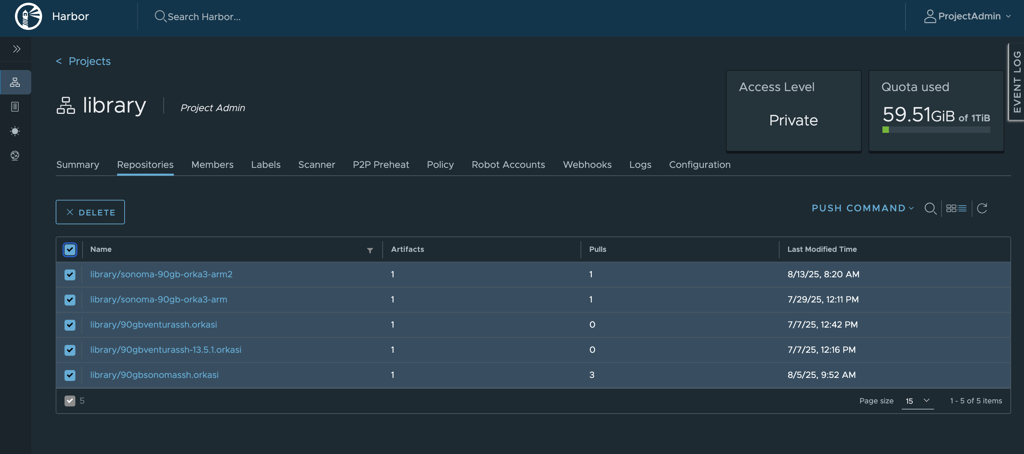
1. Log in to the Harbor web interface
2. Navigate to your project
3. Select the repository that contains the image for deletion
4. Check the box next to the image tag(s) you want to delete
5. Click ‘DELETE’ to confirm the action
* **Users:** Project-level user management (limited to your project scope). To add users, please open a support ticket.
### Key Harbor Web Interface Features
#### Project Summary
The project section provides an overview of:
* The total number of repositories in your project
* Your storage usage and quota limits
* Recent activity and statistics
* Project members and roles
#### Repository Management
The ‘repositories’ section provides a detailed overview of:
* All the repositories within your project
* Browsing image tags and versions
* Delete images if necessary (see ‘Garbage collection’ section below)
#### User Management
As a Project Admin, you can:
* View existing project users
* Manage user roles within your project scope
* **Note:** To add new users to your project, please [contact the MacStadium Support team](mailto:support@macstadium.com).
### Using Harbor with the Orka CLI
Add credentials to Orka to access the Harbor OCI repository:
`orka3 regcred add -u -p https://`
The `https://` scheme is required. Omitting it or using `http://` will cause push operations to fail with an App Transport Security (ATS) error on the Orka nodes.
### Pulling Images
Instruct all Orka nodes to fetch an image from the OCI repository:
`orka3 imagecache add /library/ --all`
Cache the image to a single node:
`orka3 imagecache add /library/ --nodes `
Monitor the status of the image being fetched:
`orka3 imagecache info /library/`
For more information, run `orka3 regcred --help` command in the Orka CLI.
### Pushing Images
The state of a running VM is saved on the host and pushed to your Harbor container registry. This operation is applicable only to Apple silicon-based VMs. The provided image must be in the following format: `server.com/repository/image:tag`.
If `--namespace` is not set, Harbor assumes that the VM is running in the `orka-default` namespace.\
Registry credentials must exist in the same namespace as the VM.
Registry credentials are required to authenticate to the registry for the push operation.
For more information, run `orka3 regcred --help` in the Orka CLI.
Pushing an OCI image is an async operation. To check the status of the operation, run:\
`orka3 vm get-push-status JOB_NAME`
#### Usage
`orka3 vm push VM_NAME IMAGE[:TAG] [flags]`
### Image Management and Deletion
#### Deleting Images
**Note:** Images must be deleted through Harbor, not via the Orka CLI.
1. Log in to the Harbor web interface
2. Navigate to your project
3. Select the repository that contains the image for deletion
4. Check the box next to the image tag(s) you want to delete
5. Click ‘DELETE’ to confirm the action
 ### Garbage Collection
* **Default schedule:** Garbage collection runs hourly to reclaim storage space from deleted images
* **Timing:** Garbage collection occurs hourly, at the top of the hour
* **Custom scheduling:** If you would like to adjust your instance’s garbage collection schedule, please [contact our support team](mailto:support@macstadium.com).
Please note that deleted images are not immediately removed from storage. They are marked for deletion and then cleaned up during the next garbage collection cycle.
### Storage Quota and Limits
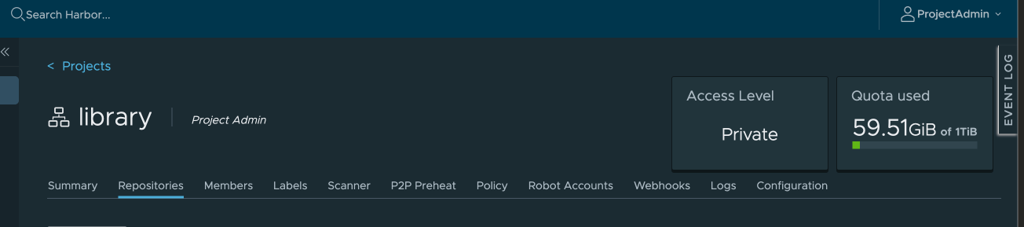
Your Harbor instance comes with pre-defined storage quotas. You can monitor your resource usage via the Harbor web interface under your project settings. If you attempt to push an image and have hit your storage quota, you will be met with an internal server error.
#### Example
```
Image push progress: 8%
Error: internal error (13): Unexpected status code: 500
orka-engine image push 90gbventurassh.orkasi -u admin -p Harbor12345 0.26s user 0.04s system 0% cpu 51.752 total
```
If you encounter this error, we recommend logging into your Harbor instance using the instructions above, and verifying that you have not hit your storage quota. This can be viewed in the Harbor web interface, on the right side of the screen.
### Garbage Collection
* **Default schedule:** Garbage collection runs hourly to reclaim storage space from deleted images
* **Timing:** Garbage collection occurs hourly, at the top of the hour
* **Custom scheduling:** If you would like to adjust your instance’s garbage collection schedule, please [contact our support team](mailto:support@macstadium.com).
Please note that deleted images are not immediately removed from storage. They are marked for deletion and then cleaned up during the next garbage collection cycle.
### Storage Quota and Limits
Your Harbor instance comes with pre-defined storage quotas. You can monitor your resource usage via the Harbor web interface under your project settings. If you attempt to push an image and have hit your storage quota, you will be met with an internal server error.
#### Example
```
Image push progress: 8%
Error: internal error (13): Unexpected status code: 500
orka-engine image push 90gbventurassh.orkasi -u admin -p Harbor12345 0.26s user 0.04s system 0% cpu 51.752 total
```
If you encounter this error, we recommend logging into your Harbor instance using the instructions above, and verifying that you have not hit your storage quota. This can be viewed in the Harbor web interface, on the right side of the screen.
 If you have hit your quota and need to free up space on your instance urgently, or need to increase your storage limits for any reason, please contact our support team.
### Advanced Features and Configurations
For more detailed information about Harbor’s advanced features and capabilities, please refer to the official Harbor documentation:
* **Harbor documentation:**[ https://goharbor.io/](https://goharbor.io/)
* **User guide:**[ https://goharbor.io/docs/2.13.0/working-with-projects/](https://goharbor.io/docs/2.13.0/working-with-projects/)
* **Administration:**[ https://goharbor.io/docs/2.13.0/administration/](https://goharbor.io/docs/2.13.0/administration/)
* **Scheduled maintenance:** We are currently finalizing our maintenance process for platform updates. These updates will require scheduled downtime to ensure system security and performance. We will provide advance notice via email and MacStadium portal notification of all planned maintenance windows, and their impact on service availability. These details will be added to our documentation once they are complete.
### Troubleshooting
#### Push Fails with an App Transport Security Error
If `orka3 vm get-push-status` returns an error referencing App Transport Security (ATS) or a secure connection requirement:
```
pushing image failed — The resource could not be loaded because the App Transport Security policy requires the use of a secure connection.
```
This means the Orka node attempted to connect to Harbor over HTTP instead of HTTPS. The most common cause is a registry credential added without the `https://` scheme.
To fix it, remove the existing credential and re-add it with `https://`:
```bash theme={null}
orka3 regcred remove
orka3 regcred add -u -p https://
```
### Additional Support
#### Adding Users
If you need to add additional users to your project, please [contact the MacStadium Support team](mailto:support@macstadium.com) with:
* The email address of the user to be added
* The desired role for each user
* Your project name
#### Configuration Changes
For any configuration changes such as custom garbage collection schedules, storage quota increases, or advanced security settings, please contact our support team.
#### Support Channels
* Email [support@macstadium.com](mailto:support@macstadium.com)
* Orka documentation: [https://docs.macstadium.com/orka](https://docs.macstadium.com/orka)
If you have hit your quota and need to free up space on your instance urgently, or need to increase your storage limits for any reason, please contact our support team.
### Advanced Features and Configurations
For more detailed information about Harbor’s advanced features and capabilities, please refer to the official Harbor documentation:
* **Harbor documentation:**[ https://goharbor.io/](https://goharbor.io/)
* **User guide:**[ https://goharbor.io/docs/2.13.0/working-with-projects/](https://goharbor.io/docs/2.13.0/working-with-projects/)
* **Administration:**[ https://goharbor.io/docs/2.13.0/administration/](https://goharbor.io/docs/2.13.0/administration/)
* **Scheduled maintenance:** We are currently finalizing our maintenance process for platform updates. These updates will require scheduled downtime to ensure system security and performance. We will provide advance notice via email and MacStadium portal notification of all planned maintenance windows, and their impact on service availability. These details will be added to our documentation once they are complete.
### Troubleshooting
#### Push Fails with an App Transport Security Error
If `orka3 vm get-push-status` returns an error referencing App Transport Security (ATS) or a secure connection requirement:
```
pushing image failed — The resource could not be loaded because the App Transport Security policy requires the use of a secure connection.
```
This means the Orka node attempted to connect to Harbor over HTTP instead of HTTPS. The most common cause is a registry credential added without the `https://` scheme.
To fix it, remove the existing credential and re-add it with `https://`:
```bash theme={null}
orka3 regcred remove
orka3 regcred add -u -p https://
```
### Additional Support
#### Adding Users
If you need to add additional users to your project, please [contact the MacStadium Support team](mailto:support@macstadium.com) with:
* The email address of the user to be added
* The desired role for each user
* Your project name
#### Configuration Changes
For any configuration changes such as custom garbage collection schedules, storage quota increases, or advanced security settings, please contact our support team.
#### Support Channels
* Email [support@macstadium.com](mailto:support@macstadium.com)
* Orka documentation: [https://docs.macstadium.com/orka](https://docs.macstadium.com/orka)