> ## Documentation Index
> Fetch the complete documentation index at: https://docs.macstadium.com/llms.txt
> Use this file to discover all available pages before exploring further.
# Connect to Your Cloud (Windows)
> The Cisco VPN client for Windows is now deprecated. If you need to connect to your MacStadium cloud from a Windows machine, you can use the free Shrew.
**Cloud Access is no longer sold directly by MacStadium.** Renewals are supported, but new customers should purchase [HP Anyware](https://anyware.hp.com/) directly. This documentation is preserved for existing customers. For remote macOS access, see [MacStadium VDI](/remote-desktop-vdi/overview/prerequisites). Questions? Contact [support@macstadium.com](mailto:support@macstadium.com).
The Cisco VPN client for Windows is now deprecated. If you need to connect to your MacStadium cloud from a Windows machine, you can use the free Shrew Soft VPN client instead.
1. Go to the Shrew Soft Inc. website at [https://www.shrew.net/download/vpn](https://www.shrew.net/download/vpn) and download the VPN client for Windows.
* **NOTE**: Although OS Support indicates 2K/XP/Vista/7/8, MacStadium has verified that the client works with Windows 10 as well.
2. Run the installer and follow the prompts. When asked, select Standard Edition.
3. After the installation completes, find and run the VPN Access Manager.
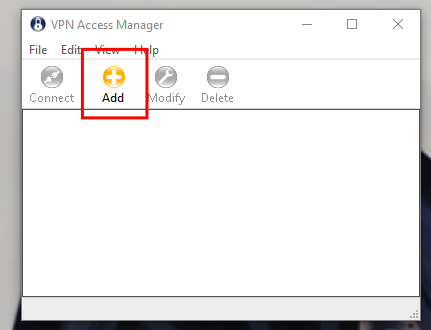
4. Click Add+\\
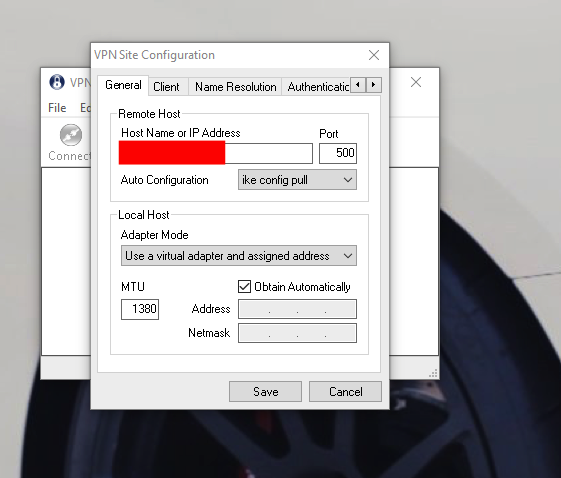
 5. Enter the IP address of your firewall WAN IP.\\
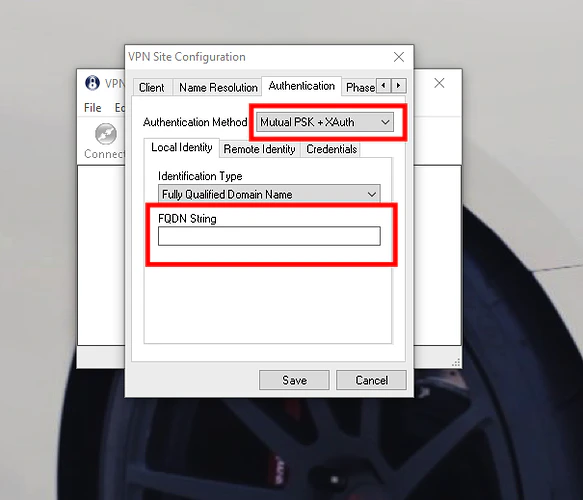
 6. Go to the Authentication tab. From the Authentication Method drop-down menu select Mutual PSK + XAuth.
7. On the Local Identity sub-tab, in the FQDN String text box, enter your group authentication name.\\
6. Go to the Authentication tab. From the Authentication Method drop-down menu select Mutual PSK + XAuth.
7. On the Local Identity sub-tab, in the FQDN String text box, enter your group authentication name.\\
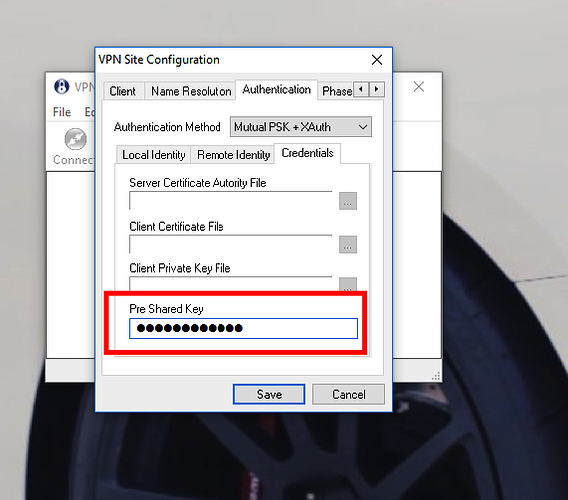
 8. On the Credentials sub-tab, in the Pre Shared Key text box enter your group authentication password. Click Save.\\
 9. On the home screen, select the now available VPN.\\
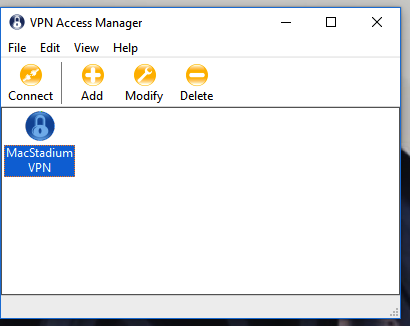 10. When prompted, enter your VPN credentials and click Connect.\\
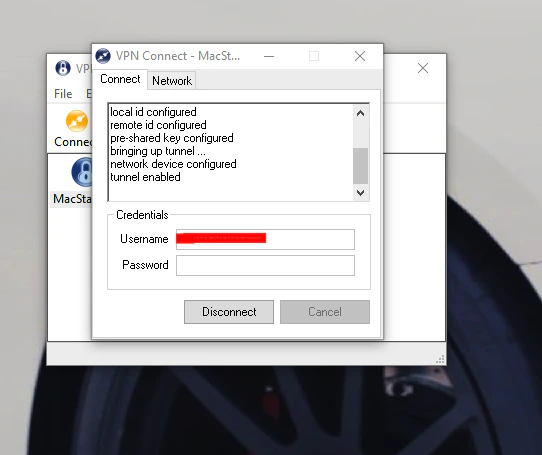 11. When you see Tunnel enabled, you are connected to the VPN.