> ## Documentation Index
> Fetch the complete documentation index at: https://docs.macstadium.com/llms.txt
> Use this file to discover all available pages before exploring further.
# Getting Started with Cloud Access
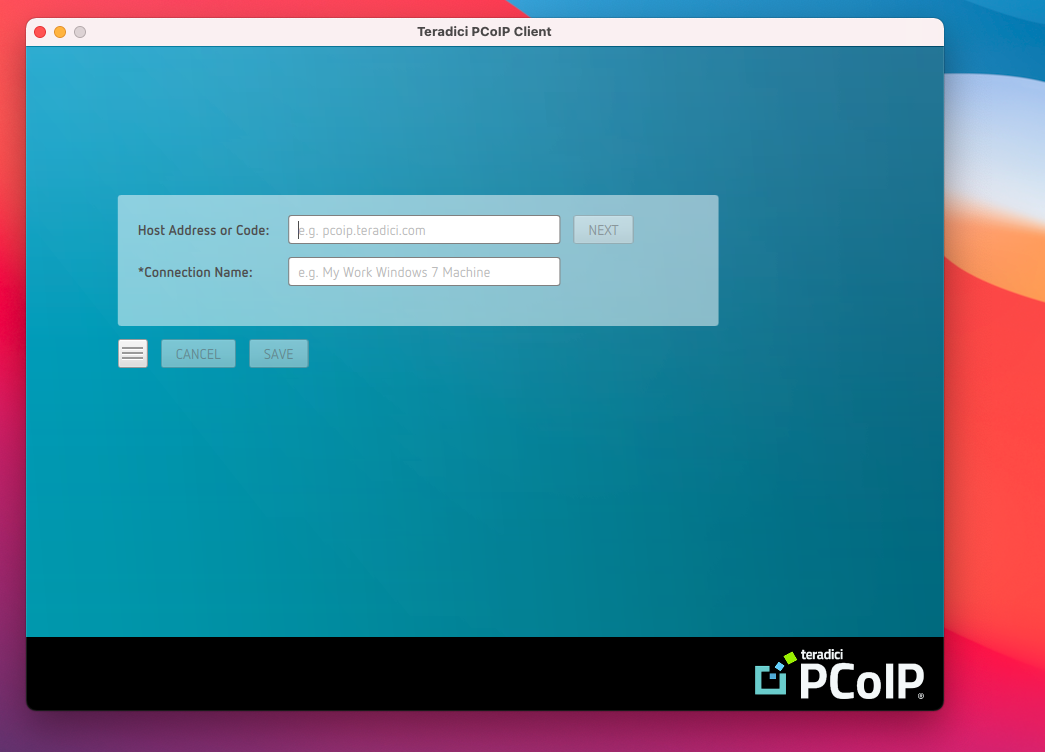
> Install the HP Anyware PCoIP Cloud Access client and connect to your MacStadium Mac. macOS .dmg install; credentials are provided in your service ticket.
**Cloud Access is no longer sold directly by MacStadium.** Renewals are supported, but new customers should purchase [HP Anyware](https://anyware.hp.com/) directly. This documentation is preserved for existing customers. For remote macOS access, see [MacStadium VDI](/remote-desktop-vdi/overview/prerequisites). Questions? Contact [support@macstadium.com](mailto:support@macstadium.com).
## Installing the Cloud Access Client
First, you'll need to [download](https://anyware.hp.com/downloads) and install the HP Anyware PCoIP client on your local machine.
To do so, simply follow the above link and download the .dmg file onto your local machine. Then, to complete the installation, drag the PCoIP Client icon into the applications folder, and double click to execute the install.
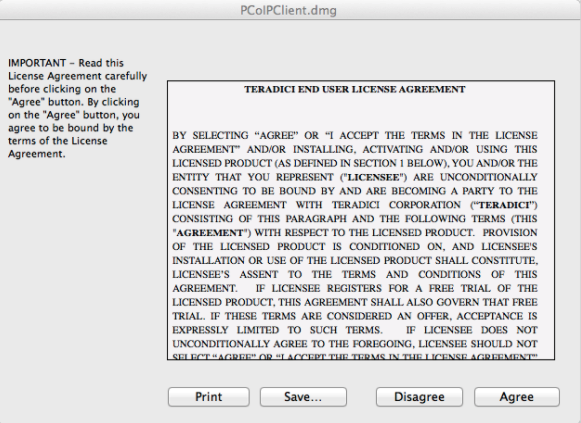 Agree to the user license agreement, and click install.
## Connecting to Your Mac
Your required credentials will be provided in the [service ticket](https://portal.macstadium.com/) describing your Cloud Access deployment.
Agree to the user license agreement, and click install.
## Connecting to Your Mac
Your required credentials will be provided in the [service ticket](https://portal.macstadium.com/) describing your Cloud Access deployment.