Log into Azure
- Log in to the Azure portal with your credentials.
- In the top right corner of the screen, make sure that you’re working in the correct account and organization.
Create an Azure virtual network
If you already have an Azure virtual network configured, you can skip this step.
- Verify that you have a resource group in Azure.
- In the search box at the top of the screen, type Virtual networks and select the respective entry in the filtered search results. Azure filters results as you type.\
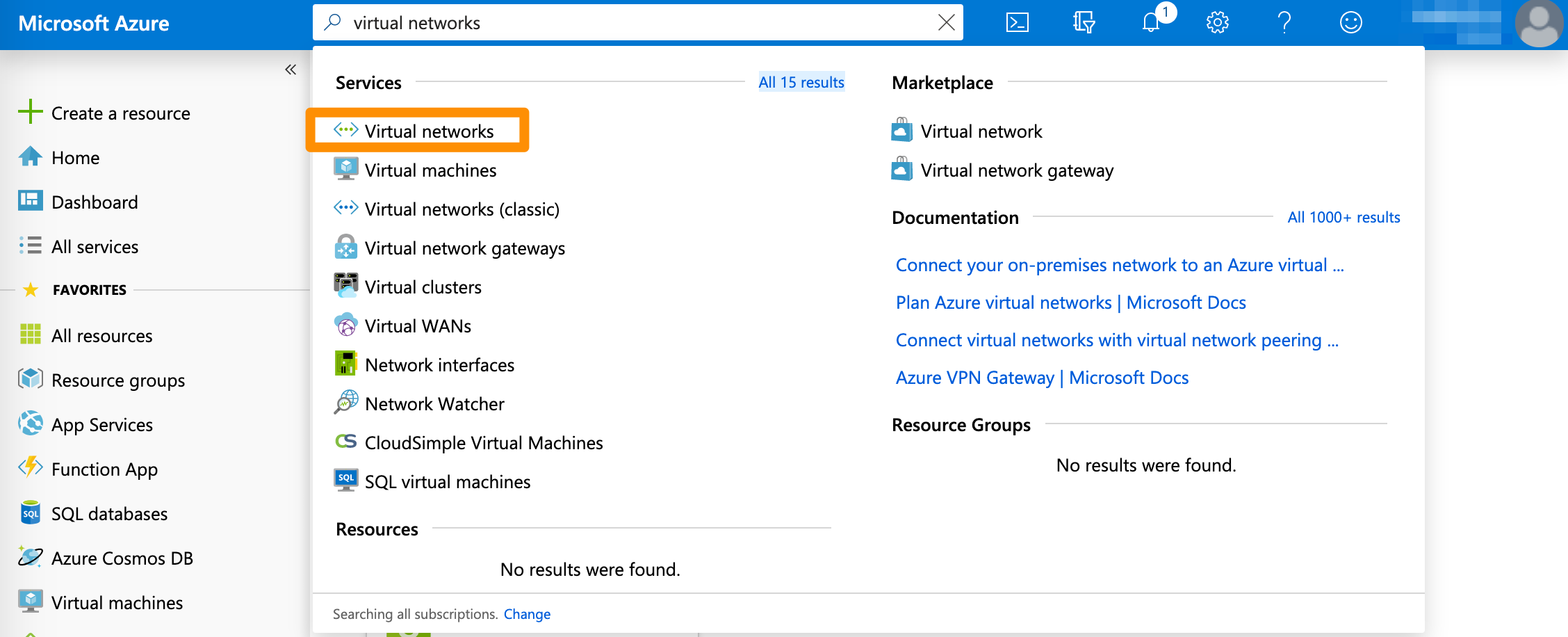
- On the Virtual networks screen, click + Add.
- Provide a Name.
- For Address space, provide a range of IP addresses in the CIDR notation that can be used within the network. You must provide an IP range reserved for private use. For more information about the private IP range requirement, see Azure Documentation: Designing networking for Microsoft Azure IaaS.
- For more information about CIDR notations, see Understanding IP Addresses, Subnets, and CIDR Notation for Networking. You can also use a CIDR calculator such as this CIDR/Netmask Lookup Tool.
- Select Subscription, Resource group, and Location.
- Provide a Subnet > Name or use the pre-filled default value.
- For Subnet > Name, provide a subset of the Address space in CIDR notation.
- (Optional) Modify the remaining pre-filled settings to match your requirements.
- Click Create and wait for the deployment to complete.
- This might take a while. When the deployment is complete, the virtual network becomes listed under All resources.
Example: Create an Azure virtual network
This image shows a sample Azure virtual network configuration.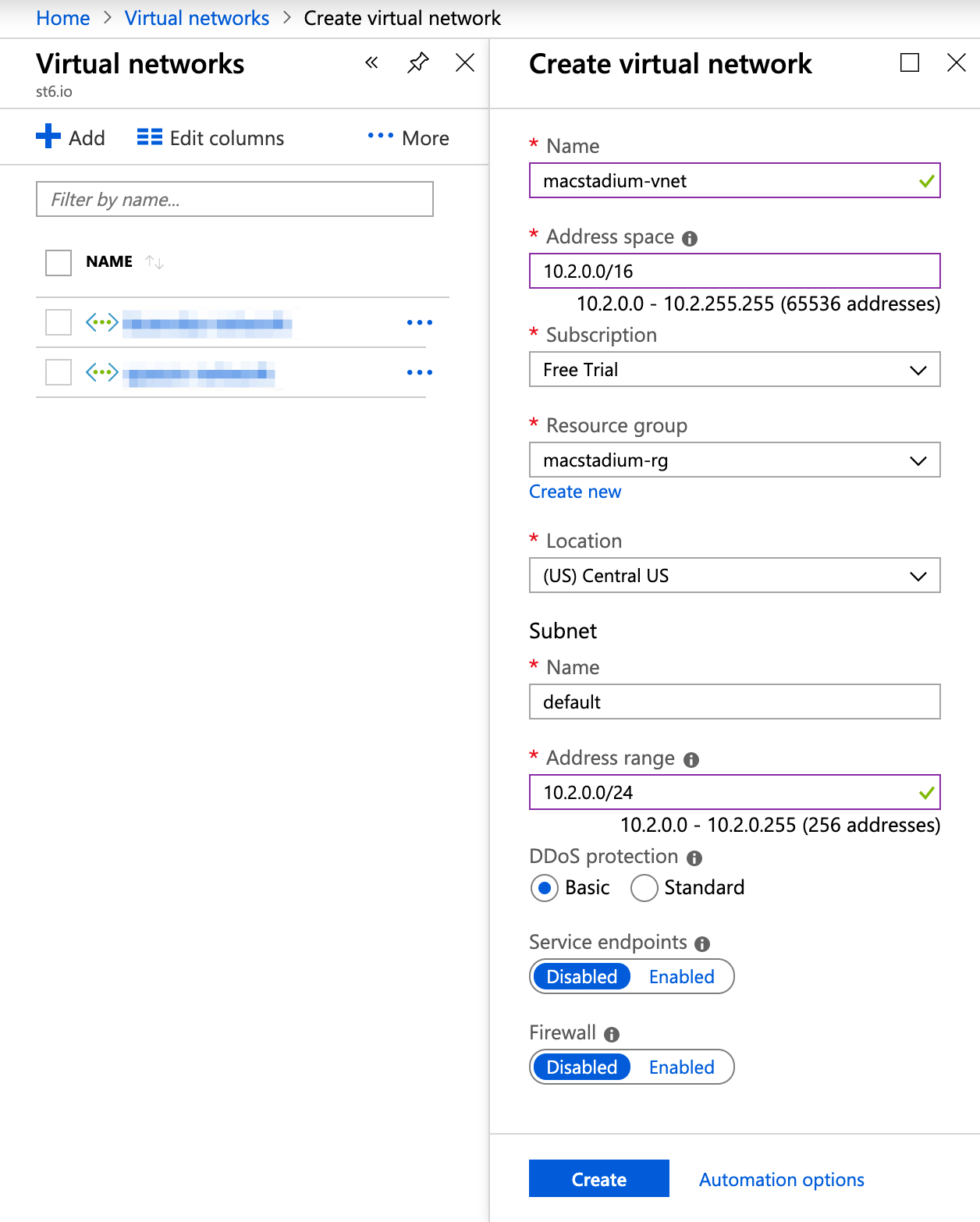
Create a gateway subnet
If you already have a gateway subnet configured for your Azure virtual network, you can skip this step.
- On the Virtual Networks screen, select your virtual network, and click Subnets.
- Click + Gateway subnet.\
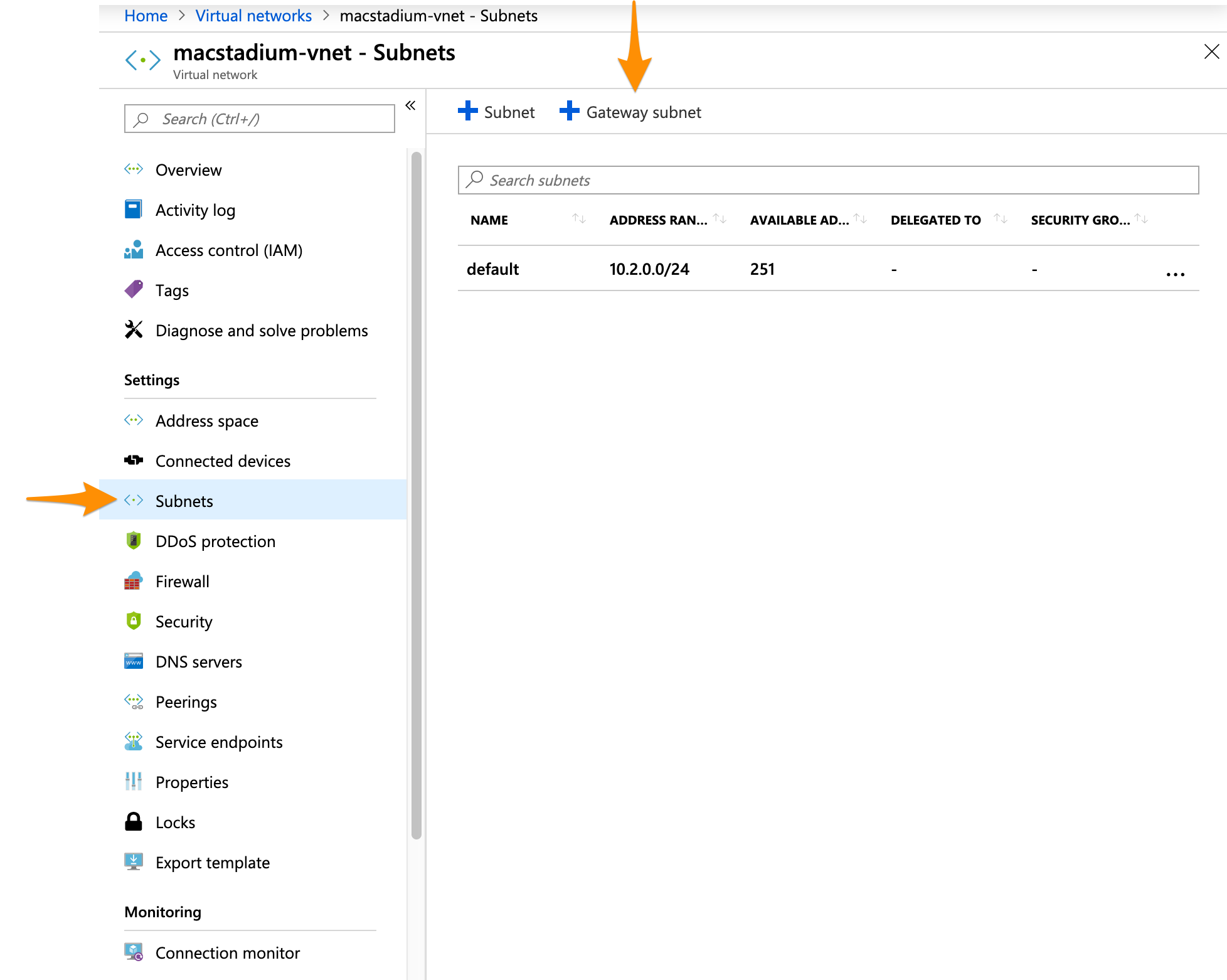
- In the Address range text box, provide an IP range for the subnet in the CIDR notation. This IP range must be a subset of the IP range for the virtual network subnet you created earlier.
- For more information about CIDR notations, see Understanding IP Addresses, Subnets, and CIDR Notation for Networking. You can also use a CIDR calculator such as this CIDR/Netmask Lookup Tool.
- (Optional) Modify the remaining pre-filled settings to match your requirements.
- Click OK and wait for the deployment to complete.
- This might take a while.
Example: Create a gateway subnet
This image shows a sample configuration for the gateway subnet of an Azure virtual network.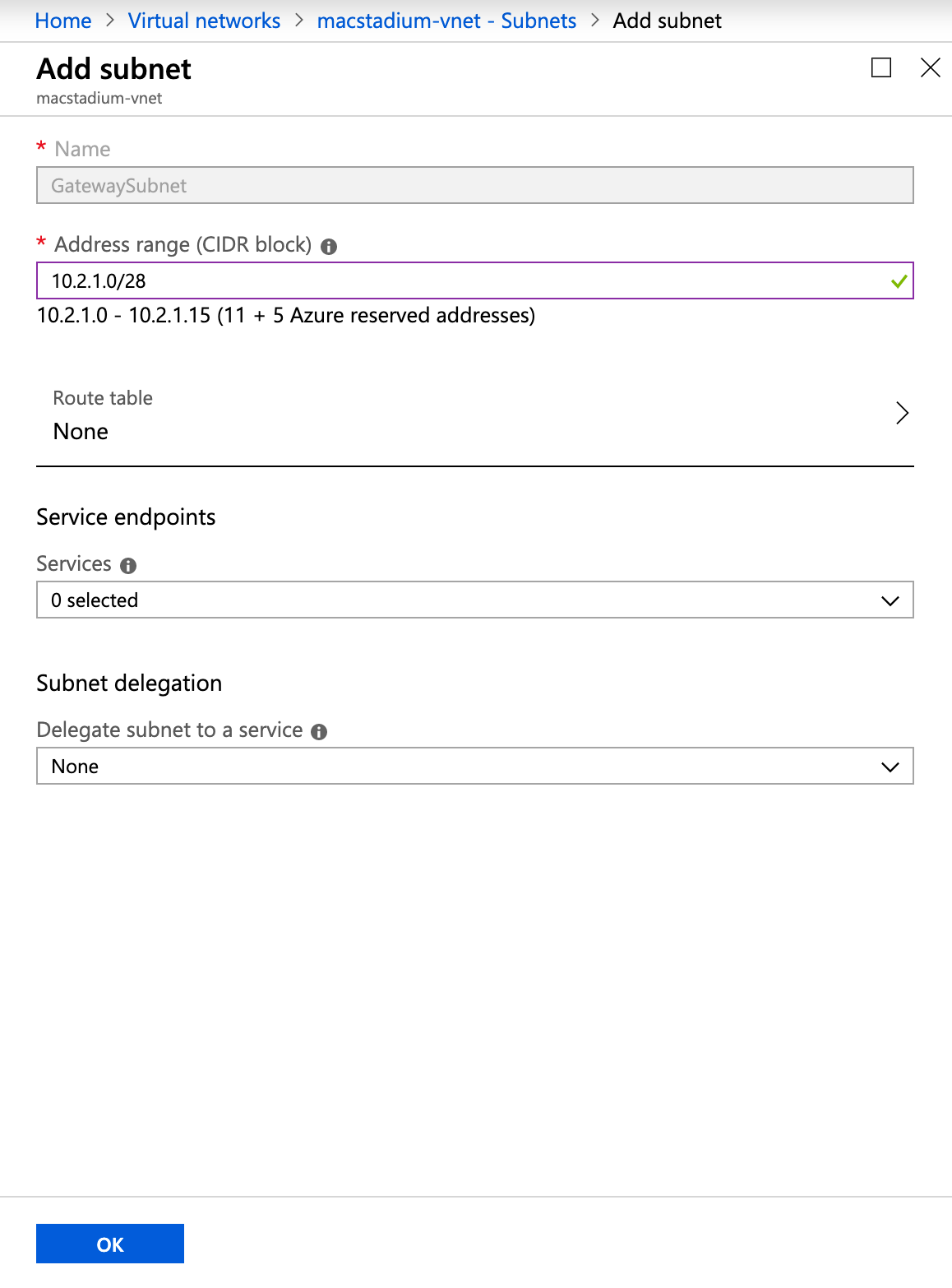
Create a virtual network gateway
In Azure, the virtual network gateway represents the Azure side of your site-to-site VPN tunnel.- In the search box at the top of the screen, type Virtual network gateways and select the respective entry in the filtered search results.
- Azure filters results as you type.\
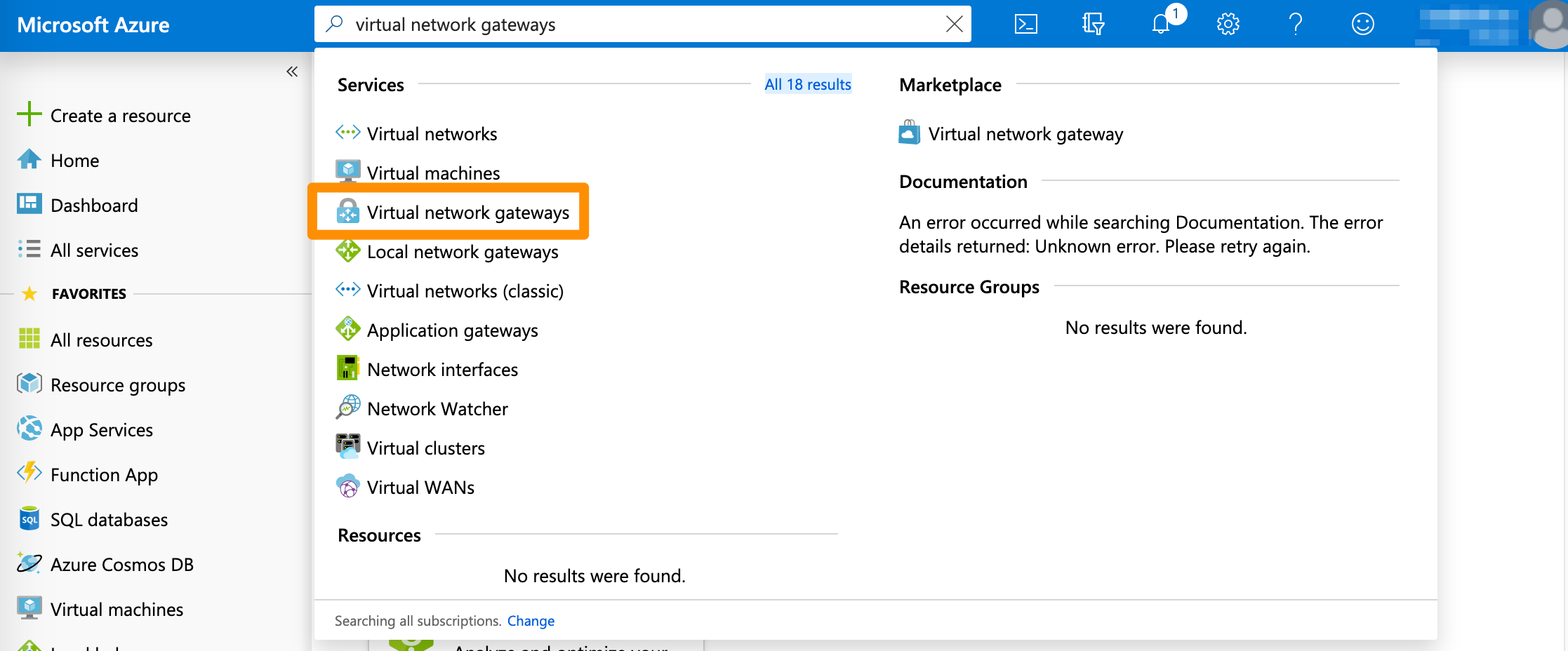
- Azure filters results as you type.\
- On the Virtual network gateways screen, click + Add.
- Select Subscription.
- Select Virtual network.
- This action lets Azure pre-fill some of the remaining configuration.
- Provide Name and select Region.
- For Gateway type, select VPN.
- For VPN type, select Policy-based.
- Select your SKU.
- For more information about the available SKUs, see Azure Documentation: Gateway SKUs.
- For Public IP address, select an existing unused IP address or create a new one.
- Click Review + create, review the configuration, and click Create.
- Wait for the deployment to complete.
- This might take a while.
- Check if the virtual network gateway is deployed successfully.
- On the Virtual network gateways screen, select the virtual network gateway and click Properties.
- Verify that the Provisioning state is
Succeeded.\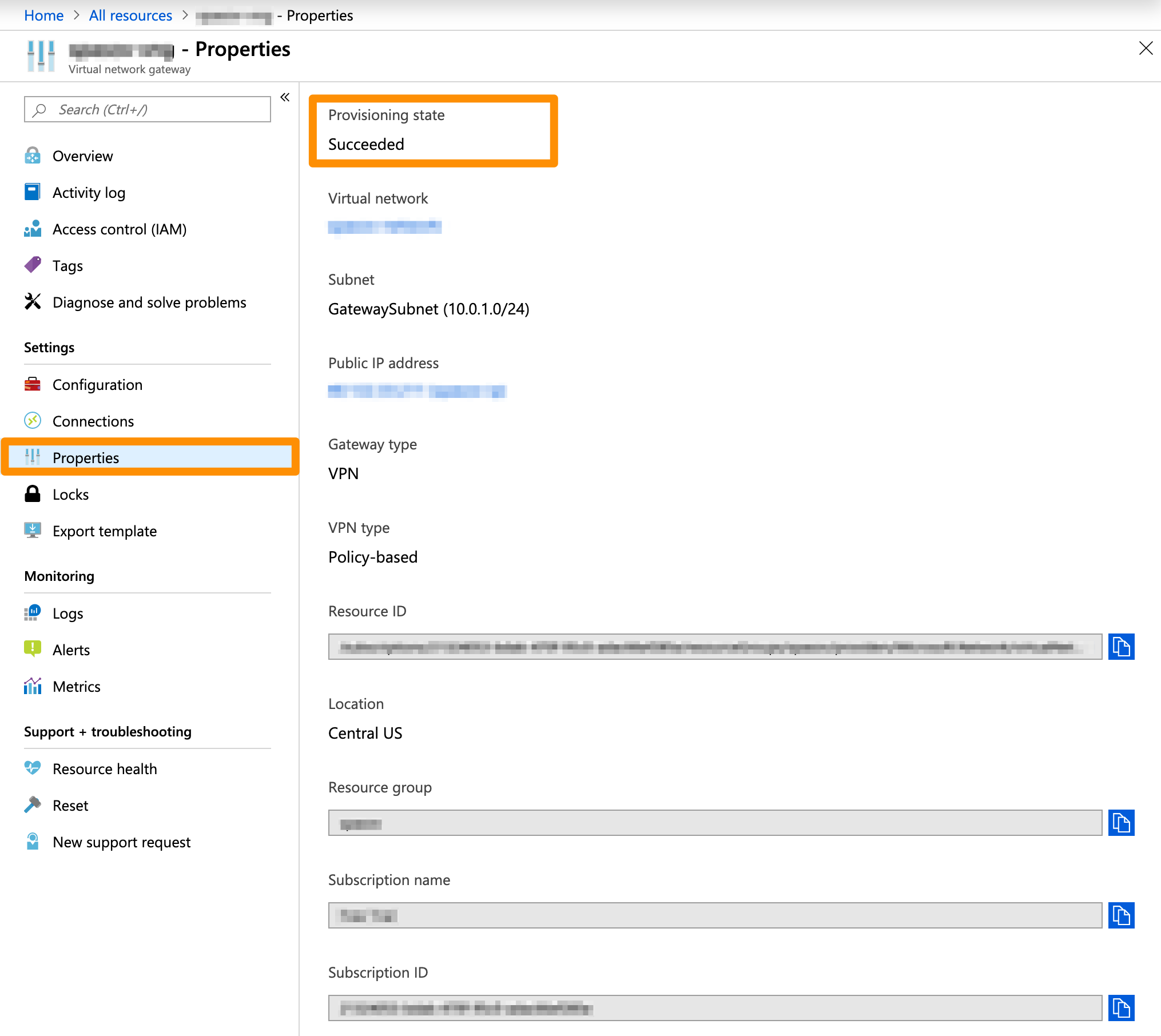
Example: Create a virtual network gateway
This image shows a sample configuration for a virtual network gateway.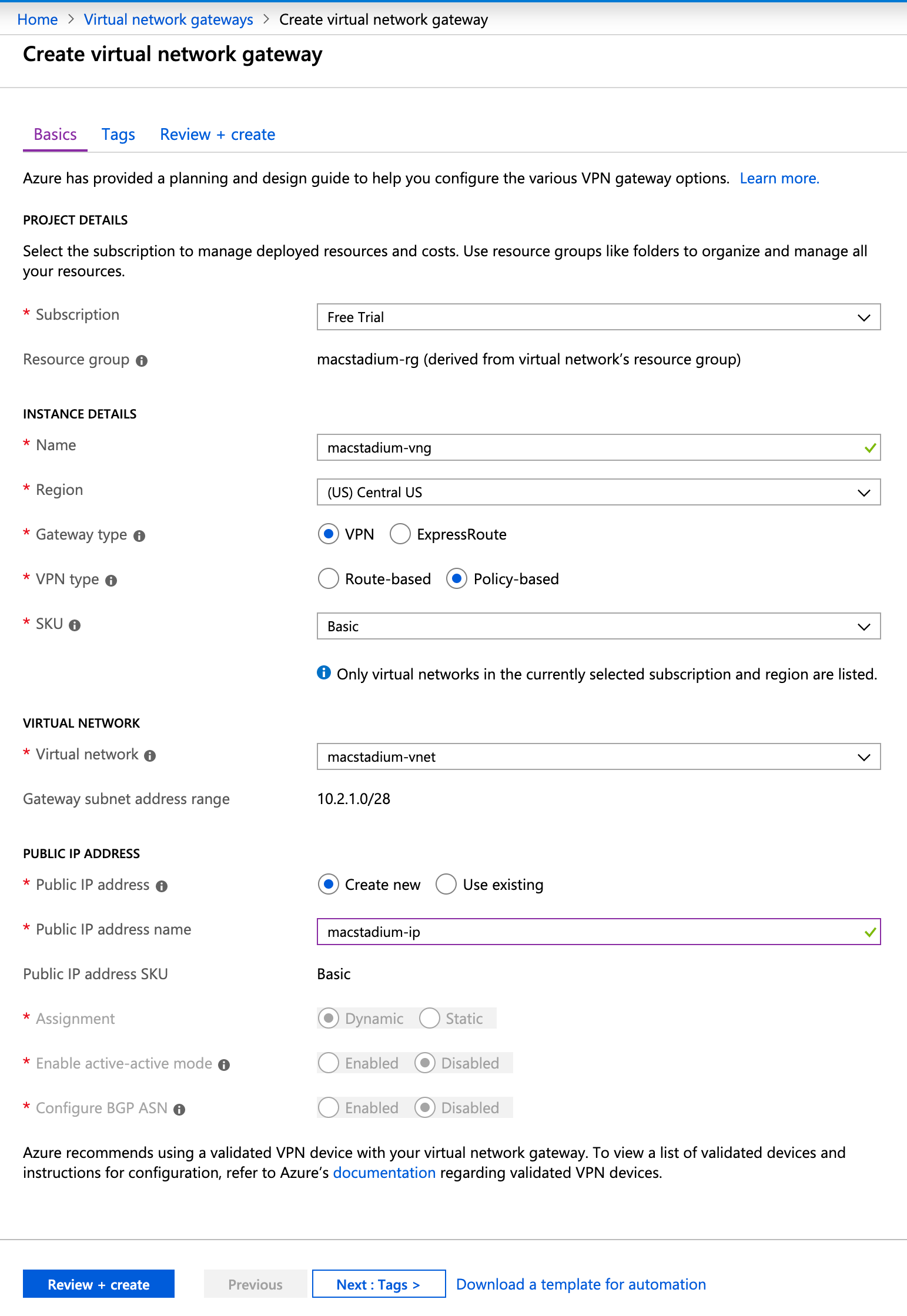
Create a local network gateway
In Azure, the local network gateway represents the MacStadium side of your site-to-site VPN tunnel.- In the search box at the top of the screen, type Local network gateways and select the respective entry in the filtered search results.
- Azure filters results as you type.\
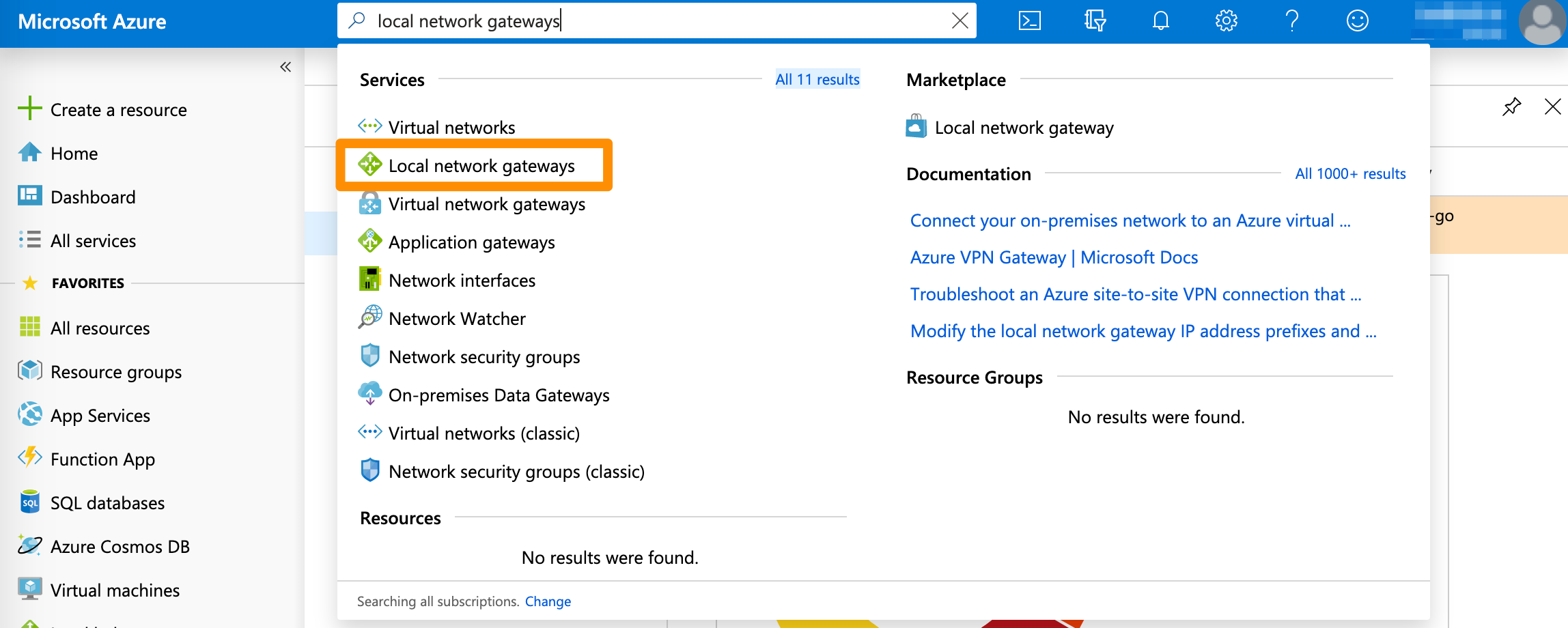
- Azure filters results as you type.\
- On the Local network gateways screen, click + Add.
- Provide a Name.
- For IP Address, provide the firewall’s public IP from My Cloud.
- For Address space, provide the IP range in CIDR notation of the private network listed in the IP Allocation table in My Cloud.
- By default, this is the
Private-1network. - For more information about CIDR notations, see Understanding IP Addresses, Subnets, and CIDR Notation for Networking. You can also use a CIDR calculator such as this CIDR/Netmask Lookup Tool.
- By default, this is the
- Leave Configure BGP settings deselected.
- Select Subscription, Resource group, and Location.
- Click Create.
- Wait for the deployment to complete.
- This might take a while.
- When the deployment is complete, the local network gateway becomes listed under All resources.
Create the VPN connection
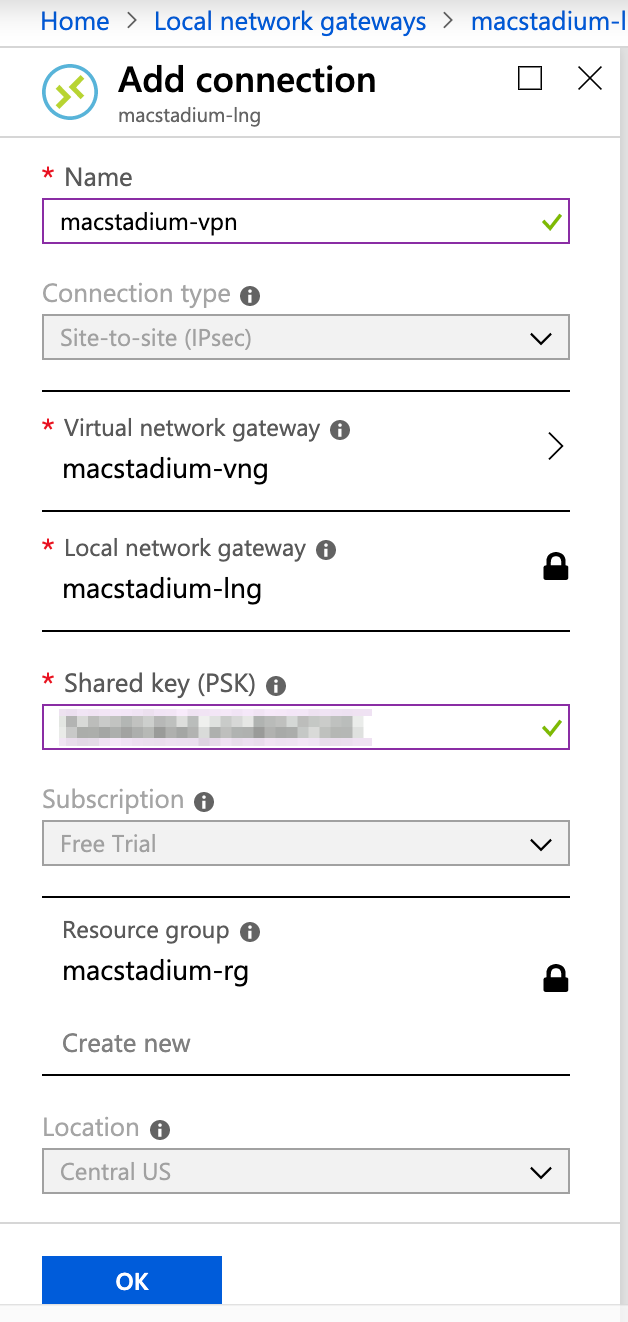
With a virtual network gateway and a local network gateway in place, you can create and configure the VPN connection between Azure and your MacStadium private cloud.-
In the search box at the top of the screen, type Local network gateways and select the respective entry in the filtered search results.
- Azure filters results as you type.
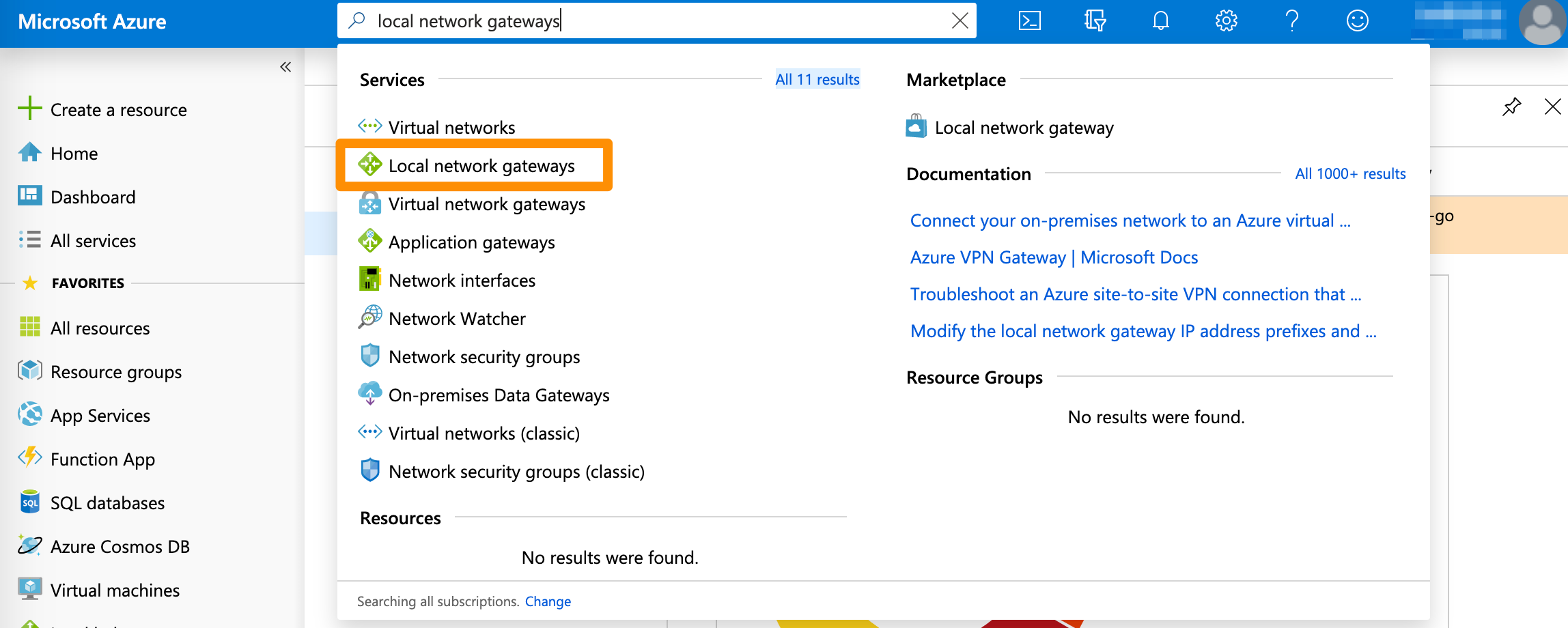
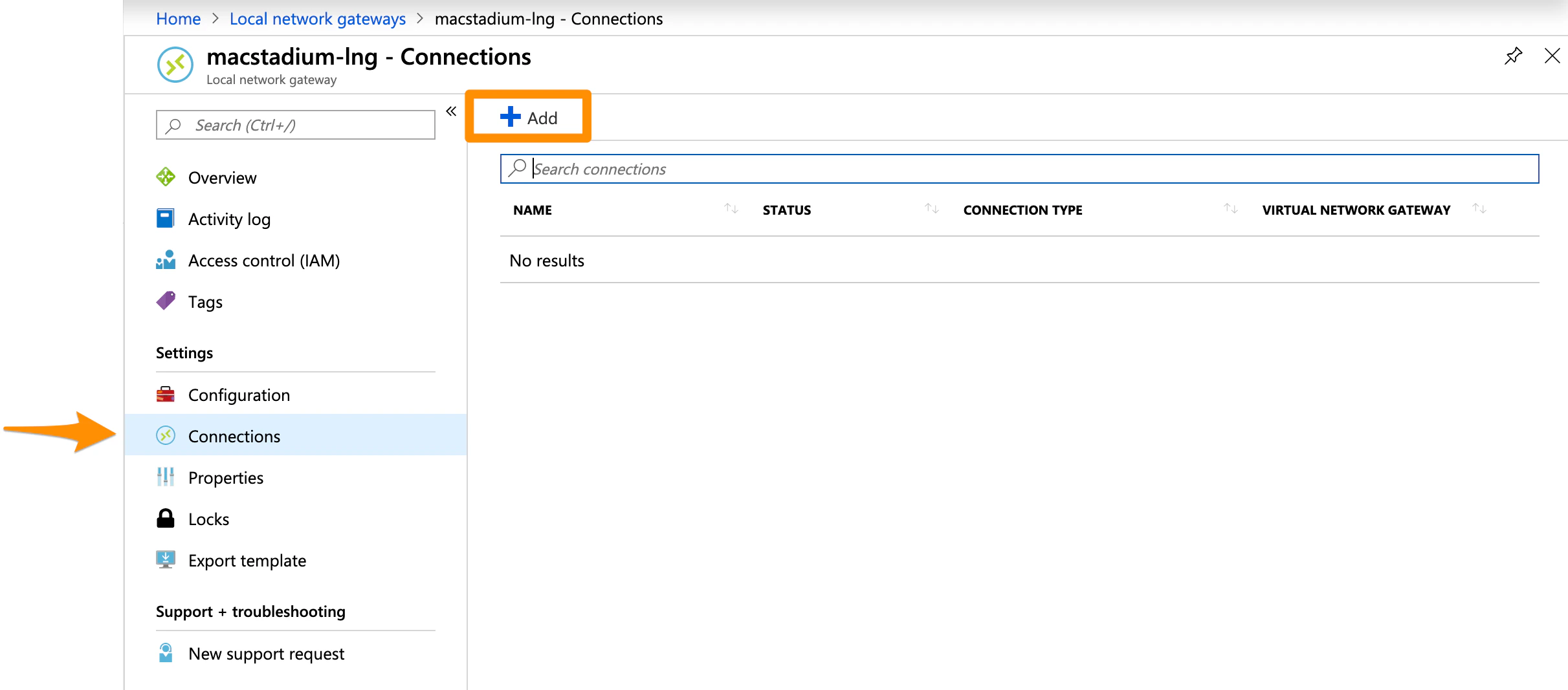
- You can use a generator tool such as the IFM - IPSec Pre-shared Key (PSK) Generator.
- Review the remaining pre-filled settings and click OK.
- Wait for the operation to complete.
- This might take a while.
- When the deployment is complete, the connection becomes listed under All resources.
Example: Create the VPN connection
This image shows a sample configuration for the VPN connection.