

Before You Begin
- The VPN server address: your firewall’s public IP, shown at the top of the firewall’s section in My Cloud.
- The VPN username and password: shown under Credentials in the firewall’s section in My Cloud. Select Show to reveal them.
When VPN is required
Your Orka cluster sits behind a dedicated Cisco ASAv firewall. VMs and the Orka management plane are on a private network and not reachable from the public internet without VPN.VDI end users do not need a VPN client. Citrix Workspace app establishes the session outbound through Citrix Cloud. VPN is only required for administrators managing the Orka cluster itself.
(Open-Source Option) OpenConnect
Why OpenConnect?
If you are a predominantly CLI user, you might want to use OpenConnect - an open-source VPN client available from the command line.Download and Install OpenConnect
- If you have Homebrew on your system, you can run
brew install openconnectfrom your command line. - If you’re running on Windows, you can download and build the OpenConnect package yourself or you can use Cisco AnyConnect instead.
Use OpenConnect
- From your command line, run the following command. Replace
<SERVER ADDRESS>with your firewall’s public IP from My Cloud.
-
Follow the prompts.
- On the immediate Password prompt, provide your sudo password (the password for your current computer user) and press Enter.
- On the Enter ‘yes’ to accept, ‘no’ to abort; anything else to view: prompt, type yes and press Enter.
- On the Username prompt, provide the VPN username from the firewall’s Credentials in My Cloud and press Enter.
- On the Password prompt, provide the VPN password from the firewall’s Credentials in My Cloud and press Enter.

Cisco AnyConnect Secure Mobility Client
Why Cisco AnyConnect?
Cisco firewalls are designed to work with the Cisco AnyConnect Secure Mobility Client as a VPN client. If you prefer a GUI VPN client or you’re running on Windows, you might want to use Cisco AnyConnect.Download and Install Cisco AnyConnect
- In your browser, navigate to your firewall’s public IP from My Cloud. You might need to use https://.
- Ignore the certificate warning and proceed to the address.
- When prompted, enter the VPN credentials from the firewall’s Credentials in My Cloud.\
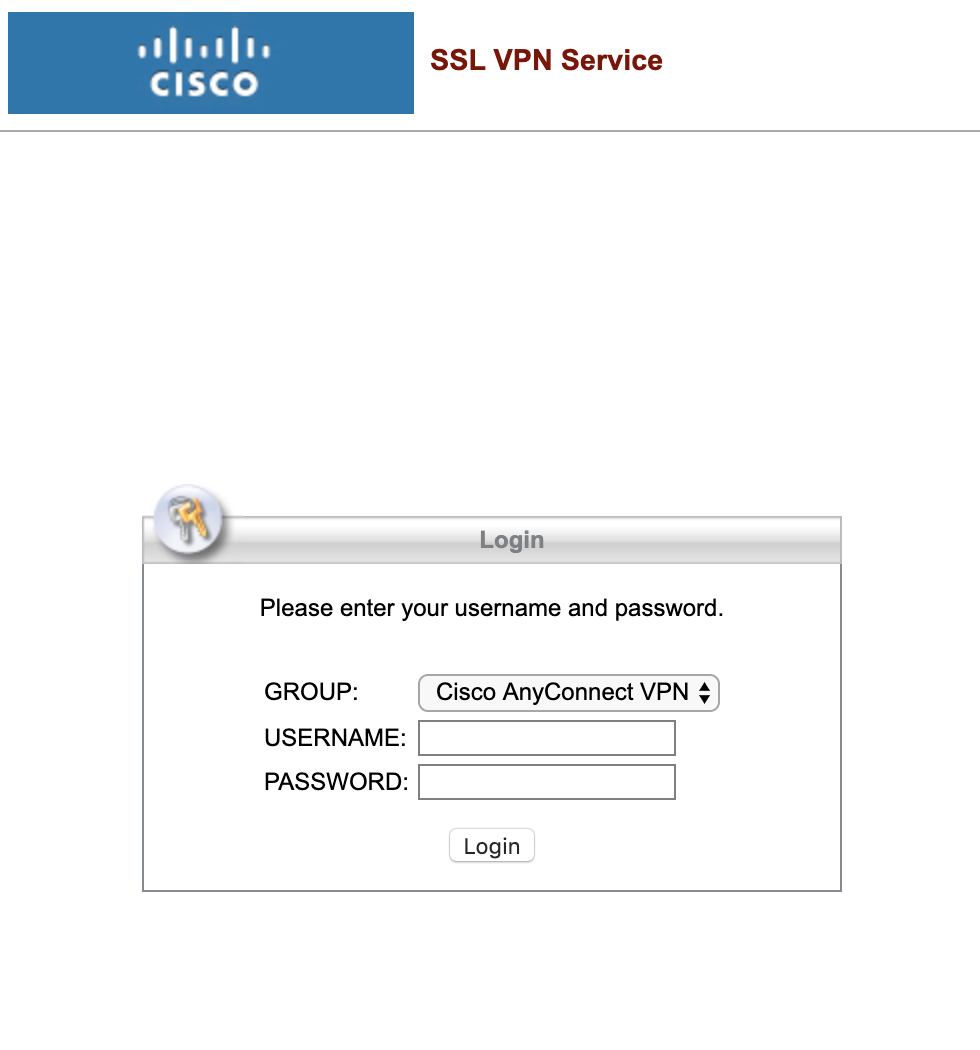
- When prompted, download, install, and run the Cisco AnyConnect desktop client.
Use Cisco AnyConnect
- Run Cisco AnyConnect Secure Mobility Client.
- When prompted, enter your firewall’s public IP from My Cloud and click Connect.\
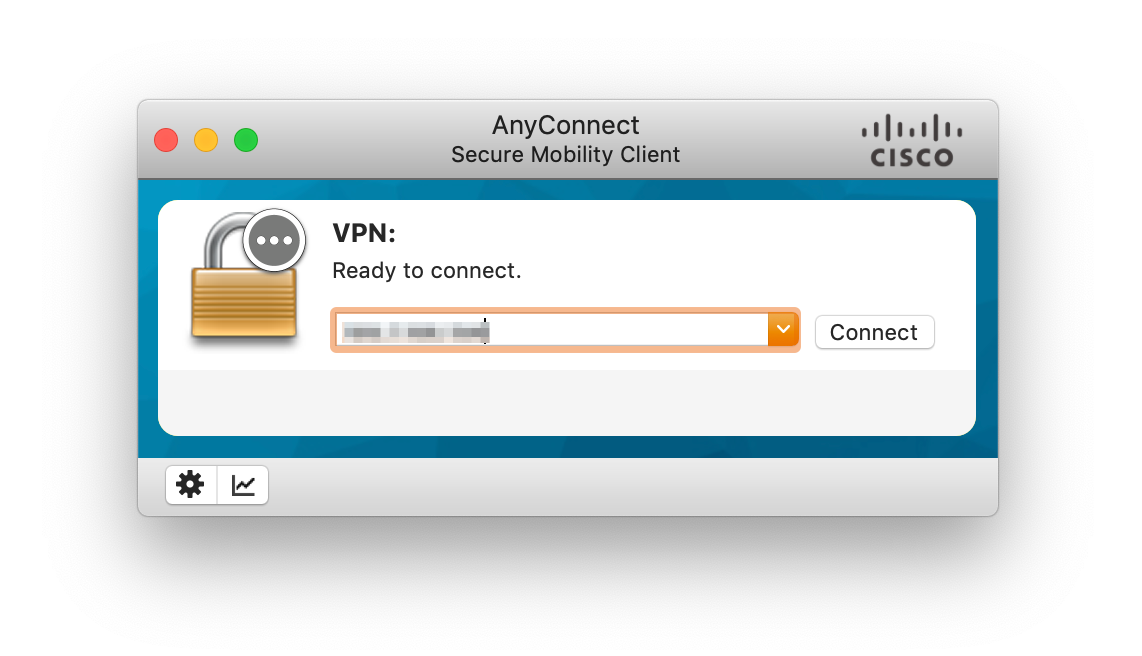
- If prompted that an untrusted server was blocked, perform the following steps:
- Click Change Setting… and deselect Block connections to untrusted servers.
- Close the Preferences - VPN window.
- Click Connect again.\
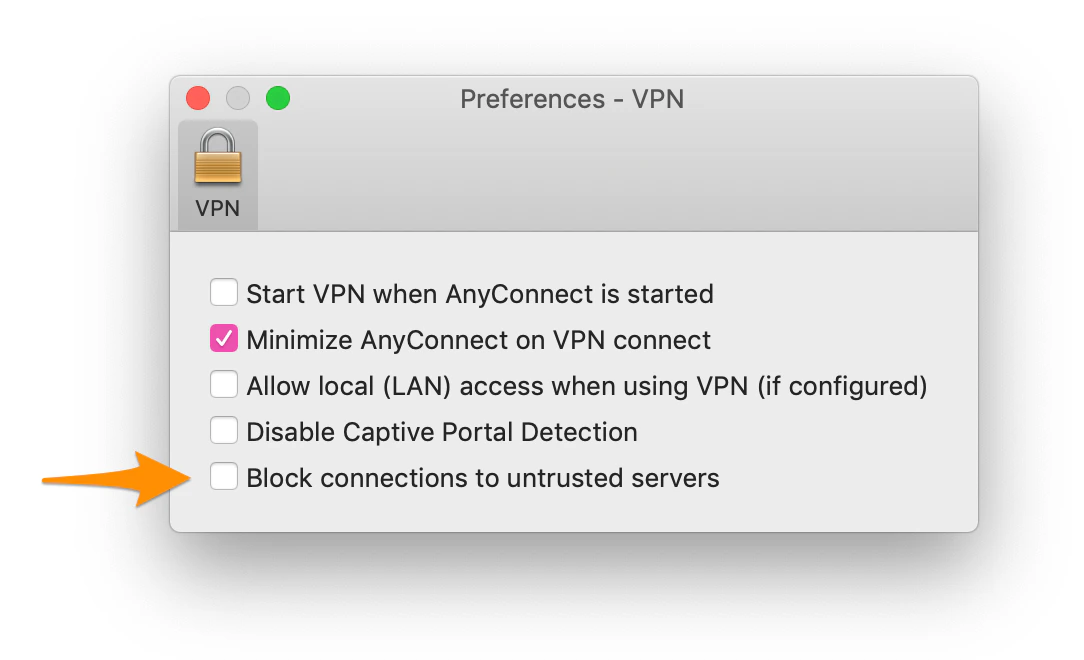
- If prompted that the server certificate is untrusted, click Connect Anyway.
- When prompted, provide your login credentials and click OK.