Orka Desktop by MacStadium
Orka Desktop is a free, no-obligation virtualization tool designed for individual macOS workstations. These workstations can be a local MacBook, a hosted Mac mini or Studio by MacStadium, AWS, or an on-premises solution. Once deployed, Orka Desktop lets you create a workflow for running the same image on any device. You can build and test an image locally, then upload it to the cloud. This is much easier than needing bespoke technologies and individual processes to test, share, and configure virtualized images. Orka Desktop integrates with other cloud-based, licensed MacStadium products, like Orka. For example, you can upload an image built and tested with Orka Desktop to a container repository shared with an Orka cloud instance. Publishing local images to the Orka cloud means you can develop locally and deploy globally, offering flexibility, scalability, and an on-ramp to use MacStadium products more effectively.You can publish any image to a container registry, for example, GitHub Packages or DockerHub, and then pull it into the Orka Cluster.
Orka Desktop is available from the following locations:
- MacStadium website: macstadium.com
- GitHub releases: macstadium/orka-desktop
- Homebrew:
brew install orka-desktop
Orka Desktop RequirementsApple M1 with 8GB RAM, and 50GB disk spacemacOS 15.0+ (Sequoia)
Registry Requirements
- Pull - You can pull from the registry
- Push - You can push to the registry
- Content Discovery - You can list or otherwise query the content stored in the registry
- Content Management - You can control the full life cycle of the content stored in the registry
OCI image overview
The Open Container Initiative (OCI) is an open governance structure for the express purpose of creating open industry standards around container formats and runtimes. You can deploy a VM using a compatible image from a private or public registry, and store images in your own registry.Installation and setup in 3 easy steps
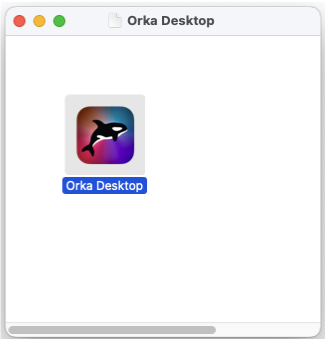
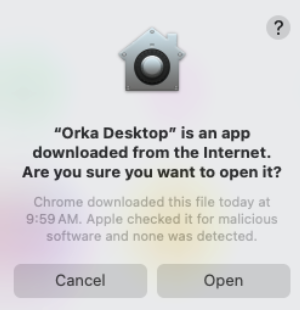
Orka Desktop has a clear and intuitive GUI, which makes it easy to transition to using Orka in the cloud. It provides information about your system, available images, and VMs.- Download Orka Desktop. Move to your Applications folder. Run Orka Desktop.
- Create a New Virtual Machine (VM). There are two options for creating a new VM:
- Clean Install, where the image is created from an existing IPSW file.
- Pull Image, where the image is pulled from an Image Repository (based on an existing OCI image that is available via a Container Registry).
- Use the VM.
- IPSW (Apple Software/Firmware) is a file format used in macOS firmware for devices equipped with Apple silicon.
- You can also pull the latest IPSW directly from Apple’s servers, as detailed in the Other IPSW options section.
Downloading Orka Desktop
- MacStadium website: macstadium.com
- MacStadium GitHub repo: macstadium/orka-desktop
- Brew package manager:
brew install orka-desktop
Creating a new virtual machine (clean install via IPSW files)
- Download Orka Desktop.
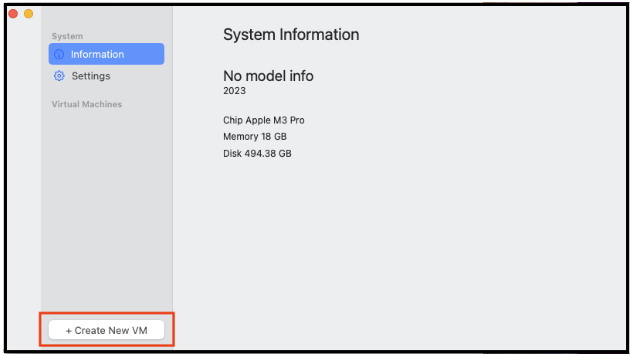
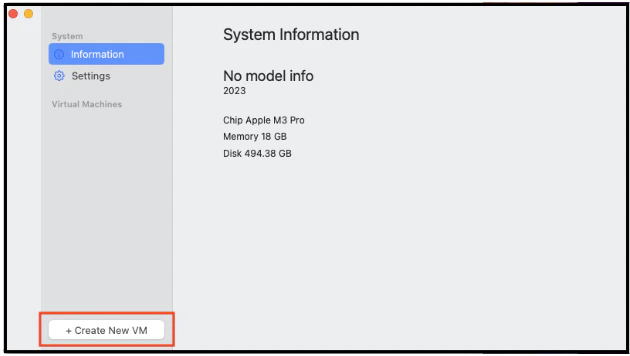
- Open the Orka Desktop tool and the System Information screen displays.
- Click + Create New VM.\
- When the new Virtual Machine dialog box opens, select Clean Install (based on an IPSW); then use the Name field to name the VM.\
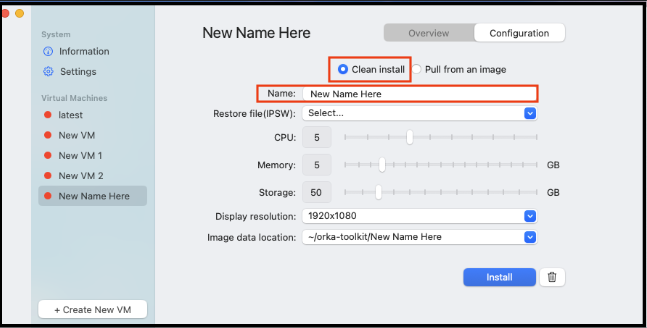
- In this example, the new VM is called New Name Here, and at the same time, that name appears on the left-hand side of the screen, under the list of available Virtual Machines.
- The VM is now in a pending installation state.
- If you want to select an existing IPSW file, select Other from the dropdown menu.\
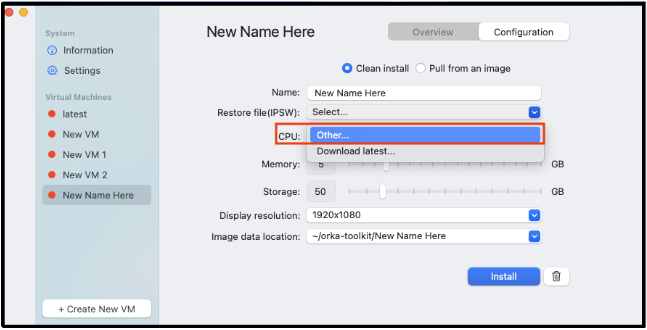
Selecting the Other dropdown opens a folder where you can pick the existing IPSW file to install.
- If you do not have a local IPSW file to use for the new VM, select Download Latest to get the latest files from Apple.\
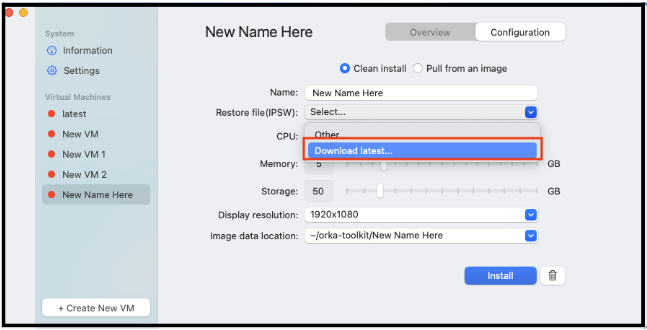
Selecting the Download Latest dropdown opens a confirmation box.
- Use the stepped sliders to manually adjust the number of CPUs, and the amount of Memory and Storage that you want to allocate to the VM.\
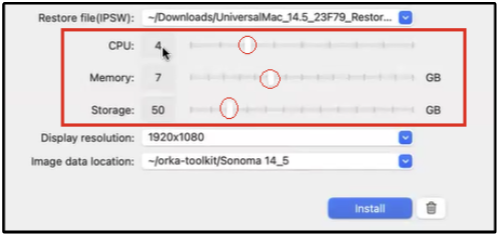
- Use the Display Resolution dropdown to set the resolution of the screen when running Console into the image.
- Use the Image Data Location to select the location of the saved files.
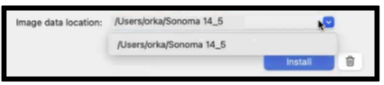
Image Data Location - Click Install and the progress bar displays the install progress.
When the install completes, there is a new VM available on the Orka Desktop, which you can Start, Pause, Resume, Stop, or Console into.
Creating a new virtual machine (pull from OCI image)
- Download Orka Desktop.
- Open the Orka Desktop tool and the System Information screen displays.
- Click + Create New VM.
- When the new Virtual Machine dialog box opens, select Pull from an Image; then use the Name field to name the VM.\
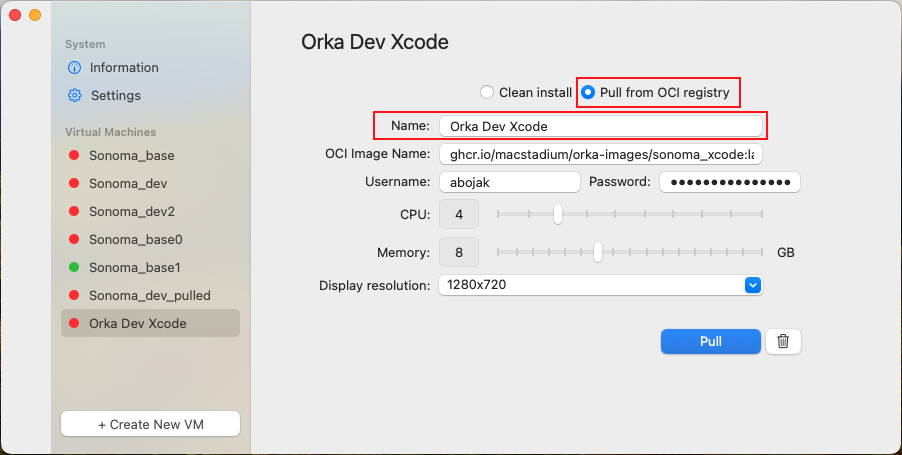
- In this example, the new VM is called New VM Pulled From Image, and at the same time, that name appears on the left-hand side of the screen, under the list of available Virtual Machines.
- The VM is now in a pending installation state.
- Complete all fields with the required information.
If you pull from MacStadium Harbor OCI storage, enter the image reference in the format
<Harbor-FQDN>/library/<image-name>:<tag>. Do not include the https:// scheme, and note that MacStadium-provisioned Harbor images live under the library project by default.Your workstation must also be able to resolve and reach the Harbor hostname. Connect to the VPN for your Orka environment, and if you use the Harbor FQDN, add the appropriate entry to your local hosts file. If the hostname cannot be resolved, the pull fails with an error such as A server with the specified hostname could not be found (NSURLErrorDomain code -1003). See Using Harbor OCI Storage with the Orka CLI for details on Harbor access and image references.- Use the stepped sliders to manually adjust the number of CPUs, and the amount of Memory and Storage that you want to allocate to the VM.
- Use the Display Resolution dropdown to set the resolution of the screen when running Console into the image.\

- Click Pull.
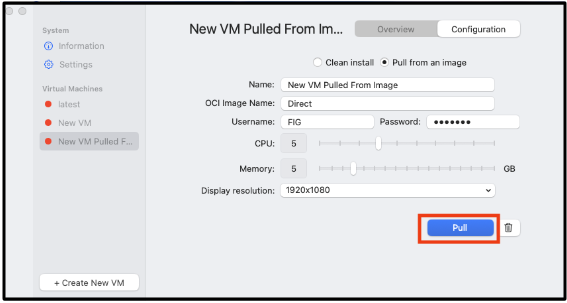
Configuration warnings
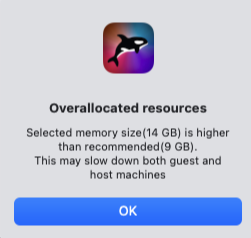
When adding CPU Count and Memory Size, the Orka Desktop application displays a warning message if the recommended sizes are exceeded.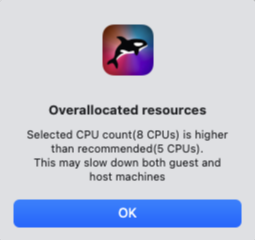
Starting the VM
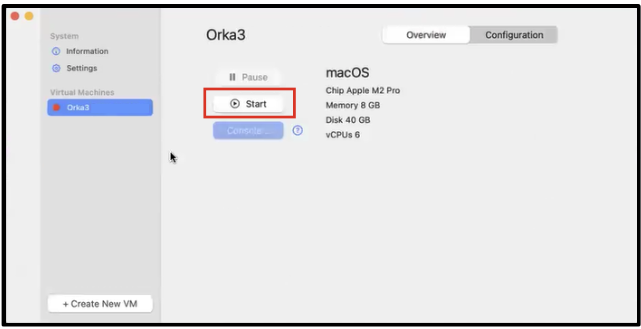
- Click an existing VM on the left-hand side. In this example, the VM is Orka3.
- Click Start.\
- A separate window opens and the VM starts.
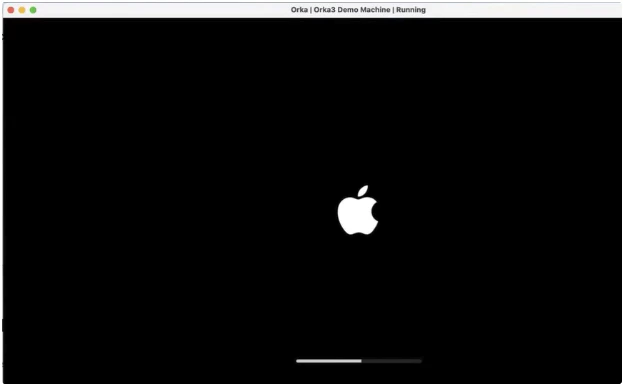
Starting a VM for the first time may take several minutes.
- This VM might be configured to run a different version of macOS from your host, so you can test the same software in two different environments. Note that you can only use OSs in VMs that are more recent than the OS running on the host.
- You can install Xcode and use the VM as a build machine for iOS apps.
- IT admins can test Mobile Device Management (MDM) profiles using VMs without maintaining several Mac mini machines. You can perform MDM profile testing on a VM created by Orka Desktop.
- Apple has limited the ability to sign into iCloud with an Apple ID within a VM.
Stop a VM
If a VM is running, then click the Start button to Stop it.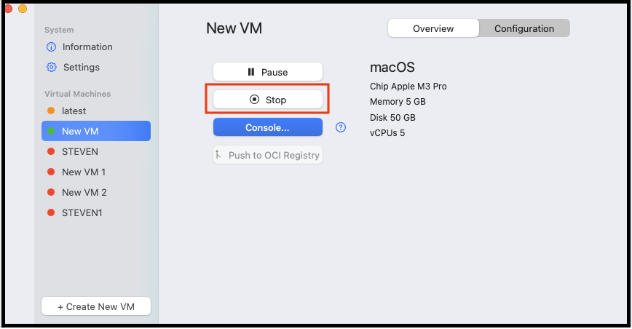
Console into a VM
Think of this functionality as a graphical console, which opens the VM display in a UI screen. In other words, it opens a new screen for interactions with guest OS.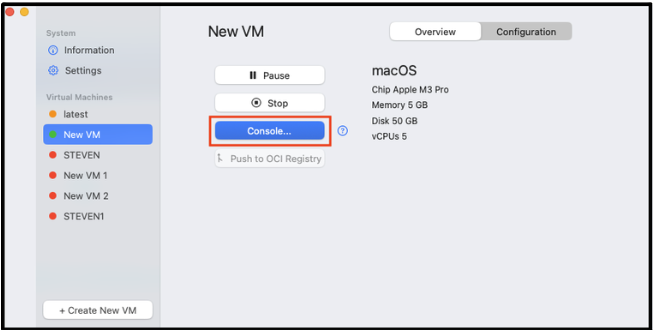
Resume VM
Resumes a VM that was paused.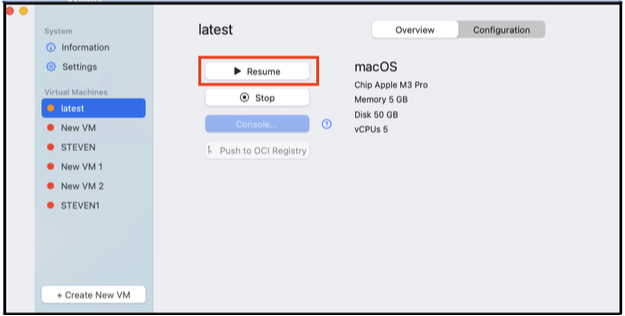
Push to OCI registry
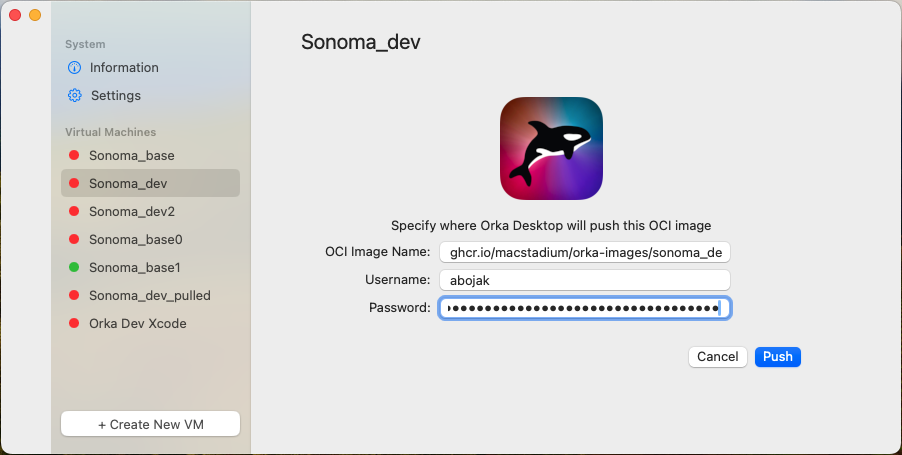
You can push the image to an OCI registry so that others can download and use it. This is helpful for sharing an image across a team. For example, an IT admin can create and configure an image and push it to a shared location, then team members can access that image and begin using it. You can also push an image to a shared registry for testing purposes.- Select an existing VM.
- Click Push to OCI Registry.
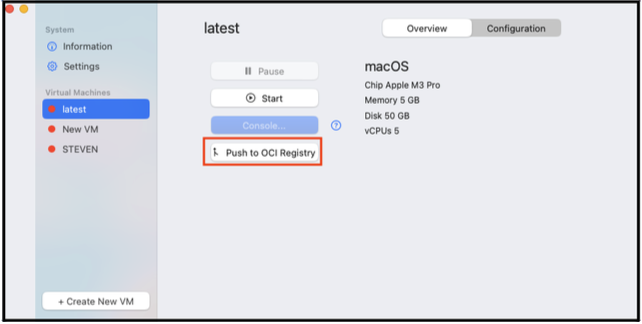
- Complete the required fields and click Push.
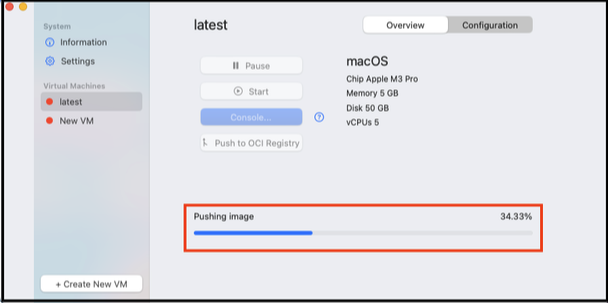
- A progress bar appears while the image is being pushed.
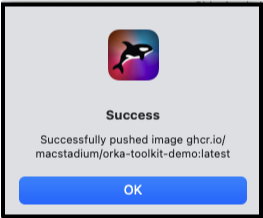
Managing the VM
Right-click an existing VM to display a dropdown menu.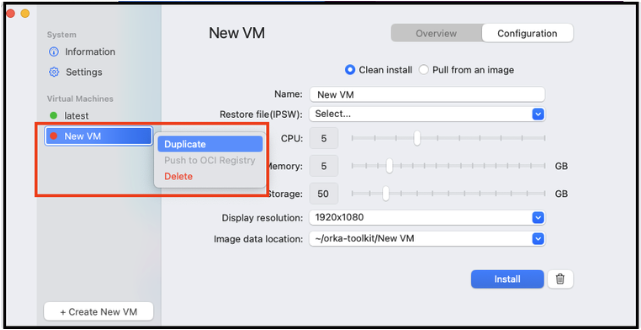
- Duplicate = You can use Duplicate for upgrade testing. Use Duplicate to create a copy of the existing VM, then test the upgrade to a new VM.
- Push to OCI Registry = Push your image to an OCI registry.
- Delete = Use Delete to delete the VM from Orka Desktop.
Log files
The log file contains the following information: directory, image directory, and default VM settings. The log file has four sections, with the following information:- Node Info (Contains system details, for example, chip, cores, memory, OS version, and so on).
- Image Info (Lists images, creates new image, deploys new VM based on an image).
- VM Details (For each running VM, there are actions like, Open Screenshare, Open SSH, Stop, Save, Save As, View Log actions).
- Logs (Running logs, and any other useful information for debugging.)
About
Click About to confirm the version number of the product.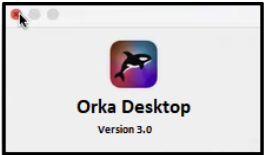
Settings
Use to set log file location, VM directory, and other information.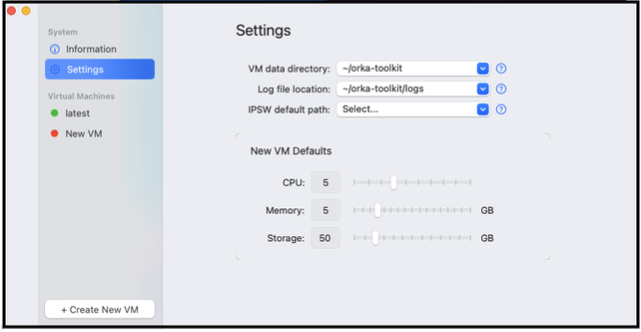
Other IPSW options
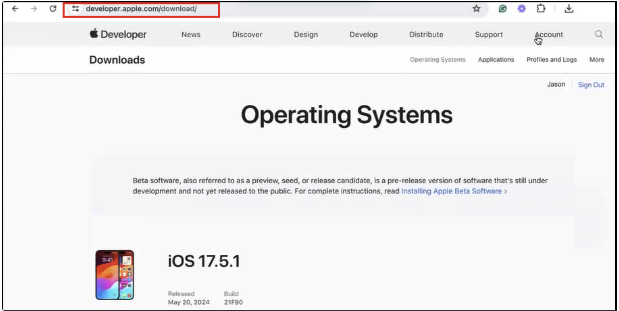
Download the appropriate files from developer.apple.com.