

Key Concepts
- A host (or node) is a physical computer with a host macOS and an installation of Orka Engine.
- An image is the bits on disk representing a VM that can be used for saving state and sharing.
- MacStadium base VM Orka images are macOS OCI-compatible VM images stored in the public GitHub Container Registry at ghcr.io/macstadium/orka-images. No credentials are required to pull from this registry.
What’s in the Release
- Deploy Orka Engine on an Apple silicon host on private or public infrastructure via a Command Line Interface (CLI).
- List Virtual Machines and running status
- Restart Virtual Machines
- Stop Virtual Machines
- Clone Virtual Machine images
- Edit Virtual Machine settings (CPUs, Memory, Display Resolution, DPI)
- Delete Virtual Machines
- Save Virtual Machines
- Push VMs to OCI-compliant registry
- Pull VMs from OCI registry
- List available VM images on local file system
- Copy VMs on local file system
- Delete VMs from local file system
- Create and deploy Orka OCI compliant VM images
- Deploy headless VMs (no display console)
System Requirements
- Apple silicon Mac (M1 or later) with 8 GB RAM and 50 GB disk space
- macOS 15.0+ (Sequoia)
Obtaining an Orka License Key
Your license key is included in your order confirmation from MacStadium. If you don’t have it, retrieve it from the customer portal or contact support@macstadium.com. For portal access and credential details, see Managing your Orka license. Activate your license:orka-engine license set --key YOUR_KEY
You can also download Orka Engine directly at: https://distribution.macstadium.com/orka-engine/official/3.6.0/orka-engine.pkg
Installation
To install Orka Engine on any Apple silicon Mac (M1 or later) running macOS 15.0 (Sequoia) or later, download and run the installer package. The Orka Engine installer is self-guided and takes less than a minute to install successfully. Simply double click or right click open the orka-engine.pkg file from the source download directory and follow the prompts.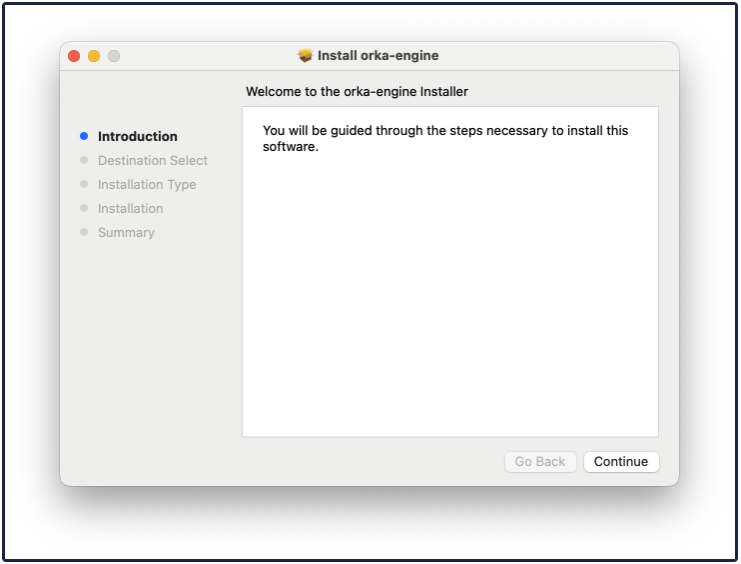
Getting Started
The following commands will quickly introduce basic features of the Orka Engine CLI including:- Open Terminal
- Run
orka-engine --helpto see the CLI tree structure: commands, subcommands and options/flags. - Run (deploy) a new VM based on Apple’s latest IPSW file using
orka-engine vm run - List the VM and its status (running) with the
orka-engine vm list - Save that VM as an image using
orka-engine vm save - Listing images available on disk with
orka-engine image list - Stop a VM with ctrl-c in terminal window bound to running VM or by closing the Dock item
- Run a base template VM image hosted from MacStadium using
orka-engine vm runorka-engine vm run latest-sonoma --image ghcr.io/macstadium/orka-images/sonoma:latest
- Pulling remote images locally using
orka-engine image pull - Starting a VM in the stopped state with
orka-engine vm start - Pushing a configured CI/CD customized VM to an OCI container registry
orka-engine image push
Open Terminal
After Orka Engine is installed, open a terminal window. The commandorka-engine is installed at /usr/local/bin/orka-engine - this should be in the $PATH for most users by default.
Using orka-engine —help
Theorka-engine --help command lists the three subcommands, vm to manage VMs, image to manage images, and host to see information about the host.
orka-engine vm --help provides a list of operations that can be taken on VMs, such as run, list, save, and start.
orka-engine vm run --help provides details on all the options that can be provided when taking the vm run operation.
Running a VM Based on the Latest IPSW File
Orka Engine can download the latest IPSW and start a VM with a hard disk of 90 GB. To get started with Orka Engine, run the first VM. If there is no locally stored image, then the quickest way to get started is to use the most recently published IPSW files. Orka Engine has a built-in ability to download the latest IPSW and start a VM with a hard disk of 90 GB using the following command:orka-engine vm run is a blocking function. Open another terminal window to interface with orka-engine for other functions while the VM is running. Stop a VM with ctrl-c or via the UI window Menu - > Quit.
Common Options when Running a VM
Orka Engine provides a number of options to control the VM runtime, including specifying CPU, memory, disk, and display details. If no options are provided, then defaults are used. The following example sets CPU allocation of 4, memory allocation of 8GB, and display resolution settings for 4K with a 23” display (3840 x 2160, DPI=185):--disable-graphical-console flag:
- Runs the VM without VNC access
- Reduces resource overhead
- Is ideal for automated testing and CI/CD pipelines
- Ensures the VM remains accessible via SSH (if configured)
Without the graphical console, you must use SSH or other non-GUI methods to interact with the VM.
Listing Current Running VMs
Orka Engine can list the name and resource consumption of VMs that are currently running or stopped on a local host.
Saving a VM as an Image
To configure the VM with different macOS settings, install dependencies or tools, or configure a bug reproduction environment. Save the current state of a running VM as an image, as long as the VM name is available (seeorka-engine vm list command for the VM name).
For example, orka-engine vm save latest-ipsw sonoma146-vanilla saves the VM called latest-ipsw as an image with the name sonoma146-vanilla.

Listing Images Available on Disk
Orka Engine lists the images that are available on the local host. These images are used for starting a new VM immediately.Stopping a VM
To stop a headless VM or a VM with a display console, enter ctrl-c (from the terminal window the VM was started with), or if deployed with a display console, by choosing the Apple icon in the VM and selecting Shut Down….Running a VM Based on a MacStadium Hosted Image
MacStadium hosts a number of Sequoia, Sonoma, and Ventura images on GitHub - macstadium/orka-images: Public images for Apple silicon-based Orka virtual machines. Inorka-engine vm, specify an --image option to be the URL of an image coming from an OCI registry.
- Once the GUI starts up, the credentials are admin/admin.
- Once logged in, the VM is ready for use or additional software and tools installation.
Reviewing Current List of VMs (in VMs orka-engine)
It is now possible to start a second terminal and runorka-engine vm list, and the following output appears, (which indicates that the previously running latest-ipsw VM has been stopped), and the recent sonoma-latest is now running.
- left in a stopped state
-
restarted with the
orka-engine vm start <vmname> -
deleted with the
orka-engine vm deletecommands
orka-engine vm save.
Starting a VM from the Stopped State
If the VMlatest-ipsw is stopped in the above example, then it can be started again with the following command: orka-engine vm start
Deleting a VM
If the VMlatest-ipsw is stopped in the above example, then it can be deleted with the orka-engine vm delete <vm-name> command.
Pulling Remote Images Locally
In previous examples,orka-engine vm run was used to both pull (or download) a remote image to the local device and to run the VM. There are cases where users may just want to download an image, and orka-engine image pull supports this.
orka-engine image pull ghcr.io/macstadium/orka-images/ventura:no-sip
Image pull progress: 100%
When the image pull is complete, it is available in orka-engine image list and usable with orka-engine vm run --image <imagename>.
Pushing local Images to Registry
If the previously run sonoma-latest image has been modified and saved with the necessary CI tools, then the image can be shared with team members by storing it on the team OCI repo and naming it sequoiaCI; on the repo, use theorka-engine image push command.
The default local Orka Engine VM image files system path is /Users/<host_username>/.local/share/orka/data/ where the host_username is admin in this example and the container registry is ghcr.io and the repo credentials are username=dev1 and password=repo.
orka-engine image push --username dev1 --password repo /Users/admin/.local/share/orka/data/sonoma-latest ghcr.io/images/sequoiaCI:latest
Recent Improvements
Orka Engine 3.5.2
- macOS 26 Tahoe compatibility fixes for image deletion, copying, and tagging
- Display resolution now applies correctly for Sequoia guests with custom resolution settings (requires updating Orka VM Tools on existing images)
Orka Engine 3.5.1
- Fixed sporadic NAT networking failures on M4 Pro nodes. Orka now detects and self-heals NAT connectivity issues automatically.
Known Issues
- Orka Engine VMs may become unresponsive and show a black/blank screen for a few minutes before activating from sleep or a fresh boot.
- Orka Engine VMs may show a flickering screen when the mouse or keyboard attempts to wake the VM from sleep mode.
- Orka Engine VM may experience slow network performance.
-
Workaround: Restart the VM.
- Orka Engine and Orka Desktop share the same VM image directory on the local file system and discrepancies may develop between available VM images, if both applications are installed on the same host and VMs are added or deleted using both applications.