

- Configuration template
- Fill in the configuration blanks
- Get the configuration values
- Complete the template
Configuration template
Unless you have extensive experience with GCP and ASA/ASAv configurations, use the configuration from the template. Otherwise, your site-to-site VPN might not work as expected.
Fill in the configuration blanks
You need to manually replace the placeholders in the configuration template with the values for your GCP and MacStadium configurations.Get the configuration values
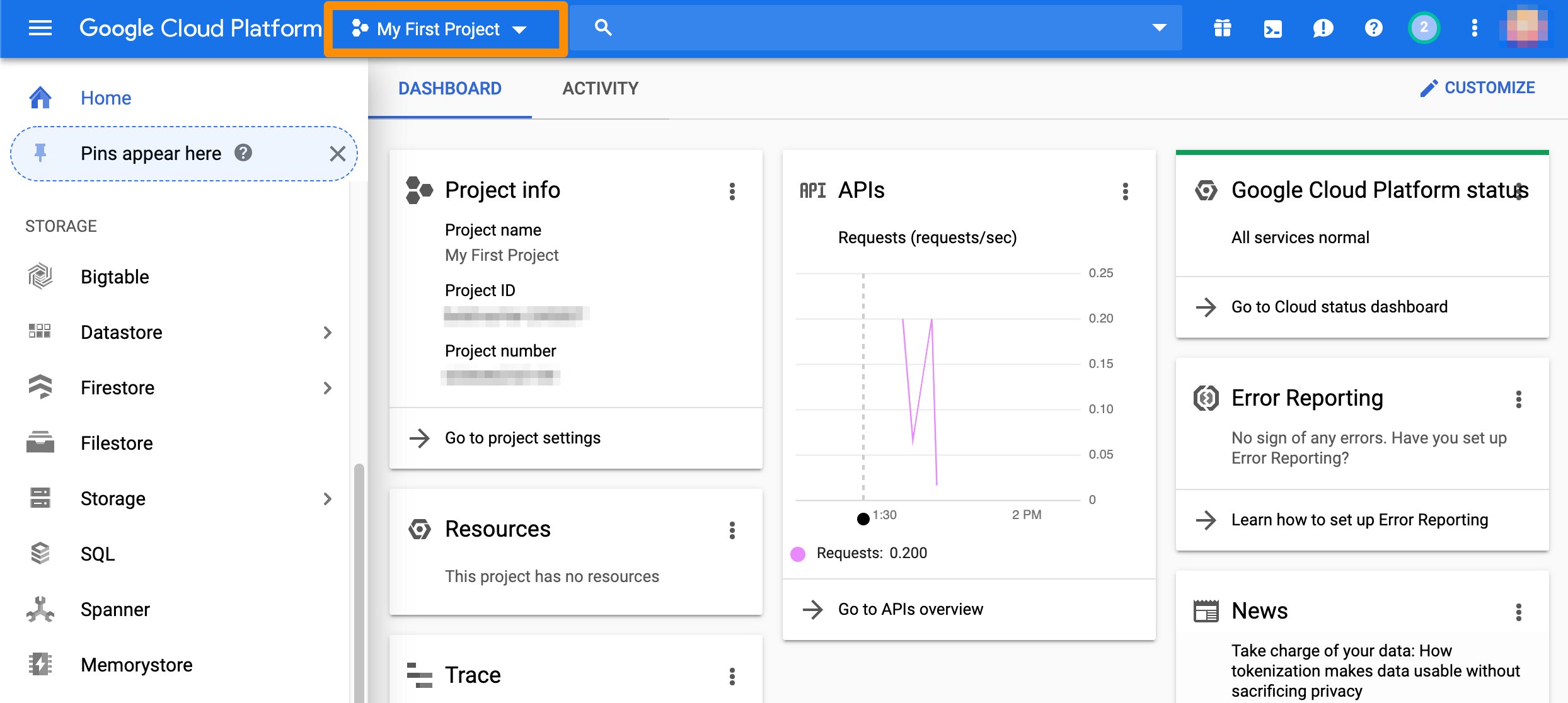
{ gcp_network_address } This is the IP address of the GCP local network that needs to have access to MacStadium.- Verify that you’re logged into the GCP console and you are working in the correct project.\
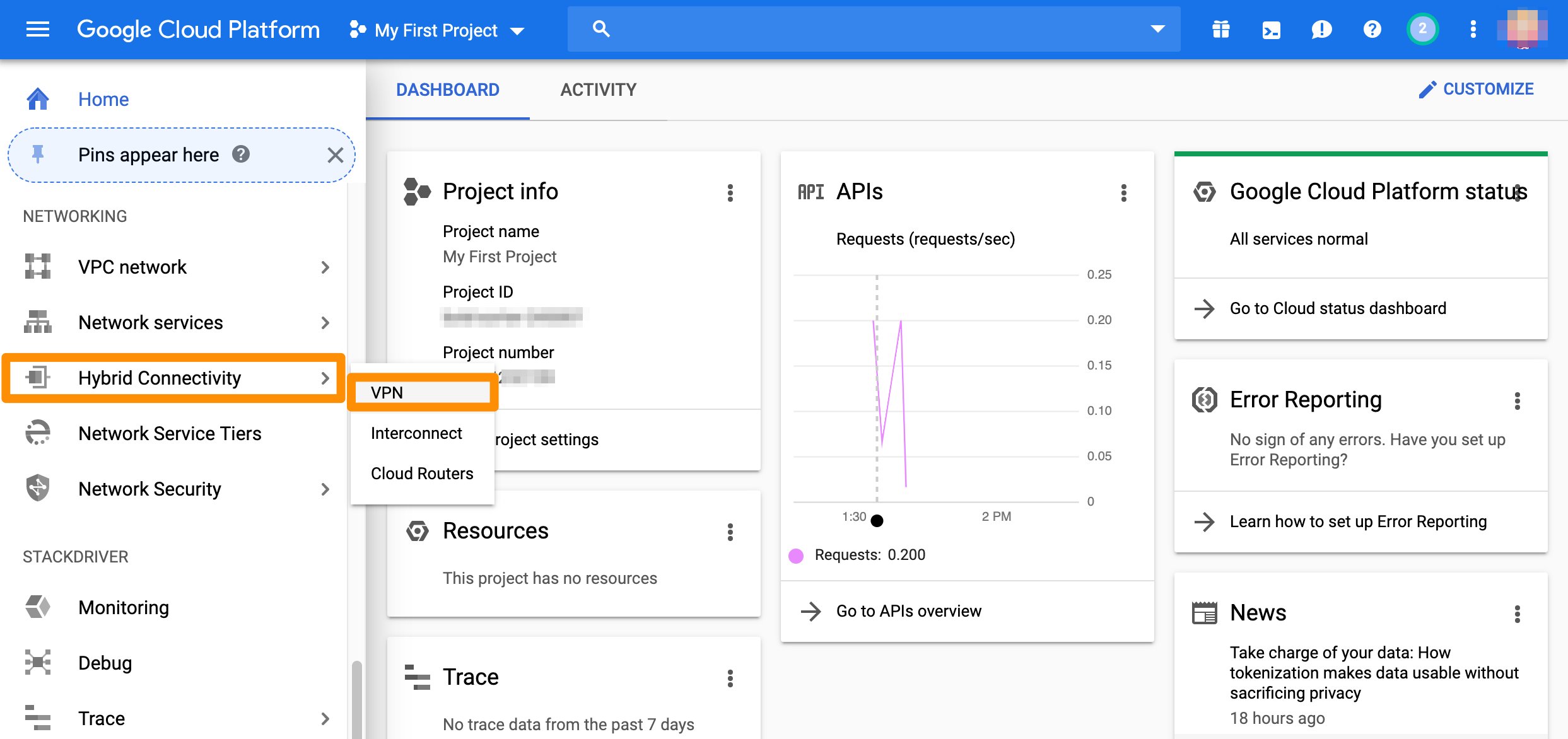
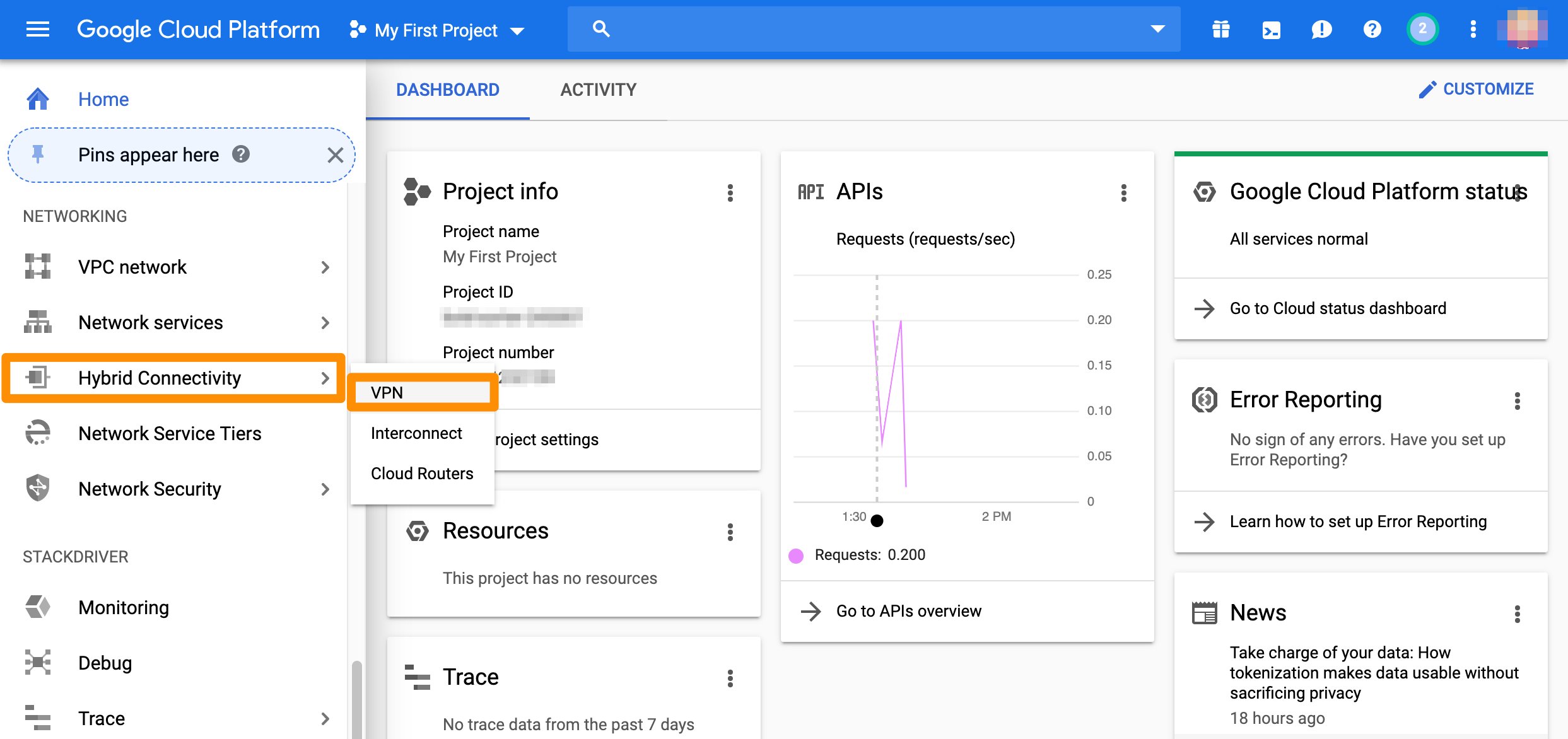
- From the GCP console sidebar, scroll to the Networking section and select Hybrid Connectivity > VPN.\
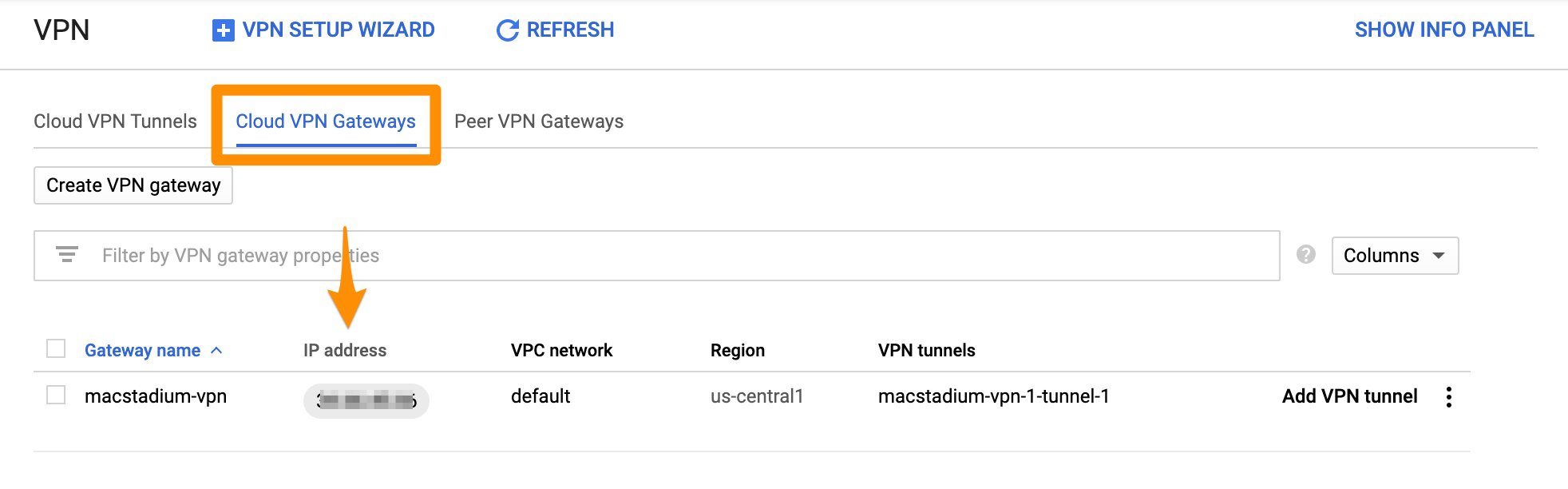
- Select Cloud VPN Gateways.
- Locate the gateway used by your GCP-MacStadium tunnel and note the value for Region.\
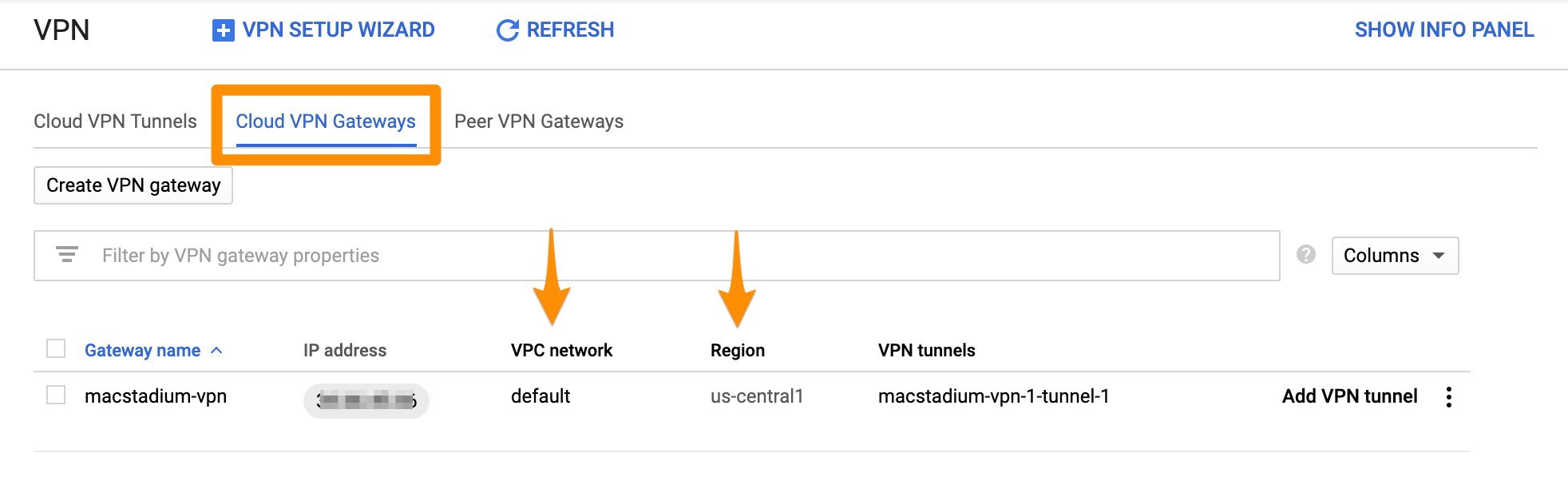
- Click the value listed under VPC network.
- The GCP console redirects you to the list of subnets for the selected network.
- In the list of subnets, locate the one matching the region you noted in Step 4.
- From the respective IP address ranges field, use the IP address without the bit notation at the end (e.g. /16).
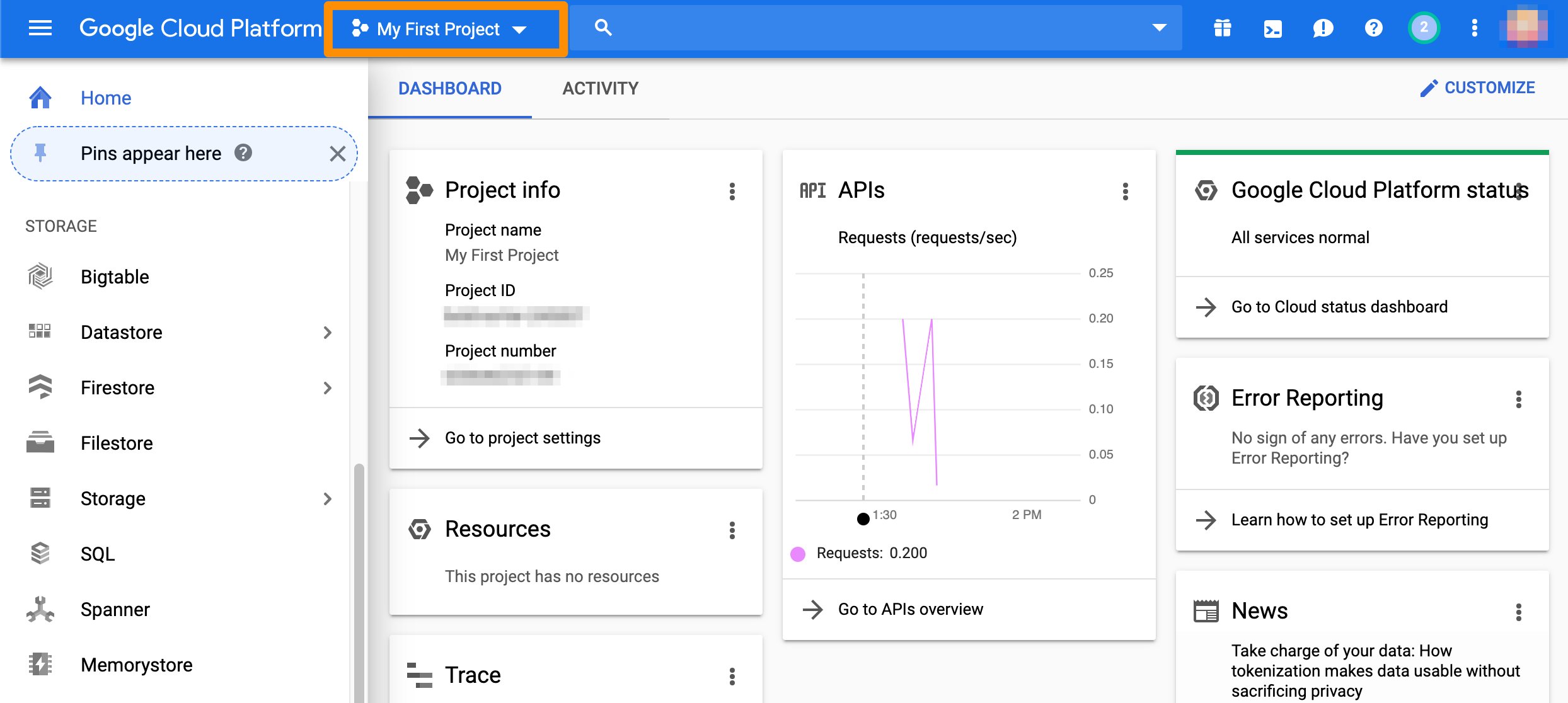
- Verify that you’re logged into the GCP console and you are working in the correct project.\
- From the GCP console sidebar, scroll to the Networking section and select Hybrid Connectivity > VPN.\
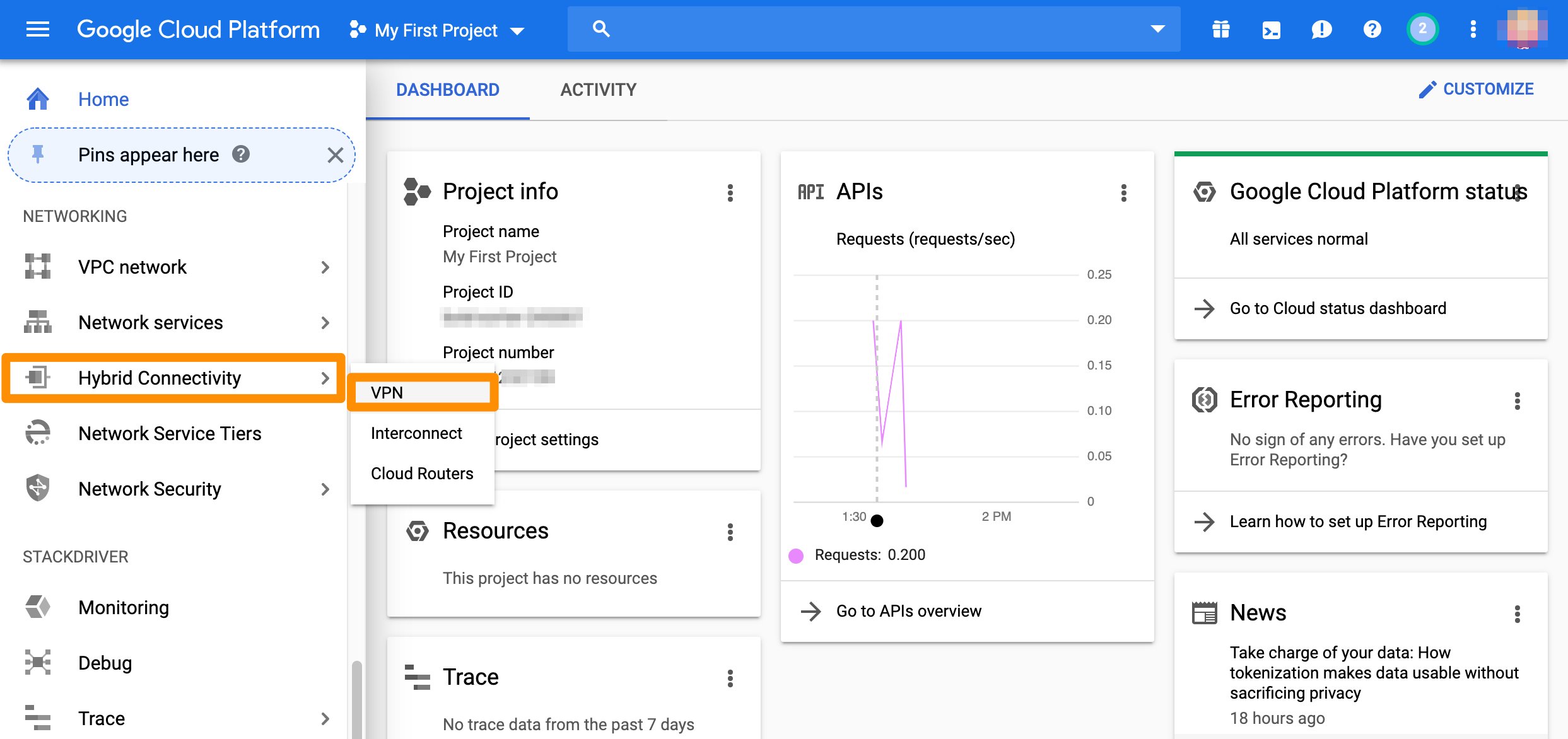
- Select Cloud VPN Gateways.
- Locate the gateway used by your GCP-MacStadium tunnel and note the value for Region.\
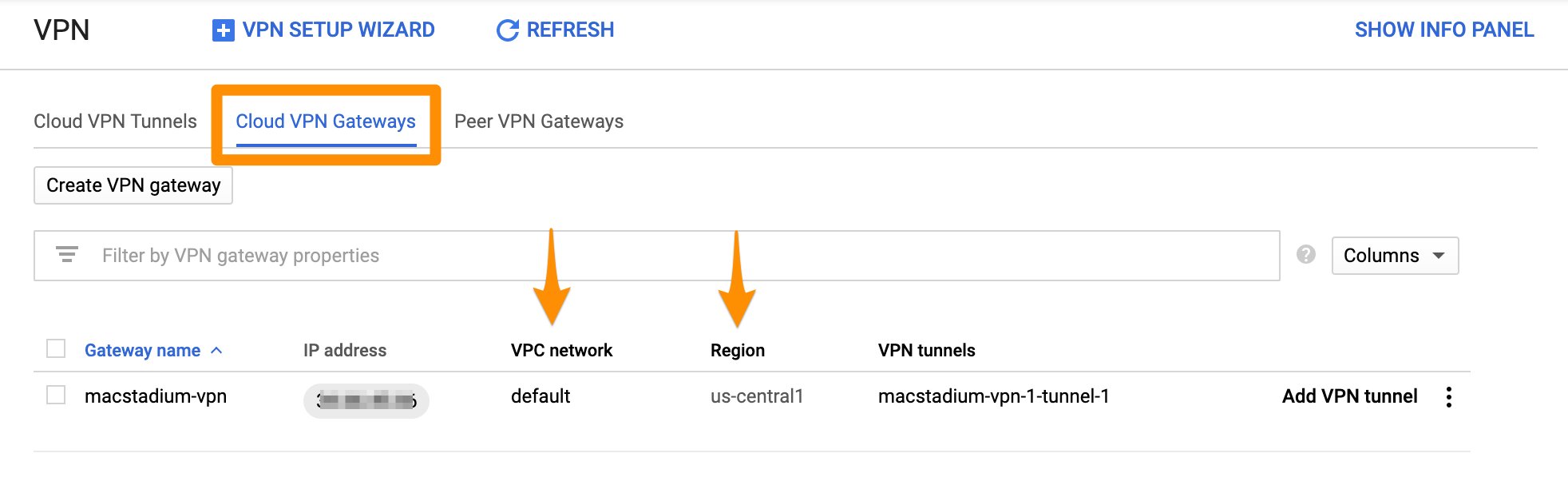
- Click the value listed under VPC network.
- The GCP console redirects you to the list of subnets for the selected network.
- In the list of subnets, locate the one matching the region you noted in Step 4.
- From the respective IP address ranges field, use the bit notation at the end (e.g. /16) and convert it to a subnet mask. You can use a CIDR calculator such as this CIDR/Netmask Lookup Tool.
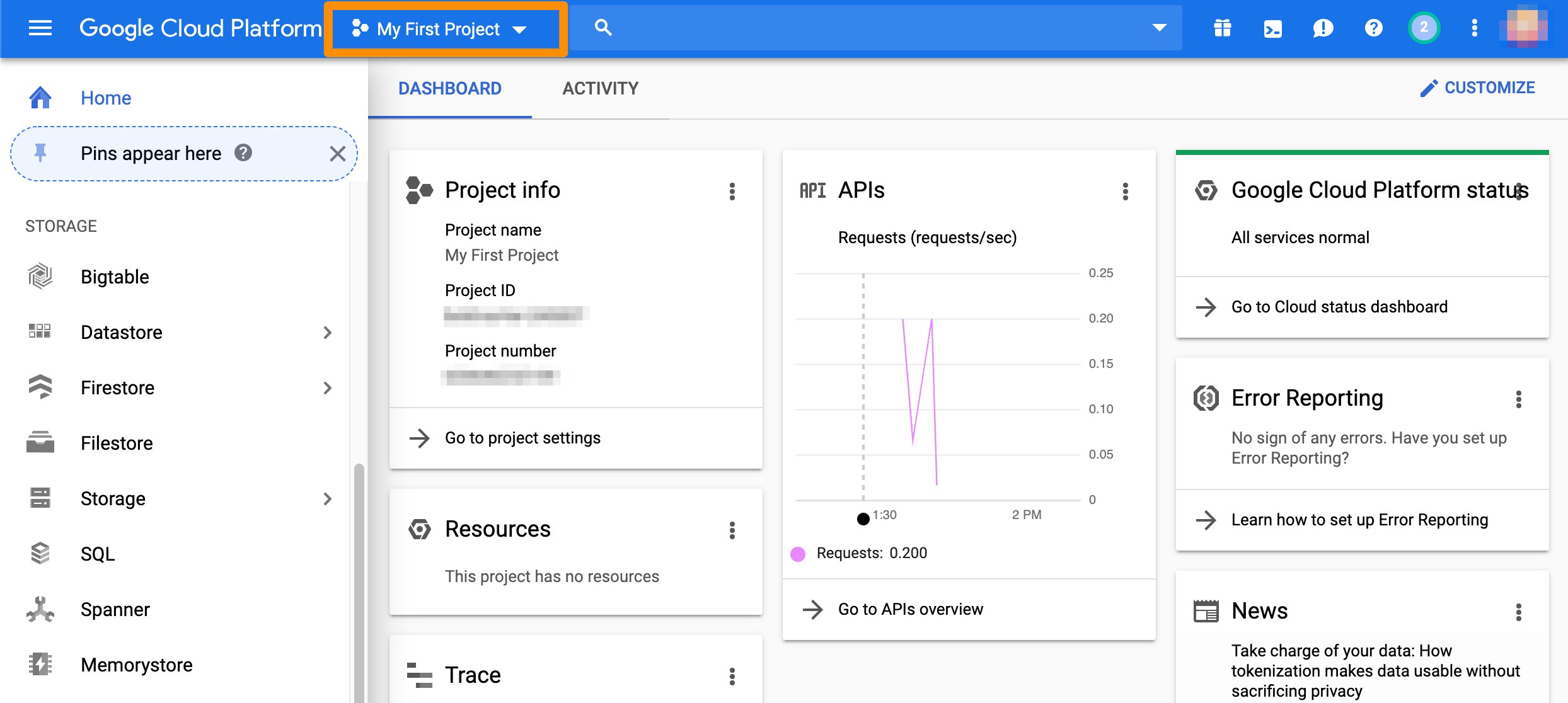
- Verify that you’re logged into the GCP console and you are working in the correct project.\
- From the GCP console sidebar, scroll to the Networking section and select Hybrid Connectivity > VPN.\
- Select Cloud VPN Gateways.
- Locate the gateway used by your GCP-MacStadium tunnel and use the value listed under IP address.\
- You can find the information about your private network in the IP Allocation table in My Cloud.
Complete the template
- Copy the template into a text editing tool.
- Replace all placeholders with their respective values.
- Delete the remaining commented lines to clean up the template. Commented lines are indicated by ! at the beginning of the line.
- Save your changes.