

- Verify that you are connected via VPN to your MacStadium private cloud.
- For more information about how to connect to the VPN, see Connecting to Your Cloud via VPN.
- Run Cisco ASDM-IDM and log in.
- For more information about how to log in to your firewall, see Logging into Cisco Firewall.
- In the Cisco ASDM-IDM application toolbar, select Tools > Command Line Interface.\
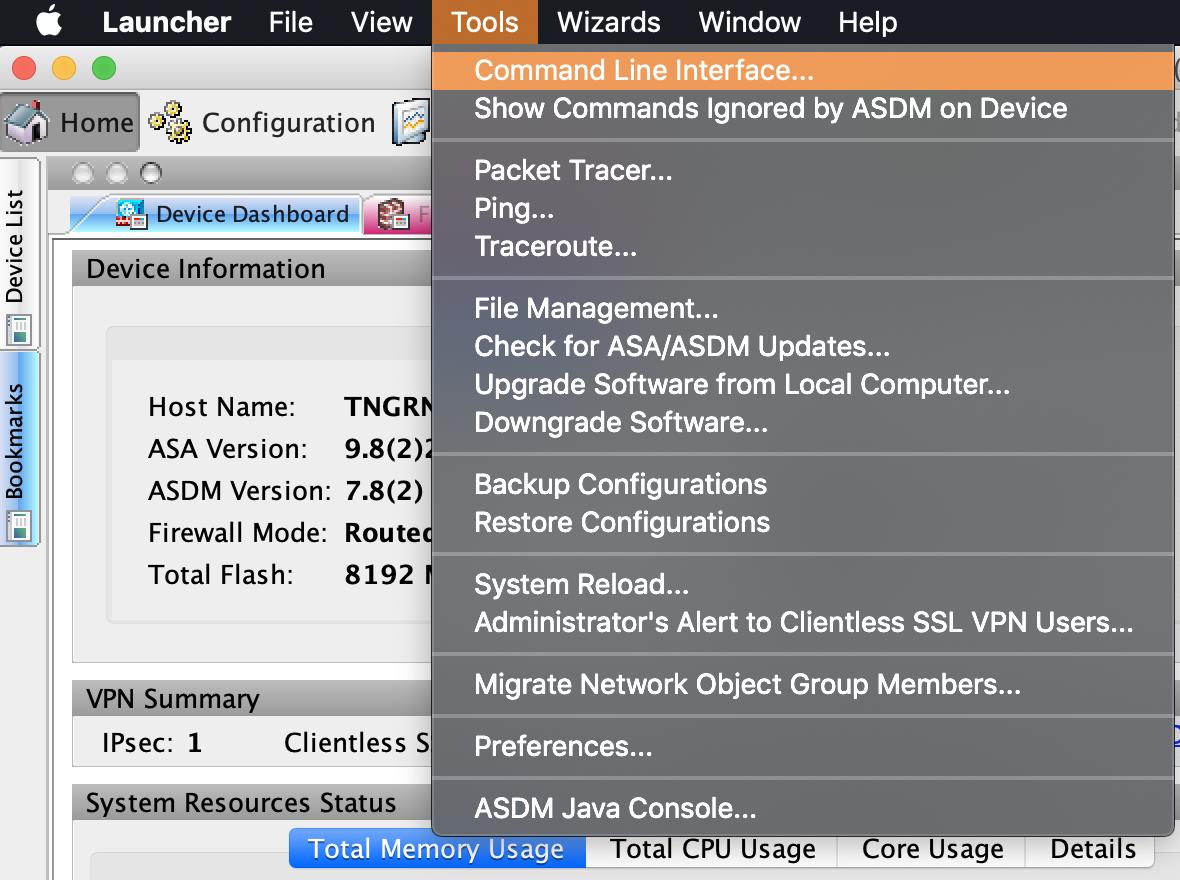
- Select Single Line, enter the following command, and click Send.
Verify that there is an IPsec security association between peers
- Verify that you are connected via VPN to your MacStadium private cloud.
- For more information about how to connect to the VPN, see Connecting to Your Cloud via VPN.
- Run Cisco ASDM-IDM and log in.
- For more information about how to log in to your firewall, see Logging into Cisco Firewall.
- In the Cisco ASDM-IDM application toolbar, select Tools > Command Line Interface\
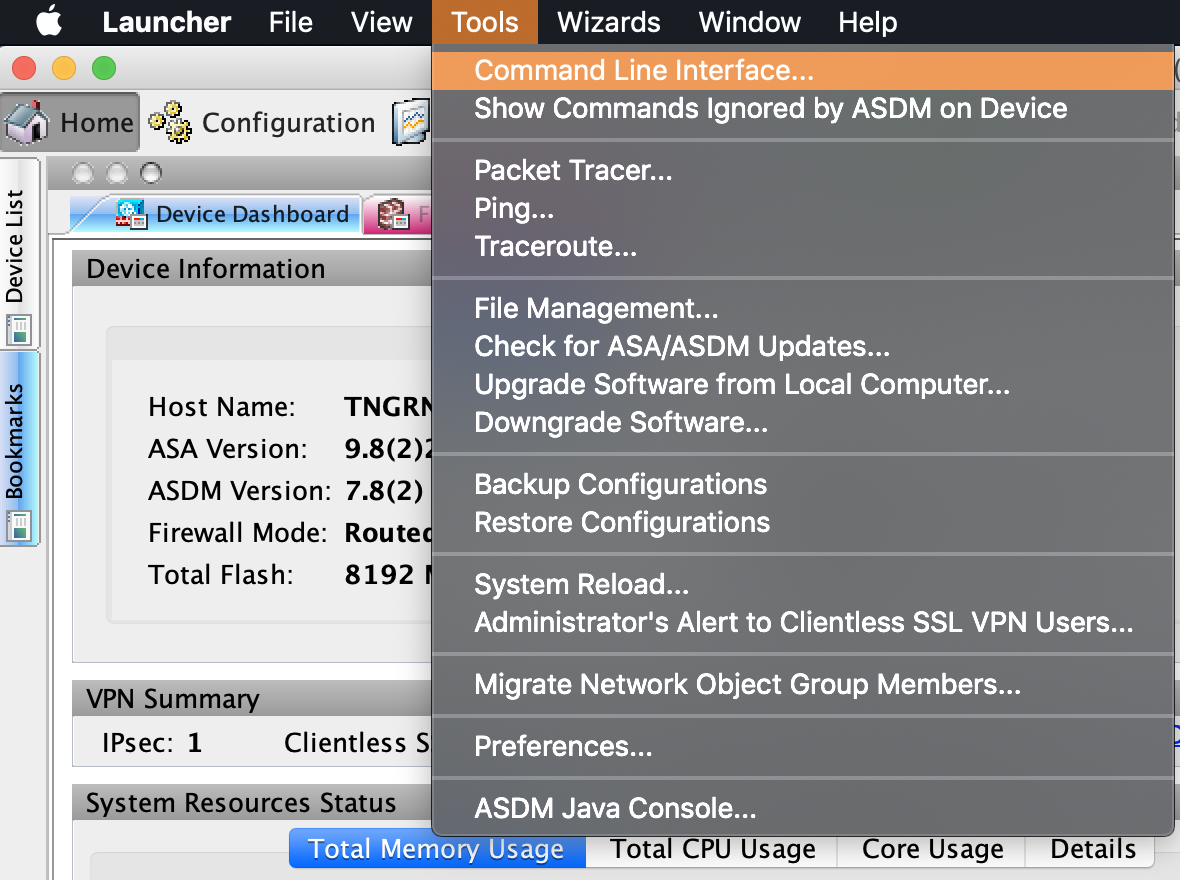
- Select Single Line, enter the following command, and click Send.
Verify that the tunnel is connected
- Log in to your GCP console.
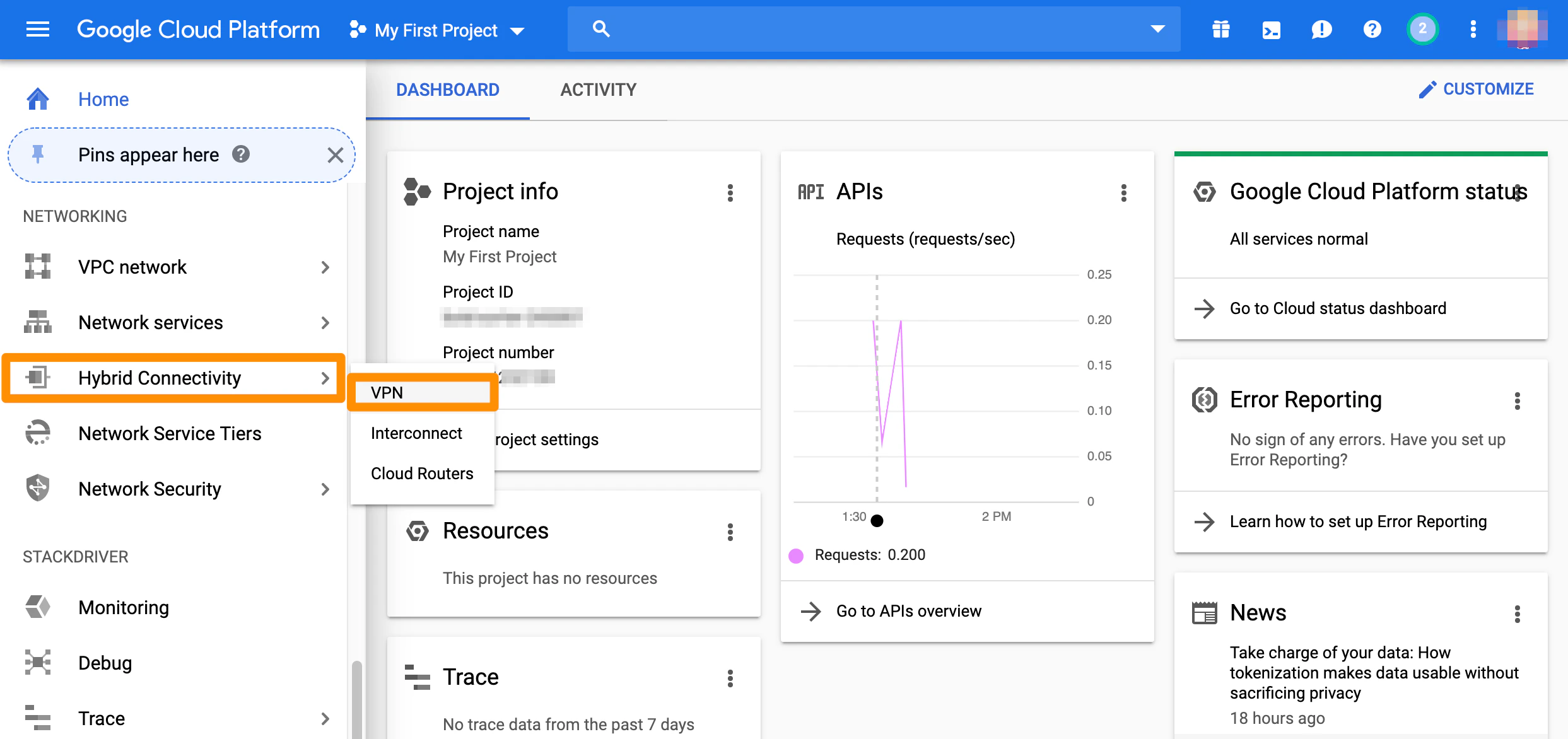
- From the GCP console sidebar, scroll to the Networking section and select Hybrid Connectivity > VPN.\
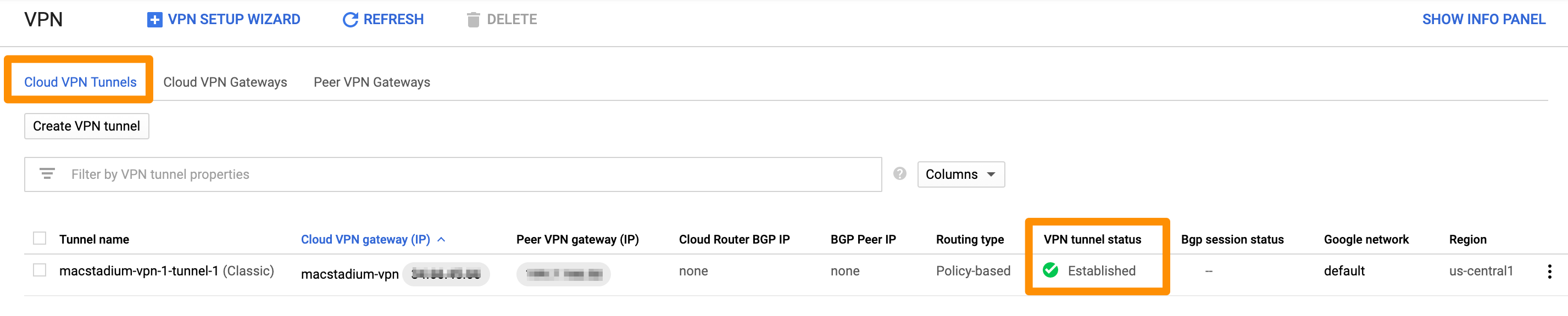
- On the Cloud VPN Tunnels tab, locate the tunnel to MacStadium and check the value for VPN tunnel status. When your tunnel is properly connected, the status is: Established.\
Test traffic and visibility through the tunnel
- Verify that you have created a virtual machine in MacStadium.
- Verify that you have created a virtual machine instance in GCP and that you have enabled user login on it.
- For more information about user login on GCP instances, see Google Cloud Documentation: Setting up and configuring OS Login.
- In the terminal on your MacStadium VM, run the following command.
- Replace
<user>with the username for your GCP instance. - Replace
<gcp-vm-ip>with the private IP of the GCP instance.
- Replace
- When prompted, provide your password or key for the specified username on the specified GCP instance.
- If the connection is successful, the prefix of the terminal becomes
<user>@<gcp-vm-ip>. This indicates that you have connected from MacStadium to GCP over the tunnel.
- If the connection is successful, the prefix of the terminal becomes
- Run the following command.
- Replace
<user>with the username for your MacStadium VM. - Replace
<macstadium-vm-ip>with the private IP of the MacStadium VM.
- Replace
- When prompted, provide your password or key for the specified username on the specified MacStadium VM.
- If the connection is successful, the prefix of the terminal becomes
<user>@<macstadium-vm-ip>. This indicates that you have connected from GCP to MacStadium over the tunnel.
- If the connection is successful, the prefix of the terminal becomes