

About NAS
NAS lets you take storage in Private Cloud and expose it to other machines, then share that storage between machines. It is a virtual NAS with redundancy. NAS storage can be exposed to other machines over the network. NAS allows for virtual machines to share storage with assets inside or outside of the Private Cloud, then use a file share to move files back and forth between machines. NAS is used to expand storage and to share files between Macs, and you can configure this yourself.Create the NAS service
The NAS service is a dedicated virtual machine that presents itself as a service. It lets you create and manage file based storage without the need for physical or virtual appliances. Each NAS service includes its own dashboard and is fully managed from the user interface. Using the integrated NAS service takes advantage of the VergeIO snapshot engine and deduplication algorithm to get the most of usable storage space.- From the Cloud Dashboard, select NAS from the left menu.
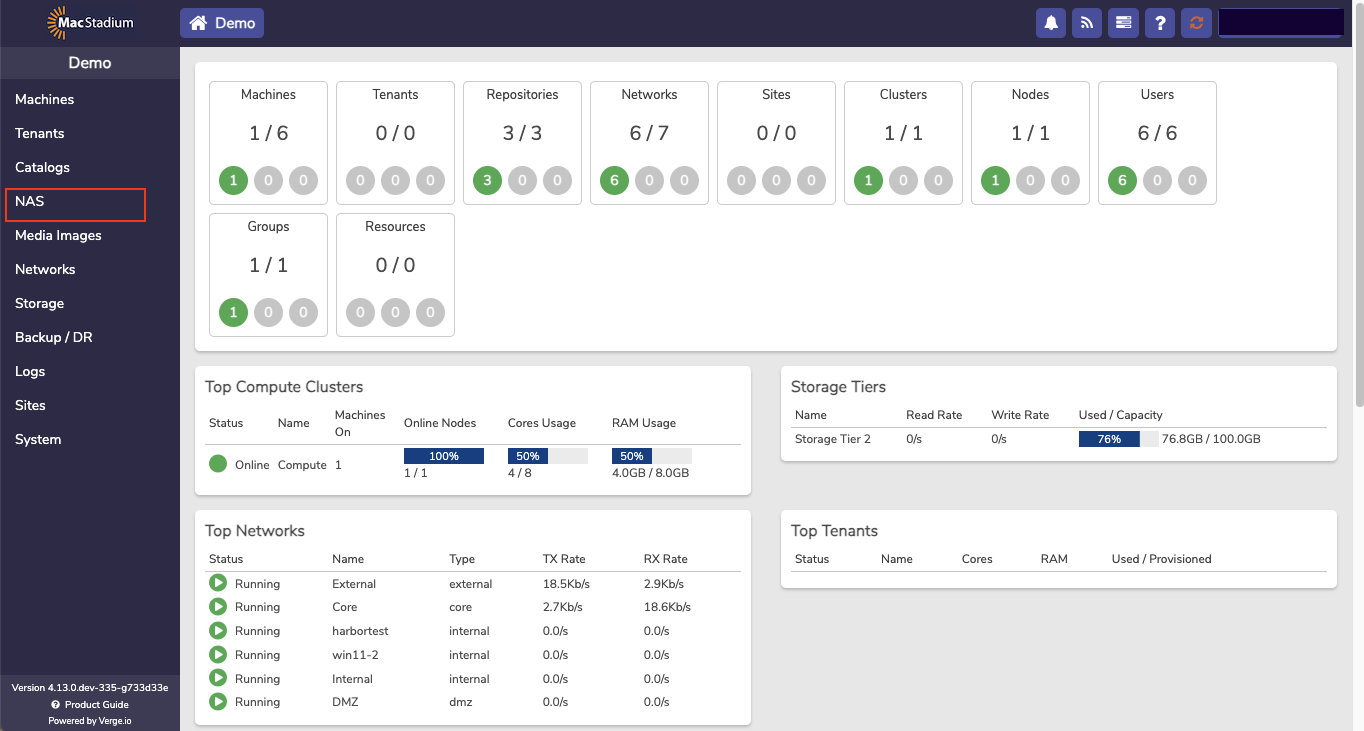
- The NAS Dashboard opens.
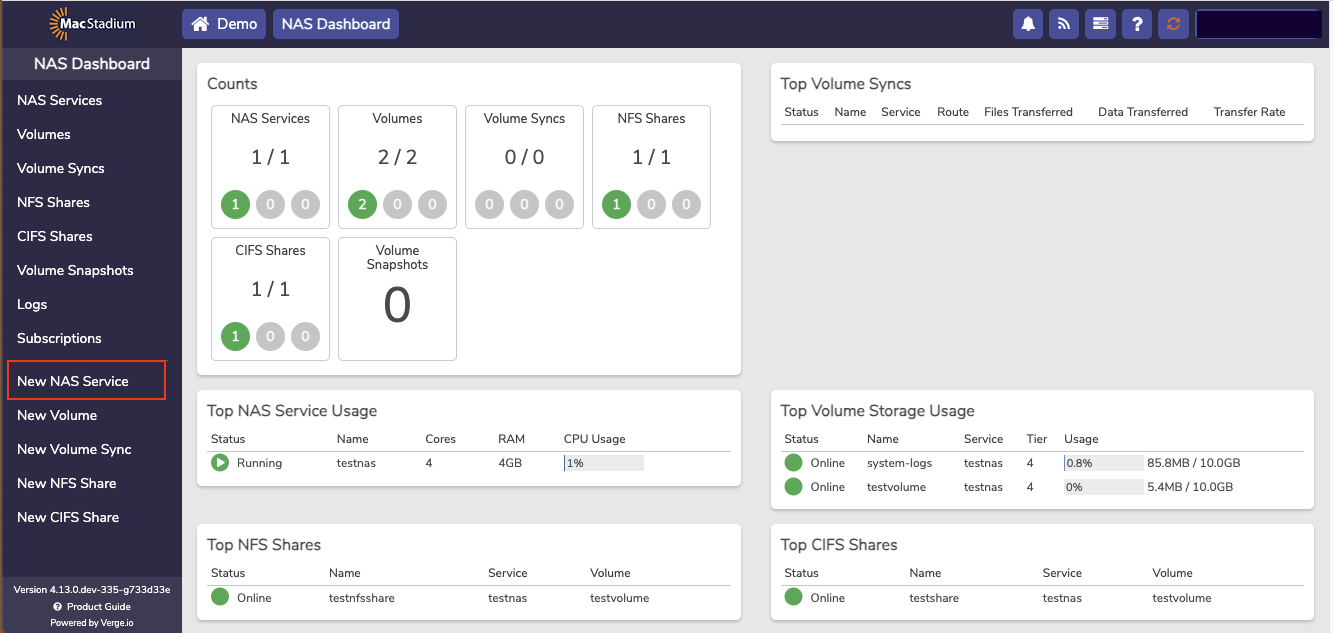
- Click New NAS Service to open a recipe that is used to create the new NAS service.
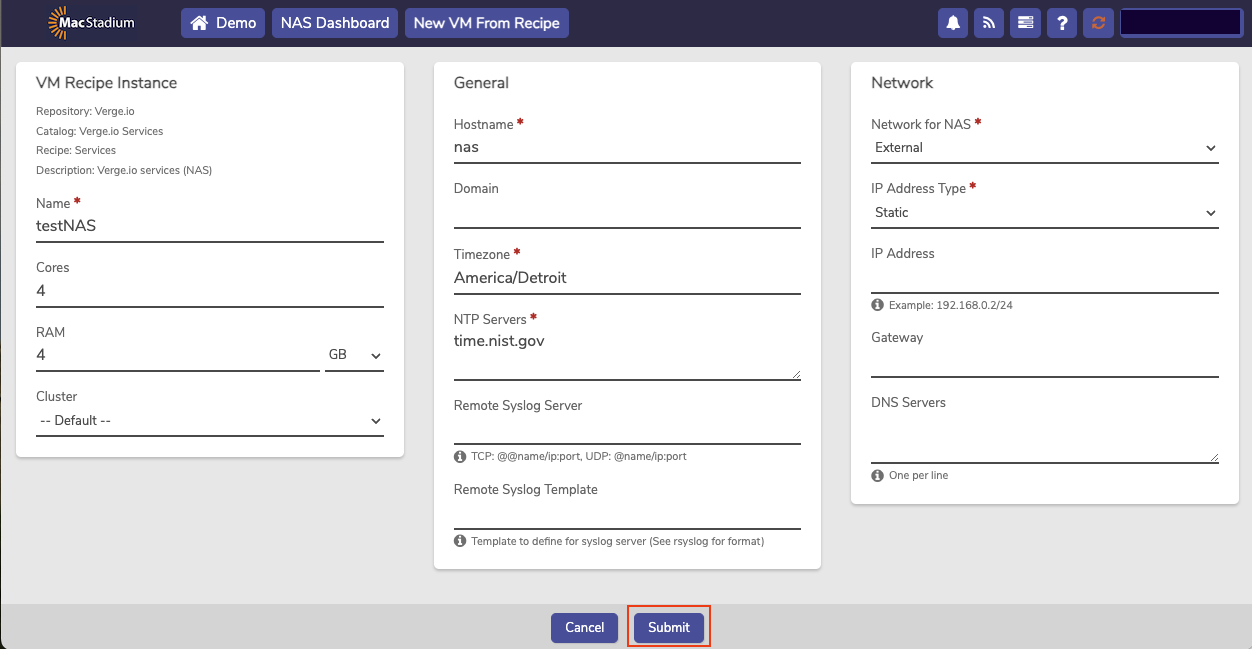
- Complete the following information:
- Enter a Name for the new NAS Service.
- The default setting for Cores is 4.
- The default setting for RAM is 4 GB.
- Select the Network on which the NAS should run. Options include Internal and External networks.
-
Select IP Address Type for the NAS Service.
- Select Static
- Define a Hostname for the NAS Service VM.
- OPTIONAL: Enter a domain. (If the Domain field is left blank, the system defaults the domain to workgroup.)
- Timezone defaults to the default time zone.
- The default NTP Servers setting is recommended. This defines the Network Time Protocol (NTP) servers list, which is used for keeping the NAS service time synchronized.
- OPTIONAL: Enter the address of a Remote Syslog server.
- OPTIONAL: Enter a Remote Syslog Template.
- Click Submit, and the NAS appears in the NAS Service list.
 Newly Created NAS Service
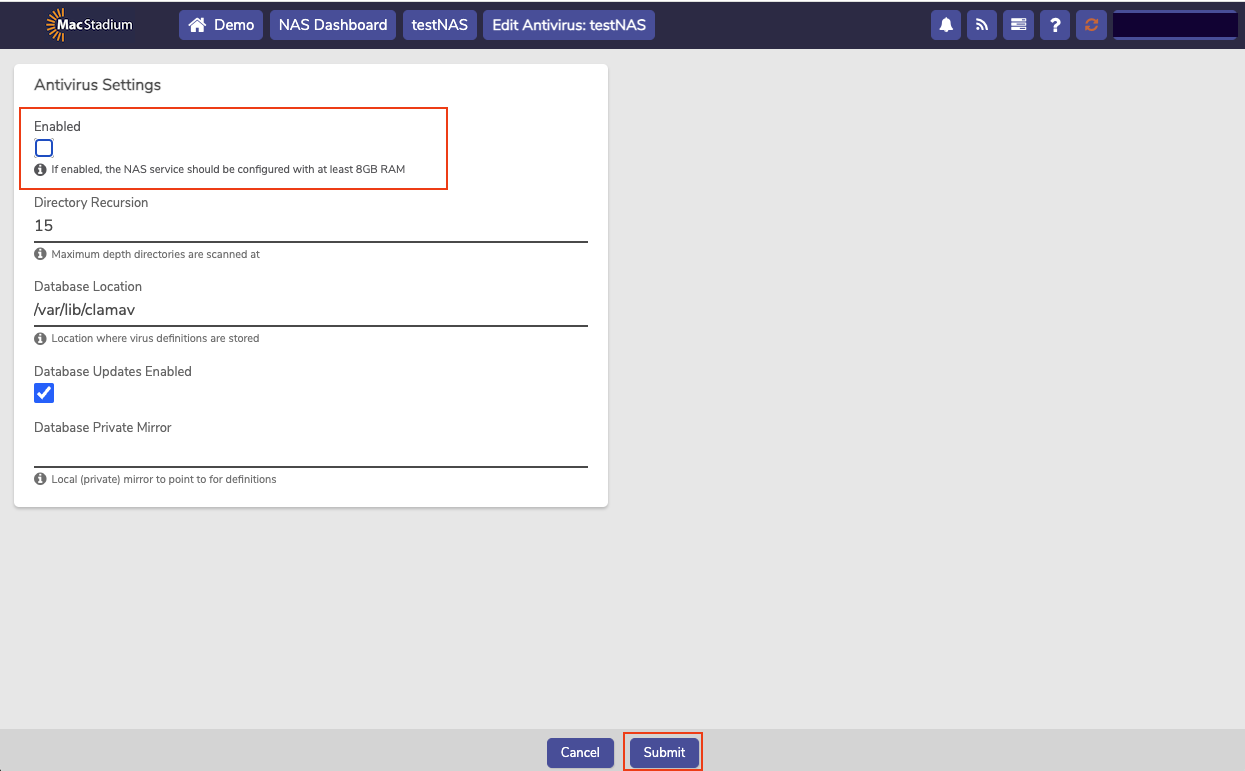
- To disable the Antivirus checkbox, deselect the checkmark and the Antivirus Settings box opens.
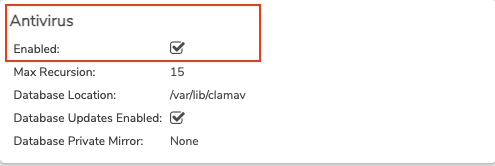
- Uncheck the box and click Submit.
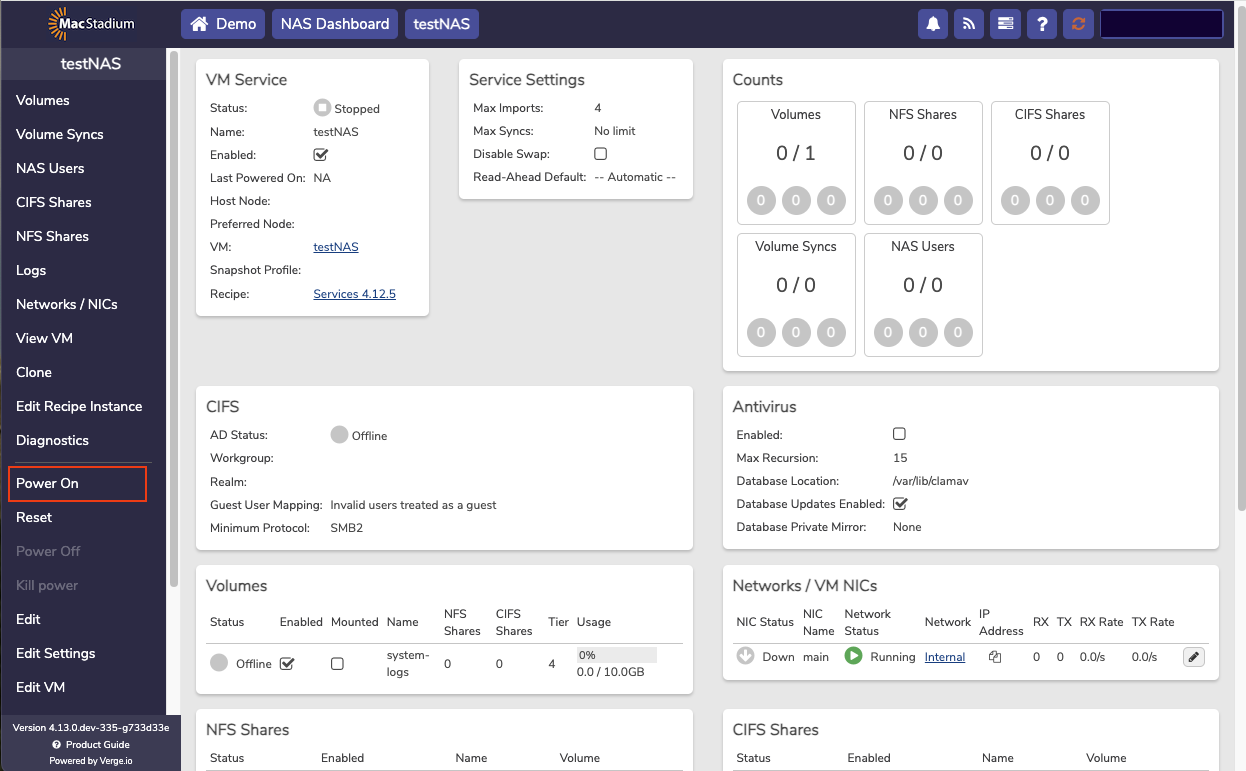
- Double-click the Service to bring up the Dashboard for the Service.
- Select Power On to start the NAS.
- Click the Yes to confirm power on.
- The next step is to create a NAS User.
Create a NAS user
- From the Main Dashboard, select NAS.
- Select NAS Services → Select a Service.
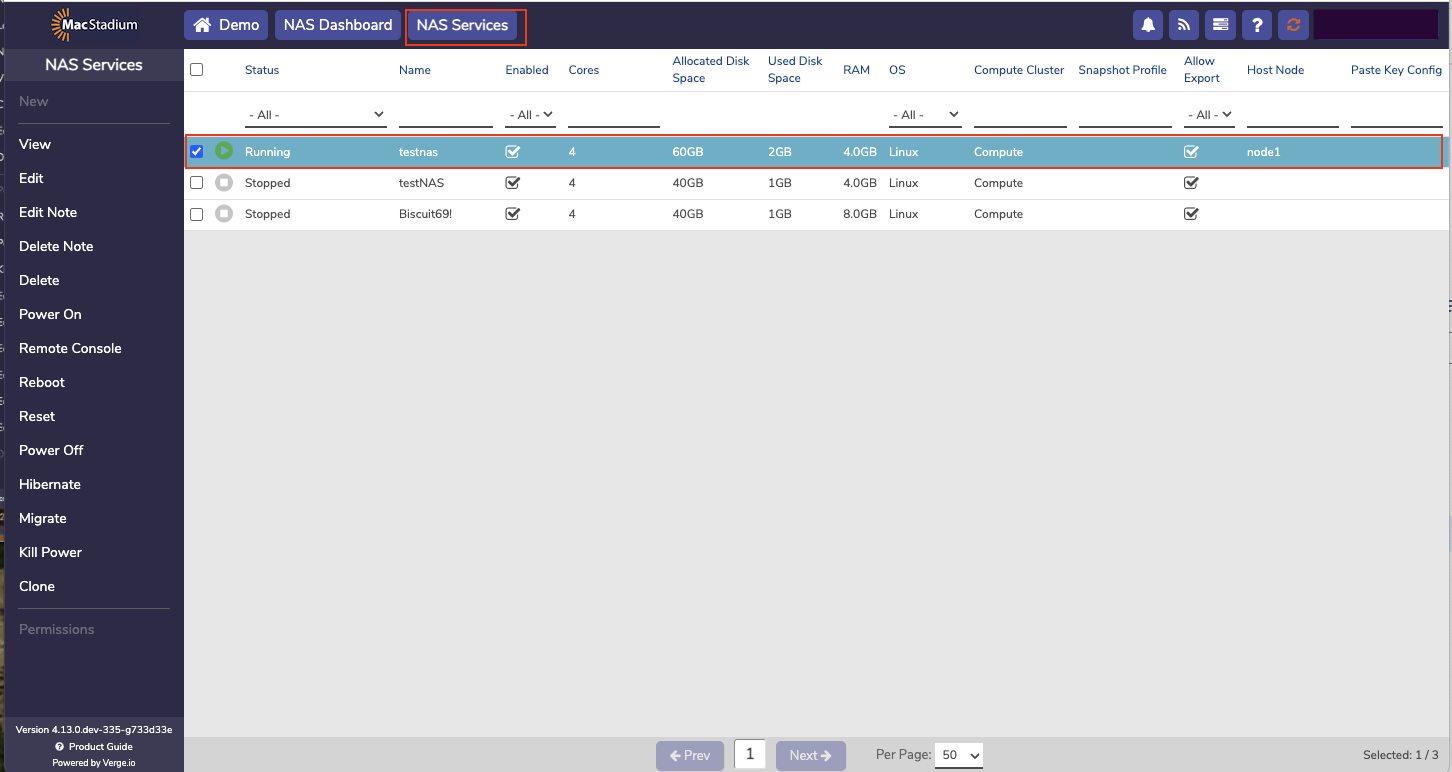
- Double-click a Service.
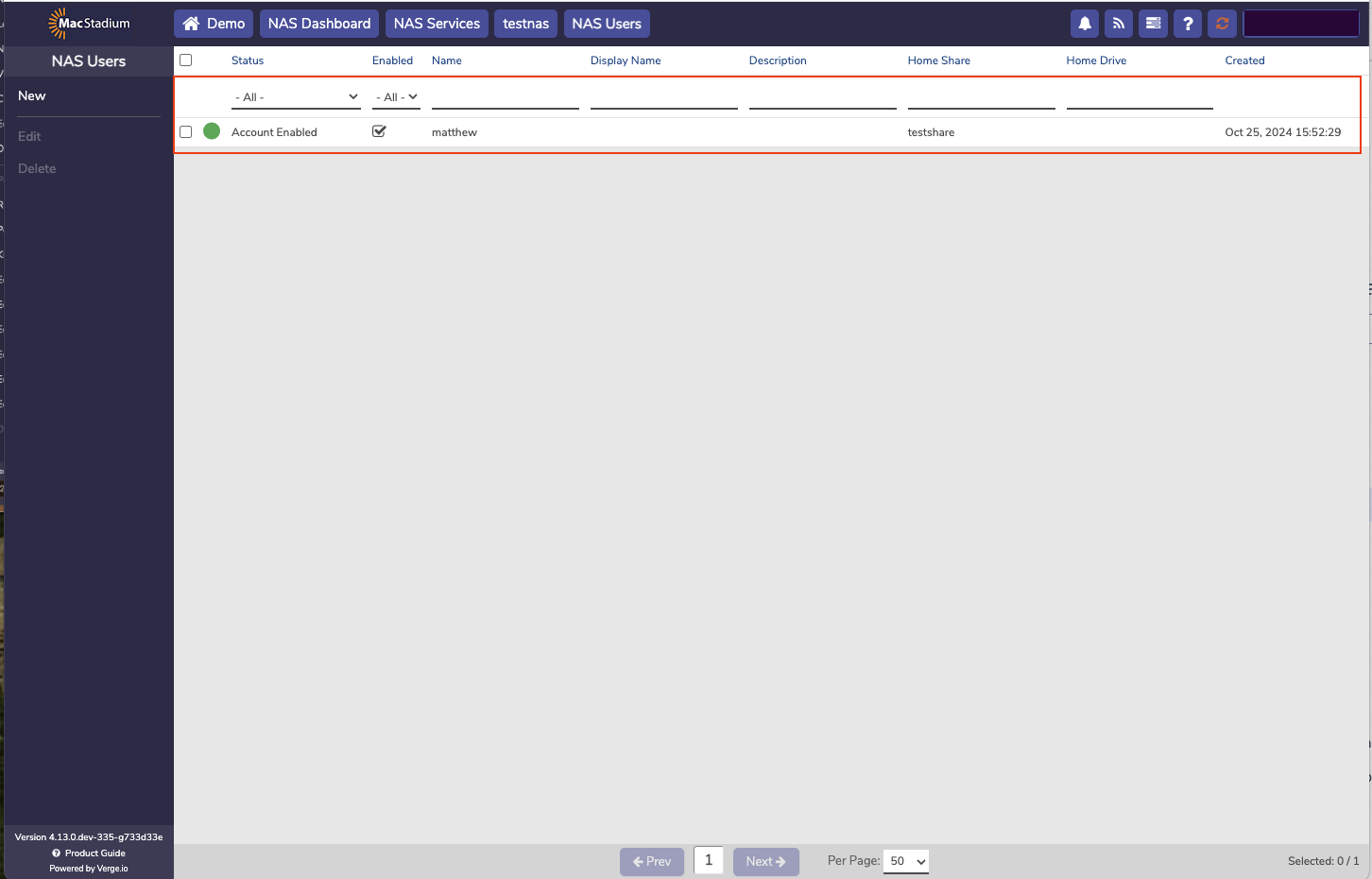
- Select NAS User.
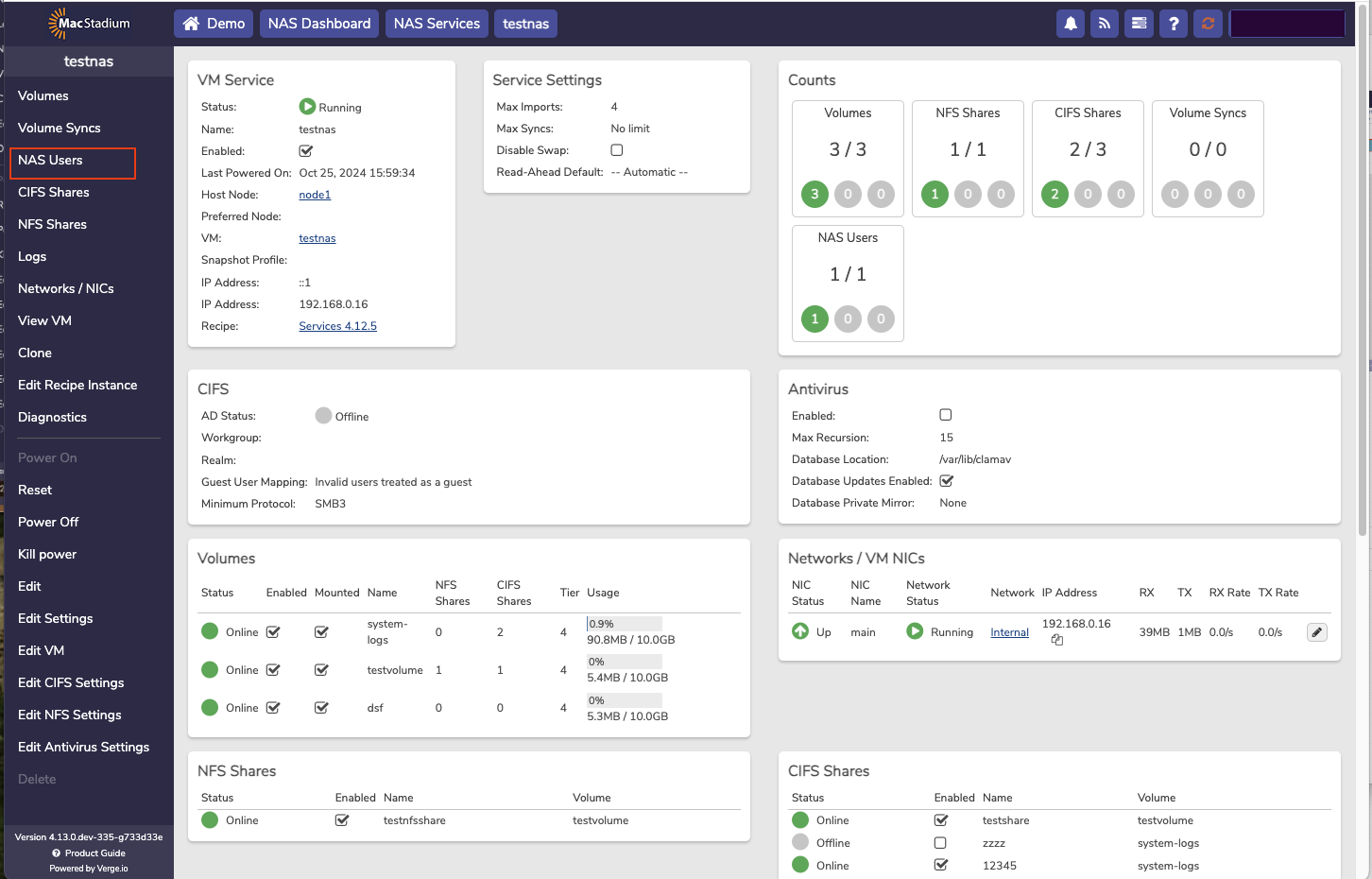
- Select New to add a new NAS User. (This page is also used to edit or delete a user.)
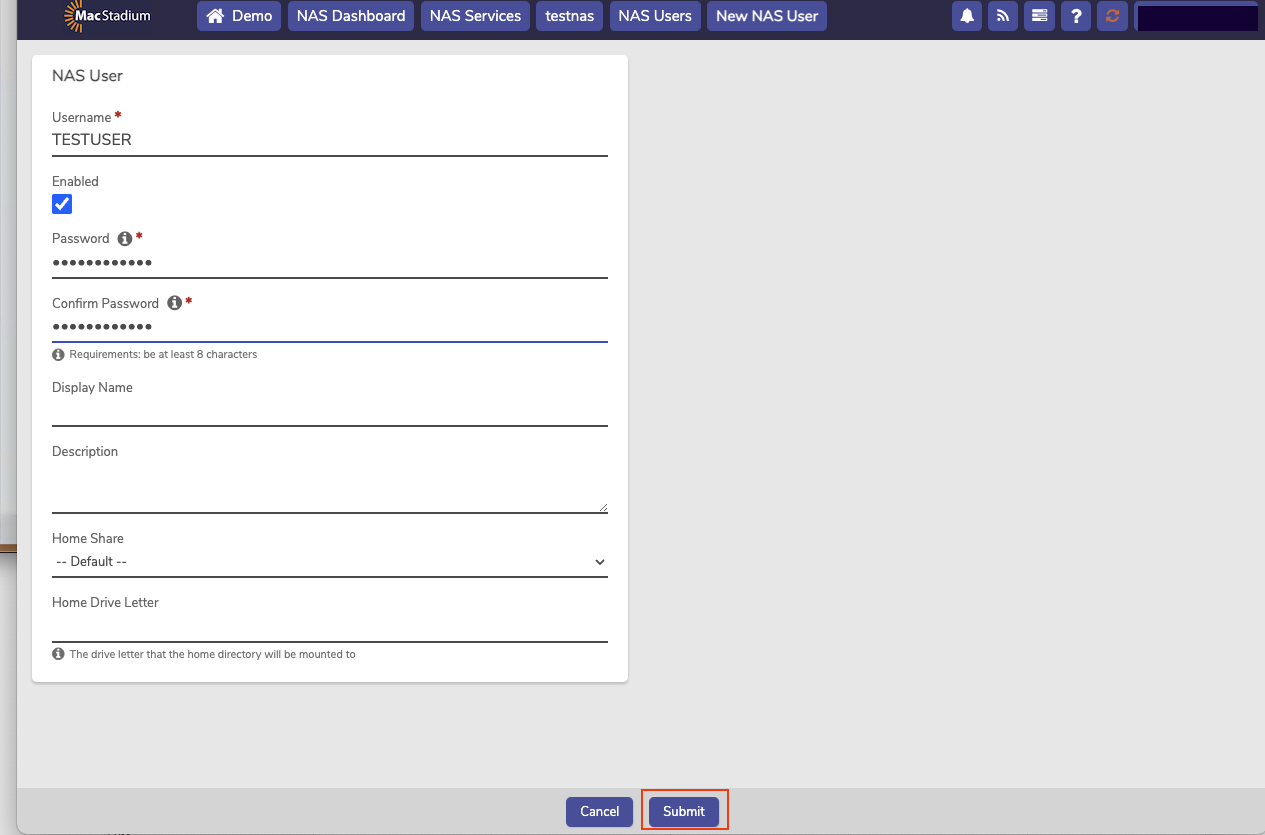
- Required: Username
- Required: Password
- Optional: Display Name
- Optional: Description
- Optional: Home Share
- Optional: Home Drive Letter
- Click Submit.
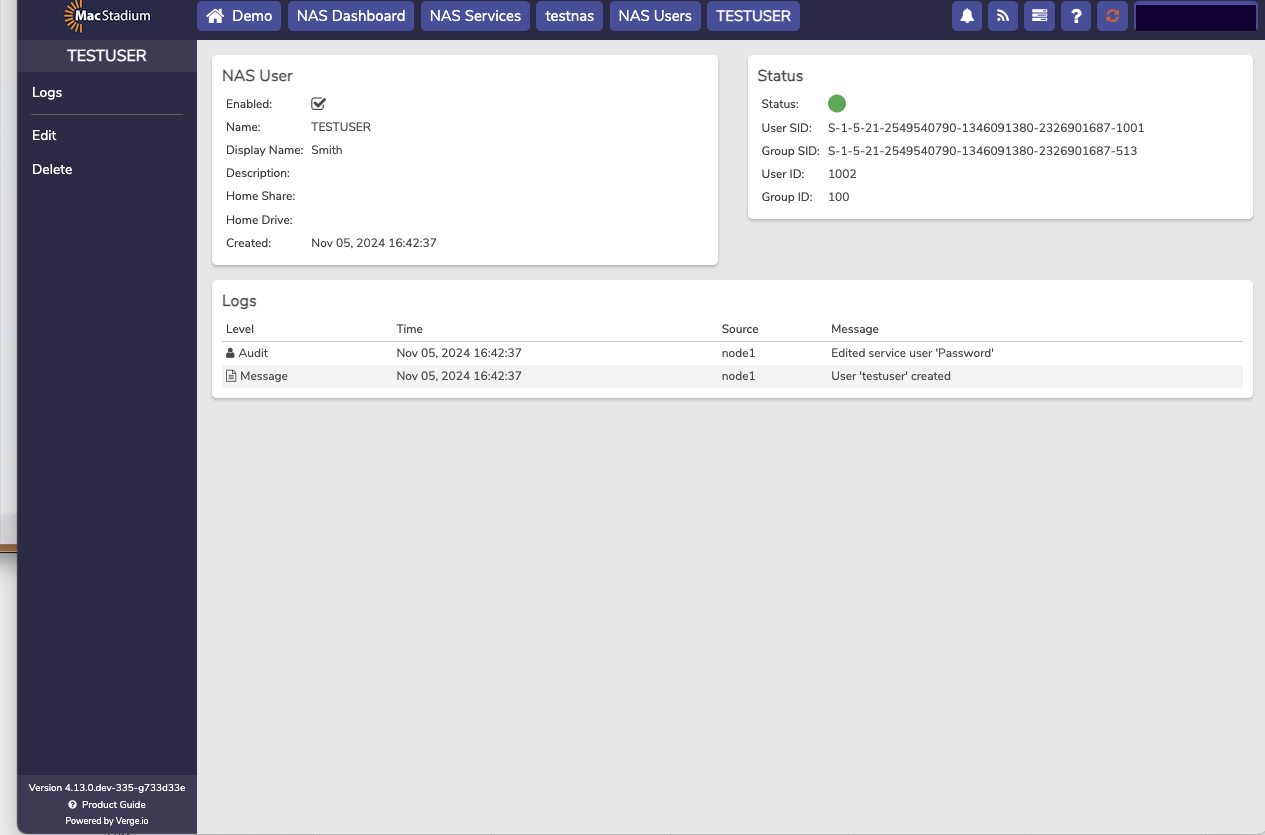
- The next step is to create a Volume.
Volumes
A NAS service consists of one or more Volumes. Each Volume is a separate directory structure with its own settings for security, snapshots, storage tier, max size, antivirus, and sharing. Multiple volumes can be set up on the NAS, and the size of the volume determines the space available to deploy files on the NAS. Volume-level snapshots allow for customizing snapshot schedule and retention rules per individual NAS volume and provide the option for a quiesced snapshot. (Non-quiesced NAS volumes can be imported from Cloud snapshots to be used for restore.) Quiesced volume snapshots freeze file system during the snapshot process. The Quiesce option can be selected when taking a manual volume snapshot and can be enabled within the snapshot profile for automated snapshots.About volumes
There are two types of Volumes:- Local Volumes are file systems stored within Private Cloud and consume storage in the vSAN. Each local volume can have different sharing, syncing, tiering, and permission settings.
- Remote Volumes are external file systems that are mounted to the VergeIO system and presented as if local.
Creating local volumes
- From the Main Dashboard, select NAS.
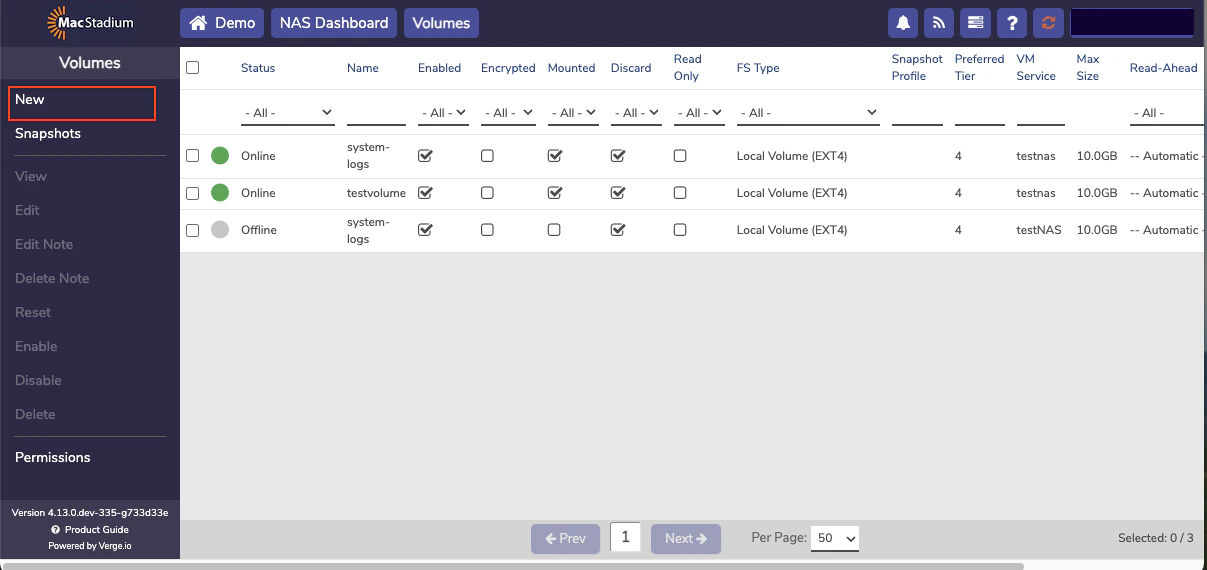
- Select Volumes from the left menu.
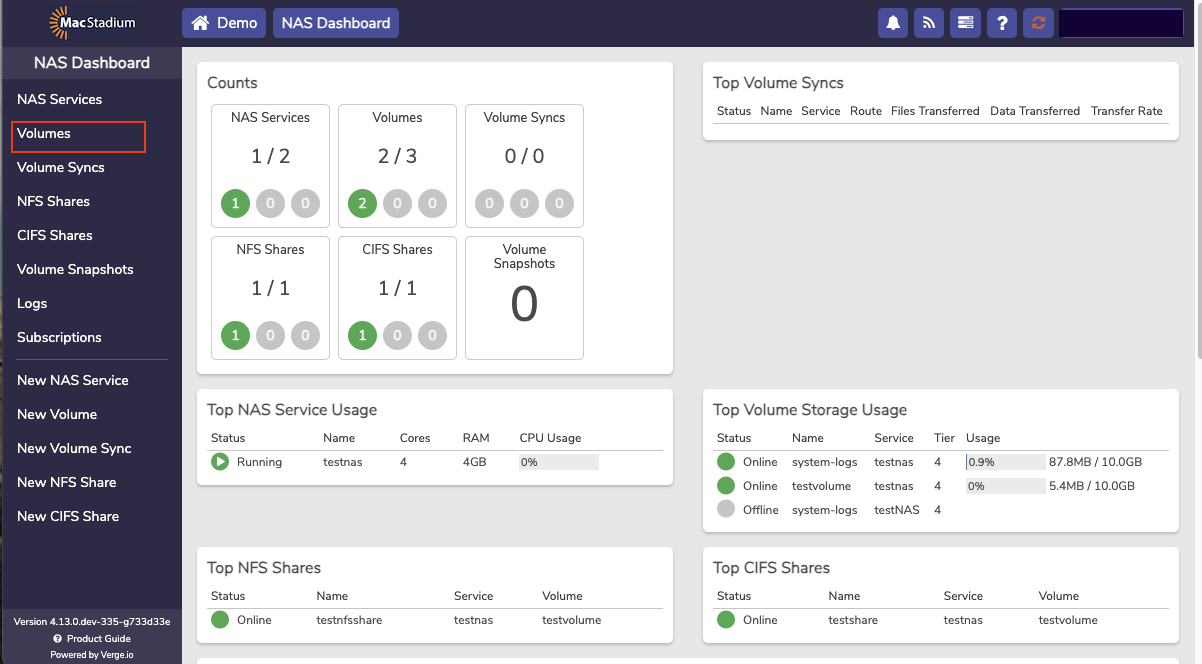
- Select New from the left menu.
- Select the appropriate NAS Service from the dropdown list.
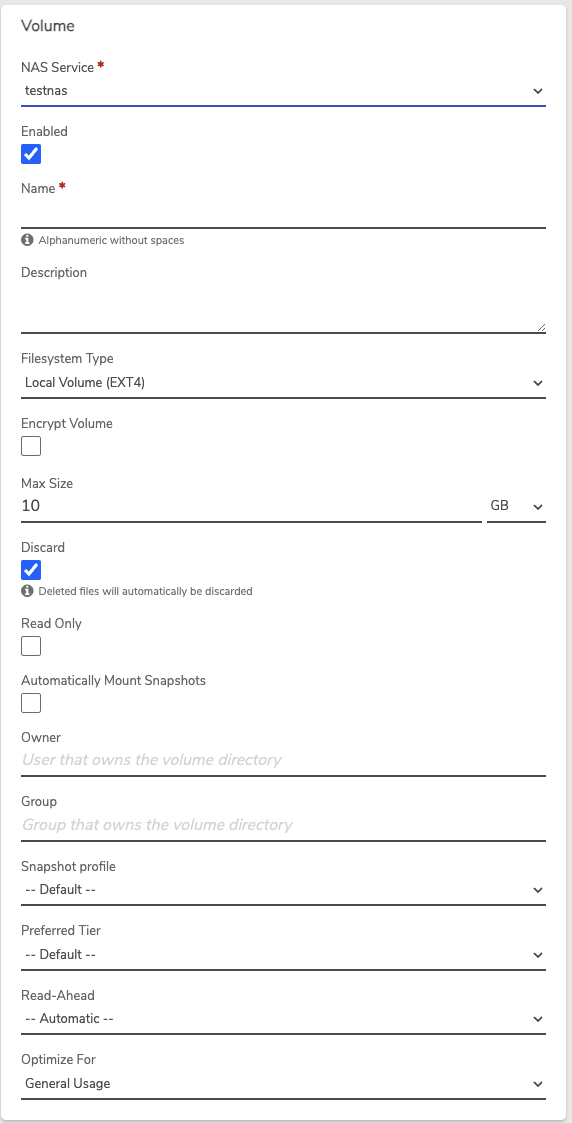
- Enter a Name for the volume (required).
- Enter a Description for the volume (optional).
- In the Filesystem Type dropdown list, select Local Volume (EXT4).
- The Encrypt Volume option can be selected to encrypt the entire volume (AES-XTS).
- Encryption selection is only available during creation; a volume cannot be changed from encrypted to unencrypted or vice-versa after creation.
- Minor to moderate performance implications are involved with enabling volume encryption.
- The original encryption key (defined when creating the volume) is needed for the lifetime of the volume; this encryption key must be entered each time the volume is brought online (for example, after disabling/enabling a volume or after its NAS service is rebooted).
- Without the encryption key, it is not possible to bring the volume back online.
- Click Submit.
- The next step is to create a Share (NFS or CIFS).
Shares: NFS and CIFS
Network File System (NFS) and Common Internet File System (CIFS) are both file access protocols that allow client systems to access files on remote devices.About NFS and CIFS
- NFS uses a lightweight protocol with less overhead, which results in faster file access and transfer speeds.
- CIFS has more protocol overhead due to its support for various Windows-specific features. This can impact performance, especially in high-latency networks.
Creating a CIFS share on an existing volume
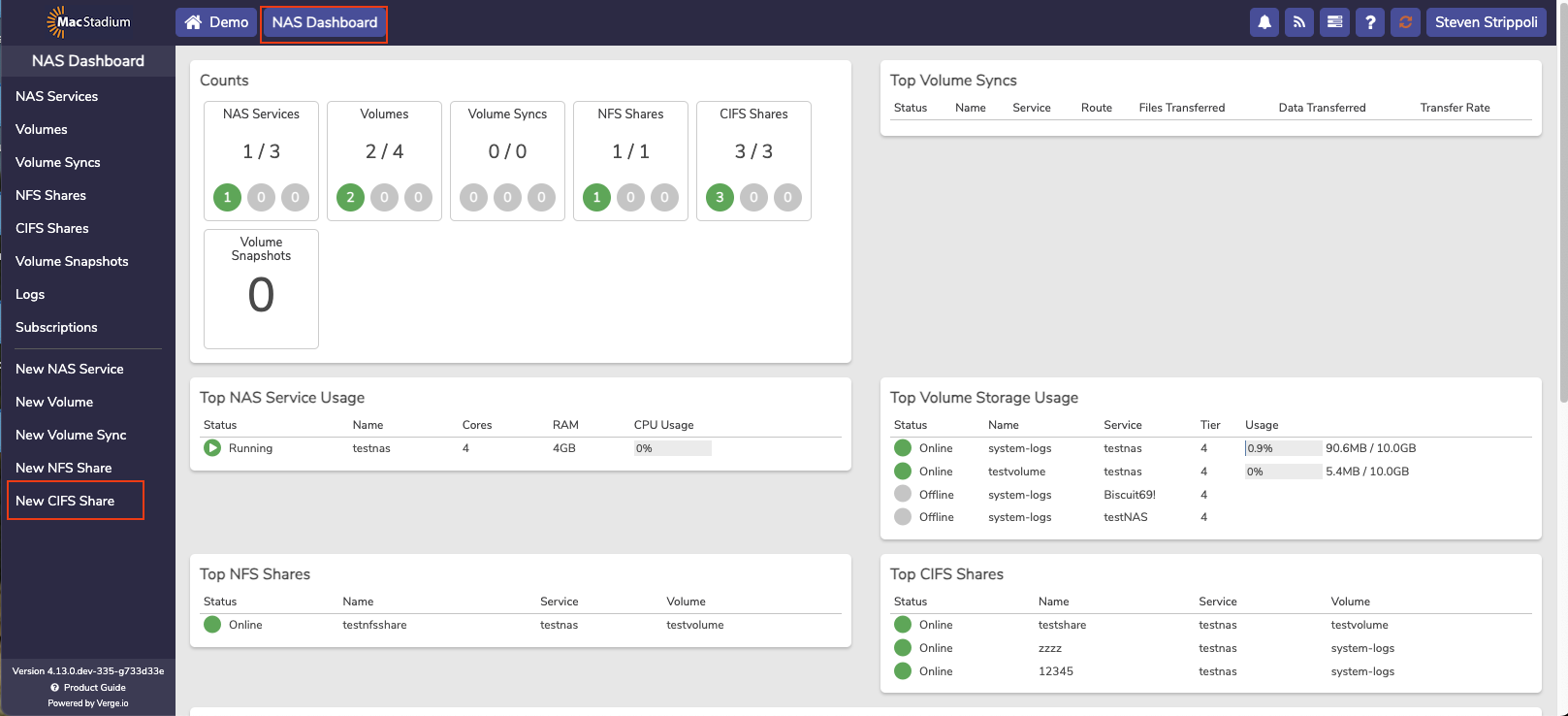
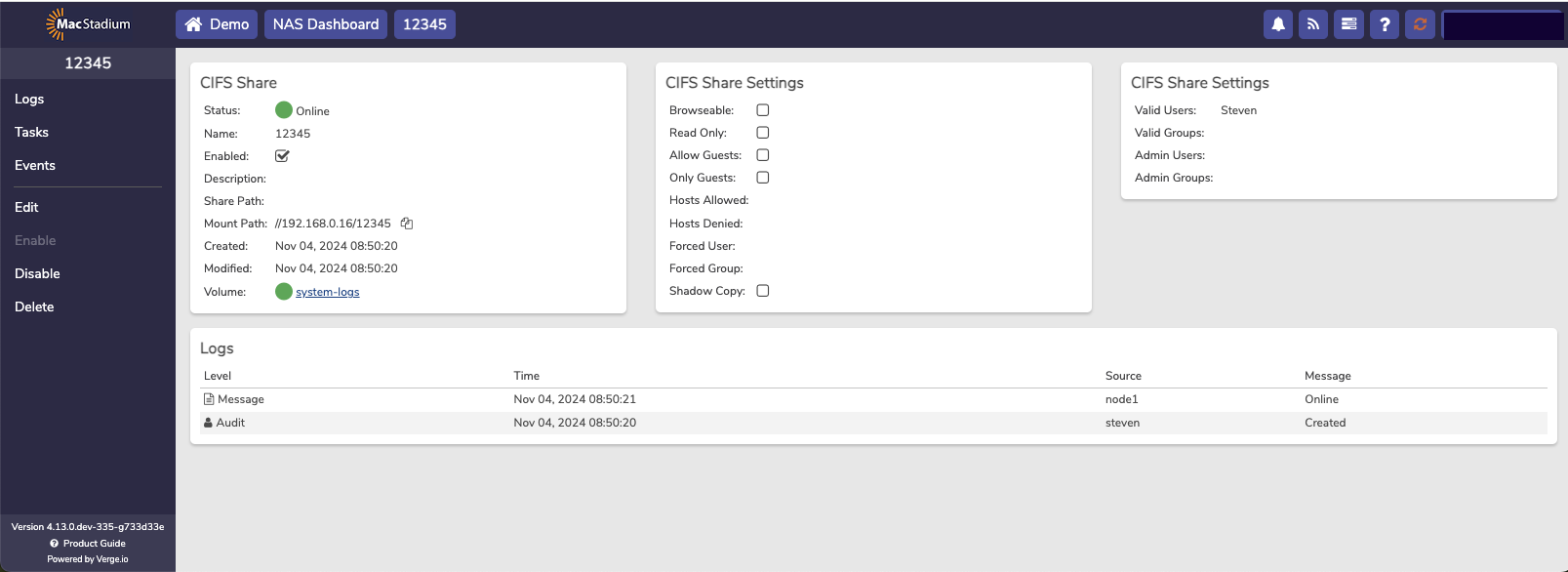
CIFS (Common Internet File System) is a network protocol that allows clients to communicate with servers and access file sharing and print services as if they were stored locally. CIFS offers strong security features, which make it suitable for secure environments. It is important in Private Cloud because it allows access to a NAS volume over CIFS/SMB.- Navigate to the NAS Dashboard.
- Click New CIFS Shares.
- In the CIFS Shares screen enter the necessary information.
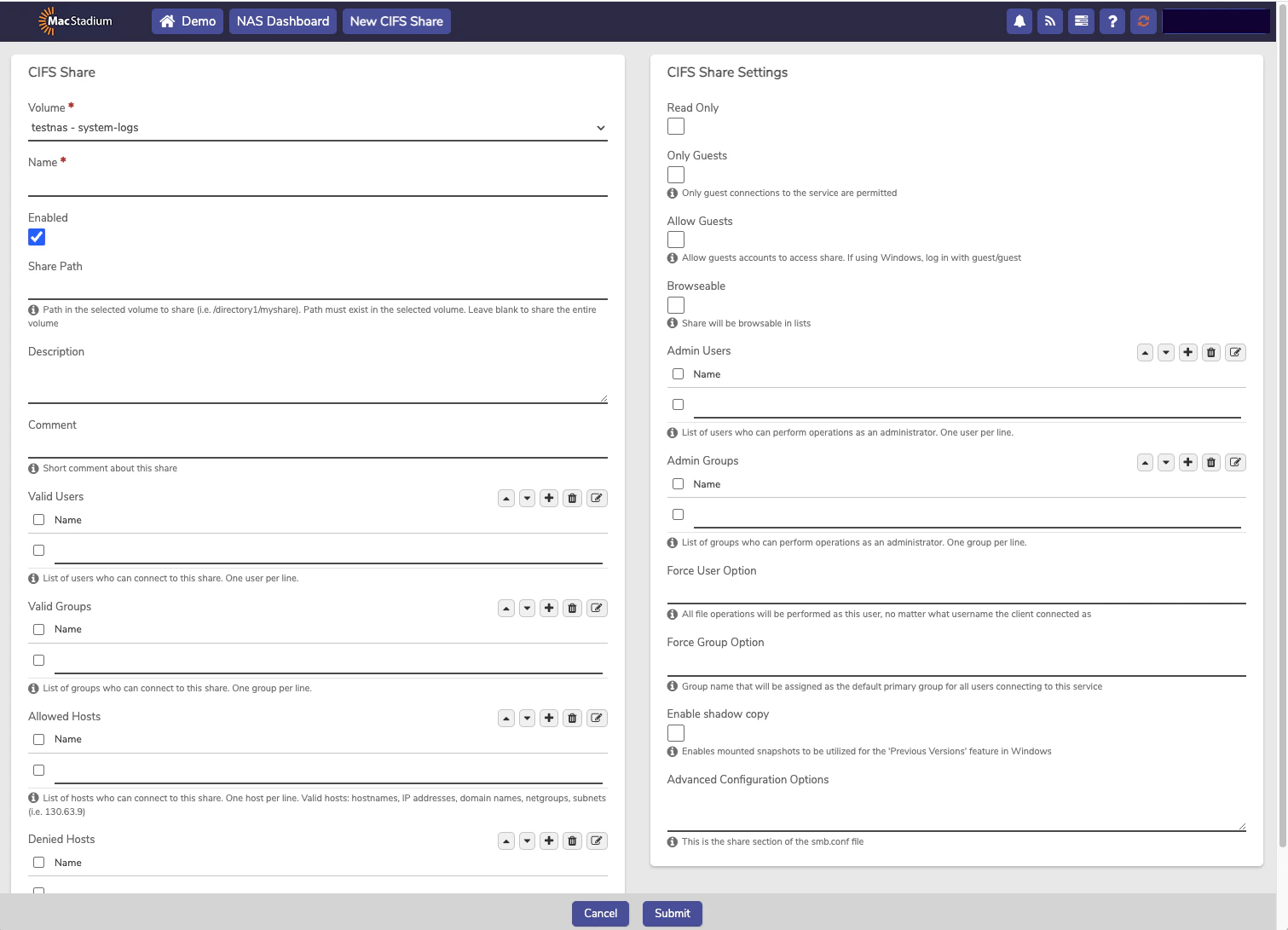
- Required: Enter a Name for the CIFS share.
- Optional: Share Path can be entered to define a specific path within the Volume; otherwise, this field can be left blank to share the entire Volume.
- Optional: A Description can be entered for the Share to record additional information about the Share.
- Optional: A Comment can be entered for the Share.
- Optional: A Valid Users list can be specified. This defines the users that are allowed to connect to the Share.
- Optional: A Valid Groups list can be specified. Users of the specified groups are allowed connection to the Share.
- Optional: Allowed Hosts field is to define one or more hosts that are permitted to access the Share. Hostname, IP address, domain name, netgroup, and subnet are all valid entries.
- Optional: Denied Hosts field is to define one or more hosts that are NOT permitted access to the Share. Hostname, IP address, domain name, netgroup, and subnet are all valid entries.
- Optional: Read-Only option can be selected to deny any write operations via this Share.
- Browseable option can be selected to make the Share visible in lists of available shares. This option is disabled by default.
- Optional: User / Force Group options can be specified to define a user or group used for all file operations performed via this Share.
- Optional: Configuration Options (advanced samba share options) can be specified to handle special-case scenarios.
- Click Submit.
Creating an NFS file share on an existing volume
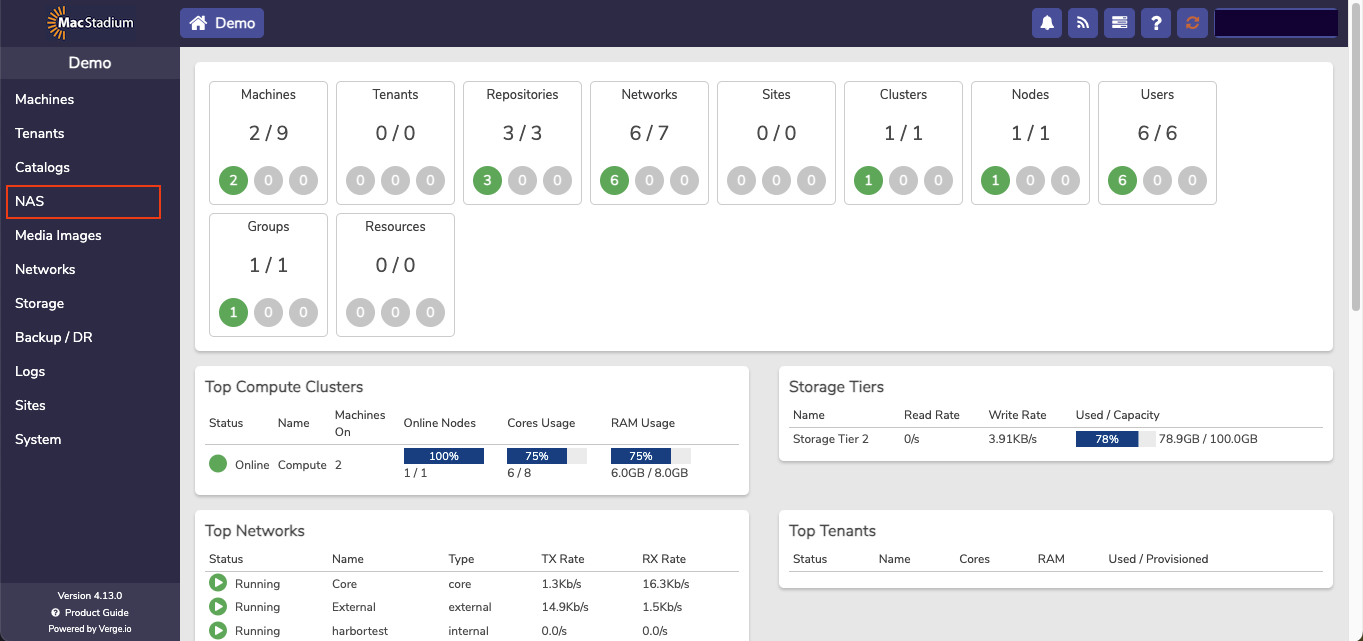
- From the Main Dashboard, select NAS.
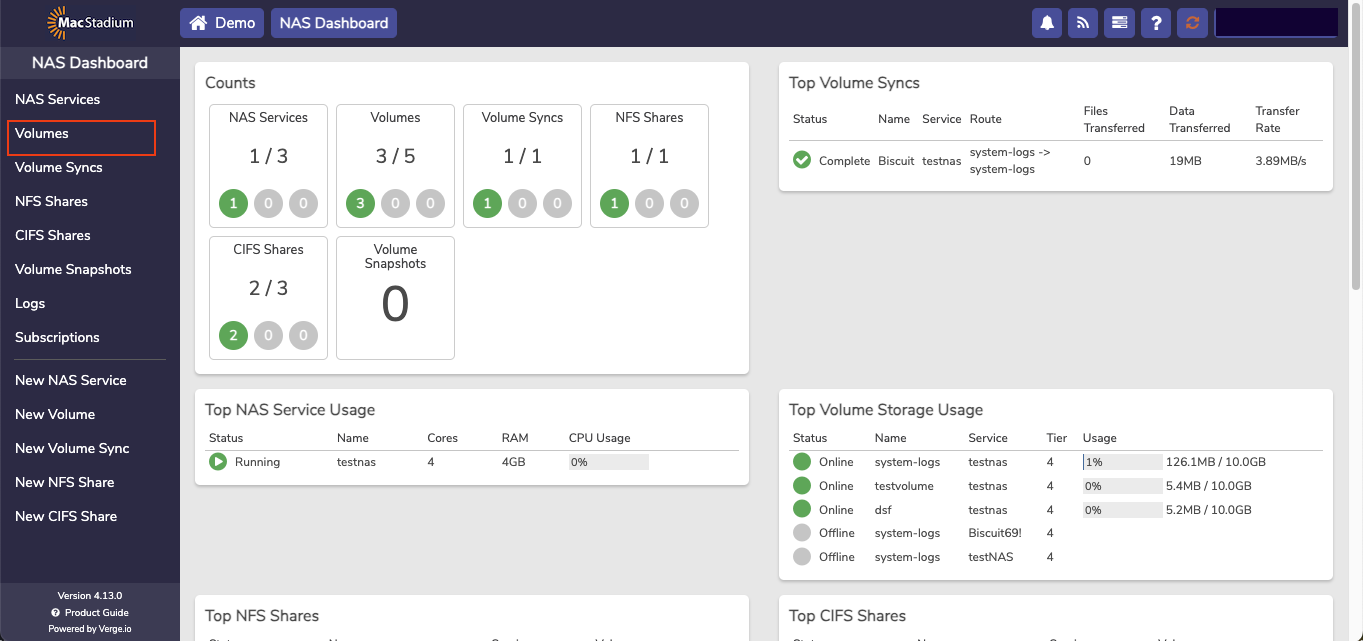
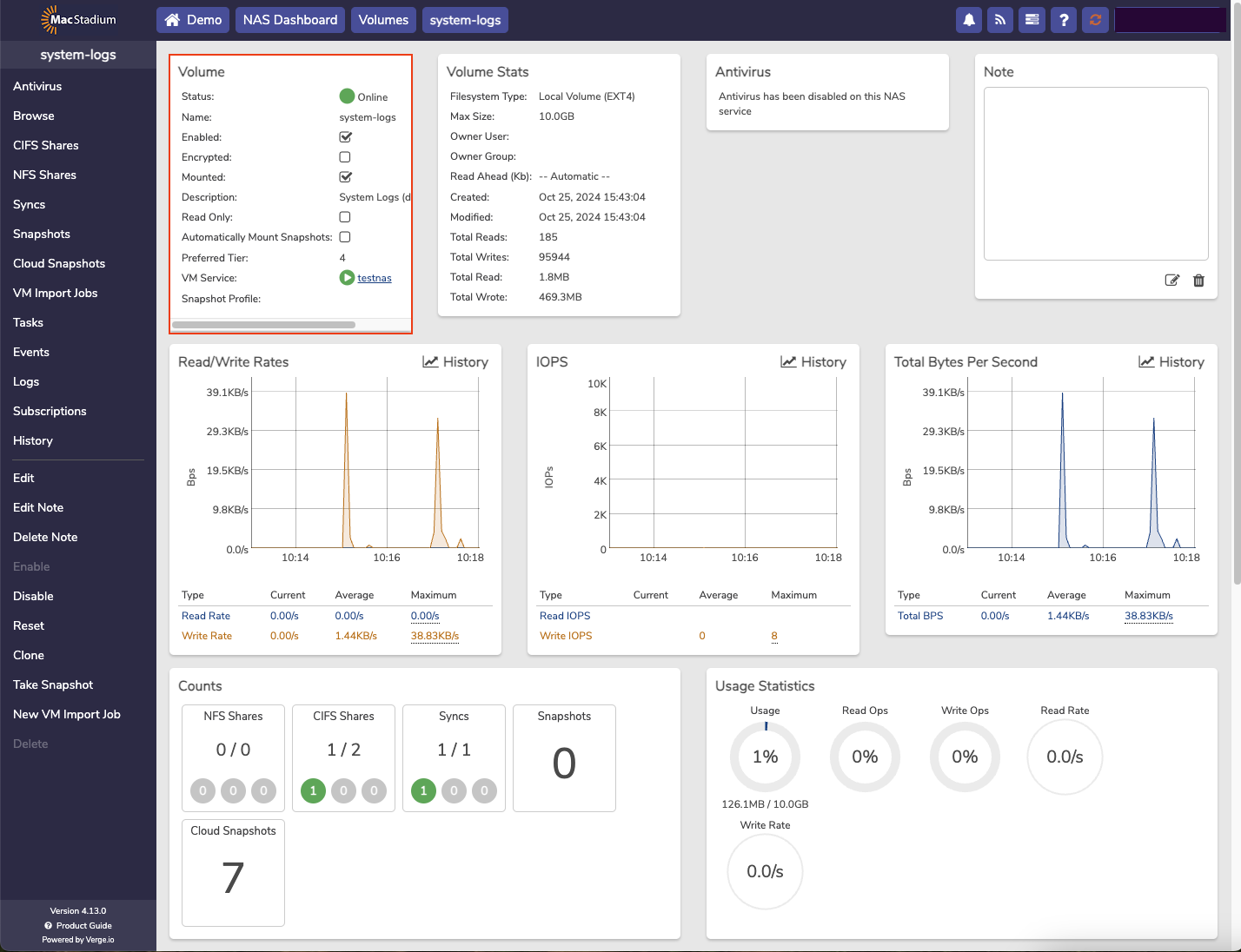
- Select Volumes.
- Select the Volume.
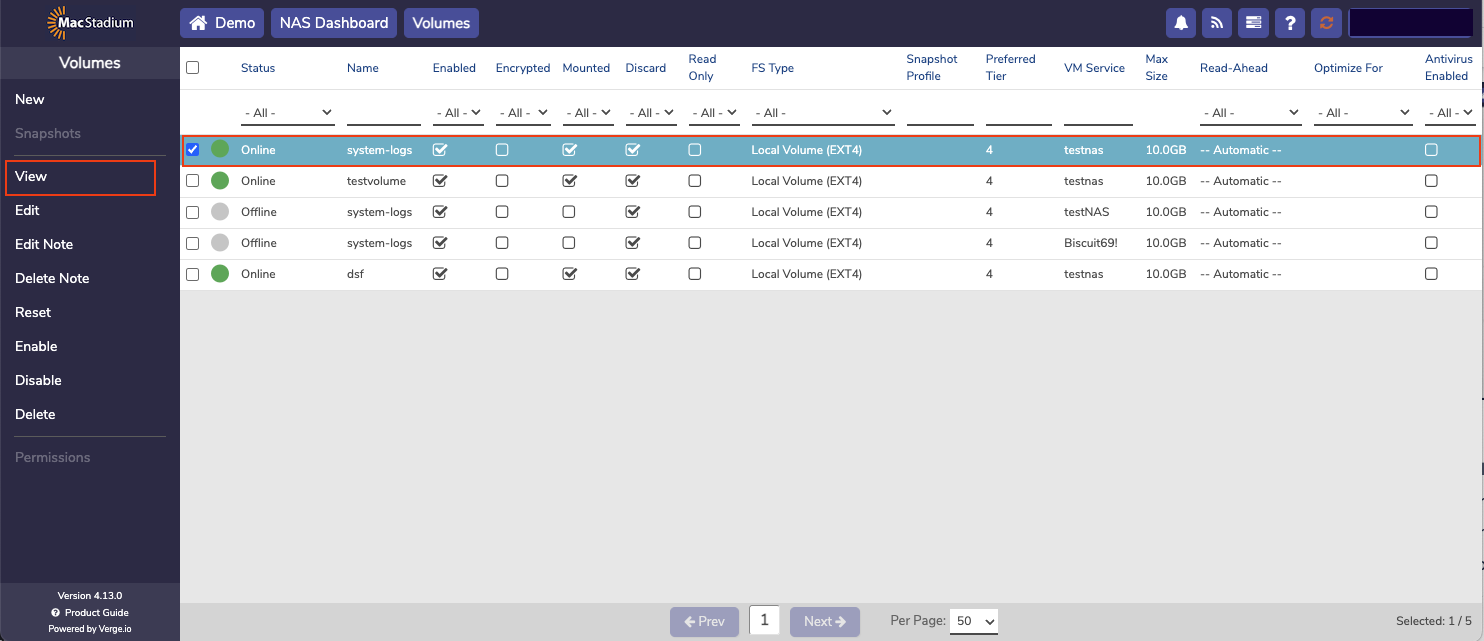
- Select View.
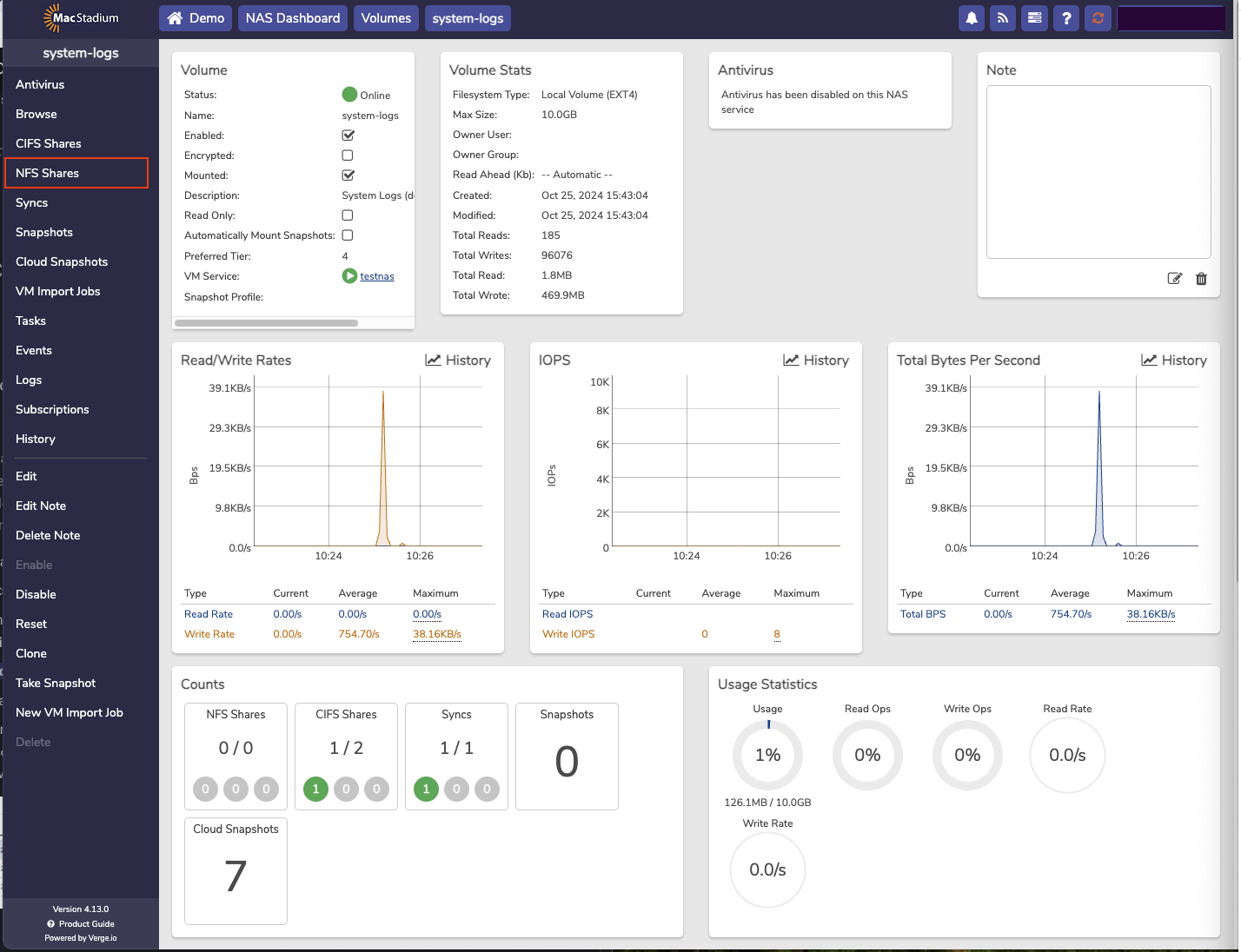
- Select NFS Shares.
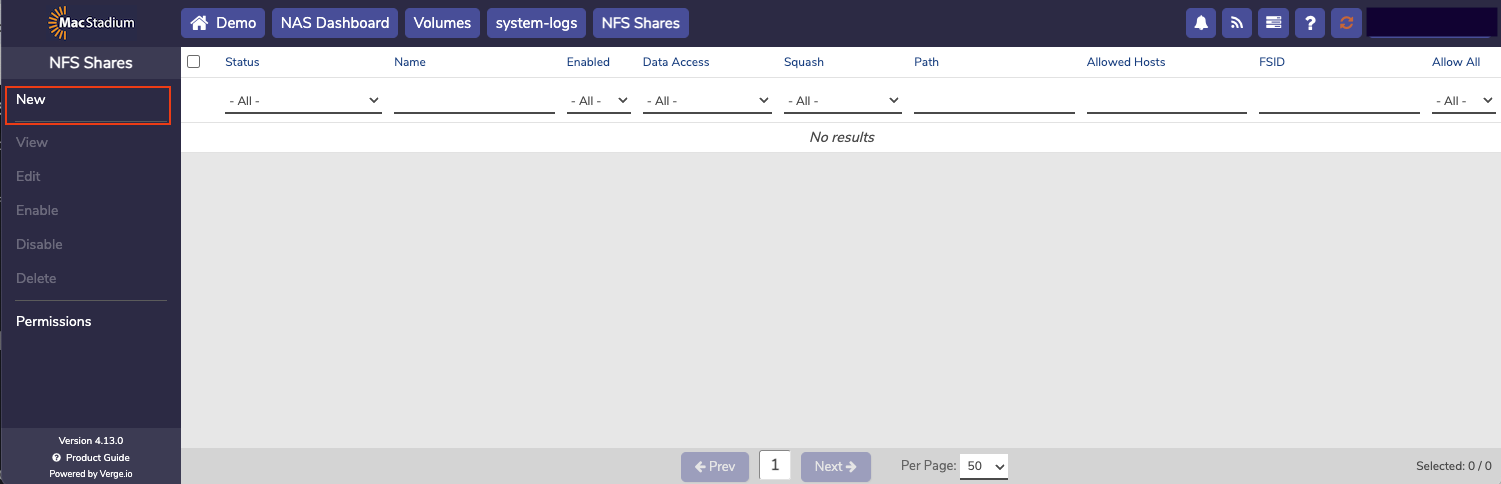
- Select New to create a new share.
- Enter a Name for the share
- Enter a Share Path to define a specific path within the volume
- Enter a Description for the share
- Select Allow Everyone to allow all hosts, or specify one or more allowed hosts
- Select a Data Access option
- Select a User/Group Squashing option
- Click Submit.