

Orka 3.4.2
Hotfix: Image Caching Issues with NFS
Summary: Previously, when an image cached from NFS was updated at the source, Orka could occasionally fail to properly detect and refresh the outdated cached version. Instead, the VM would continue running silently using the stale image without any warning or error from Orka. Additionally, during the caching process, some stale or temporary images were not properly cleaned up, leading to potential storage issues.Who is affected:
All customers using NFS images are impacted. Those with large image sizes and frequent image updates are more likely to encounter this issue first.Impact:
- Customers using NFS storage may unknowingly run VMs with outdated images
- No errors or alerts are generated in Orka, making the issue difficult to detect
- Hosts may eventually run out of disk space due to accumulation of old or orphaned images
Customer downtime:
This is a zero-downtime operation and has no effect on already running VMs.Next steps:
We recommend that all customers using Orka 3.3.0 and above using NFS apply this hotfix immediately to ensure proper image updates and prevent storage issues. If you have any questions or require assistance, please contact our support team.Orka 3.4.1
Improvements and Bug Fixes
This release addresses an issue that may cause ARM nodes to become non-operational under certain workloads. This problem is caused by a bug wherein:- Orka does not delete VMs in certain cases, leading to VMs running out of space
- This leaves impacted VMs in a stopped state
- VMs are then unreachable
Who is affected:
All customers running workloads that rapidly deploy multiple VMs may be affected. This includes any environment with medium-high utilization of ARM-based nodes.Impact:
When this issue occurs:- Nodes may run out of space
- VMs may not be assigned a valid MAC address and will be inaccessible
Customer downtime:
This is a zero-downtime operation and has no effect on already running VMs.Next steps:
We recommend that all customers using Orka 3.4.0 and above apply this fix immediately, especially those that are operating medium or large-load ARM-based infrastructure, or high-volume VM deployments. If you have any questions or require assistance, please contact our support team.Orka 3.4.0
New Features
In Orka 3.4.0, you can set custom display settings when deploying or configuring a VM as part of your UI testing workflow. You can access this workflow via the Orka CLI. These instructions assume you are currently logged into your Orka cluster, and can access your VMs using Apple Screen Sharing and an applicable image running a version of macOS.Set display settings at VM deployment:
Theorka3 vm deploy command has the following new options:
--display-width - Adjust console display window width in pixels--display-height - Adjust console display window height in pixels--display-dpi - Adjust console display density in pixels
In the following example, we have specified a VM deployment running Sequoia 15.4.1 with a height of 2560px, a width of 1600px, and a DPI of 320px.
 New Orka 3.4.0 CLI commands for setting VM display width, height, and DPI
Examples:
Deploy a VM running MacOS Sequoia 15.4.1 with a display width of 2560x1600px and 320px display DPI (HiDPI):orka3 vm deploy --image ghcr.io/macstadium/orka-images/sequoia:15.4.1 --display-width 2560 --display-height 1600 --display-dpi 320
Deploy a VM running the latest version of Mac OS Sequoia (15.5) with a display width of 1920x1080px and a display DPI of 90px:orka3 vm deploy --image ghcr.io/macstadium/orka-images/sequoia:latest --display-width 1920 --display-height 1080 --display-dpi 90
After the VM is successfully created, the display settings specified in the CLI will be reflected in the VM’s display as was specified by the user:
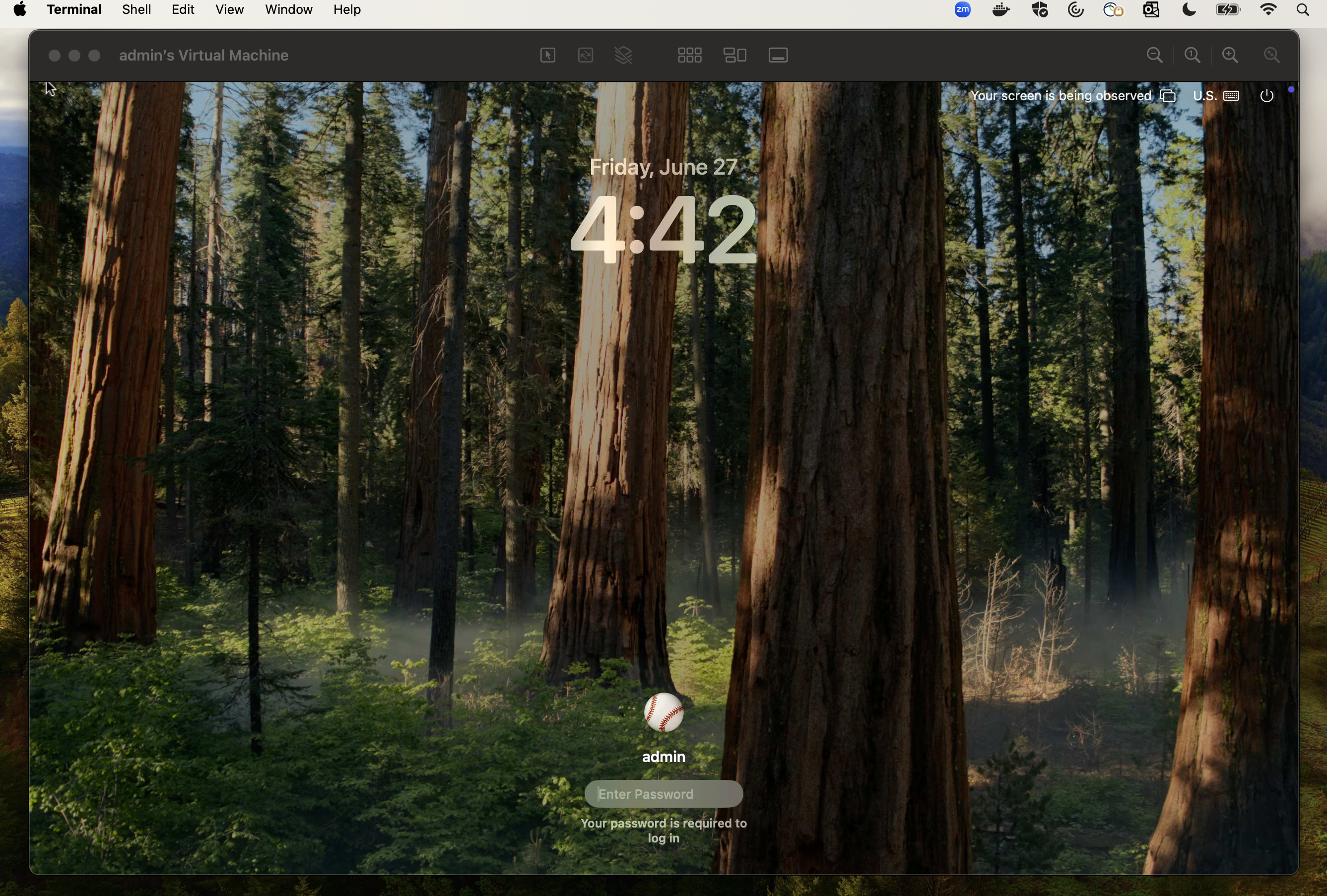 A deployed Sequoia VM login screen with display resolution configurations set using the Orka 3.4.0 CLI
Set display settings for VM configurations:
Theorka3 vm create command has the following new options:
--display-width - Adjust console display window width in pixels--display-height - Adjust console display window height in pixels--display-dpi - Adjust console display density in pixels
The following constraints apply to both deployed and configured VMs:
- Supports a minimum width of 320 px.
- Supports a maximum width of 3840 px.
- Supports a minimum height of 480 px.
- Supports maximum height of 2160 px.
- Supports a minimum DPI of 60 px.
- Supports a maximum DPI of 240 px.
- Supports an optional maximum DPI of 320 px.
 Display height error when deploying a VM on Orka 3.4.0
Set display settings via Orka API at VM deployment
You can now set custom display settings when deploying a VM via the Orka API. ThePOST /api/v1/namespaces/{namespace}/vms route now accepts the following fields:
displayWidth - Adjust console display width in pixelsdisplayHeight- Adjust console display height in pixelsdisplayDPI- Adjust console display density in pixels
Set display settings via Orka API at VM configuration
You can now set custom display settings when configuring a VM via the Orka API. ThePOST /api/v1/namespaces/{namespace}/vmconfigs route now accepts the following fields:
displayWidth - Adjust console display width in pixelsdisplayHeight- Adjust console display height in pixelsdisplayDPI- Adjust console display density in pixels
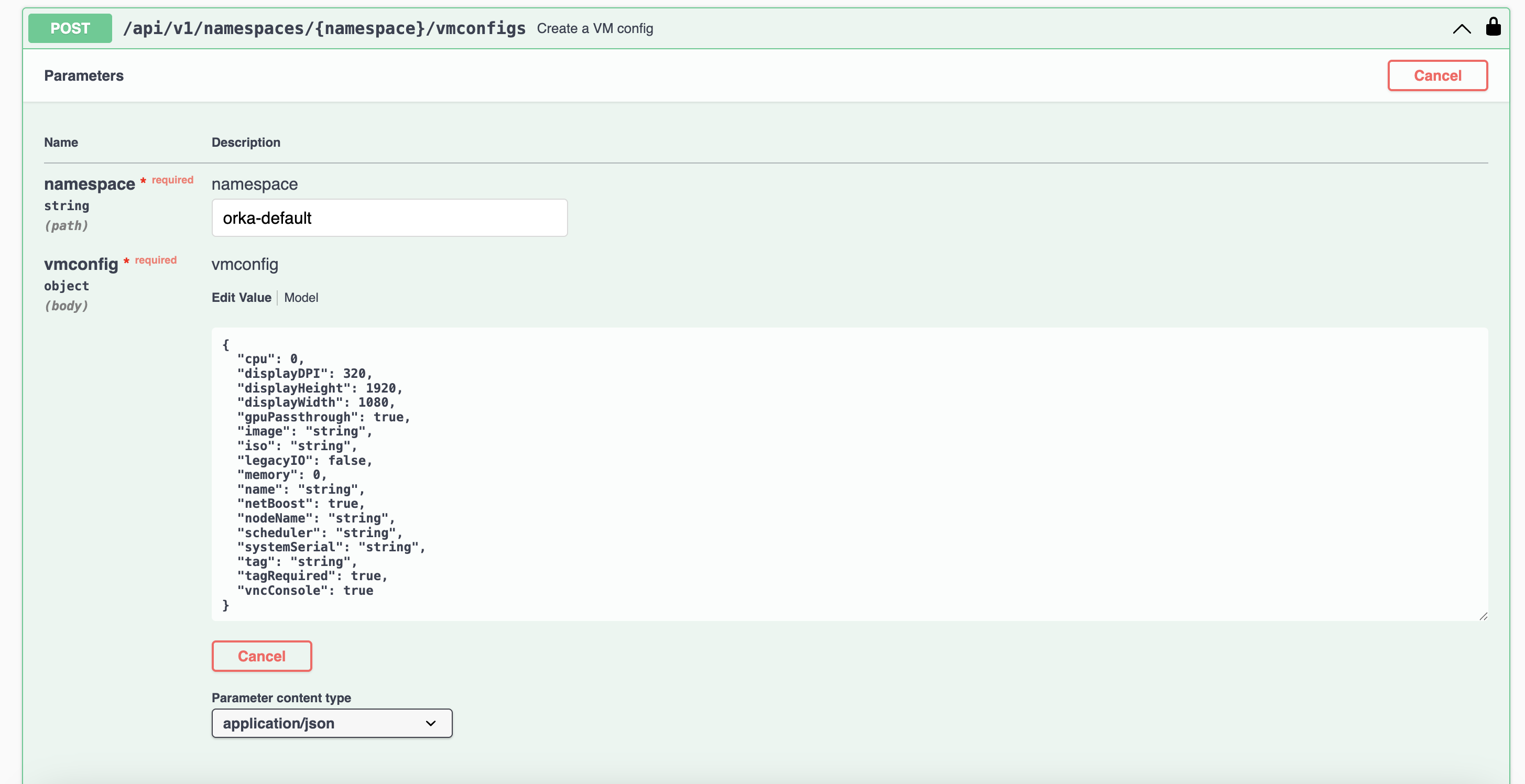 Example of adjusting display resolution via the Orka API
The following constraints apply to both deployed and configured VMs:
Example of adjusting display resolution via the Orka API
The following constraints apply to both deployed and configured VMs:
- Supports a minimum width of 320 px.
- Supports a maximum width of 3840 px.
- Supports a minimum height of 480 px.
- Supports maximum height of 2160 px.
- Supports a minimum DPI of 60 px.
- Supports a maximum DPI of 240 px.
- Supports an optional maximum DPI of 320 px.