

Orka 3.6 is the last release to support Intel. Future Orka releases will not support Intel Mac hosts. MacStadium will continue to support Orka 3.6, including its Intel code paths, through March 2028, maintaining existing Intel functionality without further Intel performance improvements or optimizations. If you still run Intel workloads, we recommend migrating to Apple silicon and completing the transition by December 2027. For details, see the compatibility matrix.
MajorEarly access
Orka 3.7.0-alpha is an early-access preview for evaluation, not a production release. Features, defaults, and behavior may change before general availability. It is not offered as an in-place upgrade; contact MacStadium support to take part in the alpha.
Release summary
Orka 3.7.0-alpha is an early-access release centered on Android emulator support: you can run Android emulators alongside your macOS VMs on Apple silicon nodes and reach them over ADB, so iOS and Android tests can share a single CI job. This release also adds operator metrics that surface VM deployment backlog earlier, macOS Tahoe support for host node upgrades, and a tunable per-node pod quota. It is a preview for evaluation and is not intended for production workloads.New features
Android emulators (early access)
This feature is in early access and is available on Apple silicon nodes only.
adb connect exactly as in any other Android CI setup. This is useful whenever you want iOS and Android tests in the same job without coordinating separate infrastructure.You can deploy, list, and delete Android emulators through the Orka API and the orka3 emulator CLI. Platform, device profile, and image type are passed through to the Android SDK’s avdmanager and sdkmanager tooling, so any ARM-compatible combination those tools support works on a best-effort basis.For setup, connection steps, and current limitations, see Android emulators on Orka.If you plan to run emulators, see Node scheduling below, the default per-node pod quota can leave no room for image-cache jobs once emulators are in the mix.Improvements
Observability
- The operator now reports a pending-VM queue-depth metric (a gauge counting VMs in
Pendingor pre-Runningstates) and adds avm_namespacelabel to its metrics. Together these give a leading indicator of VM deployment backlog before deployment durations start to climb. See Consuming metrics from Prometheus.
Node scheduling
- Each Apple silicon node advertises a pod quota to the Kubernetes scheduler: how many VM, emulator, and image-cache job pods it can run at once (default
4, tunable via theosx_node_orka_quota_podAnsible variable). If you run Android emulators, plan for headroom, a node running two VMs and their two paired emulators is already at the default quota, leaving no room for an image-cache job until one finishes. Contact MacStadium support to have the quota raised for your cluster.
Host node upgrades
- Orka can now upgrade existing Apple silicon host nodes to macOS Tahoe (26). Earlier 3.7.0-alpha builds only recognized macOS Sequoia as an upgrade target.
- Multi-node host OS upgrades are also more reliable: concurrent upgrade steps are now throttled to avoid overloading the control plane during large-cluster upgrades, and transient node-tooling failures during an upgrade retry automatically instead of failing the whole run.
Support
If you have questions, run into rough edges, or want to take part in the alpha, please contact our support team.Patch
Release summary
Orka 3.6.4 fixes two issues that could cause image caching jobs on Apple silicon nodes to stall indefinitely, one of which could block new VM deployments on an affected node. It also fixes a namespace permissions issue affecting namespaces created with custom pods enabled.Bug fixes
- Fixed: Caching jobs that could not be scheduled, or that got stuck mid-import, did not fail and release their resources. If four or more caching jobs on the same node were stuck this way, no new VMs could be deployed on that node. Caching jobs now fail after a bounded deadline (3 hours by default, tunable via the
cache_job_active_deadline_secondsAnsible variable). - Fixed: Cached images could be evicted unexpectedly (a regression introduced in 3.6.3). Orka now retains cached images as expected.
- Fixed: Namespaces created with
orka3 namespace create --enable-custom-podsdid not grant theorka-devrole binding to users added to the namespace afterward, leaving them without dev-level access. Namespaces created on 3.6.4 or later are unaffected. If you have an existing custom-pods namespace created before upgrading, this does not resolve automatically; contact MacStadium support to have the missing role binding applied.
Known issues
Re-caching an image committed under the same nameAfter you commit changes to an existing image while keeping the same name and tag,orka3 imagecache add can report the image as already cached on some nodes and skip re-caching the updated image. This affects both OCI and NFS images. VMs still deploy from the updated image, since the first deployment from that image on an affected node re-caches it automatically, but those deployments are slower. To pre-cache the updated image explicitly, remove and re-add the cached image, or deploy a VM from it once. A fix is planned for a future release. See Image caching.Patch
Release summary
Orka 3.6.3 makes image cache removal generally available:orka3 imagecache remove and the POST /v1/imagecache/remove API endpoint, introduced as early access in Orka 3.6.2, are now available to all customers. The release also adds cache tracking for images cached automatically during VM deployment, normalizes image cache naming to prevent duplicate cache entries, and updates dependencies to address CVEs.New features
Image cache removal is generally available
Image cache removal, introduced as early access in Orka 3.6.2, is generally available as of Orka 3.6.3. Useorka3 imagecache remove or the POST /v1/imagecache/remove API endpoint to remove cached images from Apple silicon nodes: reclaim disk space, rotate old images, and automate image lifecycle policies without MacStadium intervention.This requires your Orka cluster to be running 3.6.3 or later, a server-side upgrade, not just an updated
orka3 CLI. If you’ve updated your CLI and imagecache remove still doesn’t work, your cluster likely hasn’t been upgraded yet. See How to upgrade your Orka cluster or contact MacStadium support.Improvements
Image cache- Images cached automatically during VM deployment on Apple silicon nodes are now tracked as cache entries, the same as images cached explicitly with
orka3 imagecache add. They appear inorka3 imagecache infooutput and can be removed withorka3 imagecache remove, without re-downloading the image. - Image cache names are normalized when caching, so the same image referenced in different formats no longer creates duplicate cache entries.
- The
(Admin-only)label has been removed from theorka3 imagecache addhelp text. The command does not require administrator privileges.
- VM network isolation allow-list rules are now enforced with explicit precedence over block rules, rather than relying on chain ordering. No effect on existing allow-list configurations.
Bug fixes
- Fixed:
imagecache addwith a:latesttag created duplicate and staleImageCacheCRDs due to missing tag normalization. - Fixed: The API did not accept single-encoded image names in the imagecache path.
- Fixed: VMs deployed to a Mac node with an IP address recently freed by another VM could experience hung NFS mounts, caused by stale firewall connection state left over from the previous VM. VM lifecycle operations now flush this state on deploy and delete.
Security
- Updated
golang.org/x/crypto,golang.org/x/net,swift-nio, and other dependencies to address CVEs.
Patch
Release summary
Orka 3.6.2 introducesorka3 imagecache remove and a corresponding POST /v1/imagecache/remove API endpoint as early access, fixes a VM runtime deadlock, adds UDP support for host/guest port reservations, ships code-signed darwin-arm64 binaries for the Virtual Kubelet and Upgrade Service agent, and includes an updated GitHub Actions integration (v1.1.14).New features
Image cache removal (early access)
Image cache removal shipped in Orka 3.6.2 as early access. It is generally available as of Orka 3.6.3. This is a server-side feature: it requires your Orka cluster to be running 3.6.2 or later, not just an updated
orka3 CLI.orka3 imagecache remove and a corresponding POST /v1/imagecache/remove API endpoint, enabling selective removal of cached images from Apple silicon nodes.Before this release, removing a cached image required a support ticket and manual intervention by MacStadium. Customers can now remove images directly to reclaim disk space, rotate old images, and support automated image lifecycle policies.Key behaviors:- Supports
--nodes,--tags, and--allfor targeted or cluster-wide removal, consistent withimagecache add - Removal is asynchronous; use
orka3 imagecache infoto check status
Improvements
AWS deploymentsUpgrading tooling on ARM nodes no longer requires replacing the AMI. Previously, an ARM tooling upgrade required deleting the instance, waiting approximately 2 hours for the replacement to provision, redeploying, and reapplying any custom namespace or tag configuration. ARM nodes can now receive tooling updates in place.On-prem deployments- Network isolation policy Ansible variables are now available for on-prem deployments. The VM network isolation feature introduced in Orka 3.6.0 can now be configured via Ansible for on-prem clusters. Contact MacStadium support to configure network isolation policies for your cluster.
- VM port reservations now support an optional protocol suffix. Use
<NODE_PORT>:<VM_PORT>/udpor<NODE_PORT>:<VM_PORT>/tcpwhen deploying a VM. The protocol is case-insensitive and defaults to TCP if omitted. - The Virtual Kubelet and Upgrade Service agent darwin-arm64 binaries are now code-signed with a Developer ID certificate in CI.
- CLI help text image references have been updated.
- The integration now tracks in-flight VM deployments to prevent over-provisioning when multiple jobs start at the same time.
- On restart, the integration reconciles existing VMs rather than ignoring them. Running VMs are adopted and cleaned up when their jobs finish; failed or non-running VMs are cleaned up immediately, preventing orphaned VMs from consuming cluster resources. Controlled by the new
ENABLE_RECONCILIATIONenvironment variable (default:True). - The integration now reuses an existing runner scale set on restart instead of creating a new one, allowing in-progress jobs to continue uninterrupted. Controlled by the new
MANAGE_RUNNER_SCALE_SETSenvironment variable (default:True). - Improved resilience for curl download errors during VM provisioning.
Bug fixes
- Fixed: VM deadlock on long-lived VMs.
- Fixed: Intel node disk performance regression.
Known issues
imagecache remove and concurrent VM deploymentsorka3 imagecache remove is not protected against concurrent VM deployments. If removal runs during the brief window between a deployment’s pull and clone stages on the same node, the deployment may fail with a generic error.Do not run imagecache remove while VMs are actively being deployed from that image on the target node. Wait for in-flight deployments to complete first. See the orka3 imagecache remove reference for details.Upgrade notes
CLI API URL for clusters with public NAT IPsIf your cluster has public NAT IPs or a custom domain configured for the Orka API, the CLI now uses TLS based on a feature flag returned by the API rather than by detecting whether the configured address is a public IP. If your CLI is configured to use the internal IP address (http://10.221.188.20) on a cluster with public API access, connections will time out after upgrading to 3.6.2.Update your CLI configuration to use your public NAT IP or custom domain:Major
Release summary
Orka 3.6.0 introduces the Orka Upgrade Service: a Kubernetes-native update mechanism that enables MacStadium to deliver cluster upgrades to your environment. This release validates Orka against Kubernetes 1.35 on both on-prem and EKS, and adds configurable VM network isolation policies for Apple silicon nodes. Orka artifacts are now distributed publicly via CloudFront, eliminating the need for AWS credentials to pull binaries and images. The release also includes Jenkins and Packer plugin updates, GitHub Actions integration improvements, and automated Orka VM Tools updates.New features
Orka Upgrade Service
Orka 3.6.0 ships the Orka Upgrade Service: a Kubernetes-native update mechanism that allows MacStadium to push Orka cluster upgrades to your environment. This initial release establishes the upgrade infrastructure. Future releases will expose available update versions to cluster administrators and allow them to control deployment timing.Upgrade Service version visibility
orka3 version now includes the Upgrade Service operator version. kubectl get orkanodes -o wide shows the Upgrade Service agent version alongside each node.A future Upgrade Service release will introduce dedicated
orka3 upgrade service status and orka3 upgrade service agents commands for checking operator and agent health. Once that release ships, use those commands instead. orka3 version and the UPGRADE-AGENT column may no longer reflect the running Upgrade Service version.Kubernetes 1.35 support
Orka 3.6 is validated against Kubernetes 1.35 on both on-prem deployments and AWS EKS. EKS customers can upgrade their clusters on schedule without risk of breaking Orka.A few things worth knowing during a Kubernetes upgrade:- Running VMs are not affected. Mac nodes are not part of the Kubernetes upgrade and do not restart.
- The Virtual Kubelet does not need to be upgraded and is forward-compatible with new Kubernetes versions.
- The API Server, Operator, and Webhooks may have brief downtime during node cordon/drain. Most
orka3CLI commands continue working during this window; onlyloginandvm pushrequire the API server. If the Operator pod is evicted during an upgrade, leader election takes up to 15 seconds. During this window VM deployments may be slower, but will not error.
VM network isolation
This feature is available on Apple silicon nodes only.
Automated Orka VM Tools updates
Orka VM Tools are now automatically updated in MacStadium’s base images on GitHub Container Registry (GHCR) with each Orka release. Images pulled from the orka-images GHCR repo now ship with the current VM Tools version automatically, without requiring manual installation.Improvements
AWS and on-prem deployments
Several improvements reduce the operational footprint and permission requirements for AWS and on-prem deployments:- Orka no longer installs its own cert-manager if one is already present in the cluster. You can skip the bundled installation and use your existing cert-manager instead, eliminating version and configuration conflicts.
- The permissions required for Orka to run have been scoped to least-privilege: separate, minimal credential sets are now defined for Orka configuration, the Virtual Kubelet, ECR access, and backup operations.
- Webhook footprint has been reduced: the Pod webhook, ISO and image webhooks, and rolebinding webhook have been removed from AWS and on-prem installations.
Integrations
- Jenkins OCI image support: The Orka Jenkins plugin now supports OCI images. Previously the plugin only allowed selecting images from NFS storage; you can now specify an OCI image directly.
- Packer plugin bridge networking: The Orka Packer plugin now supports bridge networking, which was introduced in Orka 3.5 but was not supported in the plugin until this release.
- GitHub Actions runner metrics: The Orka GitHub Actions integration now exposes an optional Prometheus metrics endpoint for runner scale set statistics. When enabled, the endpoint publishes labeled metrics per scale set with a configurable polling interval. The endpoint is opt-in and disabled by default.
- GitHub Actions integration reliability: The Orka GitHub Actions runner now includes improved VM cleanup logic, an orphaned VM watcher that automatically removes VMs with no active runner, and expanded logging for better job observability.
Platform
- ECDSA SSH key support: The Orka API now accepts ECDSA keys when uploading certificates. Previously only RSA keys were supported.
- Prometheus metrics on port 443 with TLS: The Orka Prometheus data collector is now exposed on port 443 with TLS, unblocking use in environments that require all monitoring traffic to run over a secure port.
- Object storage for cluster config backups: Orka cluster configuration backups are now stored via object storage instead of NFS, improving backup reliability and decoupling them from NFS availability.
- Improved VM start error diagnostics: VM start failures during concurrent operations that previously produced empty error messages now surface actionable diagnostic information, including VZErrorDomain errors and configuration issues.
- Public artifact distribution via CloudFront: Orka binaries and container images are now distributed publicly via CloudFront. AWS and on-prem deployments no longer require AWS credentials to pull Orka artifacts.
orka3 versionreports Upgrade Service versions: The CLI now includes Upgrade Service operator and agent versions in version output.- Improved error message reporting from the Orka Engine for VM start failures.
Bug fixes
- Fixed: Operator fails to configure Intel VMs
- Fixed: Calico network plugin setup fails on Orka 3.5 clusters
- Fixed: VM image push retries fail intermittently
- Fixed: VK kubeconfig creation fails for on-prem deployments
- Fixed:
orka3 vm savefails when the cluster uses OCI image storage - Fixed: Updated the Kubernetes API TCP ingress route to use the built-in
kubernetesservice. If you manage your own Orka deployment and use public NAT IPs, apply the update by running:
Patch
Release summary
Orka 3.5.2 delivers improved storage management, simpler CLI workflows, and reliability improvements across the platform. This release introduces native shared attached disk configuration, eliminating manual storage provisioning steps for VM deployments. The Orka CLI now resolves your namespace automatically from your availableorka kubeconfig context. Additionally, Orka 3.5.2 includes critical stability enhancements for OCI image operations, macOS Tahoe and Sequoia compatibility fixes, and improved operator behavior in multi-namespace environments.New features
VM shared attached disk configuration
The Orka AMI now supports automatic setup of VM shared attached disks during instance initialization.Key capabilities
-
Flexible deployment control: Enable or disable shared disk usage globally using the
vm_shared_disk_enabled: truevariable - Instance-level disk sizing: Specify shared disk size for each Mac instance via user data script (AWS) or via Ansible (on-prem)
- Consistent VM storage: When enabled, all VMs deployed from the instance will automatically use the shared attached disk, ensuring standardized storage configuration across your infrastructure. On Apple silicon nodes, only one VM may run per node at a time when this feature is enabled. See Critical limitation for Apple silicon below.
Getting started
First-time disk installation (per-host)
When a shared attached disk is used for the first time on a host, you need to format and mount it from inside the first VM deployed on that host. This is a one-time step per host. All subsequent VMs deployed on the same host will have the disk auto-mounted at/Volumes/shared on boot.- Inside the guest VM, identify the shared disk:
- Format and mount the disk:
<disk-identifier> with the identifier from the previous step (e.g., disk1). The disk will be automatically mounted at /Volumes/shared.These steps only need to be performed once per host, for the first VM deployed on that host. Every VM subsequently deployed on the same host will have the shared attached disk auto-mounted on boot at
/Volumes/shared.-
Set up a CodeBuild project (if one is not already configured) and set:
vm_shared_disk_enabled: true -
Configure each EC2 Mac Instance. Set the
VM_SHARED_DISK_SIZEenvironment variable to the desired size as part of the user data script during instance launch:
VM_SHARED_DISK_SIZE environment variable must be set for each instance, but the vm_shared_disk_enabled variable is set once globally.- The bootstrap script will automatically configure the instance to use the VM shared disk feature, and applies to all VM deployments from the instance
- All subsequent VM deployments from this instance will utilize the shared attached disk
vm_shared_disk_enabled: false in Ansible and re-run your CodeBuild project, then terminate and re-create your EC2 Mac instances.Technical requirements
- Your cluster has been upgraded to Orka v3.5.2 (Note that clusters must be at least on Orka 3.4 / k8s v1.33 to be upgraded to 3.5.2)
-
Global configuration: The
vm_shared_disk_enabled: truevariable must be set in Ansible (this is disabled by default) -
AWS only: The
VM_SHARED_DISK_SIZEenvironment variable must be set in the user data script for each EC2 Mac instance to enable the feature -
For Apple silicon nodes: Shared attached disk support is disabled by default:
vm_shared_disk_enabled: false. -
On-prem only: Optionally set
osx_node_orka_vm_shared_disk_sizeto specify disk size. This variable does not apply to AWS deployments.
- Users running AWS: Note that the
VM_SHARED_DISK_SIZEenvironment variable must be set in the user data script to enable the feature
Default namespace detection in Orka CLI
The Orka CLI now reads the default namespace directly from yourorka kubeconfig context, implementing hierarchical namespace resolution with environment-level overrides also available.Key capabilities
-
Automatic namespace detection: The Orka CLI now automatically derives the default namespace from your
orkakubeconfig context, eliminating the need to repeatedly specify namespaces in commands -
You can manually set the
ORKA_DEFAULT_NAMESPACEin order to override the kubeconfig-derived namespace for specific workflows or environments
Getting started
Set a custom default namespace
Technical requirements
- Orka CLI version 3.5.2 or later
-
Valid
orkakubeconfig file with configured context -
Optional: Set the
ORKA_DEFAULT_NAMESPACEenvironment variable if a custom namespace override is needed -
Existing namespace-specific flags (e.g.,
--namespace) will continue to work and take precedence over default namespace settings
Improvements
- Reliability improvements for OCI image operations
- VM troubleshooting and logging improvements
- Orka Engine VM start timeout is now configurable via Ansible
- Image push/pull streaming operations now fail with a timeout if the Orka Engine server is unavailable
- Cache cleanup has been serialized to avoid concurrent cleanup failures, ensuring cache lock file permissions remain consistent
- Reduced noise and fixed behavior in non-default namespaces
- Orka no longer tries to process unsupported ECR refresh jobs when new namespaces are created
- The image caching state is updated correctly when caching an already-cached image after a node moves to a different namespace
Bug fixes
- macOS Tahoe 26.0 compatibility fixes for image deletion, copying, and tagging
- Pulling public images from GitHub Container Registry succeeds even when registry credentials are configured (automatic retry without credentials)
-
Orka VM tools v3.5.2 now applies the configured display resolution correctly for Sequoia guests with custom resolution settings
- Note: You must update Orka VM tools on your existing images to receive this fix. New images created with Orka 3.5.2 will include the updated VM tools automatically.
Patch
Release summary
The Orka v3.5.1 hotfix addresses five issues affecting ARM nodes, Orka operator, and the Orka CLI. All fixes can be deployed with zero downtime.Fixed issues
NAT networking on M4 Pro
Issue: Sporadic connectivity failures where VMs using NAT networking on M4 Pro nodes cannot reach the internet or LAN.Fix: Added automatic detection and self-healing for NAT networking issues. If self-healing fails, the VM deployment will fail and the VM will be deleted. Note that most common integrations (e.g., Jenkins) will then simply re-deploy the VM.Node resource display in custom namespaces
Issue:orka3 node list -o wide incorrectly showed resource usage for nodes in non-default namespaces. This issue was cosmetic only, and had no impact on scheduling VMs.Fix: Corrected resource reporting logic to accurately display usage across all namespaces.Image caching in custom namespaces
Issue:orka3 ic add silently failed when caching images to nodes in custom namespaces.Fix: Image caching now works correctly across all namespaces. You will need to re-cache any previously failed images after applying this hotfix.Service account permissions loss
Issue: Service accounts lost RBAC permissions during Ansible maintenance operations, breaking automated workflows.Fix: Modified maintenance playbooks to preserve service account role bindings. Note: If you are running a previous version of Orka and are experiencing this issue, you can verify service account permissions and manually restore if needed usingorka3 rb add-subject.SSO login JWT decoding
Issue:orka3 login with SSO failed for certain identity providers with the error “invalid ID token: illegal base64 data”.Fix: Enhanced JWT token decoding to support a wider range of identity provider token formats. Update to the latest Orka CLI version and test SSO login.Deployment
The Orka v3.5.1 hotfix patch is a zero-downtime deployment. Note that Orka clusters must be at least on Orka v3.4+ / k8s v1.33 to be upgraded to v3.5.1.Support
If you have questions or require assistance, please contact our support team.Major
Release summary
We are excited to announce the latest Orka release, which brings with it significant networking enhancements, expanded guest OS support, and improved storage capabilities. Orka 3.5.0 also includes various bug fixes, improvements to performance optimization, and stability enhancements.New features
Bridged networking support
Customers must configure their own DHCP server on the network infrastructure. Static IP configuration through Orka is not currently supported.
Key capabilities
Bridged networking allows Orka VMs to connect directly to a physical network as a native device, receiving their own IP address from the network’s DHCP server. This enables direct communication with other network devices and services without the use of NAT, and is configurable automatically using Orka alongside your existing DHCP server.Getting started
For more information on getting started using bridge networking with Orka, please visit: Bridge networking with Orka.macOS 26 Tahoe guest support
Key capabilities
Orka 3.5.0 now allows users to create guest VM images using macOS 26 (Tahoe).Getting started
You can get started with Tahoe by downloading the latest image from OrkaHub, or our Tahoe package in the orka-images repository. Tahoe guest VMs can be run using the Orka CLI, or by using Orka Desktop.Technical requirements
- A Sequoia 15.5 host is required in order to run a macOS Tahoe 26 guest image
- Orka does not currently officially support running Tahoe on a host machine. We aim to officially support macOS 26 hosts in the upcoming Orka 3.6.0 release.
OCI storage
Orka 3.5.0 introduces Harbor OCI storage as an alternative to NFS storage in Orka. OCI is now our default managed storage solution for new Orka customers (existing customers will keep their current storage). Your OCI instance comes preconfigured with everything needed to push and pull macOS VM images using the Orka CLI. When you purchase hosted storage through MacStadium, OCI is included as a managed service with automatic resource scaling based on your available Orka nodes. While external repositories will still remain supported for use with Orka, our managed Harbor instance provides better performance and reliability.Key capabilities
- Secure, OCI-compliant image storage and management
- Role-based access control and user management
- Activity auditing and compliance tracking
- Push and pull images directly from the Orka CLI to your Harbor registry
- Prometheus support for Harbor
Technical requirements
For technical requirements, see Using Harbor OCI Storage with the Orka CLI.Improvements
- VM shared storage is now disabled by default for new Orka deployments. If you are a new Orka customer and require shared storage for your VMs, please open a support ticket to opt-in and enable this feature in your cluster. Existing Orka deployments are not impacted by this change, and will retain the previous setting (enabled).
- Performance and stability improvements have been made to the Orka Nodes.
- New Packer template examples are now available, adding popular developer tools such as Homebrew, Cocoapods, Swift, xcodes, Git, and Fastlane on top of our latest existing macOS Tahoe and macOS Sequoia 15.5 base images.
- NFS connection is now self-healing
- VM deletion time has been improved
- Runtime reporting has been improved
Bug fixes
- Orphan VM logic has been updated to include removing stopped VMs automatically
- Public IP feature awareness has been added to the Orka API server
- VMs will no longer pull images if an image is already running
Known issues
- VM data loss during upgrade: Upgrading from Orka 3.4 to Orka 3.5 will result in VM loss. Ensure you save/backup all virtual machines before proceeding with the upgrade, then redeploy them afterward.
Patch
Hotfix: image caching issues with NFS
Summary:Previously, when an image cached from NFS was updated at the source, Orka could occasionally fail to properly detect and refresh the outdated cached version. Instead, the VM would continue running silently using the stale image without any warning or error from Orka. Additionally, during the caching process, some stale or temporary images were not properly cleaned up, leading to potential storage issues.Who is affected
All customers using NFS images are impacted. Those with large image sizes and frequent image updates are more likely to encounter this issue first.Impact
- Customers using NFS storage may unknowingly run VMs with outdated images
- No errors or alerts are generated in Orka, making the issue difficult to detect
- Hosts may eventually run out of disk space due to accumulation of old or orphaned images
Customer downtime
This is a zero-downtime operation and has no effect on already running VMs.Next steps
We recommend that all customers using Orka 3.3.0 and above using NFS apply this hotfix immediately to ensure proper image updates and prevent storage issues.If you have any questions or require assistance, please contact our support team.Patch
Improvements and bug fixes
This release addresses an issue that may cause ARM nodes to become non-operational under certain workloads. This problem is caused by a bug wherein:- Orka does not delete VMs in certain cases, leading to VMs running out of space
- This leaves impacted VMs in a stopped state
- VMs are then unreachable
Who is affected
All customers running workloads that rapidly deploy multiple VMs may be affected. This includes any environment with medium-high utilization of ARM-based nodes.Impact
When this issue occurs:- Nodes may run out of space
- VMs may not be assigned a valid MAC address and will be inaccessible
Customer downtime
This is a zero-downtime operation and has no effect on already running VMs.Next steps
We recommend that all customers using Orka 3.4.0 and above apply this fix immediately, especially those that are operating medium or large-load ARM-based infrastructure, or high-volume VM deployments.If you have any questions or require assistance, please contact our support team.Major
New features
In Orka 3.4.0, you can set custom display settings when deploying or configuring a VM as part of your UI testing workflow. You can access this workflow via the Orka CLI. These instructions assume you are currently logged into your Orka cluster, and can access your VMs using Apple Screen Sharing and an applicable image running a version of macOS.Set display settings at VM deployment
Theorka3 vm deploy command has the following new options:--display-width - Adjust console display window width in pixels--display-height - Adjust console display window height in pixels--display-dpi - Adjust console display density in pixelsIn the following example, we have specified a VM deployment running Sequoia 15.4.1 with a height of 2560px, a width of 1600px, and a DPI of 320px. New Orka 3.4.0 CLI commands for setting VM display width, height, and DPI
Examples
Deploy a VM running macOS Sequoia 15.4.1 with a display width of 2560x1600px and 320px display DPI (HiDPI):orka3 vm deploy --image ghcr.io/macstadium/orka-images/sequoia:15.4.1 --display-width 2560 --display-height 1600 --display-dpi 320Deploy a VM running the latest version of Mac OS Sequoia (15.5) with a display width of 1920x1080px and a display DPI of 90px:orka3 vm deploy --image ghcr.io/macstadium/orka-images/sequoia:latest --display-width 1920 --display-height 1080 --display-dpi 90After the VM is successfully created, the display settings specified in the CLI will be reflected in the VM’s display as was specified by the user: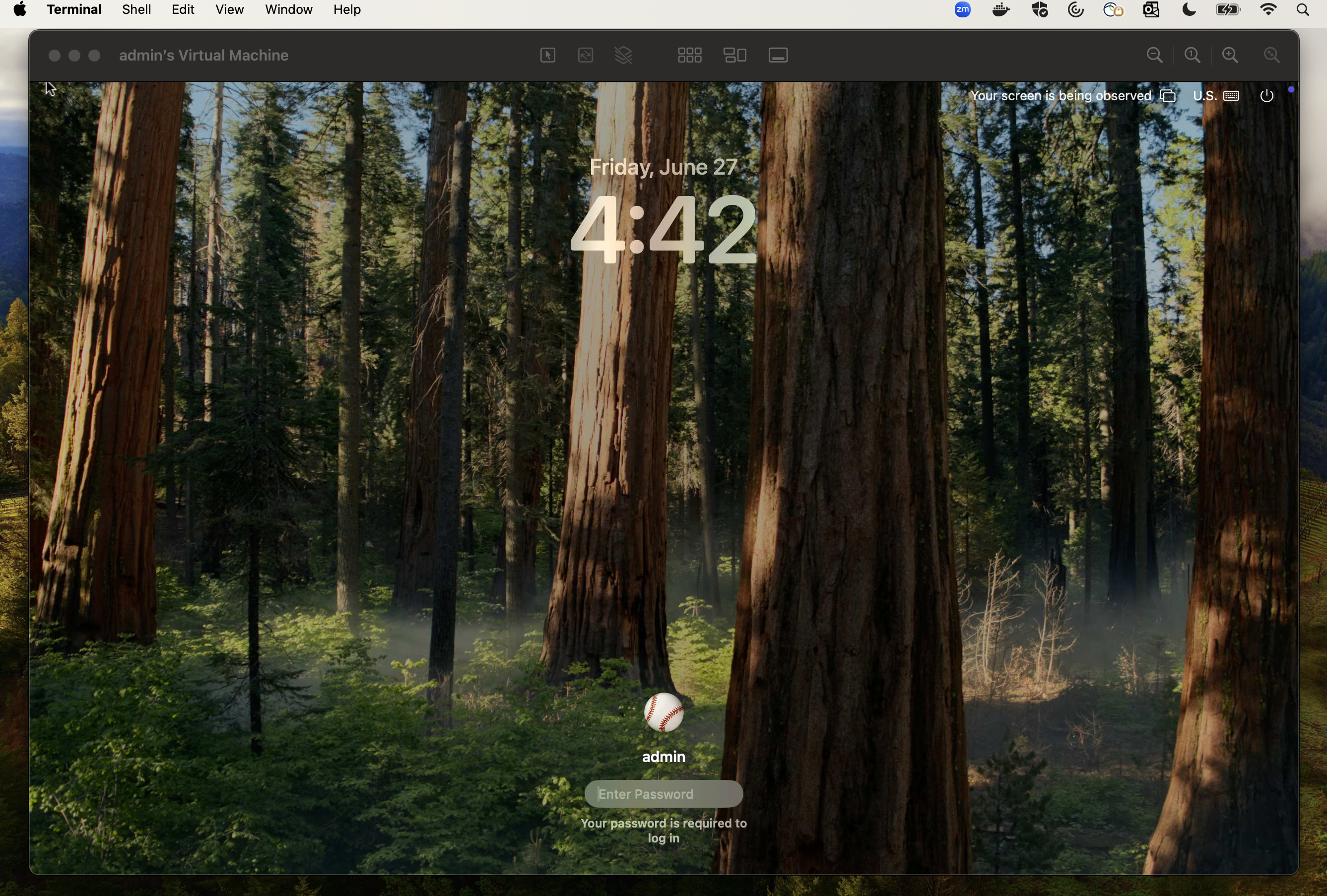 A deployed Sequoia VM login screen with display resolution configurations set using the Orka 3.4.0 CLI
Set display settings for VM configurations
Theorka3 vm create command has the following new options:--display-width - Adjust console display window width in pixels--display-height - Adjust console display window height in pixels--display-dpi - Adjust console display density in pixelsThe following constraints apply to both deployed and configured VMs:- Supports a minimum width of 320 px.
- Supports a maximum width of 3840 px.
- Supports a minimum height of 480 px.
- Supports maximum height of 2160 px.
- Supports a minimum DPI of 60 px.
- Supports a maximum DPI of 240 px.
- Supports an optional maximum DPI of 320 px.
 Display height error when deploying a VM on Orka 3.4.0
Set display settings via Orka API at VM deployment
You can now set custom display settings when deploying a VM via the Orka API.ThePOST /api/v1/namespaces/{namespace}/vms route now accepts the following fields:displayWidth - Adjust console display width in pixelsdisplayHeight - Adjust console display height in pixelsdisplayDPI - Adjust console display density in pixelsSet display settings via Orka API at VM configuration
You can now set custom display settings when configuring a VM via the Orka API.ThePOST /api/v1/namespaces/{namespace}/vmconfigs route now accepts the following fields:displayWidth - Adjust console display width in pixelsdisplayHeight - Adjust console display height in pixelsdisplayDPI - Adjust console display density in pixels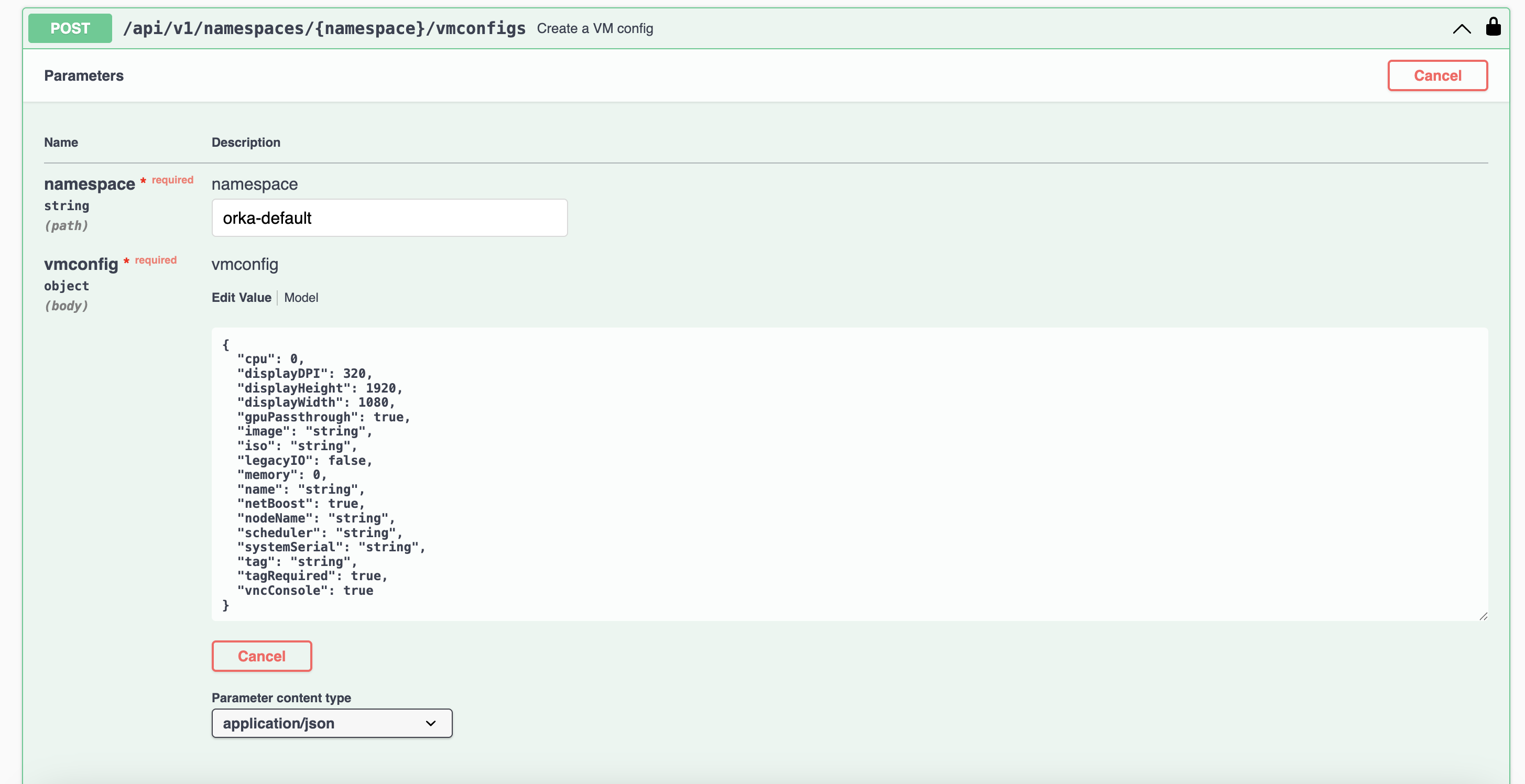 Example of adjusting display resolution via the Orka APIThe following constraints apply to both deployed and configured VMs:
- Supports a minimum width of 320 px.
- Supports a maximum width of 3840 px.
- Supports a minimum height of 480 px.
- Supports maximum height of 2160 px.
- Supports a minimum DPI of 60 px.
- Supports a maximum DPI of 240 px.
- Supports an optional maximum DPI of 320 px.
Improvements to existing features
Internal improvements resulting in faster deployment times overall.VMs created from an IPSW now have a default display resolution of 1920x1080x96 px.Bug fixes
This release addresses the known issue in Orka 3.3.0 involving virtualization and unique machine identifiers. Unique machine ID/UUID configuration is now behind a feature flag. Customers who need unique machine IDs for their Orka environment should raise a support ticket with MacStadium to control this behavior for their cluster.Orka no longer sends cookies when interacting with OCI registriesPatch
Improvements and fixes
Orka 3.3.3 addresses an issue that may cause ARM nodes to become non-operational under certain workloads. This problem is caused by a bug wherein:- Orka does not delete VMs in certain cases, leading to VMs running out of space
- This leaves impacted VMs in a stopped state
- VMs are then unreachable
Who is affected
All customers running workloads that rapidly deploy multiple VMs may be affected. This includes any environment with medium-high utilization of ARM-based nodes.Impact
When this issue occurs:- Nodes may run out of space
- VMs may not be assigned a valid MAC address and will be inaccessible
Customer downtime
This is a zero-downtime operation and has no effect on already running VMs.Next steps
We recommend that all customers using Orka 3.3.0 and above apply this hotfix immediately, especially those that are operating medium or large-load ARM-based infrastructure, or high-volume VM deployments.If you have any questions or require assistance, please contact our support team.Patch
Improvements and fixes
Orka 3.3.2 is a patch release that provides a system-level control to determine if VMs have consistent or dynamic Hardware UUID generation.- Consistent Hardware UUID generation is good for use cases that require the same Hardware UUID and serial number for each deployment. This is often the case for code signing or other workflows that expect a specific machine identifier.
- Dynamic Hardware UUID generation is good for use cases that require unique identifiers, such as VDI or remote desktop use cases where each desktop is assigned to an individual user. MDM integration may also depend on having unique Hardware UUIDs.
Patch
Improvements and fixes
Orka 3.3.1 is a patch release that addresses compatibility issues with JAMF MDM.Major
New features
- Orka Burst is now available to customers, providing dedicated, on-demand access to elastic cluster capacity as needed. If you are interested in adding burst nodes to your account, please get in touch with MacStadium through your Account Portal.
- Component versions are now shown with the
orka3 versionandorka3 node list -o widecommands. - Orka worker nodes are upgraded to macOS 15.5.
Fixes and improvements
- Orka has been updated from Kubernetes v1.30 to v1.33. Upgrade Information.
- Internal upgrades to Kubernetes networking components for greater stability on the control plane.
- Orka now handles the permission alert for non-privileged applications in Sequoia 15.4.
- Starting with macOS Sequoia, macOS triggers a graphical permissions alert whenever a non-privileged application attempts to communicate with anything on the local network (e.g., pulling an image from an OCI registry hosted on a separate machine on the local network). As a result of this change, the Orka Engine is now deployed as a LaunchDaemon.
- Custom certificates uploaded by clients will persist on API restart and upgrades.
- VMs now generate unique identifiers under Apple’s guidelines. More details on the impact of this change are in the Known Issues section.
- All fixes released in the Orka 3.2 series are included. 3.2.2 3.2.1
orka3 vm deploy --image $OCI_IMAGE or cloning an existing VM, the new VM inherited the machine identifier from the source image or VM. This change conflicted with Apple’s guidelines and was updated in the Orka 3.3.0 release to align with Apple’s official guidelines.Due to this change and other code signing workflows in macOS 15 (see: Apple Developer Forum) that depend on a persistent (or repeatable) machine identifier may fail, as provisioning profiles can no longer be reused across newly created or cloned VMs. Teams using these workflows should regenerate profiles for each VM or consider alternate provisioning strategies that account for dynamic identifiers.Subsequent releases of Orka will offer an alternative approach to ensure that code signing workflows can execute in VMs.Patch
Improvements and fixes
Fix: incomplete VM deletion
Addressed an issue with Orka preventing Kubernetes garbage collector from fully deleting a VM after the underlying pod is deleted first, particularly if a KubernetesforegroundDeletion finalizer is present in the VM.Fix: custom users created during authentication
Custom users created during authentication now have Orka cluster admin privileges. The change is proactive and prevents a future patch release to elevate users with cluster admin privileges.New feature: Apple ID authentication
Apple ID login is now available to Orka customers running Sequoia host machines on Apple silicon hardware.Requirements and limitations
Supported configurations
- Host machine: macOS Sequoia on Apple silicon
- Guest OS (VM): macOS Sequoia updated via IPSW
Limitations
- The Host OS must be running macOS Sequoia or later
- The Guest OS (VM) must be created using a Sequoia IPSW. Apple ID login will not work with VMs that were upgraded from previous versions of macOS like Sonoma.
Setup instructions
To set up an Apple ID compatible VM environment with Orka:- Download Orka Desktop to begin the VM creation process. Make sure your Host OS is Sequoia or later.
- Build a new guest image using a Sequoia IPSW file with the requirements specified above.
- Test and use your new VM locally.
- If you want to deploy the image to your Orka cluster, use Orka Desktop to push your image to an OCI repository, and then use the Orka CLI to deploy to your Orka cluster.
Patch
Improvements and fixes
Image caching deletion fix
The Orka Operator can in rare occurrences fail to update an Orka node status if a cache deletion operation does not fully complete. This can cause numerous unexpected errors including subsequent image cache failures. The Operator can now recover node status properly even after a cache deletion operation fails.Fix: issue where image import directory was removed by the cache clearing process
Previously, when importing an image, the destination directory was created prior to extracting the image to a temporary location. Users were experiencing an issue where the extraction process did not complete prior to a caching process starting. Upon seeing that space is needed, empty directories would then be pruned in the cache. This would then result in the destination directory being removed, and when trying to move files into place, the process would fail due to the destination directory no longer existing. This was fixed in Orka 3.2.1, and the destination directory is now created at the time when the extracted files are moved into place.Additionally, temporary files are now cleaned up during caching, resolving an issue where users were unable to cache additional images due to temporary files previously not being deleted as expected.Orka node status logic update
In corner cases during cache operations, an incorrect/outdated node status is returned during the operation resulting in a failure. The logic was improved to prevent this condition.Improved Orka node architecture detection
To ensure a node type is properly identified in mixed node environments, Intel vs. Apple silicon (M-series) systems, the system info is checked with the node label to identify architecture type.GitHub Actions plugin null VM name issue
A recent upstream change to the ARC project caused previously used variables that Orka runners used to provide unique names to Orka runners return null VM names. The v1.1.5 GitHub Actions Orka plugin was changed to use natively created VM names from Kubernetes. The plugin also now implementsjobId to identify jobs to improve support of concurrent/multiple runners.Major
Orka Cluster version 3.2 introduces a new feature, Scheduled Caching, and also provides support for Sequoia 15.0 VM images.
Sequoia support is dependent on requesting that some or all nodes are upgraded to Sequoia 15.0 in the upgrade request service ticket.
Scheduled caching
Scheduled caching enables users to configure their Orka clusters to proactively pull VM images, avoiding long startup times when the VM is first run.The scheduled caching feature requires planning for target nodes and optimal maintenance window periods. There is a noticeable impact on VMs running during image cache downloads (particularly on I/O operations). It is best to avoid caching while scheduling running builds unless the image size is smaller than 16GB.The cache downloads directly from OCI repositories are currently slower than normal image download times by approximately 2-3x. For the beta release it is better to cache from NFS stores. If necessary, pull repo images down to NFS stores and then begin cache downloads to cluster nodes. Caching an image to more than five nodes simultaneously also adds delay to cache download completion time.
Sequoia support
The Orka Cluster 3.2 release also introduces official support for macOS Sequoia release 15.0. To deploy Sequoia based VMs on your cluster you will need to have your cluster nodes upgraded to the Sequoia 15.0 release as well as the host OS is a dependency of running a Sequoia guest OS. When requesting your Orka Cluster upgrade to release 3.2 you should also specify any nodes you wish to run Sequoia VMs on as well so the OS can be upgraded.Kubernetes update
While upgrading Orka Cluster to release 3.2, MacStadium will also upgrade the cluster to Kubernetes stable version 1.3.0. This process must be done serially upgrading to each successive version from the current version, typically 1.5.3. Therefore, an Orka Cluster upgrade requires a longer maintenance window, and coupled with a possible node OS update, adds additional potential steps extending the entire upgrade duration even longer. For larger install bases, over 25 nodes, it is important to consider these upgrade duration factors when requesting your software upgrade.Upgrading
- Orka 3.2.0 is a new Orka release upgrade. For more information, see Orka Upgrades.
- For customers who have not yet upgraded to Orka Cluster 3.0.0 please read the migration guide before submitting a ticket.
- Submit a ticket through the MacStadium portal.
- Schedule a time for the maintenance window that works using the link provided in the ticket.
The suggested time must be Monday through Thursday, 6 am or 10 pm PST (9 am or 1 pm EST), depending on MacStadium Global Operations calendar availability. - Follow this migration guide to configure your cluster and tools after the migration. If you are upgraded from Orka 2.4.x, review the 2.4.x to 3.0.0: CLI Mapping and 2.4.x to 3.0.0: API Mapping to decide how to migrate it.
Major
Orka 3.1.0 is a major Orka release that brings support for public IPs for all integrations. It also contains performance improvements for big clusters.size - This is the disk size of any VM deployed with that imagestorage size - This is the size the image takes on the storage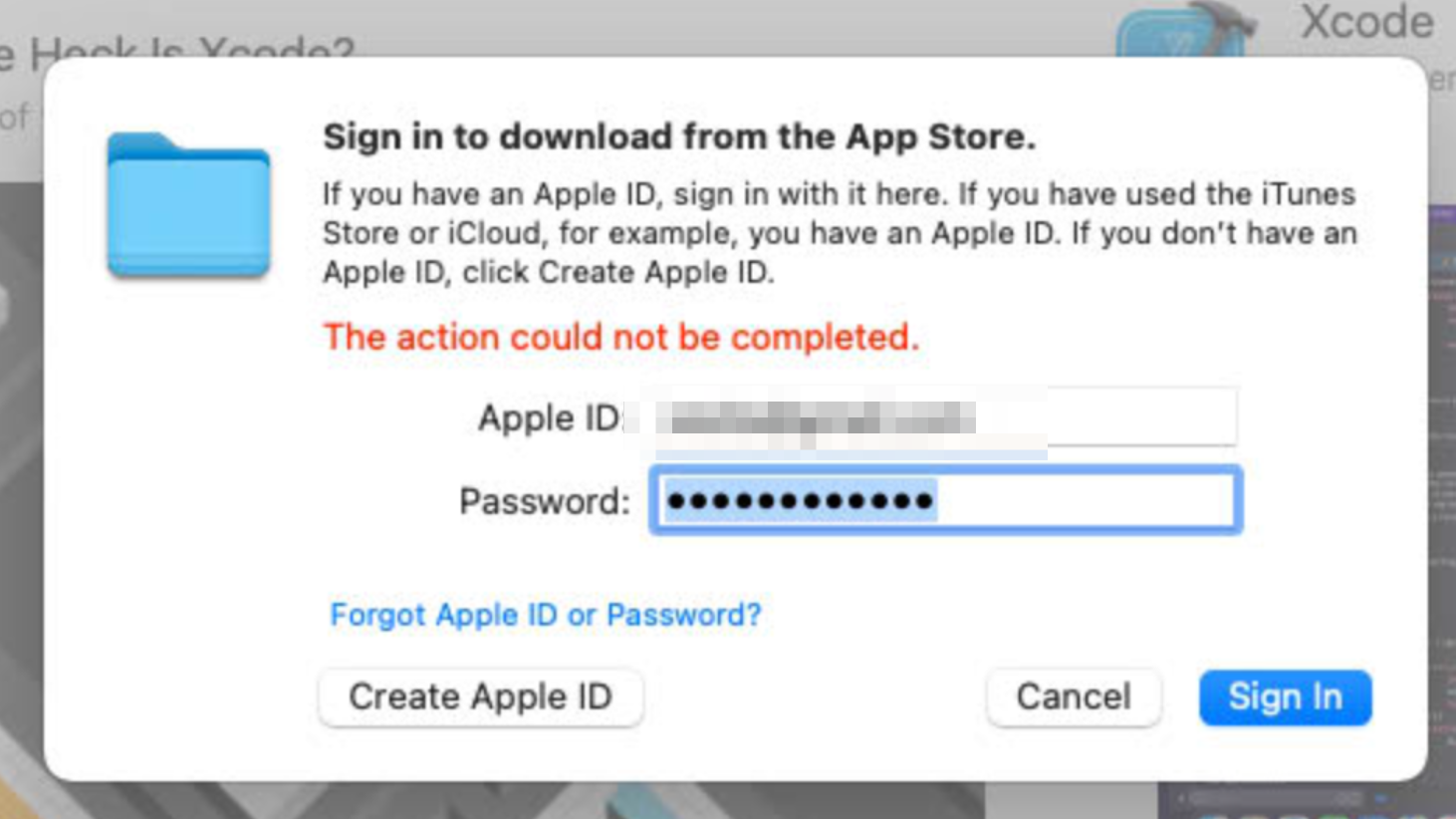
New features
Orka 3.1.0 now provides support for public IPs in the CLI and integrations
In Orka 3.0.x you were able to use public IPs only from the Jenkins and TeamCity plugins. Orka 3.1.0 allows you to use public IPs from the CLI and other integrations. To do that, use the public API IP provided by the Orka team to configure the CLI or the integrations.(Intel-only) Support for old OS versions
Orka 3.1.0 allows the deployment of High Sierra and Mojave. To do that, ensure that legacy IO is enabled and net boost is disabled for the VM.Image size details
Orka 3.1.0 provides information about the image disk size as well as the actual size it takes on the storage. To get this information, runRemoved and deprecated features
Orka 2.x API
Orka 2.x API and earlier versions are now removed. You must migrate your custom Orka functionality to use the new Orka3 API or the new Orka3 CLI instead. See 2.4.x to 3.0.0: API Mapping and 2.4.x to 3.0.0: CLI Mapping.If you need help moving away from the Orka 2.x API, contact the support team through the MacStadium portal.Orka 2.x CLI
Orka 2.x CLI and earlier versions are now removed. You must migrate your custom Orka functionality to use the new Orka3 API or the new Orka3 CLI instead. See 2.4.x to 3.0.0: API Mapping, 2.4.x to 3.0.0: CLI Mapping and 2.4.x and 3.0.x to 3.1.x and above: Backward Compatibility.If you need help moving away from the Orka 2.x CLI, contact the support team through the MacStadium portal.Improvements
Orka 3.1.0 introduces the following improvements:- Performance improvements in clusters > 20 nodes. All Orka commands should run faster and should not degrade under heavier load.
- Improved image resize behavior. In previous versions, if there is not enough disk space on the host, the system would cancel the image resize operation. The system now cleans old images from the cache to free space for the resized VM.
Known issues
- Nested virtualization is not available on macOS 14 Sonoma VMs. This is a limitation of the Apple virtualization framework.
Workaround: None. - You might experience performance issues when running Xcode 15 on your Orka VMs.
Workaround: Try updating your OS to macOS 14 Sonoma. - You cannot disable System Integrity Protection on the base Sonoma image.
Workaround: MacStadium has published a new base Sonoma image with System Integrity Protection (SIP) disabled here. - You cannot enable Kernel extensions. This is an Apple limitation.
Workaround: None. - You might be unable to update existing Intel-based VMs to macOS Ventura or later. This limitation relates to the Orka image design and the Apple virtualization framework.
Workaround: Re-create your VM from one of the MacStadium official images for the respective macOS version you are trying to upgrade. Next, apply any missing updates within this OS version. - VM isolation between Intel and Apple-silicon based VMs doesn’t work.
Workaround: None. - You might experience degraded performance on Intel-based VMs running macOS 14 Sonoma.
Workaround: Disable animations for the VM. For more information, see here. - You cannot purge VMs from the VMs tab in the Web UI. When you try to purge a VM, the Web UI shows the following error message:
No VMs with that name exist in Orka.
Workaround: Run Purge from the VM Configs tab. - The Web UI lets you manage only resources in the
orka-defaultnamespace.
Workaround: For other workspaces, use the Orka3 CLI or the Orka3 API instead. - When downloading a large-size ISO or image from the Swagger UI, the UI might become unresponsive, and you might lose your operation’s progress.
Workaround: Usecurlinstead and provide a path on the local file system with the-o <FILE_PATH>flag. - When checking the status of a VM, Orka 3.0.0 will list it as running even when stopped or suspended.
Workaround: None. - After you resize an Apple silicon-based VM running macOS Ventura and attempt to upgrade to a newer macOS version, the upgrade might fail, or you might experience other issues with your VM. This is a limitation of the current resize design and the Apple virtualization framework.
Workaround: If possible, upgrade the image before resizing. - After you resize an Apple silicon-based VM running macOS Monterey and attempt to upgrade to a newer macOS version, the upgrade might fail, or you might experience other issues with your VM. This is a limitation of the current resize design and the Apple virtualization framework.
Workaround: If possible, upgrade the image before resizing. - After you resize an Apple silicon-based VM running macOS Ventura, you can no longer connect via VNC to the VM.
Workaround: If possible, use SSH or Apple Screen Sharing. - After you upgrade an existing Apple silicon-based VM to a non-latest macOS version (for example, 13.2.1 when 13.3 is the latest), the VM becomes unresponsive, and you can no longer use it. The Apple virtualization framework causes this issue. We have reported the issue to Apple.
Workaround: Always upgrade to the latest macOS version. - macOS Ventura VMs created from ISO return to the Recovery (ISO install) screen after restart if you don’t manually select to boot macOS from the boot menu.
Workaround: Select the second option from the boot menu (macOS Installerduring the final steps of the setup orMacintosh HDafter you have completed the installation) after every restart. If you miss the boot menu and end up at the Recovery screen, restart the VM from the Apple menu in the top left corner.
Once you’re done with your current OS configuration, commit the changes or save a new image from the VM. Use the image to create and deploy macOS Ventura VMs. - Intel-based Ventura VMs created with the Orka Web UI might not work as expected. This occurs because the Net Boost option is disabled by default when creating new VM configs in the Web UI. However, Intel-based Ventura VMs require Net Boost to be enabled to work properly.
Workaround: Select the Net Boost checkbox when creating Intel-based Ventura VMs. - You cannot access your shared VM storage after you update your Orka VM Tools from 2.3.x or earlier to 2.4.0 or later on an existing Monterey VM. The storage will still be listed under
/Volumes/orkabut you will not be able to access any content on it.
Workaround:Commitorsavethe base image with the updated Orka VM Tools and re-create your Monterey VMs. Alternatively, use the latest default.orkasiimage to re-create your VMs. - If you set the default output to JSON, you can no longer use the Orka CLI in interactive mode.
Workaround: Use direct mode with the-yflag instead. - You can simultaneously start multiple pull remote image or copy image operations in the Orka Web UI. This might cause Orka to become unresponsive until all operations are complete. You cannot use Orka with any Orka tools and integrations during that time.
Workaround: Wait for all running operations to complete. - Sometimes, Orka might become unresponsive during a pull remote image or copy image operation and might start returning authentication errors.
Wait for the operation to complete. - Apple silicon-based VMs are not able to run applications that require kernel extensions. We have filed the problem with Apple and are communicating with them through our contacts to solve it.
- Any VMs deployed on Apple silicon-based nodes before Orka 2.1.0 might not be functional after the upgrade to the latest Orka release.
Workaround: Delete and redeploy the VMs. - Users running older versions of Orka will start seeing Apple silicon images when running
orka image list-remote. These images are not supported in older versions of Orka, and attempting to pull them will result in an error.
Workaround: Ignore the images or upgrade to Orka 2.1.0+. - There is a known issue with authentication to certain OCI registries, such as AWS ECR. This will be remedied in a coming version of Orka.
- If you deploy a VM on an Apple silicon-based node and try to log in to your iCloud account, you might receive an error ‘The action could not be completed’. This is a limitation of the Apple Virtualization Framework.
Workaround: Download the needed software via a web browser and install it manually.
- If your git-related operations are hanging, and nothing happens on an Orka VM, your Xcode is probably stuck in the “Verifying Xcode dialog” state. To ensure this is the case, you can connect to your VM via VNC, start the Xcode application and check if you will get a small window saying “Verifying Xcode”.
Workaround: VNC to the VM and wait for the verification process to complete or execute the following command from the Terminal to disable Xcode verification:
How to upgrade
- Submit a ticket through the MacStadium portal.
- Schedule a time for the maintenance window that works for you through the link provided in the ticket.
The suggested time(s) must be Monday through Thursday, 6 am or 10 pm PST (9 am or 1 pm EST), depending on MacStadium Global Operations calendar availability. - Follow this migration guide to configure your cluster and tools after the migration. If you are upgraded from Orka 2.4.x, review the 2.4.x to 3.0.0: CLI Mapping and 2.4.x to 3.0.0: API Mapping to decide how to migrate it.
Patch
Improvements and fixes
- Deploying two or more Intel VMs from the same config or with no config at all on the same node resulted in incorrect networking rules. This could cause connections (SSH, VNC, etc…) to one of the VMs to be redirected to another VM on the same node
Patch
Improvements and fixes
- Allow creation of non-expiring ServiceAccount tokens
- Improve VM stability when deploying on Mac Studios
- Allow running VMs with 128GB memory on Mac Studios
- Fix pushing OCI images to some private registries
- Improve VM Metadata stability. In some cases VM Tools were not starting, causing metadata to not be available
Patch
Improvements and fixes
- Fixed a sporadic issue when saving an image
- Enhance cluster resource management when arm nodes encounter limitations that prevent the deployment of more than 2 VMs.
OCI images
- Image pull performance has improved and is faster now.
- Memory consumption during image pull operations is reduced for a smoother experience.
- Enhanced the efficiency of batched layers pull, optimizing the overall image handling process.
- Fixed an issue when bad credentials are provided when pulling an image.
CLI
- The CLI now ensures stable connectivity by addressing an issue where it sporadically connected to the IPv6 address of Cognito, leading to login failures.
- The image save command is fixed now to provide accurate error messages when using image names with uppercase letters. Previously, an incorrect error message was displayed in such scenarios.
Major
Orka 3.0.0 is a major Orka release that brings Single Sign-On and native Kubernetes capabilities to your Orka clusters. All Orka tools and services have been completely reworked to provide improved usability, native Kubernetes interaction, more scalability, and improved performance. To benefit from the latest Orka release, you must migrate to Orka 3.0.0. This is both an Orka and a virtualization and orchestration layer upgrade.(Intel-only) If you experience degraded performance on Intel-based Sonoma VMs, you might want to disable all animations.Orka 3.0.0 also provides an OCI-compatible Apple silicon-based macOS 14 Sonoma image in GitHub Packages. To deploy a VM with it, just run:Or you can push a VM’s disk as an image to an OCI-compatible registry.This feature is available only for Apple silicon-based VMs and images. Registry credentials are required to push an image. For more information, run Nodes moved to a namespace become dedicated to this namespace, and only users and service accounts added to the respective role binding have access to this node and its computational resources. Formerly, you were able to create node dedication by creating user groups and applying the groups to the respective node.After that, you can deploy custom pods. For any custom pods you want to run, add the following toleration to the pod. Provide the name for the sandbox namespace under You can specify an image stored locally in your cluster or the complete image path to an OCI-compatible registry.
New features
Orka 3.0.0 now provides vanilla macOS 14 Sonoma images and ISOs
You can now deploy and work with Intel-based and Apple silicon-based VMs running on macOS 14 Sonoma. The latest vanilla Sonoma images and ISOs reside in the remote repository.Orka 3.0.0 now provides truly native Kubernetes functionality
All Orka resources are rewritten to be Kubernetes native. This lets you usekubectl in addition to the Orka3 CLI and the new Orka3 API in Orka 3.0.0.Orka 3.0.0 lets you work with images from OCI-compatible registries
You can now deploy VMs that pull an image straight from an OCI-compatible registry (such as GitHub Packages).orka3 regcred --help.Check https://github.com/macstadium/orka-images for the latest OCI-compatible images offered by MacStadium.Orka 3.0.0 now runs on Kubernetes 1.27
Orka’s virtualization and orchestration layer now runs on Kubernetes 1.27. If you’re working with the Kubernetes layer directly, review the deprecated and removed Kubernetes features and resolve any pending issues before requesting an upgrade of your environment.To update your custom pods, review the official Kubernetes guides on how to upgrade between versions.The new Orka 3.0.0 API is more straightforward and capable
Orka 3.0.0 now provides a more unrestrained and capable API to manage your cluster. All endpoints are organized in a clearer way and follow enterprise industry standards.In addition, Orka 3.0.0 now provides a Swagger UI, which lets you use the Orka3 API straight from your cluster. Navigate tohttp://<ORKA_API_URL>/api/v1/swagger, provide an authentication token, and start utilizing the new Orka 3.0.0 API.The new Orka 3.0.0 CLI is automation-friendly and kubectl-inspired
The new Orka 3.0.0 CLI took inspiration fromkubectl and follows its well-known syntax. If you’re familiar with kubectl, you will find the new and improved Orka3 CLI easier to use. If you’re new to Kubernetes, the new Orka3 CLI will help you stride into the world of native Kubernetes understanding.The Orka3 CLI was rewritten with automation in mind. You will find that it no longer provides interactive mode and relies on detailed command-line user input instead. All commands have been rewritten to become more intuitive for easy extensibility. Many arguments are now positional, so you don’t have to write lengthy flags and flag arguments.Autocompletion and many command aliases are now available to ensure that the Orka3 CLI is as easy to use as possible.Orka 3.0.0 brings Single Sign-On, RBAC, and service accounts
Starting with Orka 3.0, Orka relies on Single Sign-On (SSO), service accounts, and the Kubernetes concept of role-based access control (RBAC) for user management. Orka users log in to their clusters with their MacStadium Customer Portal credentials. All user management happens in the MacStadium Customer Portal, including assigning user roles. Based on the role bindings configured for the respective user in the cluster, they can access one or more namespaces. For improved security, user authentication tokens (generated during login) have a lifecycle of one hour.Orka 3.0.0 introduces namespaces, native resource isolation, and dedication
Among the native Kubernetes capabilities of Orka 3.0.0 are namespaces. By default, all Orka users have access to theorka-default namespace. However, to apply resource dedication and isolation in your cluster, you can create more namespaces with the orka- prefix. Next, you need to move one or more nodes to the new namespace and configure the role binding for the namespace.Orka 3.0.0 handles sandboxing via namespaces
Orka 3.0 introduces a new way to handle sandboxing - with namespaces. First, you need to create a dedicated namespace with enabled custom pods. Next, you need to move one or more nodes to that namespace. You also need to provide access to the namespace to all users and service accounts that require access.value.Orka 3.0.0 no longer requires VM configurations
You can now deploy a VM without creating or specifying a VM configuration. Deploying a VM is now as simple as running:Orka 3.0.0 lets you download ISOs on your local machine
You can now download any ISO stored in your cluster to your local machine for editing and testing.Orka 3.0.0 lets you add comprehensive descriptions for images and ISOs
Images and ISOs now have an extra field - description. You can use it to provide important details about the image, such as macOS version, origin (local, remote, copied or pulled), owner, or even specific OS settings. It’s up to you. Use theorka3 image set-description or orka3 iso set-description command, or the POST /api/v1/namespaces/{namespace}/images/{image}/description or /api/v1/namespaces/{namespace}/isos/{iso}/description endpoints.Removed and deprecated features
Orka 2.x API
Orka 2.x API and earlier versions are now deprecated, and backward compatibility will be removed in a future release. You must migrate your custom Orka functionality to use the new Orka3 API or the new Orka3 CLI instead. See 2.4.x to 3.0.0: API Mapping and 2.4.x to 3.0.0: CLI Mapping.If you need help moving away from the Orka 2.x API, contact the support team through the MacStadium portal.Orka 2.x CLI
Orka 2.x CLI and earlier versions are now deprecated, and backward compatibility will be removed in a future release. You must migrate your custom Orka functionality to use the new Orka3 API or the new Orka3 CLI instead. See 2.4.x to 3.0.0: API Mapping and 2.4.x to 3.0.0: CLI Mapping.If you need help moving away from the Orka 2.x CLI, contact the support team through the MacStadium portal.User logs
Logging 1.0 and Logging 2.0 are now removed. The Orka team is gathering information about this feature and might consider implementing an updated version or an alternative solution.Shared VM storage for Apple silicon-based Monterey VMs
Shared VM storage is now removed for Apple silicon-based VMs running macOS Monterey. Intel-based Monterey VMs are not affected.To continue using shared VM storage, upgrade your Apple silicon-based Monterey VMs to macOS Ventura OR switch to Intel-based Monterey VMs.Saved state
The following features are now removed:- Saving the state of a running VM to the respective VM configuration
- Deploying a VM from a VM configuration with a saved state
- Deleting a saved state from a VM configuration
Attached storage (from Orka images)
The following features are now removed:- Creating VM configurations with an attached Orka image for additional storage
- Attaching an Orka image for additional storage during deployment
- Listing the currently attached disks
Node dedication
The earlier implementation of node dedication is now removed. To configure user access to a particular node, use namespaces instead. For more information, see here.Sandboxing
The earlier implementation of sandboxing is now removed. You need to use a namespace with enabled custom pods to run custom pods in your cluster. For more information, see here.Yes/no argument values
Passingyes or no as arguments to boolean flags is now removed.Use true or false instead.Re-configuring I/O Boost
The following features are now removed:- Configuring I/O Boost for VM configurations
- Overriding I/O Boost during deployment
Improvements
Orka 3.0.0 introduces the following improvements:- The caching of Apple silicon-based images is now improved to reduce deployment and boot times.
- Apple silicon-based images now take up significantly less space (on average) on your cluster’s storage. Existing images in the local cluster storage are not automatically converted to the new format. You must save or commit your existing images from a newly deployed VM to take advantage of this benefit.
- When listing the deployed VMs, Orka 3.0.0 lists all VMs for all users in the respective namespace.
- When listing VM configurations, Orka 3.0.0 now lists all VM configurations for all users in the cluster.
- Pull, generate, and copy operations for images and ISOs are now async operations and no longer block the console. You can check the progress of the operation by running
orka3 image list -o wideororka3 iso list -o wide. - VM commit and VM save are now async operations and no longer block the console. You can check the progress of the operation by running
orka3 image list -o wideororka3 iso list -o wide.
Known issues
- Nested virtualization is not available on macOS 14 Sonoma VMs. This is a limitation of the Apple virtualization framework.
Workaround: None. - Orka 3.0.0 and 3.0.1 CLI do not allow users with NAT’ed public IPs to authenticate with the new Portal-based format. This capability will be introduced soon.
Workaround: Deploy the CLI within Orka’s network. - You might experience performance issues when running Xcode 15 on your Orka VMs.
Workaround: Try updating your OS to macOS 14 Sonoma. - You cannot disable System Integrity Protection on the base Sonoma image.
Workaround: MacStadium has published a new base Sonoma image with System Integrity Protection (SIP) disabled here. - You cannot enable Kernel extensions. This is an Apple limitation.
Workaround: None. - You might be unable to update existing Intel-based VMs to macOS Ventura or later. This limitation relates to the Orka image design and the Apple virtualization framework.
Workaround: Re-create your VM from one of the MacStadium official images for the respective macOS version you are trying to upgrade. Next, apply any missing updates within this OS version. - VM isolation between Intel and Apple-silicon based VMs doesn’t work.
Workaround: None. - You might experience degraded performance on Intel-based VMs running macOS 14 Sonoma.
Workaround: Disable animations for the VM. For more information, see here. - You cannot purge VMs from the VMs tab in the Web UI. When you try to purge a VM, the Web UI shows the following error message:
No VMs with that name exist in Orka.
Workaround: Run Purge from the VM Configs tab. - The Web UI lets you manage only resources in the
orka-defaultnamespace.
Workaround: For other workspaces, use the Orka3 CLI or the Orka3 API instead. - When downloading a large-size ISO or image from the Swagger UI, the UI might become unresponsive, and you might lose your operation’s progress.
Workaround: Usecurlinstead and provide a path on the local file system with the-o <FILE_PATH>flag. - When checking the status of a VM, Orka 3.0.0 will list it as running even when stopped or suspended.
Workaround: None. - The Orka 2.x CLI doesn’t respect the
tag requiredsetting from the VM configuration and defaults its value tono.
Workaround: If you want to deploy a VM with an enabledtag required, manually set it toyesin the interactive prompt or via the--tag-required yesflag in direct mode. - After you resize an Apple silicon-based VM running macOS Ventura and attempt to upgrade to a newer macOS version, the upgrade might fail, or you might experience other issues with your VM. This is a limitation of the current resize design and the Apple virtualization framework.
Workaround: If possible, upgrade the image before resizing. - After you resize an Apple silicon-based VM running macOS Monterey and attempt to upgrade to a newer macOS version, the upgrade might fail, or you might experience other issues with your VM. This is a limitation of the current resize design and the Apple virtualization framework.
Workaround: If possible, upgrade the image before resizing. - After you resize an Apple silicon-based VM running macOS Ventura, you can no longer connect via VNC to the VM.
Workaround: If possible, use SSH or Apple Screen Sharing. - After you upgrade an existing Apple silicon-based VM to a non-latest macOS version (for example, 13.2.1 when 13.3 is the latest), the VM becomes unresponsive, and you can no longer use it. The Apple virtualization framework causes this issue. We have reported the issue to Apple.
Workaround: Always upgrade to the latest macOS version. - macOS Ventura VMs created from ISO return to the Recovery (ISO install) screen after restart if you don’t manually select to boot macOS from the boot menu.
Workaround: Select the second option from the boot menu (macOS Installerduring the final steps of the setup orMacintosh HDafter you have completed the installation) after every restart. If you miss the boot menu and end up at the Recovery screen, restart the VM from the Apple menu in the top left corner.
Once you’re done with your current OS configuration, commit the changes or save a new image from the VM. Use the image to create and deploy macOS Ventura VMs. - Intel-based Ventura VMs created with the Orka Web UI might not work as expected. This occurs because the Net Boost option is disabled by default when creating new VM configs in the Web UI. However, Intel-based Ventura VMs require Net Boost to be enabled to work properly.
Workaround: Select the Net Boost checkbox when creating Intel-based Ventura VMs. - You cannot access your shared VM storage after you update your Orka VM Tools from 2.3.x or earlier to 2.4.0 or later on an existing Monterey VM. The storage will still be listed under
/Volumes/orkabut you will not be able to access any content on it.
Workaround:Commitorsavethe base image with the updated Orka VM Tools and re-create your Monterey VMs. Alternatively, use the latest default.orkasiimage to re-create your VMs. - If you set the default output to JSON, you can no longer use the Orka CLI in interactive mode.
Workaround: Use direct mode with the-yflag instead. - You can simultaneously start multiple pull remote image or copy image operations in the Orka Web UI. This might cause Orka to become unresponsive until all operations are complete. You cannot use Orka with any Orka tools and integrations during that time.
Workaround: Wait for all running operations to complete. - Sometimes, Orka might become unresponsive during a pull remote image or copy image operation and might start returning authentication errors.
Wait for the operation to complete. - Apple silicon-based VMs are not able to run applications that require kernel extensions. We have filed the problem with Apple and are communicating with them through our contacts to solve it.
- Any VMs deployed on Apple silicon-based nodes before Orka 2.1.0 might not be functional after the upgrade to the latest Orka release.
Workaround: Delete and redeploy the VMs. - Users running older versions of Orka will start seeing Apple silicon images when running
orka image list-remote. These images are not supported in older versions of Orka, and attempting to pull them will result in an error.
Workaround: Ignore the images or upgrade to Orka 2.1.0+. - There is a known issue with authentication to certain OCI registries, such as AWS ECR. This will be remedied in a coming version of Orka.
- If you deploy a VM on an Apple silicon-based node and try to log in to your iCloud account, you might receive an error ‘The action could not be completed’. This is a limitation of the Apple Virtualization Framework.
Workaround: Download the needed software via a web browser and install it manually.
- If your git-related operations are hanging, and nothing happens on an Orka VM, your Xcode is probably stuck in the “Verifying Xcode dialog” state. To ensure this is the case, you can connect to your VM via VNC, start the Xcode application and check if you will get a small window saying “Verifying Xcode”.
Workaround: VNC to the VM and wait for the verification process to complete or execute the following command from the Terminal to disable Xcode verification:
How to upgrade
- Submit a ticket through the MacStadium portal.
- Schedule a time for the maintenance window that works for you through the link provided in the ticket.
The suggested time(s) must be Monday through Thursday, 6 am or 10 pm PST (9 am or 1 pm EST), depending on MacStadium Global Operations calendar availability. - Follow this migration guide to configure your cluster and tools after the migration. If you have any CLI-based or API-based custom automation, review the 2.4.x to 3.0.0: CLI Mapping and 2.4.x to 3.0.0: API Mapping to decide how to migrate it.