

Overview
This process outlines how to backup and restore a configuration by executing line by line changes, while using a graphical user interface. The backup files are stored on a local system as a ZIP file.It is important to store this ZIP file in an easily accessible place in case of an emergency. Plan a backup to be taken anytime changes are made to the firewall configuration.
Prerequisites
- Access to MacStadium firewall
- MacStadium login information
- The ability to login to the firewall using the Cisco Adaptive Security Device Manager (ASDM) firewall software
If a passphrase was set on the backup, then it needs to be available during the restore process.
Backup Process
- Establish a VPN connection to the MacStadium environment.
- Connect to the firewall using the Cisco Adaptive Security Device Manager (ASDM).
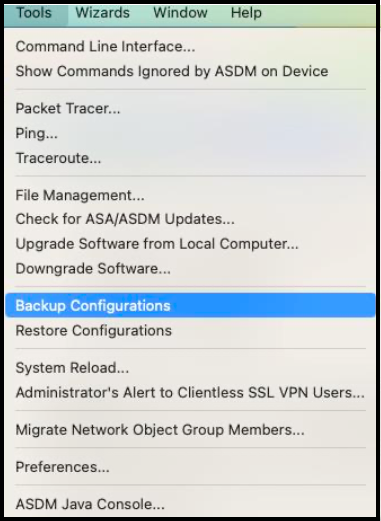
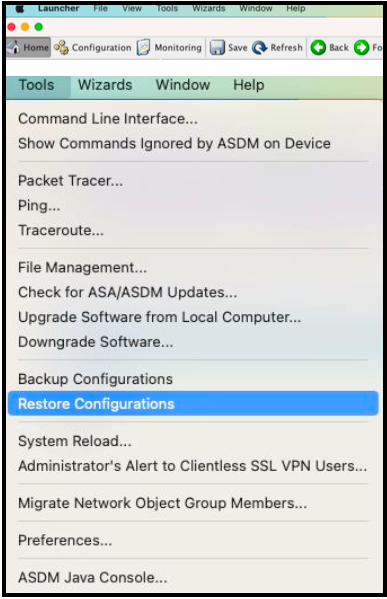
- Click the Tools menu, located at the top of the ASDM application and then select Backup Configuration.\
- Select a location to place the backup files.
- Enter a name for the backup file.\
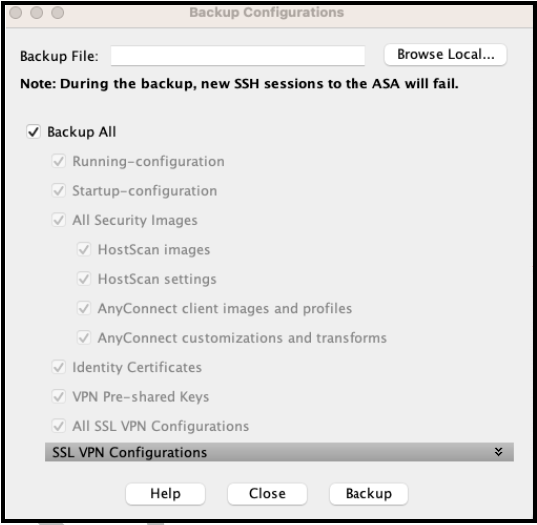
- The system shows the local file structure. Select an appropriate place and name for your backup.\
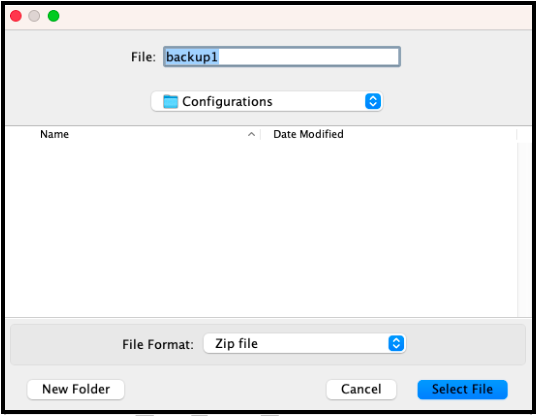
- Click Select File.
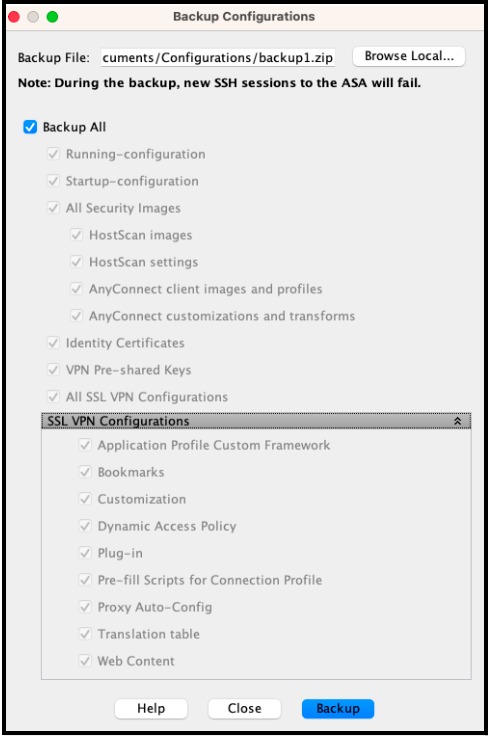
- Accept the defaults of Backup All.
- Click Backup.\
Optional: If the firewall is configured with identity certificates, then select a passphrase to encrypt identity certificates. Document the passphrase that is used as it is needed for future restores.
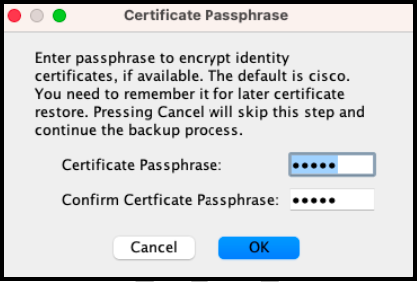
- Click OK
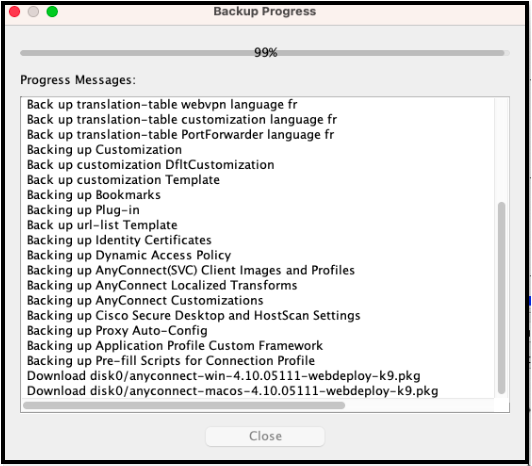
The Progress Message can be copied to a text editor for review and validation.
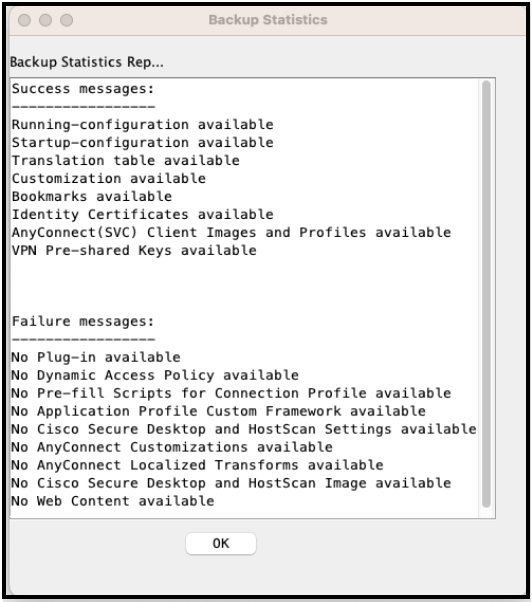
- Click Close after backup is completed. A Backup Statistics window opens and displays additional information about the Backup process.\
- Click OK\
Restore Process
- Establish a VPN connection to the MacStadium environment.
- Connect to the firewall using the Cisco Adaptive Security Device Manager (ASDM).
- Click Tools and select Restore Configuration from the dropdown menu.\
- Navigate to the location where the backup file was stored.\
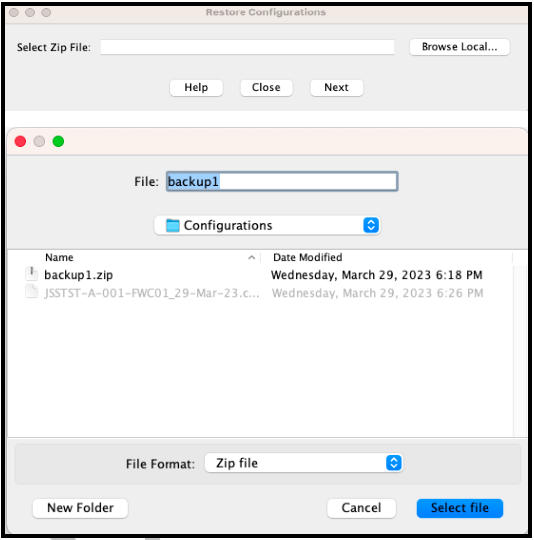
- Click Select file.
- Click Next to proceed.\
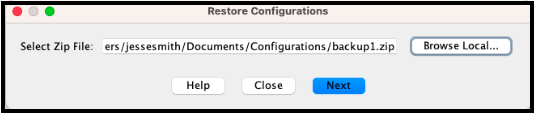
- From the Restore Configurations pop-up page, select the options to restore.
Recommended settings:
- Running configuration
- Start-up configuration
- All Security Images
- Identity Certificates
- Leave the remaining default options untouched
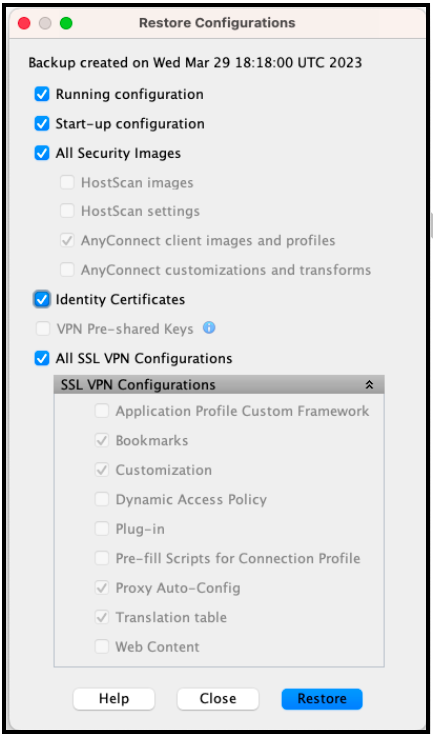
- Click Restore.
- You should now see the below message. Click Yes.\
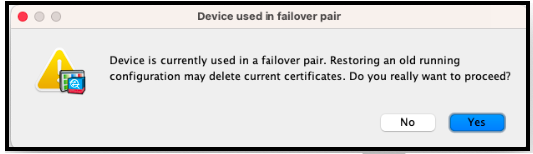
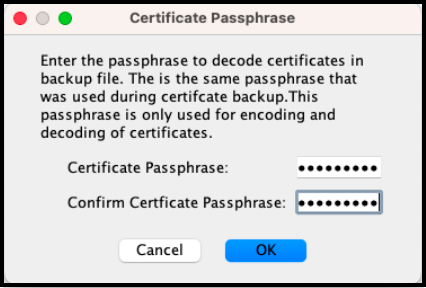
If applicable, enter the Certificate Passphrase used to backup the identity Certificate, then click OK.
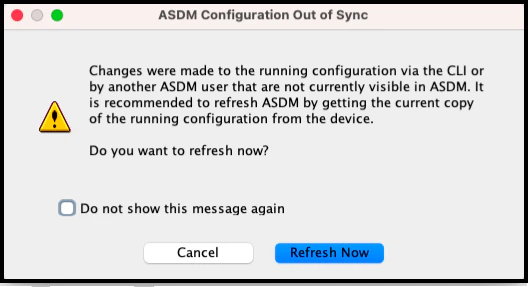
The following message may appear during the Restore Progress. Select Refresh Now or Cancel button. Choosing Cancel will not halt the Restore process.
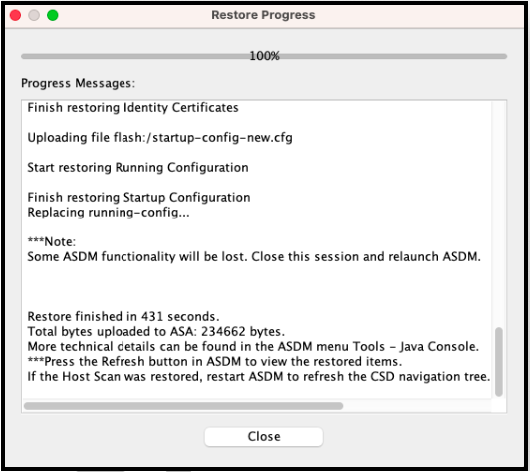
The Progress Message can be copied to a text editor for review and validation.
The following Unapplied Changes message box may appear:
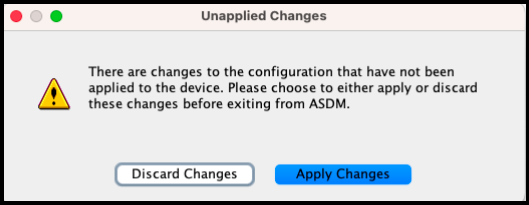
- If the Unapplied Changes message box appears, then click Apply Changes.
- If the Unapplied Changes message box does not appear, then click Save in the ASDM application.
Additional Notes:
- If firewall access enables the backup process but does not enable the restore process, then open a MacStadium Support ticket.
- In the ticket, request that a restore take place for the firewall device.
- Provide the Firewall IP, the backup file, and permissions to perform the restore in the ticket.
- Request a specific time for the restore, or it will be performed as soon as possible.