

Prerequisites
Before beginning, ensure you have:- An active MacStadium account with SSO enabled for your organization
- Access to your corporate email address (the one registered with MacStadium)
- Access to your organization’s identity provider (e.g., Okta, Azure AD, Google Workspace)
- Credentials for your corporate identity provider
- A multi-factor authentication (MFA) device if one is required by your organization
- Confirmation email from MacStadium Support indicating SSO has been enabled for your account
Step-by-Step Login Process
1: Navigate to the MacStadium Portal
- Open your web browser and go to: https://portal.macstadium.com
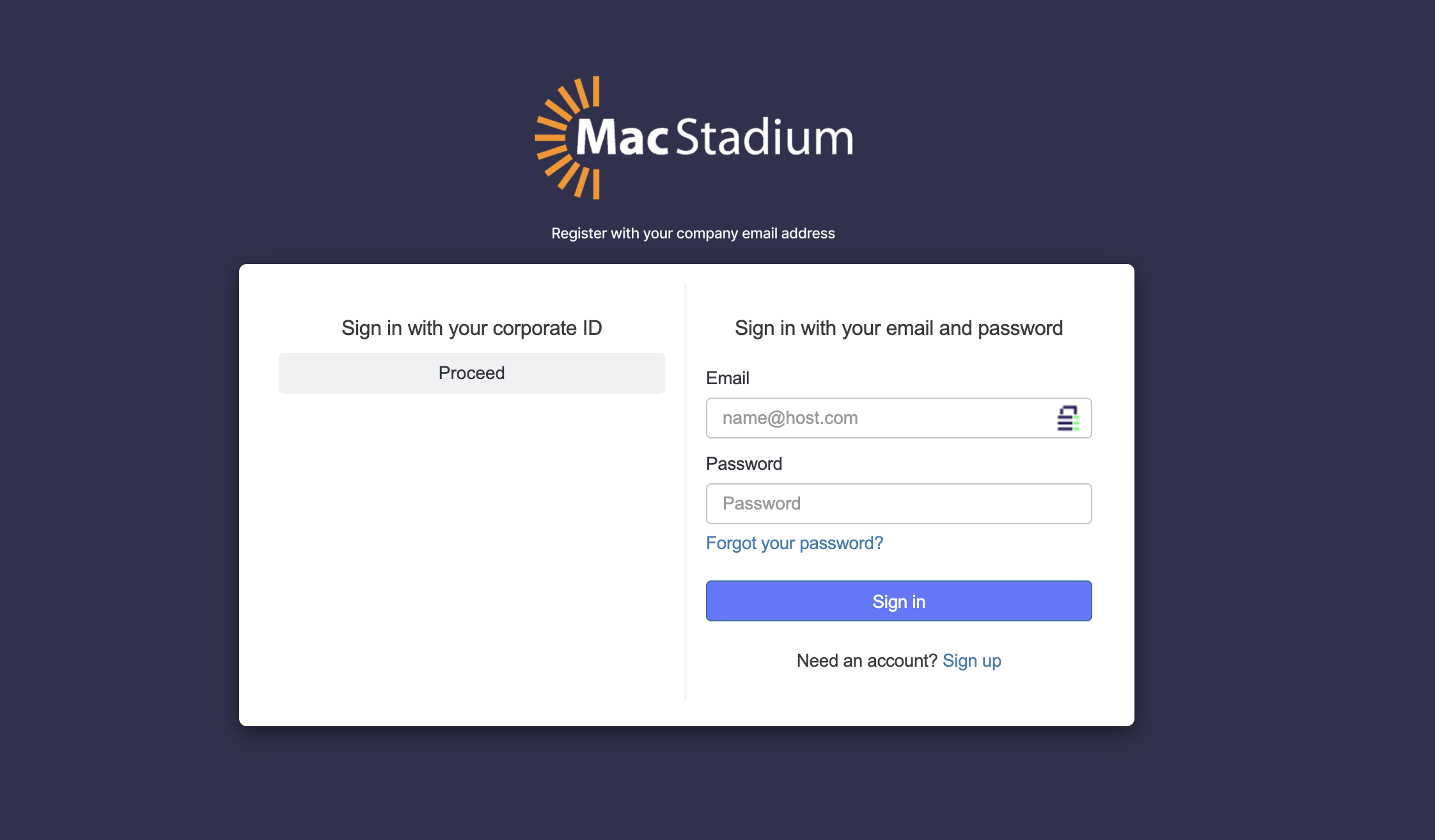
- You’ll see the MacStadium login page
2. Initiate SSO Login
- Enter your corporate email address in the email field
- Click the “Continue with SSO” button (or “Sign in with SSO” depending on your portal version)
- Do not enter a password; SSO authentication will redirect you to your identity provider
3. Identity Provider Redirect
You’ll be automatically redirected to your organization’s identity provider login page. This may be:- Okta
- Azure Active Directory / Microsoft Entra ID
- Google Workspace
- OneLogin
- Other enterprise identity providers
4. Authenticate with Your Identity Provider
- Enter your corporate credentials (username/email and password)
- Complete any multi-factor authentication (MFA) required by your organization
- This might include: authenticator app codes, SMS codes, biometric verification, or hardware tokens
- Click “Sign In” or the equivalent button on your identity provider’s login page
Understanding the “Abort or Proceed” Screen
After successfully authenticating with your identity provider, you may encounter an authorization consent screen that asks you to “Abort or Proceed”. This screen appears because:- First-time setup: Your identity provider is asking for permission to share your profile information with MacStadium
- Security verification: Your organization wants to confirm you intend to access an external service
- Attribute mapping: The identity provider needs consent to share specific user attributes (name, email, group memberships) with MacStadium
- The application requesting access: “MacStadium Portal” or your organization’s custom app name
- Identity provider name: Your corporate identity system (e.g., “Contoso Azure AD”)
- Permissions being requested:
- Read your basic profile information
- Access your email address
- View your group memberships (for role assignment)
- Proceed / Allow / Continue - Authorizes access
- Abort / Cancel / Deny - Cancels the login attempt
Which Option Should I Select?
Select “Proceed” if:
- You initiated this login attempt to access MacStadium services
- The application name shown is “MacStadium Portal” or your organization’s custom SSO app
- You trust that your IT department has configured this integration
- You need to access your MacStadium infrastructure
Select “Abort” if:
- You did not initiate this login attempt (possible security issue)
- The application name looks suspicious or incorrect
- You’re unsure whether your organization uses MacStadium
- You want to verify with your IT team before proceeding
When you click “Proceed”:
- Authorization is granted, and your identity provider shares the necessary profile information with MacStadium.
- You will be automatically redirected, and returned to the MacStadium portal within 2-5 seconds.
- Upon successful login, you’ll land on your MacStadium Portal dashboard.
- Additionally, your browser session will now be active and authenticated with SSO.
- For future logins, this consent is typically remembered, so you won’t see the ‘Abort/Proceed’ screen again unless your organization’s security policies require re-consenting to SSO login.