Orka 3.6 is the last release to support Intel. Shared VM storage remains available for Intel VMs through the Orka 3.6 support window, but future Orka releases will not support Intel Mac hosts. If you still run Intel workloads, we recommend migrating to Apple silicon and completing the transition by December 2027. See the compatibility matrix for details.
Orka 3.5 default change: Shared VM storage is disabled by default for new Orka deployments. Existing deployments retain the previous setting (enabled). To enable shared storage on a new deployment, open a support ticket.
Orka 3.5.2: Per-instance shared attached disk sizing is now supported. On AWS, set
VM_SHARED_DISK_SIZE in each instance’s user data script. On-prem, set osx_node_orka_vm_shared_disk_size via Ansible. See the Orka 3.5.2 release notes for full setup steps.Overview
Starting with Orka 1.6.0, all deployed Intel-based VMs will have access to a shared storage volume in the cluster. Starting with Orka 2.1.0, all deployed ARM-based VMs will have access to the same shared storage. This storage can be used to cache build artifacts in-between stages of your CI/CD pipeline, for example, or host Xcode installers and other build dependencies. Orka offers two different ways to utilize shared VM storage:- By default, the VM shared storage directory will be placed on the primary NFS storage export for your cluster. This means that VM shared storage will share storage space with VM images and ISOs, so please keep this in mind!
- Optionally, you may request to provision a secondary storage export that will be dedicated to shared storage. This is ideal if you plan to share a lot of data between your CI/CD pipeline builds.
Shared Storage in ARM-based VMs
In ARM-based VMs the shared storage will be automatically mounted and available to use. Same storage is shared between ARM-based and Intel-based VMs.To use shared VM storage with VMs deployed on ARM nodes, your image must include Orka VM Tools. Orka VM Tools is required for shared storage to automount in the VM.Learn more about pulling an image
Shared Storage in Intel-based VMs
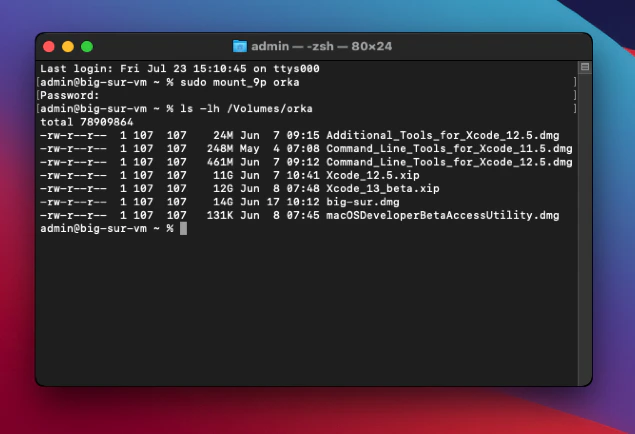
Automount shared storage in Intel-based VMs
Instead of mounting the shared storage manually after every OS restart, you can create a /Library/LaunchDaemons/com.mount9p.plist to handle automounting the shared storage.- Connect to your VM via SSH.
- Make sure that /Volumes/orka is already mounted on the VM.
- If not already mounted, mount the shared VM storage.
- Navigate to /Library/LaunchDaemons and create a com.mount9p.plist file.
- Copy the following contents and paste them in Vim. Type :wq to save and exit.
com.mount9p.plist
- Change the ownership and permissions for com.mount9p.plist.
- Reboot the VM and save or commit the VM image.
Limitations
Reading and Writing Data
You may encounter permissions issues when reading or writing data to the shared storage volume. In order to get around this, you may need to become the root user to write data to the shared storage volume. If you need to give a specific user read and write access to files, you can add that user to the group 107. For example, if your CI user is called machine-user create the group ci:Files must be given group write access to be modified by the user you have added to the 107 group. For example,
sudo chmod g+w myfile.txt.Cluster storage limits
If you are using the default primary storage export in your cluster for shared VM storage, keep in mind that this storage is also used to host your Orka VM images and other data. This should be acceptable for sharing a limited set of files between virtual machines but is not recommended for intensive IO. In the case that you require frequent use of multiple reads and writes to the shared storage volume, setting up dedicated secondary storage is highly recommended.Checking current storage usage
Where you check Orka storage usage depends on which storage you mean. The MacStadium Customer Portal does not display Orka cluster storage usage.- Harbor OCI image storage. Log in to the Harbor web interface for your cluster and open your project. The project summary shows current usage against your quota. See Storage Quota and Limits. Starting with Orka 3.5, Harbor also exposes Prometheus metrics; contact support to confirm your Harbor metrics endpoint.
- Cluster and node metrics. Scrape the Orka server, operator, and per-node exporters over Prometheus for host-level disk metrics. See Consuming Metrics from Prometheus.
- Primary NFS storage export (VM images, ISOs, and default shared VM storage). Usage on the primary NFS export is not exposed through the CLI, portal, or a customer-facing metrics endpoint. Open a support ticket if you need a usage report or want to increase your allocation.
Known Issues
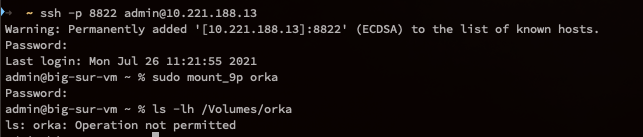
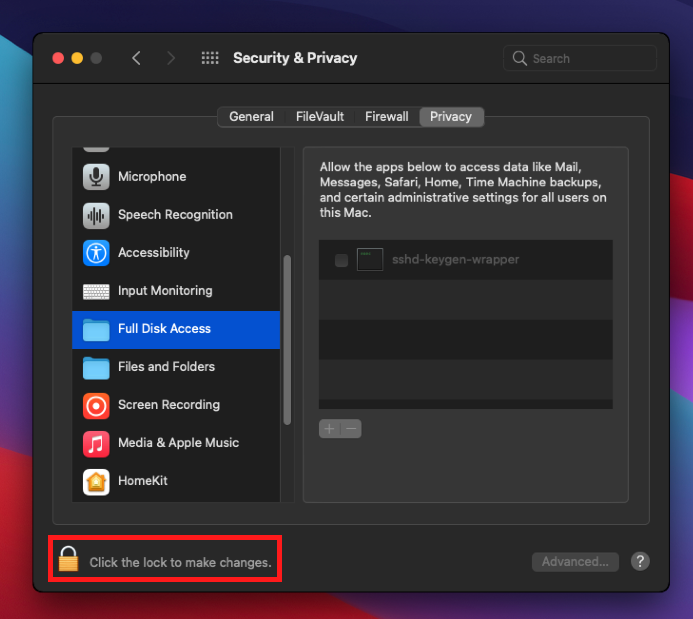
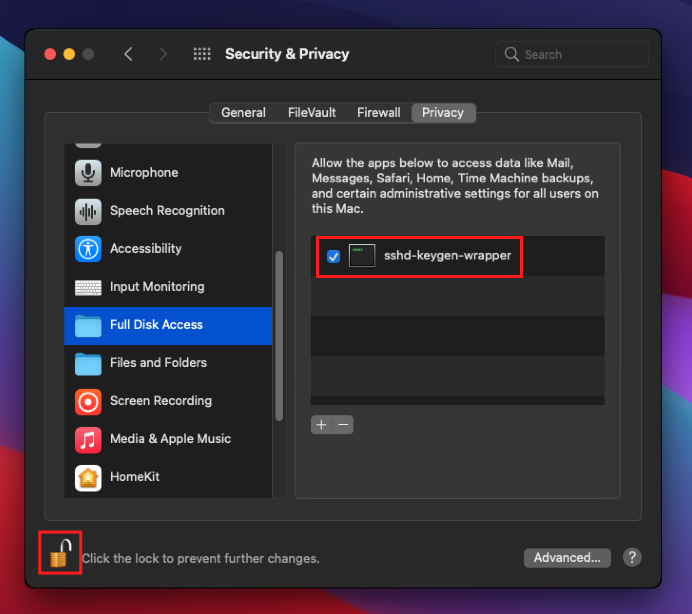
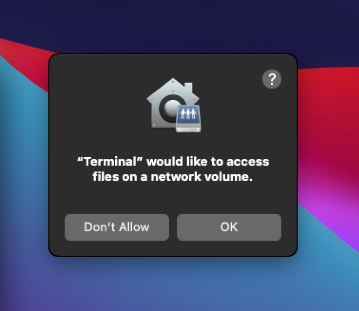
When connecting to the VM over SSH and attempting to access the shared storage volume, you may encounter the error orka: Operation not permitted: