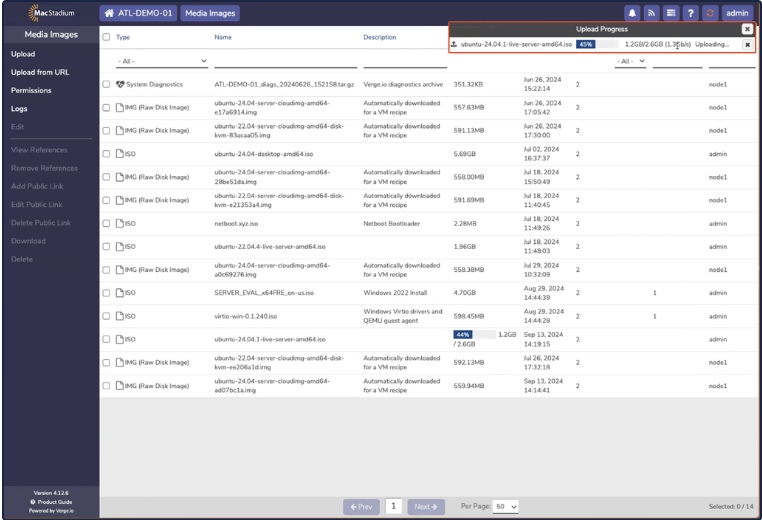
Uploading Images
For manually created VMs, guest operating systems are installed by adding a CD-ROM device with media file set to a bootable install ISO. Install ISOs are stored in the Media Images repository. To upload an ISO for installation:- Select Machines → Media Images.
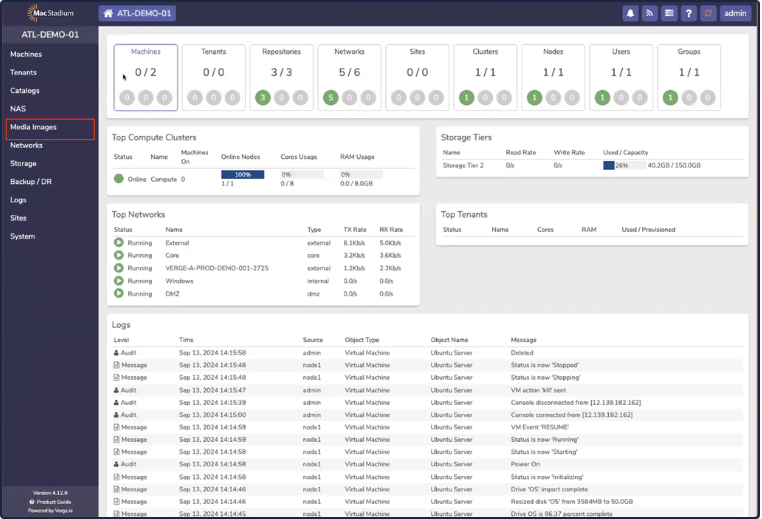
-
The Media Images page shows stored install disk and uploaded VM images. There are two ways to upload images for install:
- Upload from URL - Private Cloud downloads the image from a remote URL
- Upload - The image is uploaded from the connected desktop
Upload from URL
Upload from URL is the recommended approach, as Private Cloud can often download images faster directly from the repository.- Find a direct link for the install media for the desired OS. In this case, Ubuntu only offers direct links through their mirror, so we’ll select Alternative downloads, and get the URL from a mirror.
 Example: Ubuntu Server Download
 Direct Download links from Mirror
- Upload the image to Private Cloud from the mirror. Return to the Media Images pages.
- Select Upload from URL.
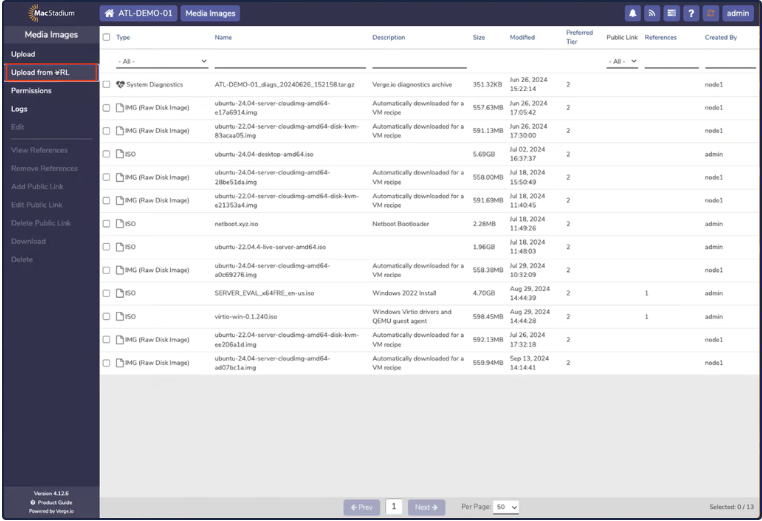
- The Upload from URL dialog box opens.
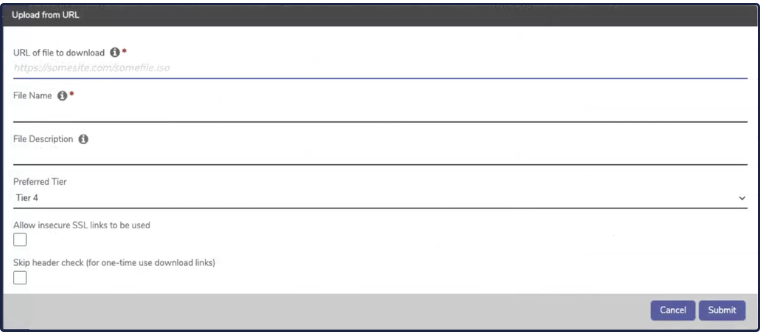
- Paste the download link into the Upload from URL page.
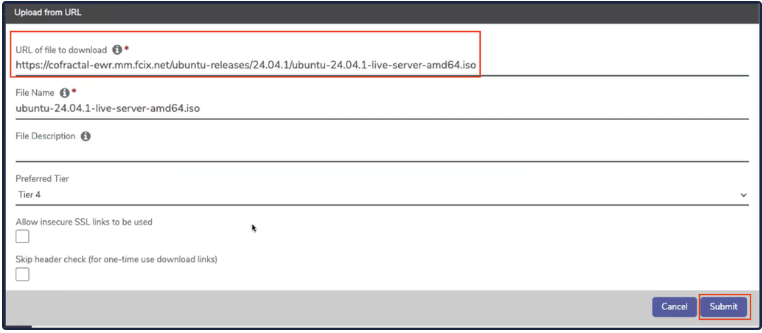
- Click Submit, and the Upload Process begins.
 Upload Process
Upload Directly
- To upload an ISO from the connected computer, choose Upload on the Media Images screen. The Upload Files screen appears.
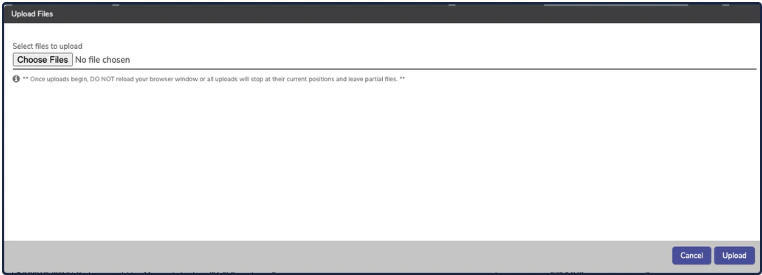
- Click Upload, and the Upload Process begins.