Before you begin: You need your firewall’s public IP (the
FW1-Outside address), shown at the top of the firewall’s section in My Cloud, and the CIDR range for the Private-1 network (most likely 10.221.188.0/24 or 10.10.10.0/24), shown in the Subnet ID column of the firewall’s IP Allocation table.Step 1: Log in to GCP
- Log in to the GCP console with your credentials.
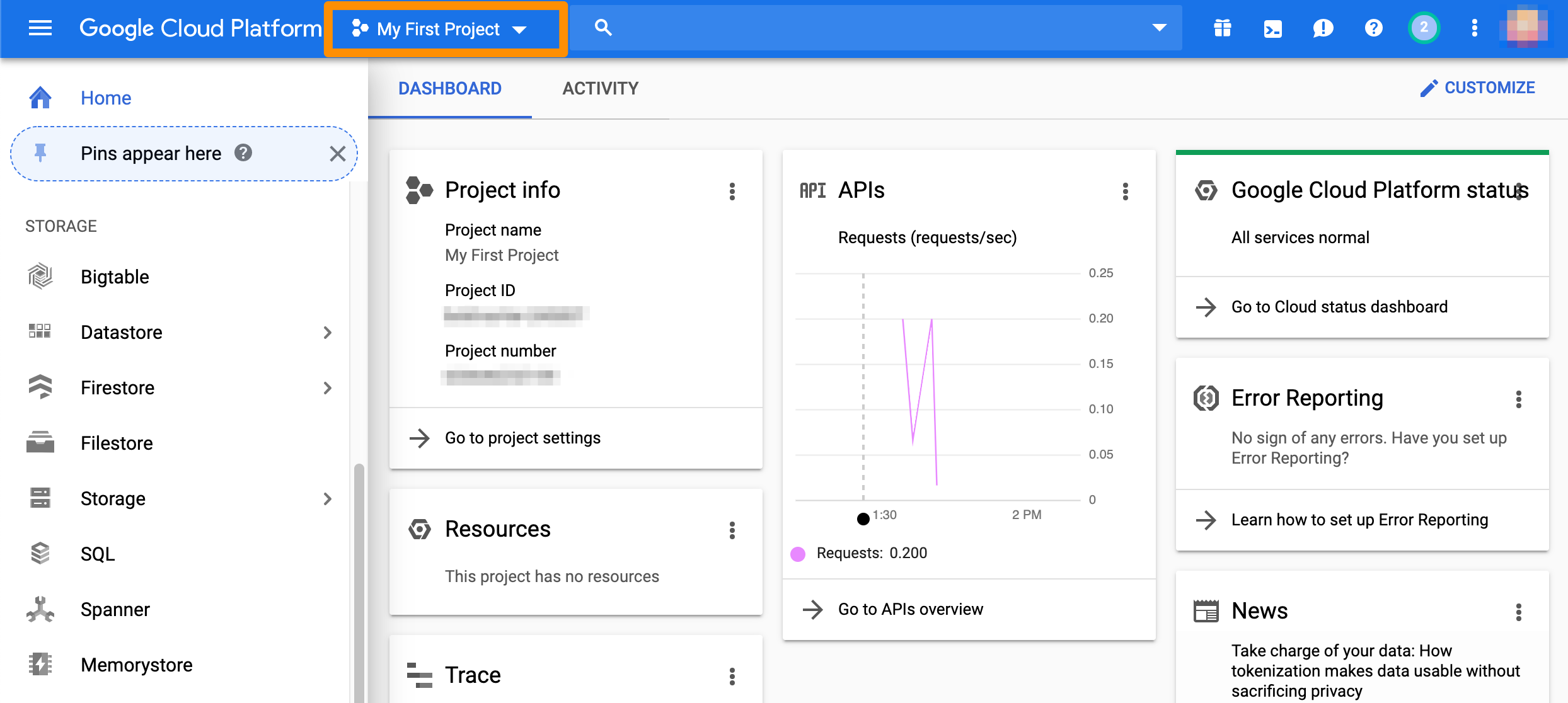
- In the toolbar at the top, make sure that you’re working with the correct project.
Step 2: Create the VPN connection
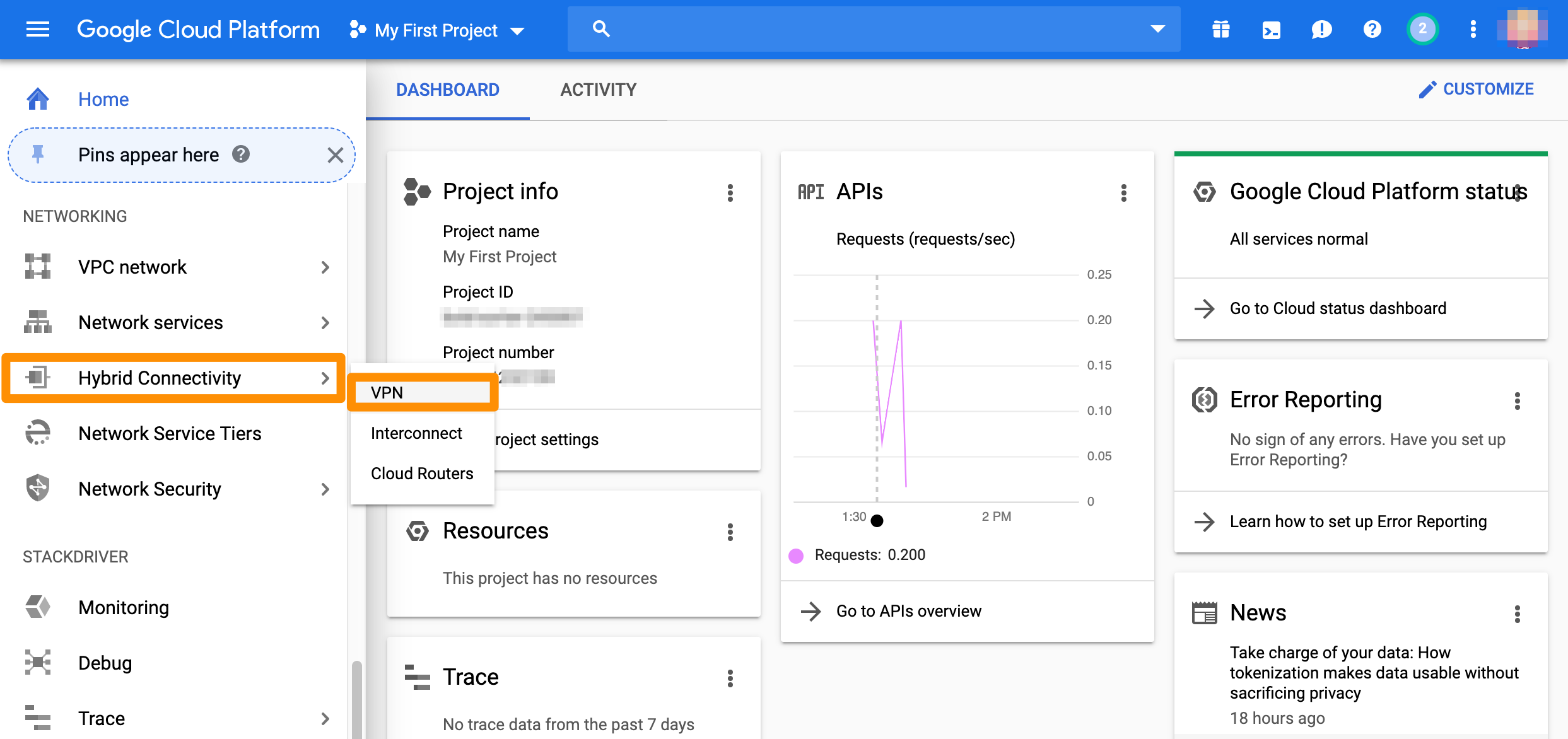
- From the GCP console sidebar, scroll to the Networking section and select Hybrid Connectivity > VPN.
Step 3a: Create gateway and tunnel
If you don’t have a classic VPN gateway that you want to use, complete the following steps.- If you don’t have any VPNs created yet, click Create VPN connection.
- If you have one or more VPNs created, click + VPN SETUP WIZARD.
- Select Classic VPN and click Continue.
The High-availability (HA) VPN is currently not supported as an option. For more information about the available options, see Google Cloud Documentation: Choosing a VPN option. - In the Google Compute Engine VPN gateway section, provide Name and Description.
- For Network, select the GCP network that needs to be able to access Orka.
- Select Region.
For more information about this setting, see Google Cloud Documentation: Regions and Zones. - Select or create a reserved IP address for the connection.
You will need this IP address when you configure the Orka side of the tunnel. - In the Tunnels section, provide Name and Description.
- For Remote peer IP address, provide your firewall’s public IP (the
FW1-Outsideaddress) from My Cloud. - For IKE version, verify that IKEv2 is selected.
- Provide or generate an IKE pre-shared key.
- For Routing options, select Policy-based.
- For Remote network IP ranges, provide the IP range in CIDR notation for the
Private-1network. This is the Subnet ID value forPrivate-1in the IP Allocation table in My Cloud. - (Optional) Select one or more GCP subnetworks to reduce latency between your GCP private cloud and your Orka private cloud.
For more information, see Google Cloud Documentation: Networks and subnets. - (Optional) Provide one or more IP ranges within your GCP local network that needs to access Orka.
- Click Done.
- Click Create.
First handshake.
Example: Create gateway and tunnel
This image shows a sample configuration for the VPN gateway and tunnel.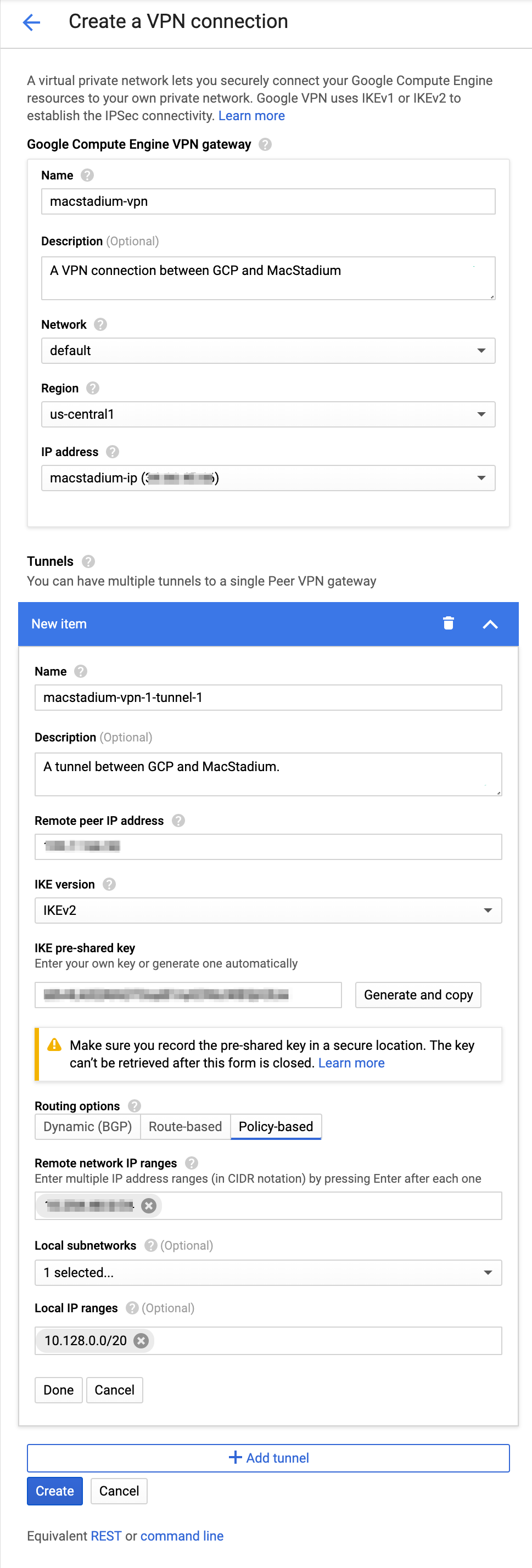
Step 3b: Add a new tunnel to an existing gateway
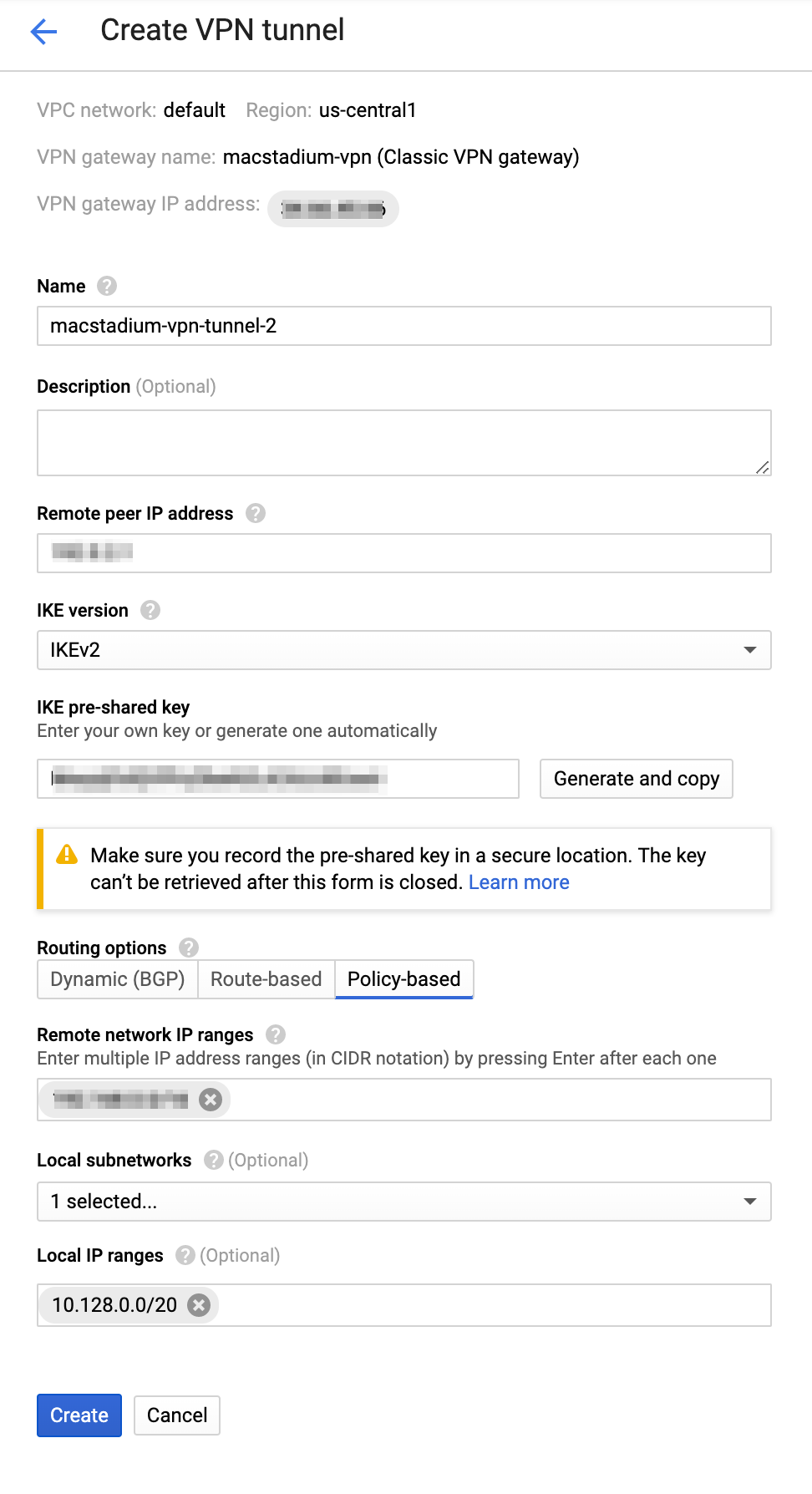
If you have an existing classic VPN gateway that you want to use for the connection, complete the following steps.- Select Cloud VPN Tunnels and click Create VPN tunnel.
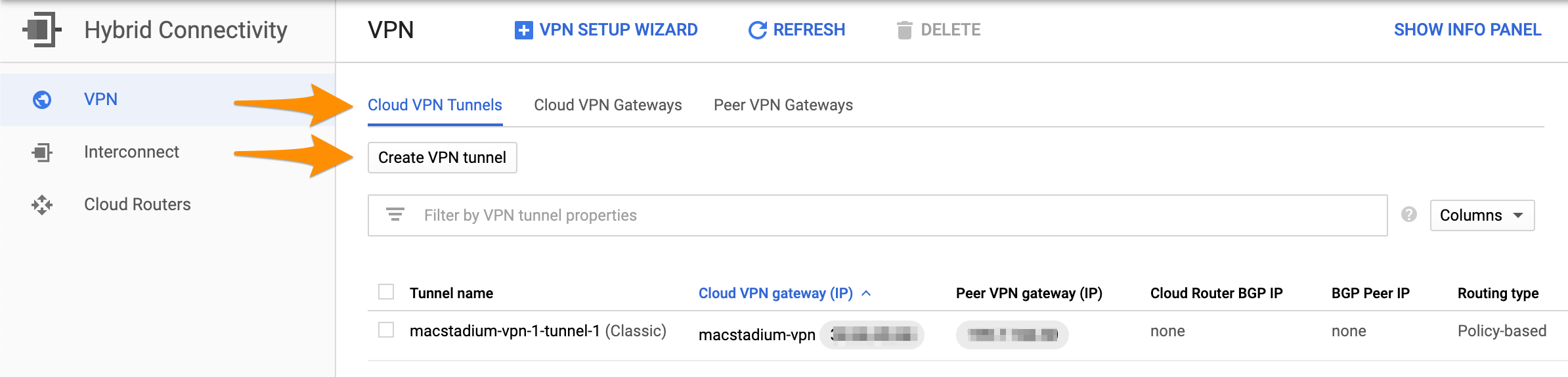
- Select the VPN gateway that you want to use and click Continue.
- Provide Name.
- (Optional) Provide Description.
- For Remote peer IP address, provide your firewall’s public IP (the
FW1-Outsideaddress) from My Cloud. - For IKE version, verify that IKEv2 is selected.
- Provide or generate an IKE pre-shared key.
- For Routing options, select Policy-based.
- For Remote network IP ranges, provide the IP range in CIDR notation for the
Private-1network. This is the Subnet ID value forPrivate-1in the IP Allocation table in My Cloud. - (Optional) Select one or more GCP subnetworks to reduce latency between your GCP private cloud and your Orka environment.
For more information, see Google Cloud Documentation: Networks and subnets. - (Optional) Provide one or more IP ranges within your GCP local network that needs to access Orka.
- Click Create.
First handshake.
Example: Create the VPN gateway and tunnel
This image shows a sample configuration for the VPN connection.